> ## Documentation Index
> Fetch the complete documentation index at: https://university.triggr-app.com/llms.txt
> Use this file to discover all available pages before exploring further.
# Microsoft Teams (Delegated)
> Send 1:1 Microsoft Teams chat messages from a service account in your MSP's tenant, through an Entra app you register.
Triggr sends 1:1 Teams chat messages as a service account in your own Microsoft 365 tenant, through an Entra app you register. It's separate from [Microsoft Graph (GDAP)](/integrations/microsoft-graph/gdap-service-account) and [Microsoft Graph (SAM)](/integrations/microsoft-graph/sam), which work in your clients' tenants.
## Set up Microsoft 365
You need an account that can create users and register apps in your tenant. See Microsoft's guide to [registering an app](https://learn.microsoft.com/en-us/entra/identity-platform/quickstart-register-app).
Create a user such as `triggr-teams@yourdomain.com` with a licence that includes Microsoft Teams. Recipients see messages from this account.
In the [Microsoft Entra admin center](https://entra.microsoft.com), go to **Entra ID > App registrations > New registration**, choose Single tenant only, click Register and copy the Application (client) ID and Directory (tenant) ID from Overview.
Under Authentication, click **Add Redirect URI** (or Add a platform), choose Web, enter `https://app.triggr-app.com/oauth/callback` and click Configure.
Go to **API permissions > Add a permission > Microsoft Graph > Delegated permissions**, tick `Chat.Create` and `ChatMessage.Send`, and click Add permissions.
Under **Certificates & secrets > Client secrets**, click New client secret and copy its Value, not its Secret ID. Note when it expires.
Neither permission needs admin consent: the service account accepts them when it signs in from Triggr, so your [user consent settings](https://learn.microsoft.com/en-us/entra/identity/enterprise-apps/configure-user-consent) must allow that.
## Connect it in Triggr
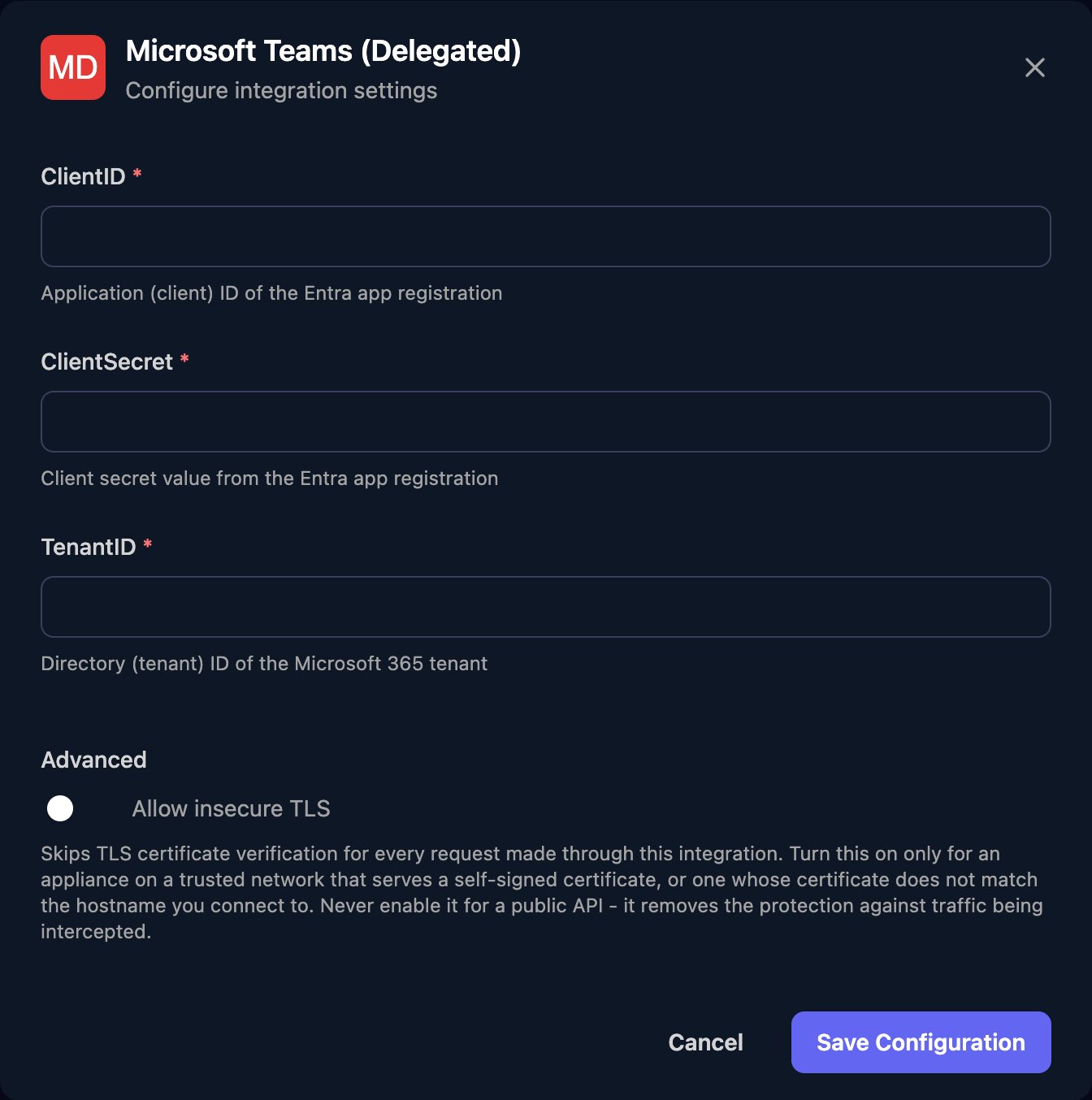
Go to **Integrations > Microsoft Teams (Delegated)** and click Configure on the Base Configuration card.
 Enter the Application (client) ID as ClientID, the secret's Value as ClientSecret and the Directory (tenant) ID as TenantID, then click Save Configuration.
 Click **Authorize** on the Base Configuration card, sign in as the service account, not as yourself, and click Accept. Last Authorized shows when it happened.
There's no per-client setup: every workflow sends from this one account.
## Send a message
Use two Generic Integration Action steps with Integration set to Microsoft Teams (Delegated) and URL Type set to Relative to base URL (`https://graph.microsoft.com/v1.0`).
Add a step named `Open chat` with Method POST, URL `/chats`, Body Type JSON and this body, which reads the recipient's user principal name from a form field with Field ID `email`:
```json theme={null}
{
"chatType": "oneOnOne",
"members": [
{
"@odata.type": "#microsoft.graph.aadUserConversationMember",
"roles": ["owner"],
"user@odata.bind": "https://graph.microsoft.com/v1.0/users('triggr-teams@yourdomain.com')"
},
{
"@odata.type": "#microsoft.graph.aadUserConversationMember",
"roles": ["owner"],
"user@odata.bind": "https://graph.microsoft.com/v1.0/users('{{ ctx.params.email }}')"
}
]
}
```
If the two already have a chat, Microsoft returns it instead of creating another.
Add a step with Method POST, URL `/chats/{{ ctx.steps['Open chat'].body.id }}/messages`, Body Type JSON and the body `{"body": {"content": {{ ctx.params.message | json }}}}`, which reads the text from a form field with Field ID `message`.
See Microsoft's [Create chat](https://learn.microsoft.com/en-us/graph/api/chat-post) and [Send message in a chat](https://learn.microsoft.com/en-us/graph/api/chat-post-messages), and [Data and expressions](/studio/workflows/expressions) for templates.
## Troubleshooting
The service account isn't allowed to consent to the app. Change your [user consent settings](https://learn.microsoft.com/en-us/entra/identity/enterprise-apps/configure-user-consent), for example by allowing consent to apps registered in your organisation and classifying `Chat.Create` and `ChatMessage.Send` as low impact.
The redirect URI doesn't match. Add `https://app.triggr-app.com/oauth/callback` as a Web redirect URI on the app, exactly as written.
The integration hasn't been authorized. Click Authorize and sign in as the service account.
Microsoft stopped renewing the sign-in, for example after a password reset or an expired client secret. Replace ClientSecret if it expired, then click Authorize again.
The app is missing `Chat.Create` or `ChatMessage.Send`. Add it, then click Authorize again so the service account accepts it.
This documentation is built and hosted on [Mintlify](https://mintlify.com), a developer documentation platform.
Click **Authorize** on the Base Configuration card, sign in as the service account, not as yourself, and click Accept. Last Authorized shows when it happened.
There's no per-client setup: every workflow sends from this one account.
## Send a message
Use two Generic Integration Action steps with Integration set to Microsoft Teams (Delegated) and URL Type set to Relative to base URL (`https://graph.microsoft.com/v1.0`).
Add a step named `Open chat` with Method POST, URL `/chats`, Body Type JSON and this body, which reads the recipient's user principal name from a form field with Field ID `email`:
```json theme={null}
{
"chatType": "oneOnOne",
"members": [
{
"@odata.type": "#microsoft.graph.aadUserConversationMember",
"roles": ["owner"],
"user@odata.bind": "https://graph.microsoft.com/v1.0/users('triggr-teams@yourdomain.com')"
},
{
"@odata.type": "#microsoft.graph.aadUserConversationMember",
"roles": ["owner"],
"user@odata.bind": "https://graph.microsoft.com/v1.0/users('{{ ctx.params.email }}')"
}
]
}
```
If the two already have a chat, Microsoft returns it instead of creating another.
Add a step with Method POST, URL `/chats/{{ ctx.steps['Open chat'].body.id }}/messages`, Body Type JSON and the body `{"body": {"content": {{ ctx.params.message | json }}}}`, which reads the text from a form field with Field ID `message`.
See Microsoft's [Create chat](https://learn.microsoft.com/en-us/graph/api/chat-post) and [Send message in a chat](https://learn.microsoft.com/en-us/graph/api/chat-post-messages), and [Data and expressions](/studio/workflows/expressions) for templates.
## Troubleshooting
The service account isn't allowed to consent to the app. Change your [user consent settings](https://learn.microsoft.com/en-us/entra/identity/enterprise-apps/configure-user-consent), for example by allowing consent to apps registered in your organisation and classifying `Chat.Create` and `ChatMessage.Send` as low impact.
The redirect URI doesn't match. Add `https://app.triggr-app.com/oauth/callback` as a Web redirect URI on the app, exactly as written.
The integration hasn't been authorized. Click Authorize and sign in as the service account.
Microsoft stopped renewing the sign-in, for example after a password reset or an expired client secret. Replace ClientSecret if it expired, then click Authorize again.
The app is missing `Chat.Create` or `ChatMessage.Send`. Add it, then click Authorize again so the service account accepts it.
This documentation is built and hosted on [Mintlify](https://mintlify.com), a developer documentation platform.