> ## Documentation Index
> Fetch the complete documentation index at: https://university.triggr-app.com/llms.txt
> Use this file to discover all available pages before exploring further.
# MSP Process
> Connect MSP Process to Triggr with a public API key to verify end users and share secrets through one-time links.
Triggr uses MSP Process to verify end users by code, Duo Push or Microsoft Authenticator, share secrets through secure links, and send contact update forms. You need an MSP Process Pro or Pro+AI plan, an admin-level user, and a PSA integration in MSP Process for verification.
## Set up MSP Process
In MSP Process (`app.mspprocess.com`), go to **Settings > Account Settings > API Keys**, click **Public API key** and copy the key. See [Using the MSP Process APIs](https://kb.mspprocess.com/using-the-msp-process-apis).
Go to **Identity Management > Verification > Verification Settings**, expand API Settings, tick Enable, select your main PSA integration and click Submit. MSP Process looks up end users in that PSA.
Verify Using Duo Push needs MSP Process's [Duo integration](https://kb.mspprocess.com/duo-verifying-an-end-user-by-sending-them-a-push-notification-through-the-duo-mobile-app), with Duo Admin API and Auth API applications under Settings > Integrations > Security Integrations. Verify Using Microsoft Authenticator needs its [Authenticator app deployed](https://kb.mspprocess.com/deploying-the-msp-process-authenticator-app-to-m365-tenants-through-the-microsoft-partner-center) to the end user's tenant.
## Connect it in Triggr
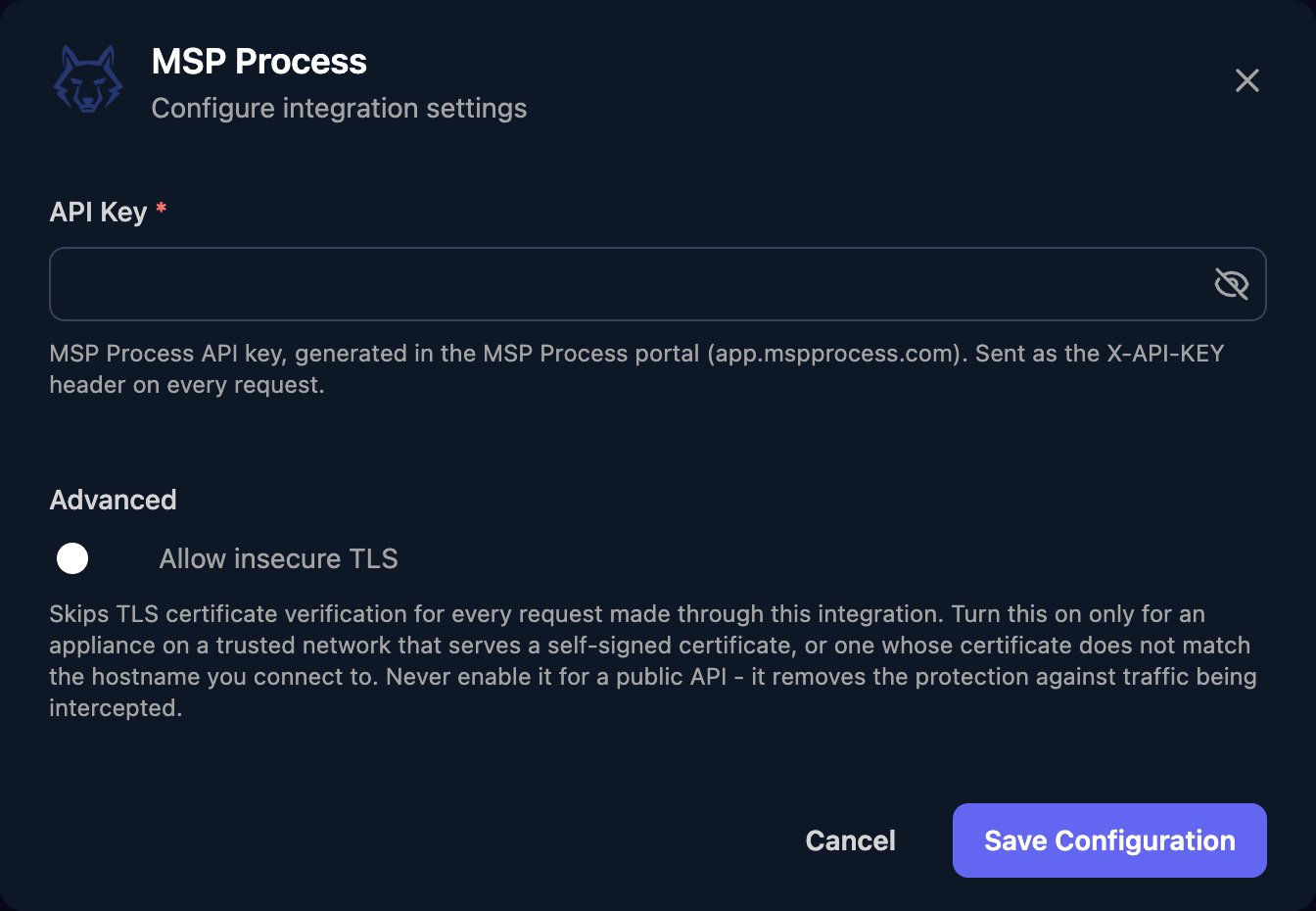
Go to **Integrations > MSP Process** and click Configure on the Base Configuration card.
 Paste the key into API Key and click Save Configuration. One key covers every client; to test it, run a Test Connection step.
 ## Use MSP Process in workflows
Every action except Test Connection takes JSON in `jsonBody`. Email addresses and phone numbers must belong to a contact in the PSA selected in API Settings.
| Action | `jsonBody` |
| - | - |
| Send Verification Code by Email | `{"email": "jane.smith@contoso.com"}` |
| Send Verification Code by SMS | `{"phone": "+15551234567"}` |
| Check Verification Code | `{"verificationCode": "123456"}` |
| Verify Using Duo Push, Verify Using Microsoft Authenticator | `{"email": "jane.smith@contoso.com"}` |
| Create Secure Text Link | `value` (required), `removeAfterView` (`true` removes it once viewed), `expirationDateUtc` (UTC) |
| Send Secure Link | `type` (`Phone` or `Email`), `value` (recipient), `link`, `content` and, for email, `subject`. Only `subject` is optional. |
| Send Contact Update Form | `crmId`, `contactId`, and `contactEmail` or `contactPhone` (at least one) |
For example, to send a link from Create Secure Text Link by email:
```json theme={null}
{
"type": "Email",
"value": "jane.smith@contoso.com",
"link": "the secure link",
"content": "Here is your new password.",
"subject": "Your new account"
}
```
## Troubleshooting
Copy the key again from the Public API Key window and paste it in full with Edit on the Base Configuration card.
Turn on the End-User Verification API and select a PSA, as in [Set up MSP Process](#set-up-msp-process). Push verification also needs MSP Process's Duo or Authenticator integration.
Check an active contact with that email address or mobile number exists in the PSA selected in API Settings.
The response's `message` says what's wrong, such as a missing field or invalid address. Check `jsonBody` against the table above.
This documentation is built and hosted on [Mintlify](https://mintlify.com), a developer documentation platform.
## Use MSP Process in workflows
Every action except Test Connection takes JSON in `jsonBody`. Email addresses and phone numbers must belong to a contact in the PSA selected in API Settings.
| Action | `jsonBody` |
| - | - |
| Send Verification Code by Email | `{"email": "jane.smith@contoso.com"}` |
| Send Verification Code by SMS | `{"phone": "+15551234567"}` |
| Check Verification Code | `{"verificationCode": "123456"}` |
| Verify Using Duo Push, Verify Using Microsoft Authenticator | `{"email": "jane.smith@contoso.com"}` |
| Create Secure Text Link | `value` (required), `removeAfterView` (`true` removes it once viewed), `expirationDateUtc` (UTC) |
| Send Secure Link | `type` (`Phone` or `Email`), `value` (recipient), `link`, `content` and, for email, `subject`. Only `subject` is optional. |
| Send Contact Update Form | `crmId`, `contactId`, and `contactEmail` or `contactPhone` (at least one) |
For example, to send a link from Create Secure Text Link by email:
```json theme={null}
{
"type": "Email",
"value": "jane.smith@contoso.com",
"link": "the secure link",
"content": "Here is your new password.",
"subject": "Your new account"
}
```
## Troubleshooting
Copy the key again from the Public API Key window and paste it in full with Edit on the Base Configuration card.
Turn on the End-User Verification API and select a PSA, as in [Set up MSP Process](#set-up-msp-process). Push verification also needs MSP Process's Duo or Authenticator integration.
Check an active contact with that email address or mobile number exists in the PSA selected in API Settings.
The response's `message` says what's wrong, such as a missing field or invalid address. Check `jsonBody` against the table above.
This documentation is built and hosted on [Mintlify](https://mintlify.com), a developer documentation platform.