> ## Documentation Index
> Fetch the complete documentation index at: https://university.triggr-app.com/llms.txt
> Use this file to discover all available pages before exploring further.
# N-able N-central
> Connect N-able N-central to Triggr with an API-only user's JSON Web Token, and map your clients to N-central customers.
Triggr works with N-central customers, sites, devices, custom properties, scripts, issues and users through the REST API, as a dedicated API-only user. You need N-central 2023.9 or later (2025.4 for patch comparison reports), reachable over HTTPS at a public address; if a firewall sits in front of it, allow [Triggr's IP addresses](/security/ip-allowlist).
## Set up N-central
Pick a least-privilege [role](https://documentation.n-able.com/N-central/userguide/Content/User_Management/Role%20Based%20Permissions/role_based_permissions_create_role.htm) that can do in the UI what Triggr should do, and [access groups](https://documentation.n-able.com/N-central/userguide/Content/User_Management/Role%20Based%20Permissions/role_based_permissions_access_group_create.htm) that include every customer you'll map; Triggr only sees customers and devices in them. Both are under Administration > User Management.
At your service organization level, not under a customer, go to **Administration > User Management > Users** and click **Create User**. Assign the role and access groups on the Role and Access Groups tabs, clear Use Two-Factor Authentication under User Details > User Information (and tick MFA Not Required if MFA is enforced), then click Save.
Open the user, click the API Access tab, tick **API-Only User** and click **Generate JSON Web Token**. Copy the token, then click OK and Save. Generating a new token revokes the old one. See N-able's [Create an API-only user](https://developer.n-able.com/n-central/docs/create-an-api-only-user).
In **Configuration > Scheduled Tasks > Script/Software Repository**, turn on Enable API for each script or Automation Policy Triggr should run. Its Repository ID is the `itemId` for Run Script or Automation Policy; pass a script's command line as `CommandLine`, and an Automation Policy's inputs by their Input Parameter names. See N-able's [Manage tasks and jobs](https://developer.n-able.com/n-central/docs/manage-tasks-and-jobs).
## Connect it in Triggr
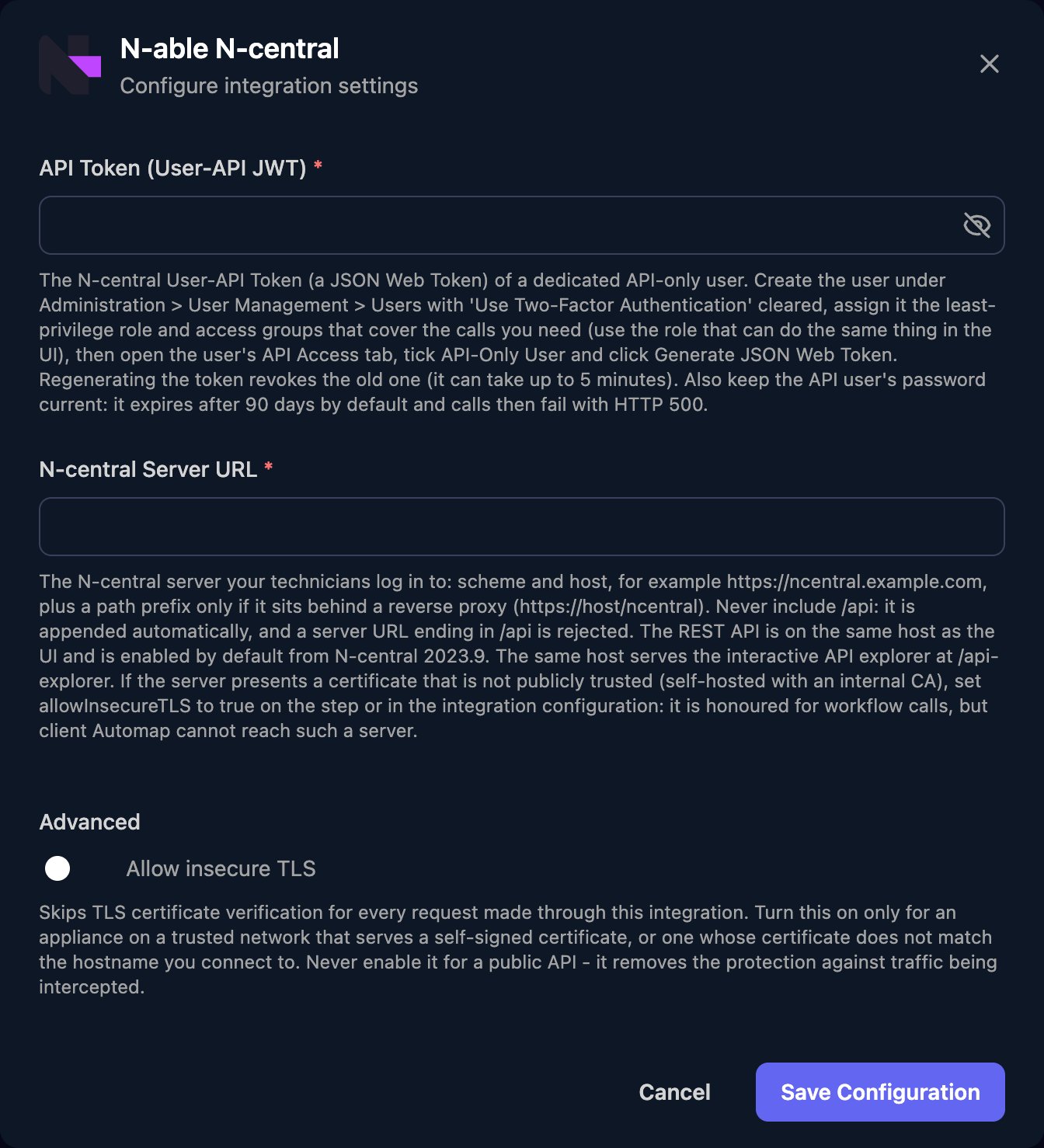
Go to **Integrations > N-able N-central** and click Configure on the Base Configuration card.
 Paste the token into API Token (User-API JWT). In N-central Server URL, enter the final address you sign in at, such as `https://ncentral.example.com`, without `/api` (add a path only behind a reverse proxy). Turn on Allow insecure TLS for a self-signed or internal certificate, then click Save Configuration.
 ## Map your clients
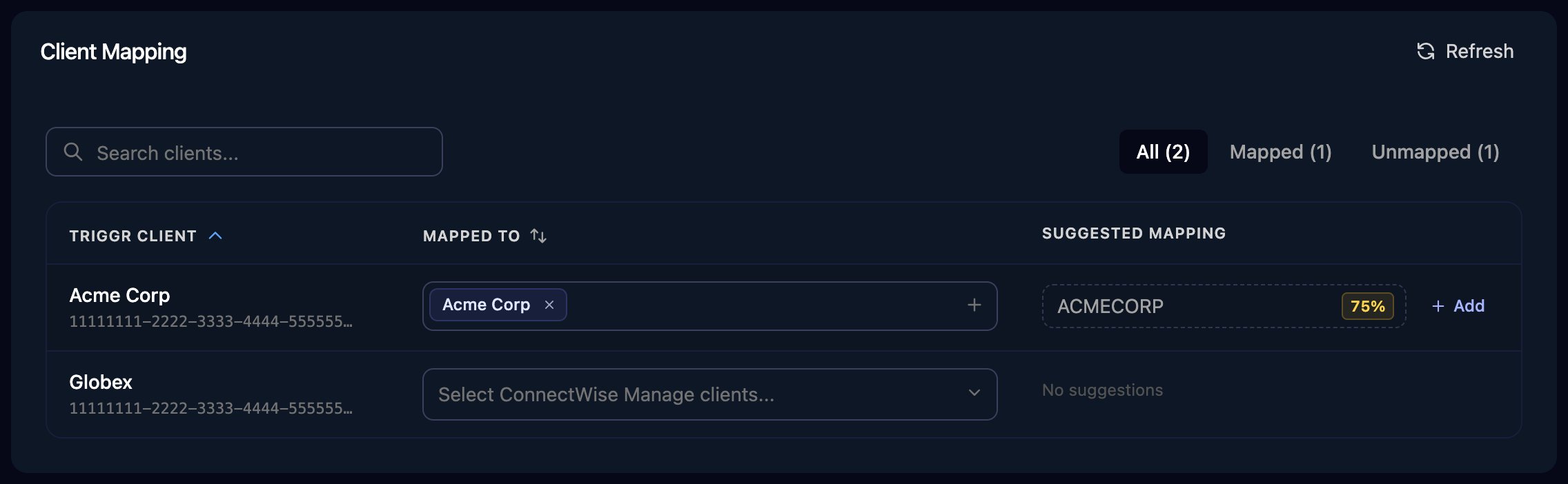
On the Client Mapping card, click **Apply 100% Matches**, then choose the customer in Mapped to for anyone left. Triggr saves each match as the client's `ncentralCustomerId` variable, which is also the customer's org unit ID, so use it wherever an action asks for either. A client mapped to several customers gets comma-separated IDs.
## Map your clients
On the Client Mapping card, click **Apply 100% Matches**, then choose the customer in Mapped to for anyone left. Triggr saves each match as the client's `ncentralCustomerId` variable, which is also the customer's org unit ID, so use it wherever an action asks for either. A client mapped to several customers gets comma-separated IDs.
 Allow insecure TLS covers workflow actions, not Client Mapping. If your server's certificate isn't publicly trusted, set each client's `ncentralCustomerId` variable yourself: open the client in Clients, click **Manage Variables** on the Variables card, then New Variable. The ID is the `customerId` from List Customers.
## Troubleshooting
Triggr couldn't get a token from `/api/auth/authenticate`. For 401 or 403, check the token is current and the user is enabled, API-Only User and without two-factor authentication. For 404, check the server URL and version. For a redirect, use the server's final address. If only Client Mapping fails and Allow insecure TLS is on, see [Map your clients](#map-your-clients).
Enter N-central Server URL as `https://` plus the host only, such as `https://ncentral.example.com`. Triggr adds `/api` itself and never sends the token over `http://`.
The API user's password expired (every 90 days by default). Set a new one in N-central and, if calls still fail, generate a new token. See N-able's [known issues](https://developer.n-able.com/n-central/docs/rest-api-known-issues-and-limitations).
Add them to an access group assigned to the API user, then click Refresh on Client Mapping.
Give the user's role the permission a technician would need. For scripts, also check Enable API is on.
This documentation is built and hosted on [Mintlify](https://mintlify.com), a developer documentation platform.
Allow insecure TLS covers workflow actions, not Client Mapping. If your server's certificate isn't publicly trusted, set each client's `ncentralCustomerId` variable yourself: open the client in Clients, click **Manage Variables** on the Variables card, then New Variable. The ID is the `customerId` from List Customers.
## Troubleshooting
Triggr couldn't get a token from `/api/auth/authenticate`. For 401 or 403, check the token is current and the user is enabled, API-Only User and without two-factor authentication. For 404, check the server URL and version. For a redirect, use the server's final address. If only Client Mapping fails and Allow insecure TLS is on, see [Map your clients](#map-your-clients).
Enter N-central Server URL as `https://` plus the host only, such as `https://ncentral.example.com`. Triggr adds `/api` itself and never sends the token over `http://`.
The API user's password expired (every 90 days by default). Set a new one in N-central and, if calls still fail, generate a new token. See N-able's [known issues](https://developer.n-able.com/n-central/docs/rest-api-known-issues-and-limitations).
Add them to an access group assigned to the API user, then click Refresh on Client Mapping.
Give the user's role the permission a technician would need. For scripts, also check Enable API is on.
This documentation is built and hosted on [Mintlify](https://mintlify.com), a developer documentation platform.