> ## Documentation Index
> Fetch the complete documentation index at: https://university.triggr-app.com/llms.txt
> Use this file to discover all available pages before exploring further.
# Onetime Secret
> Connect Onetime Secret to Triggr with your region, account username and API token, so workflows can share secrets as one-time links.
Triggr shares passwords and other secrets as Onetime Secret links that work once. Every Onetime Secret plan includes the API.
## Set up Onetime Secret
Your region is the address you sign in at: `us`, `eu`, `ca`, `uk` or `nz`, as in `eu.onetimesecret.com`. An account exists only in the region where it was created. See [regions](https://docs.onetimesecret.com/en/regions/).
In your account settings, select **API Key** (`/account/settings/api`), click **Generate Token** and copy it. A new token replaces the old one.
## Connect it in Triggr
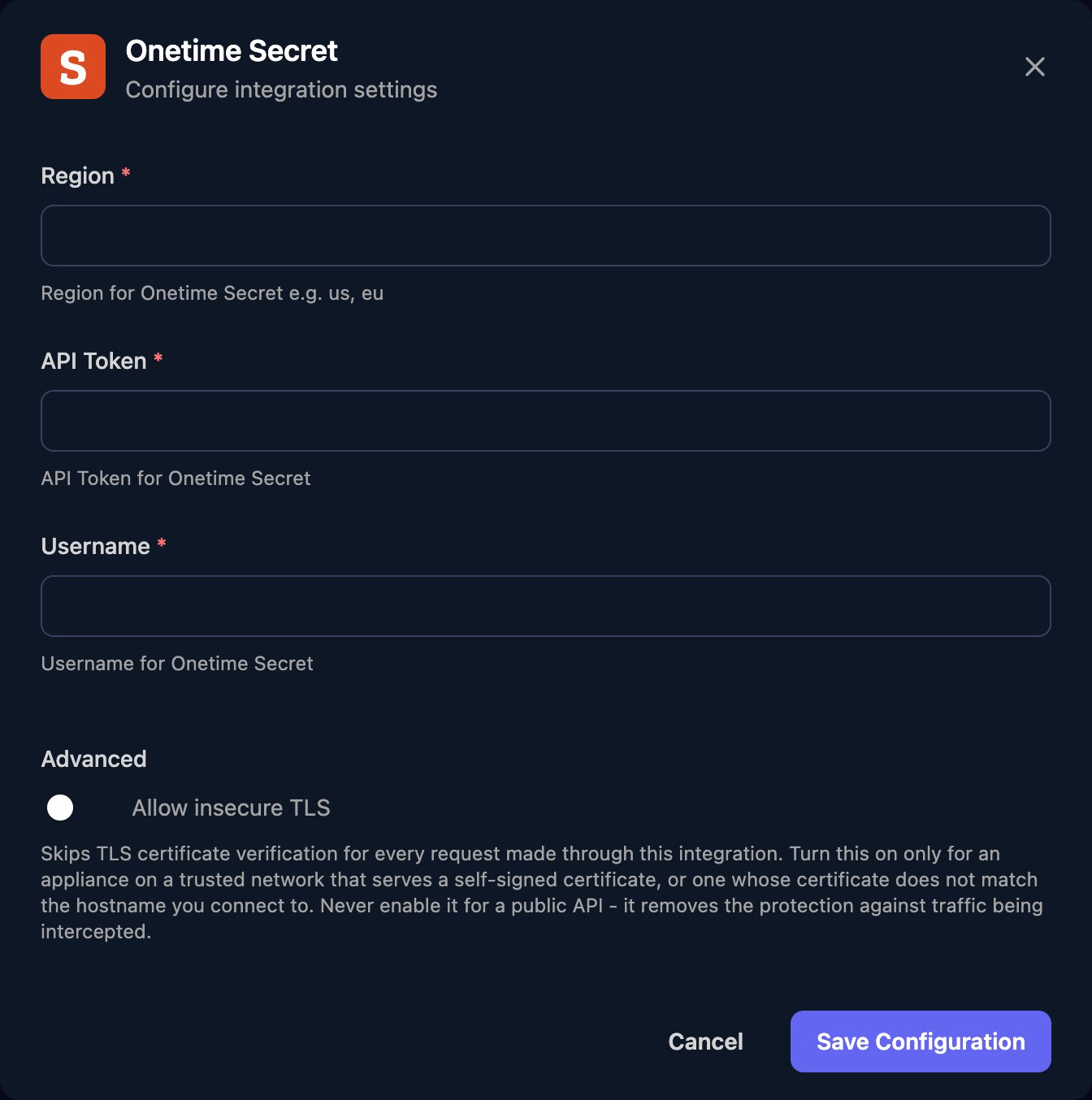
Go to **Integrations > Onetime Secret** and click Configure on the Base Configuration card.
 Enter your Region in lower case (for example `eu`), the API Token, and your account email (or the API Username ID from the API Key page) as Username, then click Save Configuration.
 ## Share secrets from workflows
Share Secret takes `secret` and these optional inputs:
* `passphrase`: the recipient must enter it to see the secret.
* `ttlInSeconds`: how long the link lasts, 7 days if left out. The minimum is 60 seconds; the maximum is 14 days on Basic and 30 days on paid plans.
* `emailRecipient`: an address Onetime Secret emails the link to.
* `shareDomain`: a custom domain on your account, used in the link.
Triggr sends these in the query string, so URL-encode `secret` and `passphrase` first (for example with `encodeURIComponent` in a code step).
Send the recipient `https://.onetimesecret.com/secret/` (or your `shareDomain`), using `secret_key` from the response. `https://.onetimesecret.com/receipt/` is for you: it shows whether the secret was viewed and lets you burn it.
## Troubleshooting
Check Region is where your account was created, and Username and API Token are current and pasted in full.
URL-encode `secret` and `passphrase` before passing them in. Characters such as `+`, `&` and `%` change meaning in a query string.
Onetime Secret rejects addresses it can't deliver to. Check `emailRecipient` is complete and correct.
This documentation is built and hosted on [Mintlify](https://mintlify.com), a developer documentation platform.
## Share secrets from workflows
Share Secret takes `secret` and these optional inputs:
* `passphrase`: the recipient must enter it to see the secret.
* `ttlInSeconds`: how long the link lasts, 7 days if left out. The minimum is 60 seconds; the maximum is 14 days on Basic and 30 days on paid plans.
* `emailRecipient`: an address Onetime Secret emails the link to.
* `shareDomain`: a custom domain on your account, used in the link.
Triggr sends these in the query string, so URL-encode `secret` and `passphrase` first (for example with `encodeURIComponent` in a code step).
Send the recipient `https://.onetimesecret.com/secret/` (or your `shareDomain`), using `secret_key` from the response. `https://.onetimesecret.com/receipt/` is for you: it shows whether the secret was viewed and lets you burn it.
## Troubleshooting
Check Region is where your account was created, and Username and API Token are current and pasted in full.
URL-encode `secret` and `passphrase` before passing them in. Characters such as `+`, `&` and `%` change meaning in a query string.
Onetime Secret rejects addresses it can't deliver to. Check `emailRecipient` is complete and correct.
This documentation is built and hosted on [Mintlify](https://mintlify.com), a developer documentation platform.