> ## Documentation Index
> Fetch the complete documentation index at: https://university.triggr-app.com/llms.txt
> Use this file to discover all available pages before exploring further.
# OpenAI
> Connect OpenAI to Triggr with an OpenAI API key, so workflows can send prompts to OpenAI models.
Triggr sends prompts to OpenAI's Chat Completions API. You need an OpenAI API platform account with credit or billing set up.
## Set up OpenAI
On OpenAI's [API keys](https://platform.openai.com/settings/organization/api-keys) page, click **Create new secret key**. Name it `Triggr`, choose a project, and set Permissions to All or Restricted with chat completions (`/v1/chat/completions`). A service account keeps it independent of a person.
Create the key and copy it; OpenAI shows it only once. If you set an expiry date, note it so you can [rotate the key](#rotate-the-key).
## Connect it in Triggr
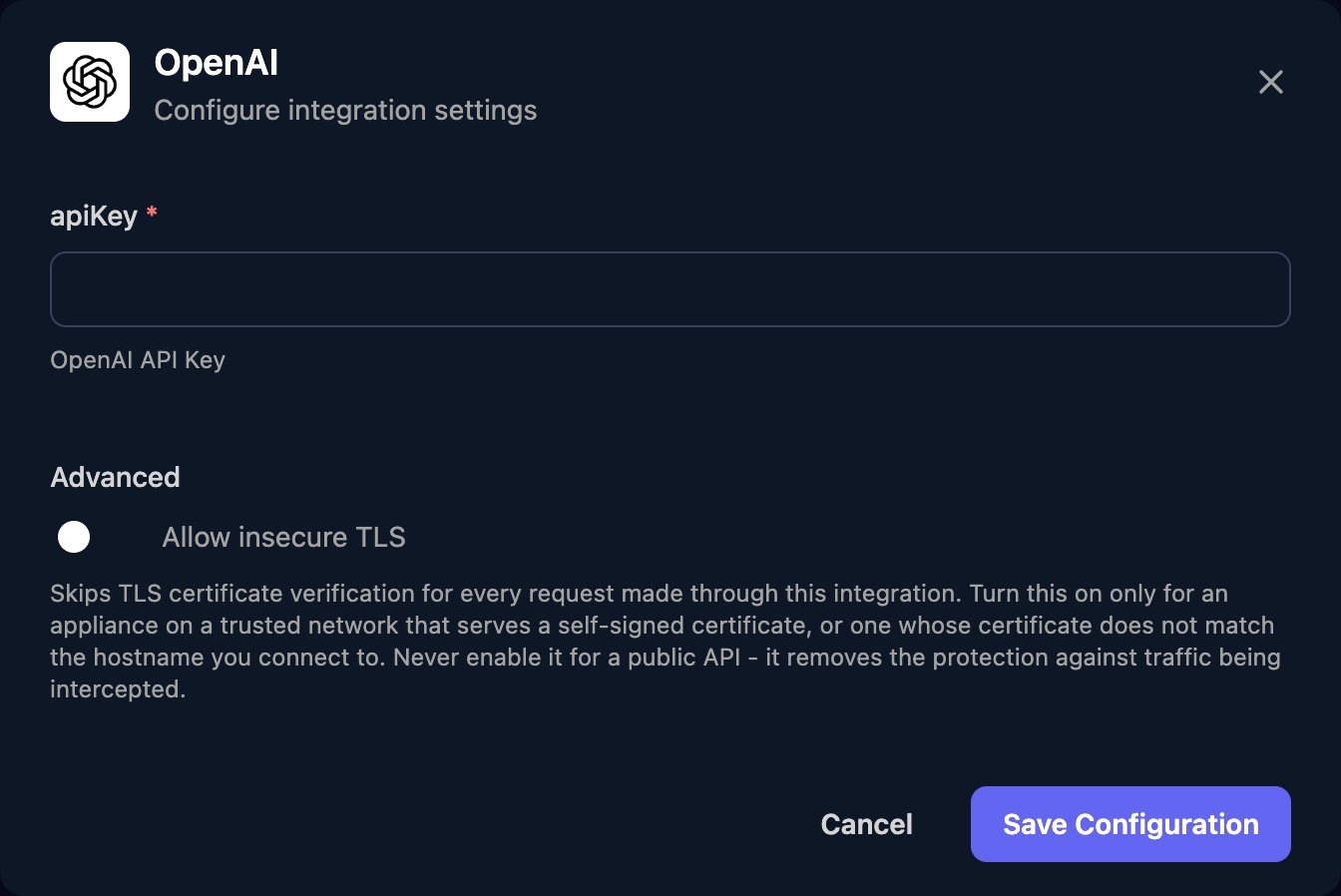
Go to **Integrations > OpenAI** and click Configure on the Base Configuration card.
 Paste the key into apiKey and click Save Configuration.
 ## Send a prompt from a workflow
OpenAI Raw Request sends the JSON in `jsonBody` to `https://api.openai.com/v1/chat/completions`, in the format of OpenAI's [Create chat completion](https://developers.openai.com/api/reference/resources/chat/subresources/completions/methods/create) reference:
```json theme={null}
{
"model": "gpt-6-astra",
"messages": [
{ "role": "developer", "content": "Summarise this IT support ticket in one sentence for a technician." },
{ "role": "user", "content": "New starter can't sign in to Outlook after this morning's password reset." }
]
}
```
Instructions go in the `developer` message (`system` on older models) and input in the `user` message. Model IDs are on OpenAI's [models](https://developers.openai.com/api/docs/models) page. The reply is in `choices[0].message.content`.
For a reply in a fixed JSON shape, add `response_format` with a JSON schema ([Structured Outputs](https://developers.openai.com/api/docs/guides/structured-outputs)). Leave `stream` unset, and cap reply length with `max_completion_tokens`, not the deprecated `max_tokens`.
## Rotate the key
Create a new key, paste it into apiKey with **Edit** on the Base Configuration card and save, then revoke the old key in OpenAI.
## Troubleshooting
`Incorrect API key provided` or `Invalid Authentication`: paste a current key in full. `IP not authorized`: add [Triggr's IP addresses](/security/ip-allowlist) to your OpenAI organisation's or project's allowlist.
`credit_balance_exhausted`: add credits. `organization_spend_limit_exceeded` or `project_spend_limit_exceeded`: raise that limit. `organization_usage_limit_exceeded`: ask OpenAI for more. Rate limits or `slow_down`: run fewer requests at once.
Check the body is valid JSON (escape quotes and line breaks in text from earlier steps), the model accepts each parameter, and the model ID is right and available to your project.
This documentation is built and hosted on [Mintlify](https://mintlify.com), a developer documentation platform.
## Send a prompt from a workflow
OpenAI Raw Request sends the JSON in `jsonBody` to `https://api.openai.com/v1/chat/completions`, in the format of OpenAI's [Create chat completion](https://developers.openai.com/api/reference/resources/chat/subresources/completions/methods/create) reference:
```json theme={null}
{
"model": "gpt-6-astra",
"messages": [
{ "role": "developer", "content": "Summarise this IT support ticket in one sentence for a technician." },
{ "role": "user", "content": "New starter can't sign in to Outlook after this morning's password reset." }
]
}
```
Instructions go in the `developer` message (`system` on older models) and input in the `user` message. Model IDs are on OpenAI's [models](https://developers.openai.com/api/docs/models) page. The reply is in `choices[0].message.content`.
For a reply in a fixed JSON shape, add `response_format` with a JSON schema ([Structured Outputs](https://developers.openai.com/api/docs/guides/structured-outputs)). Leave `stream` unset, and cap reply length with `max_completion_tokens`, not the deprecated `max_tokens`.
## Rotate the key
Create a new key, paste it into apiKey with **Edit** on the Base Configuration card and save, then revoke the old key in OpenAI.
## Troubleshooting
`Incorrect API key provided` or `Invalid Authentication`: paste a current key in full. `IP not authorized`: add [Triggr's IP addresses](/security/ip-allowlist) to your OpenAI organisation's or project's allowlist.
`credit_balance_exhausted`: add credits. `organization_spend_limit_exceeded` or `project_spend_limit_exceeded`: raise that limit. `organization_usage_limit_exceeded`: ask OpenAI for more. Rate limits or `slow_down`: run fewer requests at once.
Check the body is valid JSON (escape quotes and line breaks in text from earlier steps), the model accepts each parameter, and the model ID is right and available to your project.
This documentation is built and hosted on [Mintlify](https://mintlify.com), a developer documentation platform.