> ## Documentation Index
> Fetch the complete documentation index at: https://university.triggr-app.com/llms.txt
> Use this file to discover all available pages before exploring further.
# Password Pusher
> Connect Password Pusher, on pwpush.com or self-hosted, to Triggr with your server's hostname and an API token.
Triggr creates expiring Password Pusher links for passwords and files, on pwpush.com or your own server.
## Set up Password Pusher
On pwpush.com, use your region's host, `eu.pwpush.com` or `us.pwpush.com` (the footer shows it; see [data regions](https://docs.pwpush.com/docs/regions/)). A self-hosted server needs HTTPS at a public address, with [Triggr's IP addresses](/security/ip-allowlist) allowed through any firewall.
On pwpush.com, open `/api_tokens` on your region's host, such as `https://eu.pwpush.com/api_tokens`. On a self-hosted server, select **API Token** in your account menu and click the blurred token to reveal it.
## Connect it in Triggr
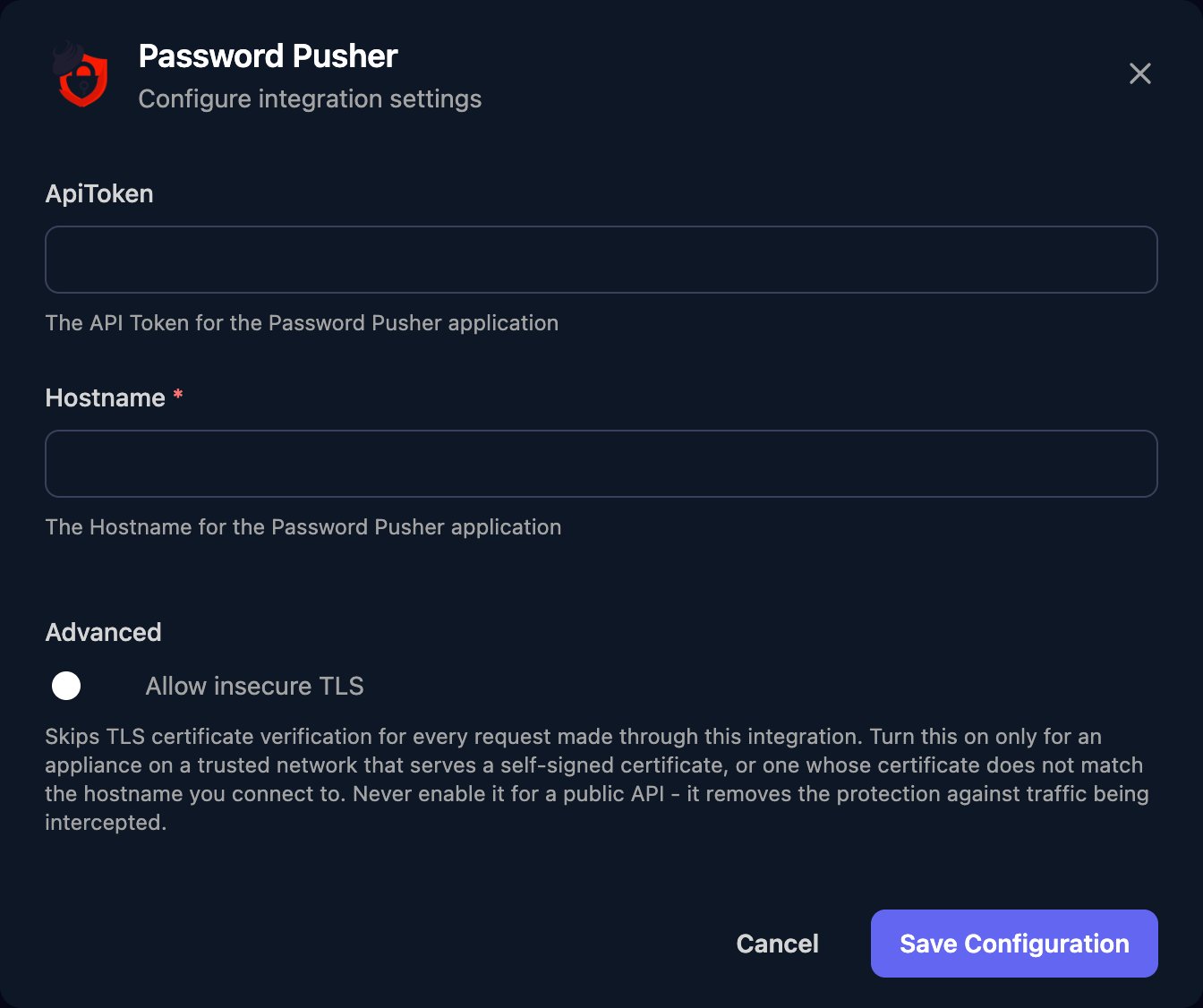
Go to **Integrations > Password Pusher** and click **Configure** on the Base Configuration card.
 Enter the host name alone in Hostname, adding a port only if it isn't 443 (`pwpush.example.com:8443`), and the token in ApiToken. Turn on Allow insecure TLS for a self-signed certificate, then click Save Configuration.
 ## Create pushes from workflows
Create a Push (Authenticated) takes JSON in `jsonBody`, in Password Pusher's [JSON API](https://docs.pwpush.com/docs/api-v1/) format. Send the response's `html_url` to the recipient.
```json theme={null}
{
"password": {
"payload": "Example-Only-Password-1",
"expire_after_days": 7,
"expire_after_views": 3,
"retrieval_step": true
}
}
```
* The link expires at whichever limit comes first. `retrieval_step` adds a click-through page so link previews don't use up views; `passphrase` and `note` are optional.
* Create File Push (Authenticated) takes one `file_push[files][]` File row per file in its Form Data (multipart) editor, plus optional Text fields `file_push[payload]`, `file_push[expire_after_days]`, `file_push[expire_after_views]`, `file_push[retrieval_step]` and `file_push[passphrase]`. File pushes need a pwpush.com plan with file uploads, or `PWP__ENABLE_FILE_PUSHES` on your server.
* Create a Push sends no token, so it only works on servers that allow anonymous pushes. Retrieving a push by its `urlToken` counts as a view.
## Troubleshooting
Check ApiToken is current, pasted in full, and from the same server or region as Hostname.
The server doesn't accept anonymous pushes. Use Create a Push (Authenticated).
Check Hostname has no `https://` or path, and uses your region's host rather than `pwpush.com`. For certificate errors, turn on Allow insecure TLS.
Every field name must start with `file_push[`. Check your plan includes file uploads, or set `PWP__ENABLE_FILE_PUSHES` on your server.
This documentation is built and hosted on [Mintlify](https://mintlify.com), a developer documentation platform.
## Create pushes from workflows
Create a Push (Authenticated) takes JSON in `jsonBody`, in Password Pusher's [JSON API](https://docs.pwpush.com/docs/api-v1/) format. Send the response's `html_url` to the recipient.
```json theme={null}
{
"password": {
"payload": "Example-Only-Password-1",
"expire_after_days": 7,
"expire_after_views": 3,
"retrieval_step": true
}
}
```
* The link expires at whichever limit comes first. `retrieval_step` adds a click-through page so link previews don't use up views; `passphrase` and `note` are optional.
* Create File Push (Authenticated) takes one `file_push[files][]` File row per file in its Form Data (multipart) editor, plus optional Text fields `file_push[payload]`, `file_push[expire_after_days]`, `file_push[expire_after_views]`, `file_push[retrieval_step]` and `file_push[passphrase]`. File pushes need a pwpush.com plan with file uploads, or `PWP__ENABLE_FILE_PUSHES` on your server.
* Create a Push sends no token, so it only works on servers that allow anonymous pushes. Retrieving a push by its `urlToken` counts as a view.
## Troubleshooting
Check ApiToken is current, pasted in full, and from the same server or region as Hostname.
The server doesn't accept anonymous pushes. Use Create a Push (Authenticated).
Check Hostname has no `https://` or path, and uses your region's host rather than `pwpush.com`. For certificate errors, turn on Allow insecure TLS.
Every field name must start with `file_push[`. Check your plan includes file uploads, or set `PWP__ENABLE_FILE_PUSHES` on your server.
This documentation is built and hosted on [Mintlify](https://mintlify.com), a developer documentation platform.