> ## Documentation Index
> Fetch the complete documentation index at: https://university.triggr-app.com/llms.txt
> Use this file to discover all available pages before exploring further.
# Pax8
> Connect Pax8 to Triggr with a Pax8 API credential (client ID and secret).
Triggr works with Pax8 companies, products, orders, subscriptions and invoices. You need the Partner Admin or Primary Partner Admin role in Pax8.
## Set up Pax8
In Pax8, go to Integrations > [API credentials](https://app.pax8.com/integrations/credentials), click **+ Create API credential**, name it `Triggr` and click Save.
Copy `client_id` and `client_secret` from the generated cURL example. The credential has full access to your partner API, so store the secret like a password.
See Pax8's [Using Pax8's APIs](https://devx.pax8.com/docs/public-api-details).
## Connect it in Triggr
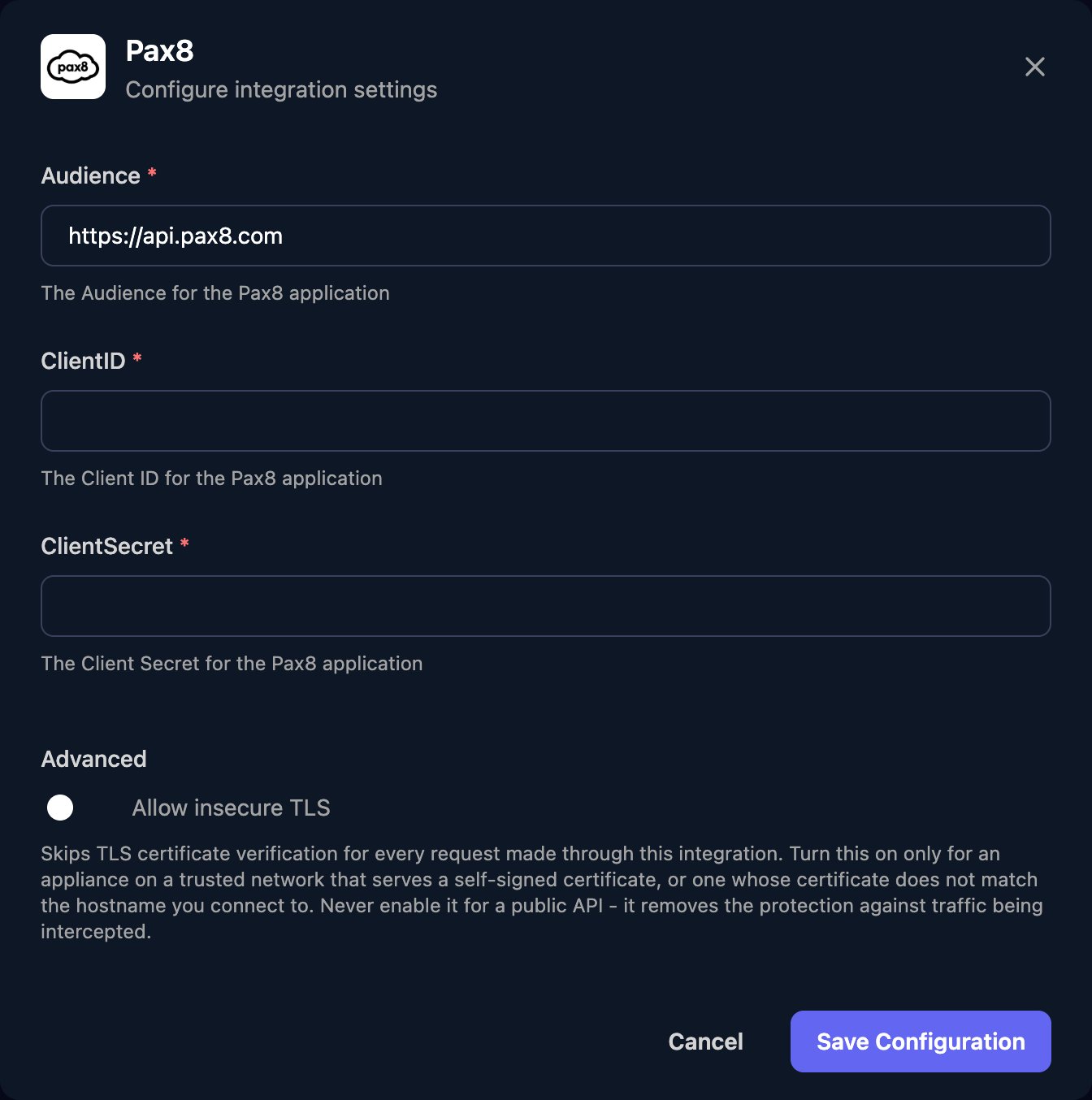
Go to **Integrations > Pax8** and click **Configure** on the Base Configuration card.
 Leave Audience as `https://api.pax8.com`, enter the ClientID and ClientSecret and click Save Configuration.
 Actions for one customer take its Pax8 company ID, which List Companies returns.
## Use it in Triggr Core
Core can buy a licence seat at Pax8 when a new starter has none free. Set **Default distributor** to Pax8 in Core's Settings > General, then link each client to its Pax8 company (saved as the client's `pax8Id` variable) and map its licences. See [Licences and distributors](/core/manage/licences-and-distributors#buy-seats-automatically).
## Troubleshooting
Check ClientID and ClientSecret have no spaces or quotation marks from the cURL example, Audience is exactly `https://api.pax8.com`, and the credential still exists in Pax8.
Core found no saved Pax8 connection. Save the Base Configuration with all three fields, then run the onboarding again.
In Core, open the client, click Map next to Pax8 under Integrations, pick its Pax8 company and click Save mapping.
Create a new API credential, then paste its details with Edit on the Base Configuration card.
Pax8 pages results from `0`; request pages up to `totalPages` minus one. Subscription lists return at most 200 per page.
Pax8 allows 1,000 successful calls a minute. Run large workflows in smaller batches, or email [integrations@pax8.com](mailto:integrations@pax8.com) for a higher limit.
This documentation is built and hosted on [Mintlify](https://mintlify.com), a developer documentation platform.
Actions for one customer take its Pax8 company ID, which List Companies returns.
## Use it in Triggr Core
Core can buy a licence seat at Pax8 when a new starter has none free. Set **Default distributor** to Pax8 in Core's Settings > General, then link each client to its Pax8 company (saved as the client's `pax8Id` variable) and map its licences. See [Licences and distributors](/core/manage/licences-and-distributors#buy-seats-automatically).
## Troubleshooting
Check ClientID and ClientSecret have no spaces or quotation marks from the cURL example, Audience is exactly `https://api.pax8.com`, and the credential still exists in Pax8.
Core found no saved Pax8 connection. Save the Base Configuration with all three fields, then run the onboarding again.
In Core, open the client, click Map next to Pax8 under Integrations, pick its Pax8 company and click Save mapping.
Create a new API credential, then paste its details with Edit on the Base Configuration card.
Pax8 pages results from `0`; request pages up to `totalPages` minus one. Subscription lists return at most 200 per page.
Pax8 allows 1,000 successful calls a minute. Run large workflows in smaller batches, or email [integrations@pax8.com](mailto:integrations@pax8.com) for a higher limit.
This documentation is built and hosted on [Mintlify](https://mintlify.com), a developer documentation platform.