> ## Documentation Index
> Fetch the complete documentation index at: https://university.triggr-app.com/llms.txt
> Use this file to discover all available pages before exploring further.
# Petra Security
> Connect Petra Security to Triggr with an API key from the Petra portal.
Triggr reads Microsoft 365 identity-threat data from Petra Security: tenants, incidents, failed attacks and usage. One key covers every tenant in your Petra organisation.
## Set up Petra Security
Sign in to the [Petra portal](https://app.petrasecurity.com) as an Admin, go to **Settings > API Keys** and click **Create API Key**. Enter a description such as `Triggr` and click Create API Key again.
Copy the key, which starts with `petra_`. Petra shows it only once.
See Petra's [API authentication guide](https://docs.petrasecurity.com/docs/api-reference/authentication).
## Connect it in Triggr
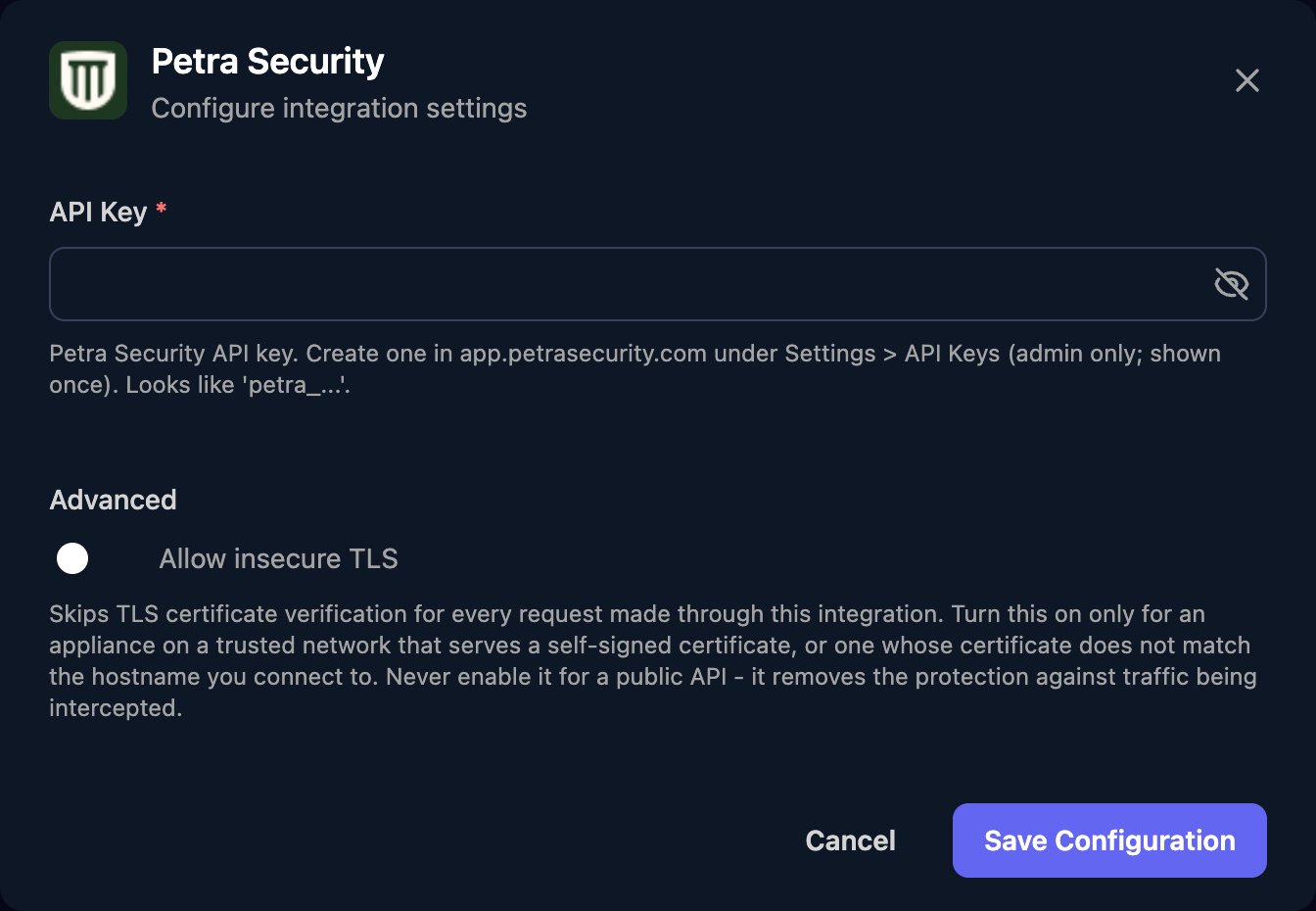
Go to **Integrations > Petra Security** and click **Configure** on the Base Configuration card.
 Paste the key into API Key and click Save Configuration.
 ## Tenant IDs and action inputs
Run List Tenants to get each tenant's `petraTenantId` and `microsoftTenantId`. The Petra ID is also in the portal URL: `app.petrasecurity.com/tenant/`.
| Action | Inputs |
| - | - |
| List Tenants | None. Includes paused tenants, not removed ones. |
| Get Usage Stats | `asOf` (optional, defaults to today) |
| Get Billable Users | `tenantId`: the Petra tenant ID (required) |
| Get Incidents | `tenantId`: Petra or Microsoft ID, blank for every tenant. `startDate` and `limit` (default 100, maximum 500) are optional. |
| Get Failed Attacks | `tenantId`: Petra or Microsoft ID (required). `startDate` and `endDate` are optional; the default is the last 30 days. |
Enter dates as `2026-03-01` or a UTC date-time ending in `Z`. Petra's [API reference](https://docs.petrasecurity.com/docs/api-reference/introduction) describes what each action returns.
## Troubleshooting
Check the key is pasted in full, starts with `petra_`, still exists under Settings > API Keys, and comes from the organisation that holds your tenants.
Use a tenant ID from List Tenants. Get Billable Users needs the Petra ID, not the Microsoft one.
Petra rejected a date. Use `YYYY-MM-DD` or a UTC date-time ending in `Z`.
Get Billable Users and Get Failed Attacks allow one request a minute; other actions allow 10. Spread out calls when looping over many tenants.
This documentation is built and hosted on [Mintlify](https://mintlify.com), a developer documentation platform.
## Tenant IDs and action inputs
Run List Tenants to get each tenant's `petraTenantId` and `microsoftTenantId`. The Petra ID is also in the portal URL: `app.petrasecurity.com/tenant/`.
| Action | Inputs |
| - | - |
| List Tenants | None. Includes paused tenants, not removed ones. |
| Get Usage Stats | `asOf` (optional, defaults to today) |
| Get Billable Users | `tenantId`: the Petra tenant ID (required) |
| Get Incidents | `tenantId`: Petra or Microsoft ID, blank for every tenant. `startDate` and `limit` (default 100, maximum 500) are optional. |
| Get Failed Attacks | `tenantId`: Petra or Microsoft ID (required). `startDate` and `endDate` are optional; the default is the last 30 days. |
Enter dates as `2026-03-01` or a UTC date-time ending in `Z`. Petra's [API reference](https://docs.petrasecurity.com/docs/api-reference/introduction) describes what each action returns.
## Troubleshooting
Check the key is pasted in full, starts with `petra_`, still exists under Settings > API Keys, and comes from the organisation that holds your tenants.
Use a tenant ID from List Tenants. Get Billable Users needs the Petra ID, not the Microsoft one.
Petra rejected a date. Use `YYYY-MM-DD` or a UTC date-time ending in `Z`.
Get Billable Users and Get Failed Attacks allow one request a minute; other actions allow 10. Spread out calls when looping over many tenants.
This documentation is built and hosted on [Mintlify](https://mintlify.com), a developer documentation platform.