> ## Documentation Index
> Fetch the complete documentation index at: https://university.triggr-app.com/llms.txt
> Use this file to discover all available pages before exploring further.
# Phishr
> Connect your Phishr reseller account to Triggr with one API token, then link each client to its Phishr tenant.
Triggr works with Phishr tenants, users and cohorts. Phishr calls users "user roles", so the user actions are Get User Roles, Get User Role, Update User Role and Get User Role Report; to deactivate a user, run Update User Role with `{"active": false}`.
## Set up Phishr
One token from your reseller account covers every client. Its creator must have two-factor authentication turned off, so use a separate admin user for Triggr.
Sign in as an admin of your reseller account (not a tenant) and go to **Developers > API Tokens**. Click **+ New API Token**, name it `Triggr` and click Create API Token.
Copy the whole token, including the number and `|` at the start. Phishr shows it only once.
See the [Phishr API documentation](https://documenter.getpostman.com/view/31242485/2s9YeEcscS).
## Connect it in Triggr
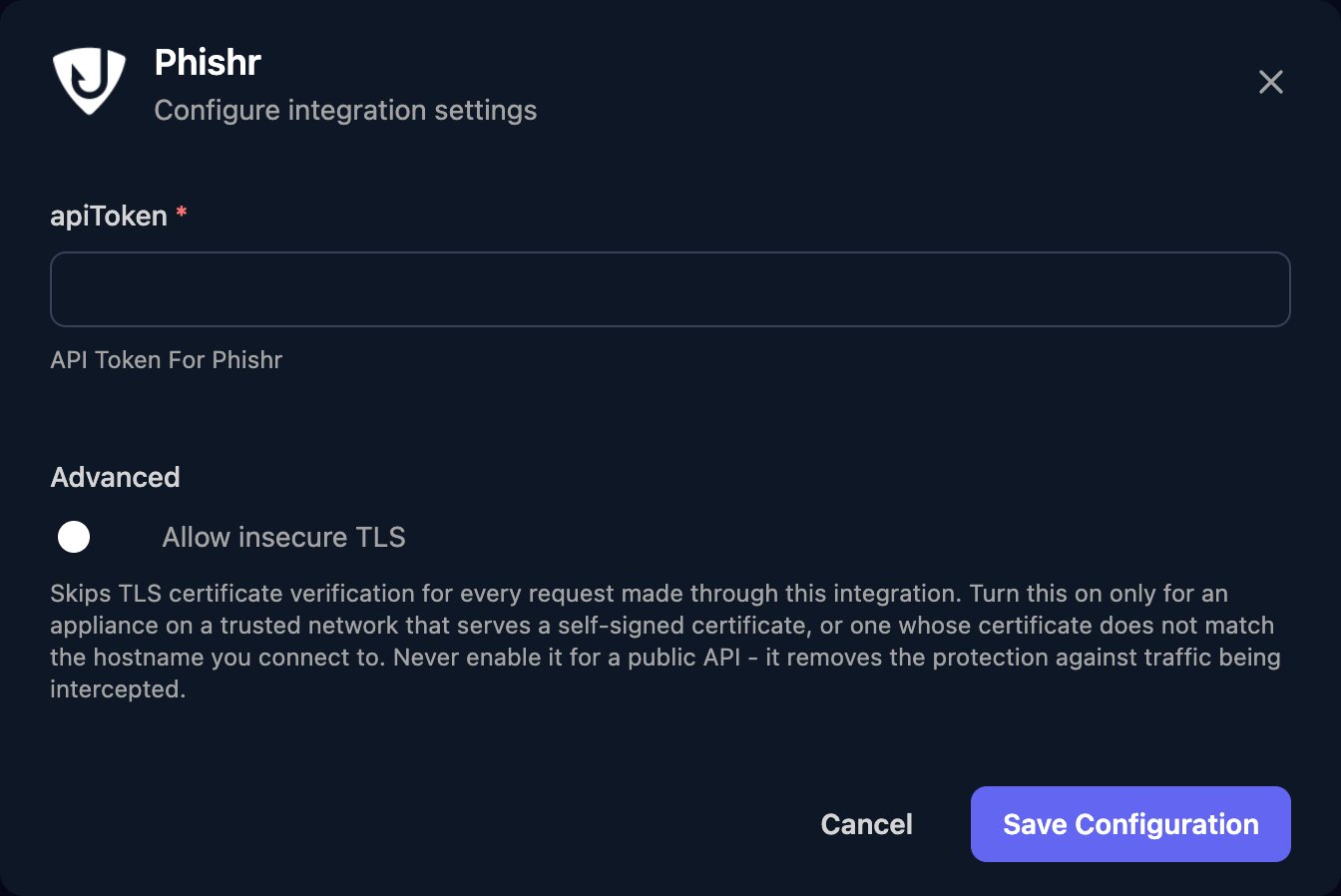
Go to **Integrations > Phishr** and click **Configure** on the Base Configuration card.
 Paste the token into apiToken and click Save Configuration.
 ## Set up each client
User actions run in the client's tenant, and per-client integrations never fall back to the Base Configuration, so each client needs its tenant ID. Tenant and cohort actions work at reseller level.
In Phishr, go to **Tenants > All Tenants**, right-click Manage on the client's row and copy the link. The tenant ID is the UUID after `orgId=`. Get Tenants also lists every tenant's `id`.
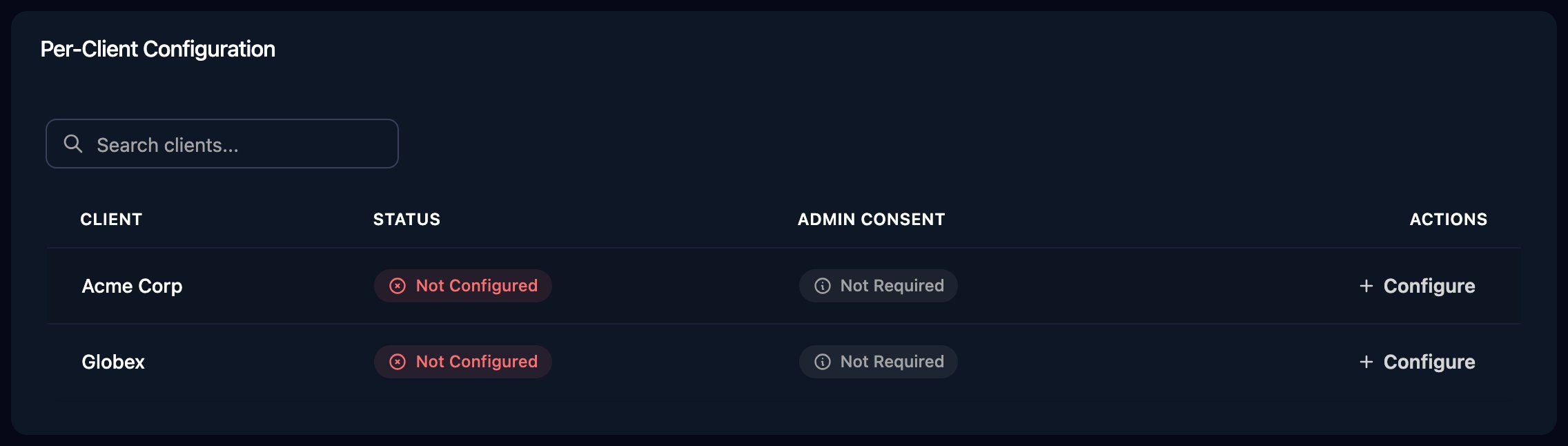
Click **Configure** on the client's row in the Per-Client Configuration card, enter the ID in tenantId and click Save Configuration. Triggr saves it as the client's `phishrId` variable.
## Set up each client
User actions run in the client's tenant, and per-client integrations never fall back to the Base Configuration, so each client needs its tenant ID. Tenant and cohort actions work at reseller level.
In Phishr, go to **Tenants > All Tenants**, right-click Manage on the client's row and copy the link. The tenant ID is the UUID after `orgId=`. Get Tenants also lists every tenant's `id`.
Click **Configure** on the client's row in the Per-Client Configuration card, enter the ID in tenantId and click Save Configuration. Triggr saves it as the client's `phishrId` variable.
 If clients already have a `phishrId` variable, click **Automap** at the top of the page to configure them all at once.
## Troubleshooting
Add the client's tenant ID, as in [Set up each client](#set-up-each-client).
The token's user has two-factor authentication on. Create a new token as a reseller admin without it, and paste it in with Edit on the Base Configuration card.
Check the token is pasted in full, including the number and `|`, and is still listed under Developers > API Tokens.
Check the client's tenantId matches a tenant in your reseller account, and the token was created by a reseller admin.
This documentation is built and hosted on [Mintlify](https://mintlify.com), a developer documentation platform.
If clients already have a `phishrId` variable, click **Automap** at the top of the page to configure them all at once.
## Troubleshooting
Add the client's tenant ID, as in [Set up each client](#set-up-each-client).
The token's user has two-factor authentication on. Create a new token as a reseller admin without it, and paste it in with Edit on the Base Configuration card.
Check the token is pasted in full, including the number and `|`, and is still listed under Developers > API Tokens.
Check the client's tenantId matches a tenant in your reseller account, and the token was created by a reseller admin.
This documentation is built and hosted on [Mintlify](https://mintlify.com), a developer documentation platform.