> ## Documentation Index
> Fetch the complete documentation index at: https://university.triggr-app.com/llms.txt
> Use this file to discover all available pages before exploring further.
# Proofpoint Essentials
> Connect Proofpoint Essentials to Triggr with an admin account's email address and password.
Triggr works with Proofpoint Essentials organisations, users and user sync exemptions.
## Set up Proofpoint Essentials
Use an Organization Admin for one organisation, or a partner admin (such as Channel Partner Admin) for every organisation under your partner account. End users can't use the API. Proofpoint lets you mark one admin per organisation as a Service Account, which isn't billed.
It's the one you sign in to, such as `https://us1.proofpointessentials.com` or `https://eu1.proofpointessentials.com`.
See Proofpoint's [API documentation](https://us1.proofpointessentials.com/api/v1/docs/index.php).
## Connect it in Triggr
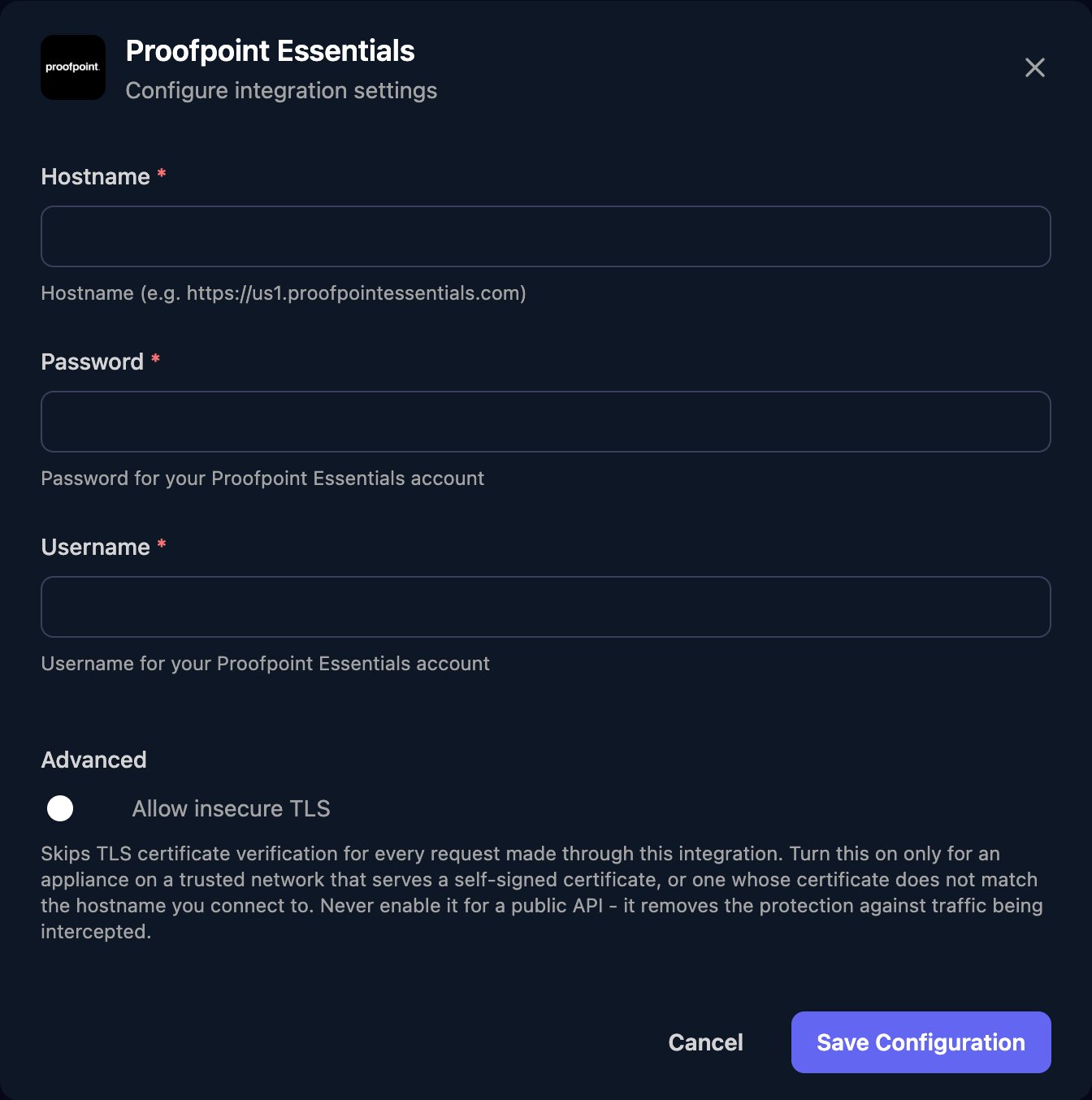
Go to **Integrations > Proofpoint Essentials** and click **Configure** on the Base Configuration card.
 Enter your Proofpoint address as Hostname, with `https://` and no path, the admin's Password, and their email address as Username. Click Save Configuration.
 Actions take the organisation's domain, such as `example.com`. Get Endpoints returns the Proofpoint address that serves a domain.
## Troubleshooting
Check Username is the admin's full email address, Password is current, and the account is an admin rather than an end user.
The account can't manage that organisation. Use an admin of the organisation, or a partner admin above it.
Hostname must start with `https://` and have no trailing `/` or path. Run Get Endpoints for the domain to check the address.
This documentation is built and hosted on [Mintlify](https://mintlify.com), a developer documentation platform.
Actions take the organisation's domain, such as `example.com`. Get Endpoints returns the Proofpoint address that serves a domain.
## Troubleshooting
Check Username is the admin's full email address, Password is current, and the account is an admin rather than an end user.
The account can't manage that organisation. Use an admin of the organisation, or a partner admin above it.
Hostname must start with `https://` and have no trailing `/` or path. Run Get Endpoints for the domain to check the address.
This documentation is built and hosted on [Mintlify](https://mintlify.com), a developer documentation platform.