> ## Documentation Index
> Fetch the complete documentation index at: https://university.triggr-app.com/llms.txt
> Use this file to discover all available pages before exploring further.
# ScalePad Lifecycle Manager
> Connect ScalePad Lifecycle Manager to Triggr with a ScalePad Hub API key.
Triggr reads your ScalePad clients, hardware assets, SaaS assets, users and connected integrations. You need a subscription to at least one paid ScalePad product.
## Set up ScalePad
The key belongs to the administrator who creates it and stops working if they're removed or lose the Administrator permission, so create it as an admin who will stay.
In the ScalePad Hub at `app.scalepad.com`, click **API**, then **+ New API key**. Name it `Triggr`, choose an expiry (Maximum is two years) and click + Generate.
Copy the secret key before you click Done. ScalePad shows it only once.
See ScalePad's [Generating an API key in ScalePad Hub](https://help.scalepad.com/hc/en-us/articles/38611012247067-Generating-an-API-key-in-ScalePad-Hub) and [Product APIs and subscriptions](https://developer.scalepad.com/docs/product-apis-and-subscriptions).
## Connect it in Triggr
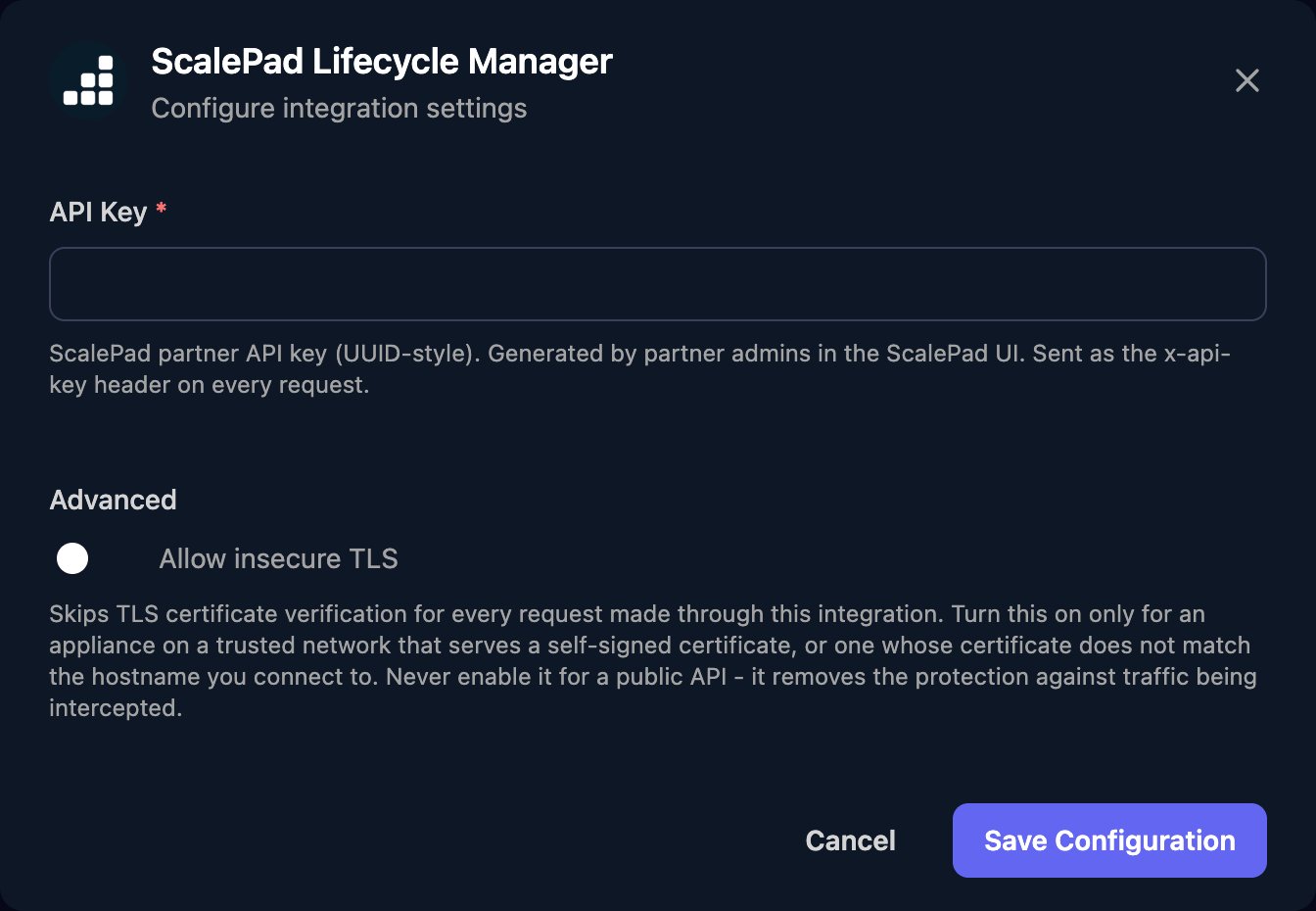
Go to **Integrations > ScalePad Lifecycle Manager** and click **Configure** on the Base Configuration card.
 Paste the key into API Key and click Save Configuration. One key covers all your clients.
 List actions return one page at a time: set `pageSize` (1 to 200), then pass `next_cursor` back as `cursor` until it's `null`.
To replace the key, create a new one, click Edit on the Base Configuration card and paste it in, then delete the old key in ScalePad.
## Troubleshooting
Check the key was pasted in full, is still listed under API in ScalePad and hasn't expired, and that its creator is still an active Administrator. Otherwise create a new key.
You've reached ScalePad's rate limit. Spread large workflows out or run them in smaller batches.
This documentation is built and hosted on [Mintlify](https://mintlify.com), a developer documentation platform.
List actions return one page at a time: set `pageSize` (1 to 200), then pass `next_cursor` back as `cursor` until it's `null`.
To replace the key, create a new one, click Edit on the Base Configuration card and paste it in, then delete the old key in ScalePad.
## Troubleshooting
Check the key was pasted in full, is still listed under API in ScalePad and hasn't expired, and that its creator is still an active Administrator. Otherwise create a new key.
You've reached ScalePad's rate limit. Spread large workflows out or run them in smaller batches.
This documentation is built and hosted on [Mintlify](https://mintlify.com), a developer documentation platform.