> ## Documentation Index
> Fetch the complete documentation index at: https://university.triggr-app.com/llms.txt
> Use this file to discover all available pages before exploring further.
# SentinelOne
> Connect your SentinelOne management console to Triggr with a service user's API token.
Triggr works with SentinelOne accounts, sites, groups, agents, installed applications and threats, and can scan, disconnect, reconnect, reboot and uninstall endpoints.
## Set up SentinelOne
Create a service user for Triggr. SentinelOne's guide is in your console's built-in help: add `/docs/en/creating-service-users.html` to your console URL.
In the scope selector, select the account or site Triggr should work with. Go to **Settings > Users > Service Users** (in newer consoles, Policy & Settings > User Management > Service Users) and click **Actions > Create New Service User**.
Set Name to `Triggr` and choose the longest Expiration Date your policy allows; you can't change either later. Click Next.
Set Access Level to Account for every site, or Site for the sites you select. Choose Viewer to only read data, or Admin (or a custom role that allows them) to scan, disconnect, reconnect, reboot or uninstall agents and retrieve uninstall passphrases. Click Create User.
Copy the token before you click Close. SentinelOne shows it only once.
## Connect it in Triggr
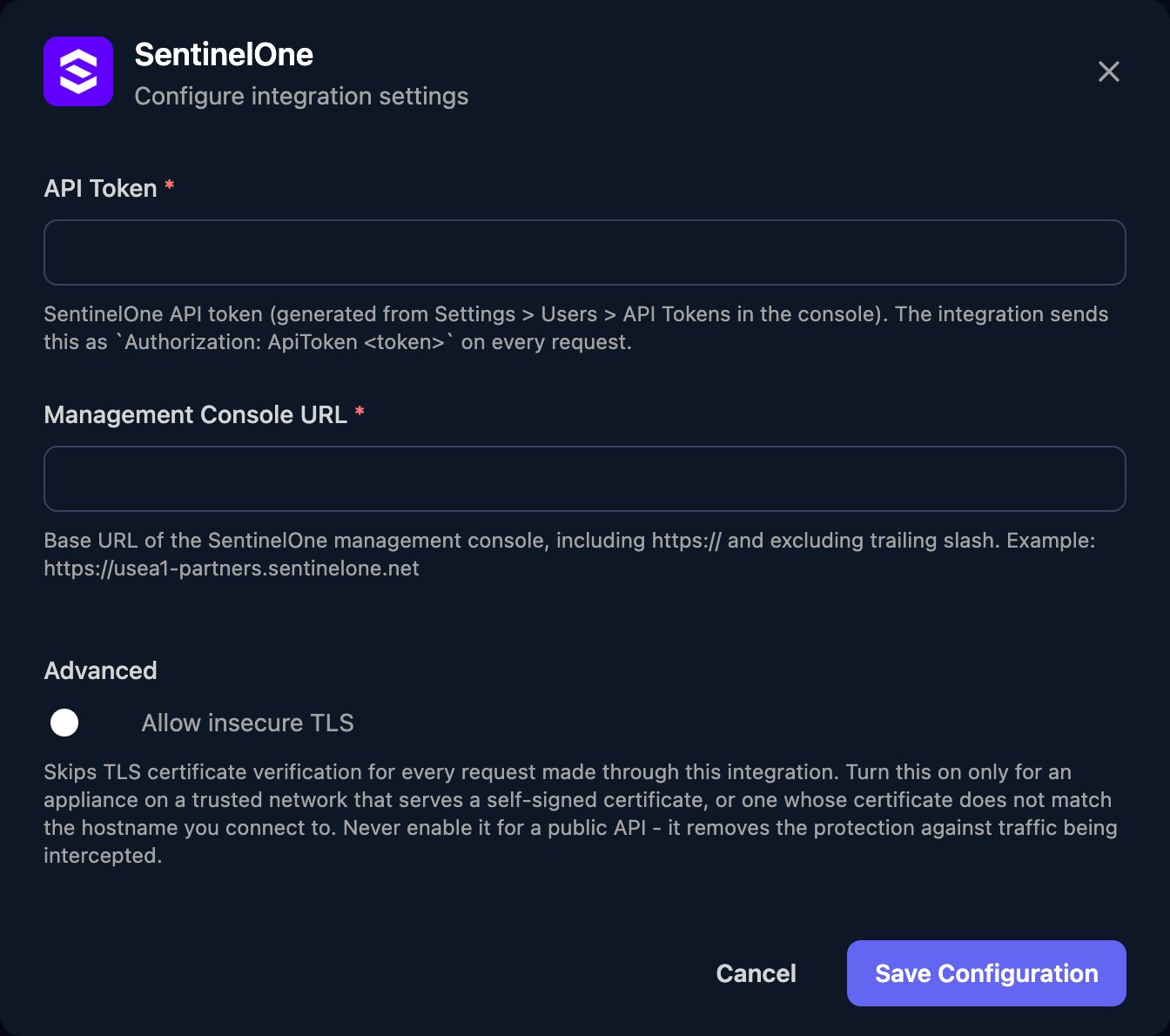
Go to **Integrations > SentinelOne** and click **Configure** on the Base Configuration card.
 Paste the token into API Token, without an `ApiToken` prefix. Enter your Management Console URL with `https://` and nothing after the host name, such as `https://usea1-partners.sentinelone.net`, and click Save Configuration.
 One connection covers every site the service user can see.
## Map your clients
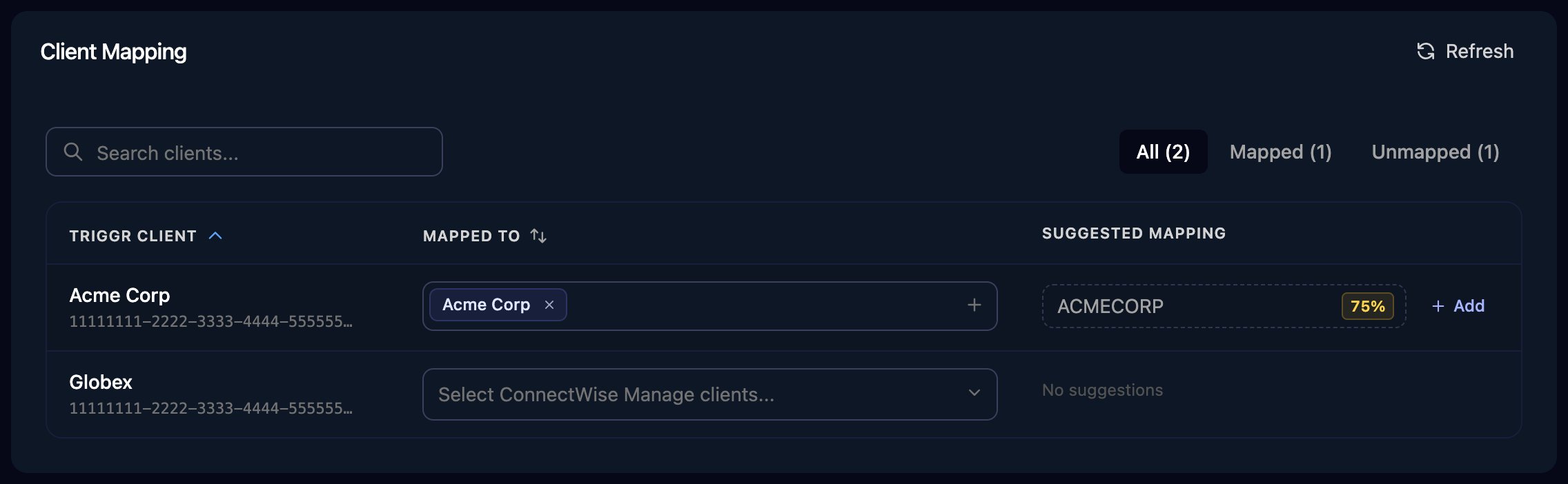
The Client Mapping card lists those sites. Click **Apply 100% Matches**, then choose the site in Mapped to for any client left. Triggr saves each match as the client's `sentinelOneSiteId` variable (and its account as `sentinelOneAccountId`), for actions' `siteIds` and `accountIds` inputs.
One connection covers every site the service user can see.
## Map your clients
The Client Mapping card lists those sites. Click **Apply 100% Matches**, then choose the site in Mapped to for any client left. Triggr saves each match as the client's `sentinelOneSiteId` variable (and its account as `sentinelOneAccountId`), for actions' `siteIds` and `accountIds` inputs.
 ## Renew the API token
Every action fails once the token expires. Before then, select the `Triggr` service user and click **Actions > Copy User** to create a replacement with a new expiry (or Actions > Regenerate API Token, which stops the old token straight away). Then click **Edit** on the Base Configuration card and paste the new token.
## Renew the API token
Every action fails once the token expires. Before then, select the `Triggr` service user and click **Actions > Copy User** to create a replacement with a new expiry (or Actions > Regenerate API Token, which stops the old token straight away). Then click **Edit** on the Base Configuration card and paste the new token.
 ## Troubleshooting
Check the service user still exists, its token hasn't expired or been regenerated, and you pasted only the token. If in doubt, [renew the token](#renew-the-api-token).
Management Console URL must start with `https://` and have no trailing `/` or path such as `/dashboard`.
A Viewer can't act on endpoints. Create a service user with Admin or a suitable custom role and paste its token.
Triggr only sees the service user's scope. Create one with Account access, or access to the missing sites, replace the token, then click Refresh on Client Mapping.
This documentation is built and hosted on [Mintlify](https://mintlify.com), a developer documentation platform.
## Troubleshooting
Check the service user still exists, its token hasn't expired or been regenerated, and you pasted only the token. If in doubt, [renew the token](#renew-the-api-token).
Management Console URL must start with `https://` and have no trailing `/` or path such as `/dashboard`.
A Viewer can't act on endpoints. Create a service user with Admin or a suitable custom role and paste its token.
Triggr only sees the service user's scope. Create one with Account access, or access to the missing sites, replace the token, then click Refresh on Client Mapping.
This documentation is built and hosted on [Mintlify](https://mintlify.com), a developer documentation platform.