> ## Documentation Index
> Fetch the complete documentation index at: https://university.triggr-app.com/llms.txt
> Use this file to discover all available pages before exploring further.
# Simplesat
> Connect Simplesat to Triggr with a Simplesat API key, so workflows can read survey feedback and keep customers and team members up to date.
Triggr works with Simplesat survey responses and answers, customers and team members.
## Set up Simplesat
As an Owner or Admin, go to **Settings > API keys** ([open it](https://app.simplesat.io/settings/api-keys/)), click **Create API key** and name it `Triggr`.
Full access covers every scope. For Custom, select the scopes your workflows need:
| Scope | Triggr actions |
| - | - |
| `read responses` | Search Responses, Get Response |
| `write responses` | Create or Update Response |
| `read answers` | Search Answers, Get Answer |
| `write answers` | Update Answer |
| `read customers` | List Customers, Get Customer |
| `write customers` | Create or Update Customer, Update Customer, Bulk Create or Update Customers |
| `read team members` | Get Team Member |
| `write team members` | Create or Update Team Member |
Create the key and copy the secret. Simplesat shows it only once.
See Simplesat's [API keys management](https://help.simplesat.io/en/articles/4020334-api-keys-management).
## Connect it in Triggr
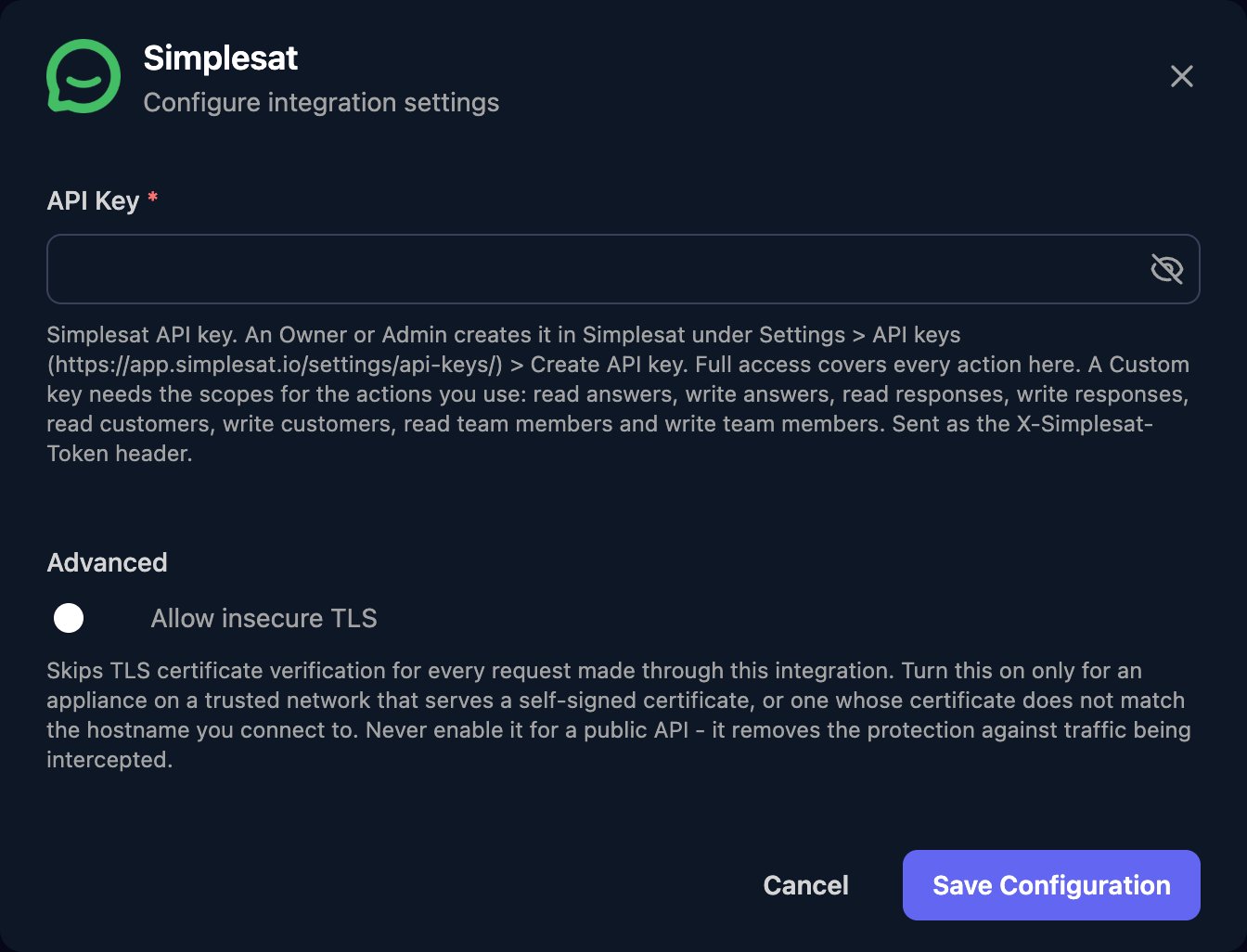
Go to **Integrations > Simplesat** and click **Configure** on the Base Configuration card.
 Paste the secret into API Key and click Save Configuration.
 In workflows, Create or Update Customer and Create or Update Team Member match on `email`, and sending `tags` or `custom_attributes` replaces the existing values.
## Troubleshooting
Check the secret was pasted in full and the key still exists in Settings > API keys. Otherwise create a new key.
The Custom key is missing a scope. Add it in Settings > API keys; the secret stays the same.
Simplesat limits requests per account each minute. Space out large runs and retry after the `Retry-After` seconds.
This documentation is built and hosted on [Mintlify](https://mintlify.com), a developer documentation platform.
In workflows, Create or Update Customer and Create or Update Team Member match on `email`, and sending `tags` or `custom_attributes` replaces the existing values.
## Troubleshooting
Check the secret was pasted in full and the key still exists in Settings > API keys. Otherwise create a new key.
The Custom key is missing a scope. Add it in Settings > API keys; the secret stays the same.
Simplesat limits requests per account each minute. Space out large runs and retry after the `Retry-After` seconds.
This documentation is built and hosted on [Mintlify](https://mintlify.com), a developer documentation platform.