> ## Documentation Index
> Fetch the complete documentation index at: https://university.triggr-app.com/llms.txt
> Use this file to discover all available pages before exploring further.
# Slack Notifications
> Install a Slack app in your workspace with Authorize, so Triggr workflows can post messages to your team's channels.
Triggr posts messages to your own workspace's channels and lists its public channels. To manage user accounts in your own and your clients' Slack, use [Slack](/integrations/slack/slack) instead.
## Connect it in Triggr
You need a Slack account that can install apps in your workspace; if your workspace requires app approval, a Workspace Owner or app manager may need to approve it.
Go to **Integrations > Slack Notifications** and click **Configure** on the Base Configuration card.
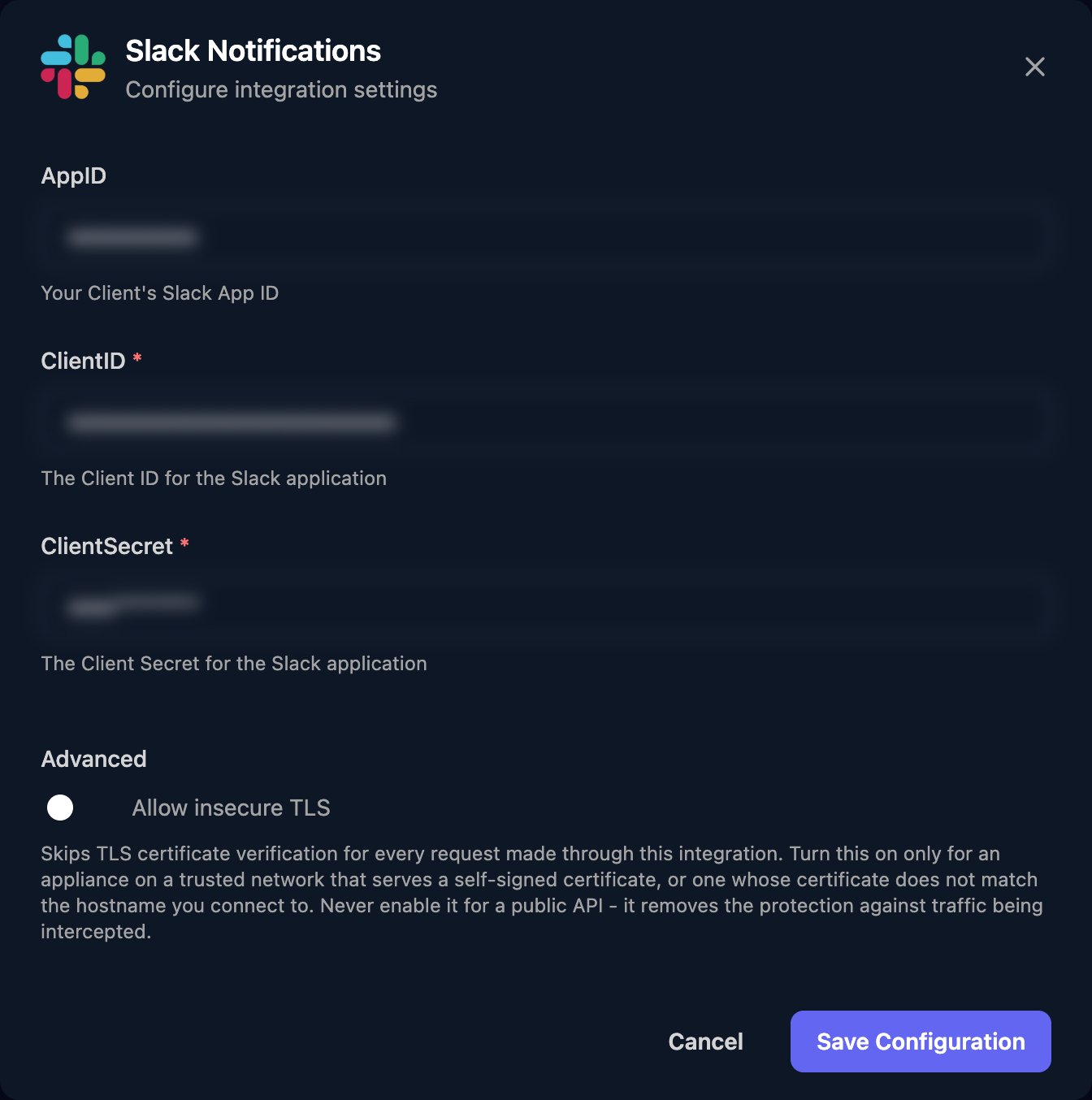
 AppID, ClientID and ClientSecret are already filled in with Triggr's Slack app. Leave them, or enter [your own app's](#use-your-own-slack-app), and click Save Configuration.
 Click **Authorize**. In Slack, check the workspace in the top right, then click Allow.
The app can only post in channels it's a member of. Mention it in each channel and accept Slack's offer to add it, or add it from the channel's settings.
Triggr asks for the `chat:write` and `channels:read` bot scopes. Click Authorize again if you switch apps or the app is removed from your workspace.
## Use your own Slack app
Use your own app to post with your own name and icon.
At [api.slack.com/apps](https://api.slack.com/apps), click **Create New App > From scratch**, name it and pick the workspace it will post to.
On OAuth & Permissions, add `https://app.triggr-app.com/oauth/callback` under Redirect URLs, and `chat:write` and `channels:read` under Bot Token Scopes.
From **Basic Information > App Credentials**, copy the App ID, Client ID and Client Secret into AppID, ClientID and ClientSecret. Save, click Authorize and add the app to your channels.
## Send messages
Send Message takes a JSON body in Slack's [chat.postMessage](https://docs.slack.dev/reference/methods/chat.postMessage) format: `channel` is the channel's ID, such as `C0123456789` (List Conversations returns them), and `text` is the message. Slack reports failures with `ok` set to `false` and a code in `error`.
## Troubleshooting
With your own app, add the redirect URL on OAuth & Permissions. If Slack asks you to request the app, ask a Workspace Owner or app manager to approve it. Then click Authorize again.
Add the app to the channel, and check the `channel` ID.
With your own app, check ClientID and ClientSecret match its App Credentials. Then click Authorize and Allow again.
With your own app, check `chat:write` and `channels:read` are under Bot Token Scopes, then click Authorize again.
Slack allows about one message per second per channel. Spread the messages out.
This documentation is built and hosted on [Mintlify](https://mintlify.com), a developer documentation platform.
Click **Authorize**. In Slack, check the workspace in the top right, then click Allow.
The app can only post in channels it's a member of. Mention it in each channel and accept Slack's offer to add it, or add it from the channel's settings.
Triggr asks for the `chat:write` and `channels:read` bot scopes. Click Authorize again if you switch apps or the app is removed from your workspace.
## Use your own Slack app
Use your own app to post with your own name and icon.
At [api.slack.com/apps](https://api.slack.com/apps), click **Create New App > From scratch**, name it and pick the workspace it will post to.
On OAuth & Permissions, add `https://app.triggr-app.com/oauth/callback` under Redirect URLs, and `chat:write` and `channels:read` under Bot Token Scopes.
From **Basic Information > App Credentials**, copy the App ID, Client ID and Client Secret into AppID, ClientID and ClientSecret. Save, click Authorize and add the app to your channels.
## Send messages
Send Message takes a JSON body in Slack's [chat.postMessage](https://docs.slack.dev/reference/methods/chat.postMessage) format: `channel` is the channel's ID, such as `C0123456789` (List Conversations returns them), and `text` is the message. Slack reports failures with `ok` set to `false` and a code in `error`.
## Troubleshooting
With your own app, add the redirect URL on OAuth & Permissions. If Slack asks you to request the app, ask a Workspace Owner or app manager to approve it. Then click Authorize again.
Add the app to the channel, and check the `channel` ID.
With your own app, check ClientID and ClientSecret match its App Credentials. Then click Authorize and Allow again.
With your own app, check `chat:write` and `channels:read` are under Bot Token Scopes, then click Authorize again.
Slack allows about one message per second per channel. Spread the messages out.
This documentation is built and hosted on [Mintlify](https://mintlify.com), a developer documentation platform.