> ## Documentation Index
> Fetch the complete documentation index at: https://university.triggr-app.com/llms.txt
> Use this file to discover all available pages before exploring further.
# Smartsheet
> Connect Smartsheet to Triggr with an API access token from a dedicated Smartsheet user.
Triggr works with Smartsheet sheets, rows, columns, workspaces, folders, reports, dashboards, users, groups and webhooks. You need a Business or Enterprise plan (or Advanced Work Management) on the standard Smartsheet service at `api.smartsheet.com`, not Smartsheet Gov or Smartsheet Regions.
## Set up Smartsheet
The token has the same access as its user, so use a shared service account. Share the sheets, workspaces, reports and dashboards your workflows touch with it; user actions need System Admin, and group actions need group administrator or System Admin.
Signed in as that user, select **Account > Personal Settings > API Access > Generate new access token**. Name it `Triggr`, select OK and copy the token before you select OK again. Smartsheet shows it only once.
Tokens don't expire unless an Enterprise System Admin has set an expiry in Admin Center > Security & Control > API Access Token. See Smartsheet's [Generate an API access token](https://help.smartsheet.com/articles/2482389-generate-API-key).
## Connect it in Triggr
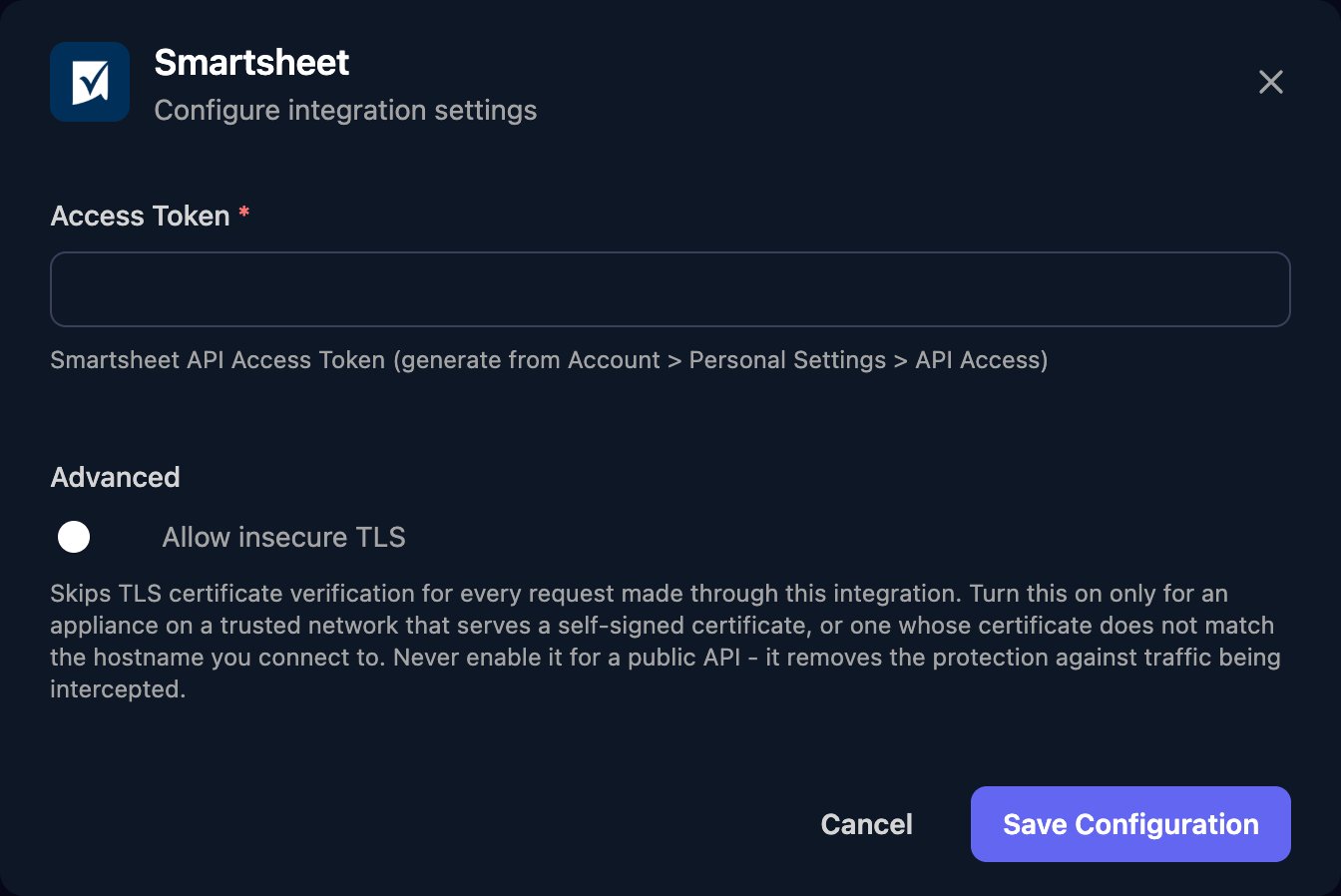
Go to **Integrations > Smartsheet** and click **Configure** on the Base Configuration card.
 Paste the token, without a `Bearer` prefix, into Access Token and click Save Configuration.
 Actions refer to items by numeric ID, such as `sheetId` or `columnId`. Get sheet returns a sheet's column and row IDs.
## Troubleshooting
`1003`: the token has expired. `1002`: check the token was pasted in full, is still listed under API Access, and its user is still active. Paste a new token into Access Token.
Share the item with the Triggr user, or give it System Admin (users) or group administrator (groups).
Smartsheet refuses users on a public or non-plan email domain, users managed by an identity provider such as Microsoft Entra ID, and reactivations after 30 days or more.
Smartsheet allows 300 requests a minute per token. Spread large workflows out or run them in smaller batches.
This documentation is built and hosted on [Mintlify](https://mintlify.com), a developer documentation platform.
Actions refer to items by numeric ID, such as `sheetId` or `columnId`. Get sheet returns a sheet's column and row IDs.
## Troubleshooting
`1003`: the token has expired. `1002`: check the token was pasted in full, is still listed under API Access, and its user is still active. Paste a new token into Access Token.
Share the item with the Triggr user, or give it System Admin (users) or group administrator (groups).
Smartsheet refuses users on a public or non-plan email domain, users managed by an identity provider such as Microsoft Entra ID, and reactivations after 30 days or more.
Smartsheet allows 300 requests a minute per token. Spread large workflows out or run them in smaller batches.
This documentation is built and hosted on [Mintlify](https://mintlify.com), a developer documentation platform.