> ## Documentation Index
> Fetch the complete documentation index at: https://university.triggr-app.com/llms.txt
> Use this file to discover all available pages before exploring further.
# SonicWall NSM
> Connect SonicWall Network Security Manager to Triggr with a MySonicWall API key for cloud NSM, or an NSM admin login for NSM On-Prem.
Triggr manages the firewalls in Network Security Manager (NSM): tenants, devices, commits, templates, group actions, firmware, backups, licences and VPN topologies. To work on a firewall directly, use [SonicWall](/integrations/sonicwall/sonicos); for Cloud Secure Edge, use [SonicWall CSE](/integrations/sonicwall/cse).
## Set up SonicWall
Sign in to [MySonicWall](https://www.mysonicwall.com/) as the user Triggr should act as, go to **My Workspace | User Groups > User list** and click **Generate My API Key**. Enter a Description, leave Source IP Address blank, set Validity (one year at most) and click Confirm. Copy the key before you close the window.
If Generate My API Key is missing, raise a Customer Service Request with SonicWall. See SonicWall's [guide to generating a key](https://www.sonicwall.com/support/technical-documentation/docs/msw-api_guide/Content/API_Overview/how-to-generate-api-token.htm).
Open NSM from MySonicWall and note the host, such as `nsm-uswest.sonicwall.com` or `nsm-eucentral.sonicwall.com`.
Create an NSM admin account for Triggr with access to the tenants it needs, with two-factor authentication off.
Give NSM a public IP address or hostname, forward HTTPS to it, install a certificate from a public certificate authority that matches the hostname, and allow [Triggr's IP addresses](/security/ip-allowlist) through any firewall.
## Connect it in Triggr
Go to **Integrations > SonicWall NSM** and click **Configure** on the Base Configuration card.
 Enter the NSM Endpoint URL with `https://` and no path: your region's host, such as `https://nsm-uswest.sonicwall.com`, or your NSM server's public address with its port if it isn't 443. For cloud NSM, enter the MySonicWall API Key and leave the rest blank; for NSM On-Prem, enter NSM Admin Username and NSM Admin Password instead. Click Save Configuration.
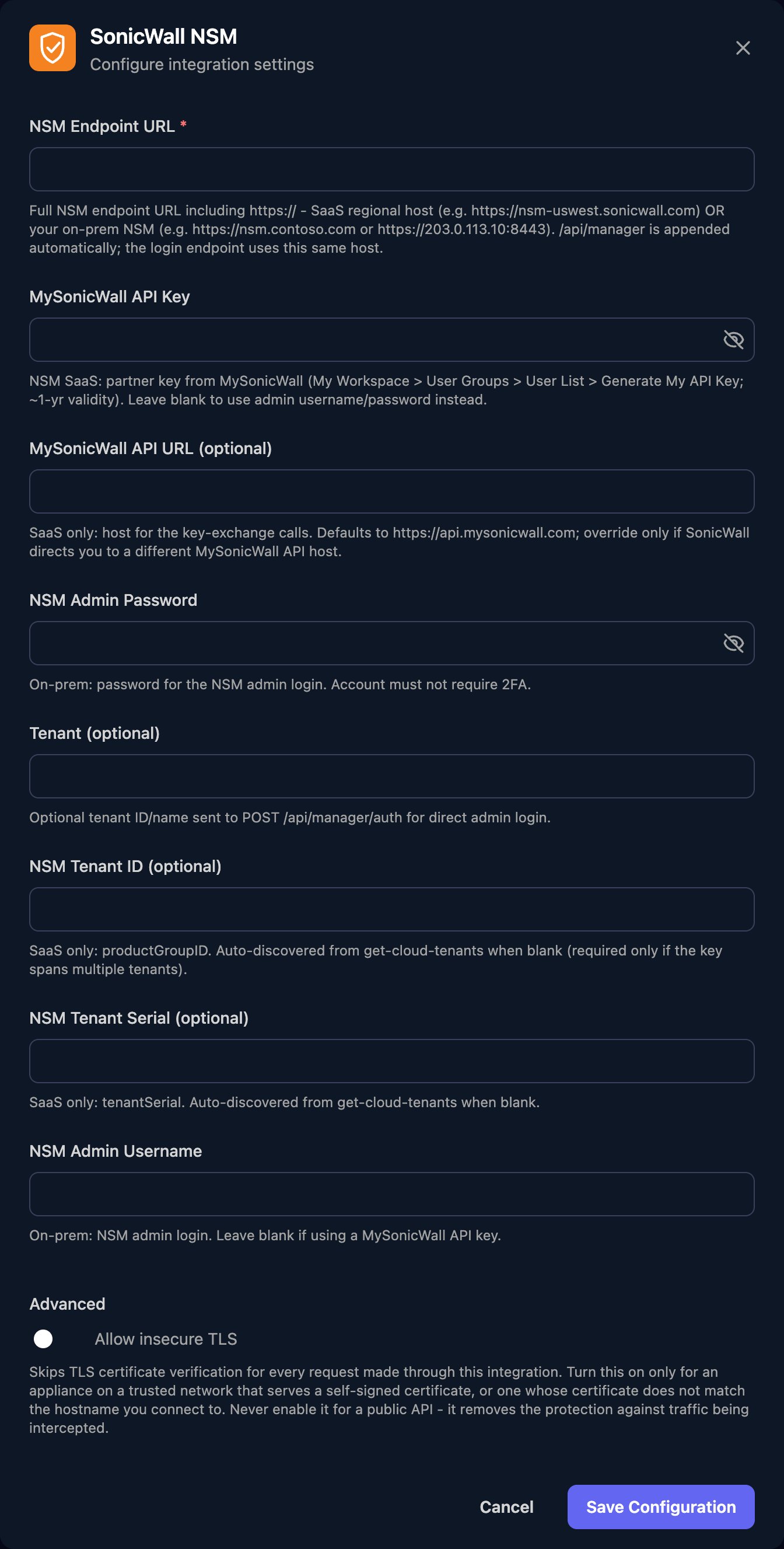 If MySonicWall API Key has a value, Triggr uses it and ignores the username and password.
## Set up each client
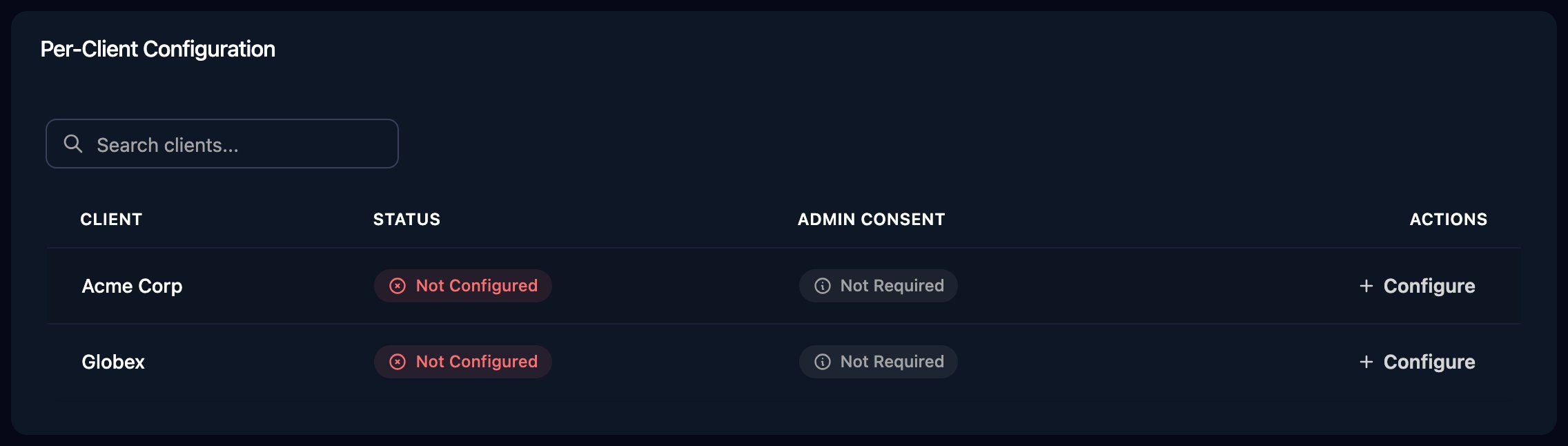
Per-client integrations never fall back to the Base Configuration, so click **Configure** on each client's row and fill in a complete configuration. With cloud NSM, use the same key and NSM Endpoint URL for every client and set NSM Tenant ID (optional) to the client's tenant: run Get Cloud Tenants (MySonicWall) to list the tenants the key reaches, each one's `productGroupID` being its tenant ID.
If MySonicWall API Key has a value, Triggr uses it and ignores the username and password.
## Set up each client
Per-client integrations never fall back to the Base Configuration, so click **Configure** on each client's row and fill in a complete configuration. With cloud NSM, use the same key and NSM Endpoint URL for every client and set NSM Tenant ID (optional) to the client's tenant: run Get Cloud Tenants (MySonicWall) to list the tenants the key reaches, each one's `productGroupID` being its tenant ID.
 NSM holds changes as pending until they're committed: Create Commit commits and deploys, and Create Commit with Approval waits for Approve Commit. Most firewall actions take the firewall's serial number from List Devices for Tenant.
## Troubleshooting
The configuration the workflow used has neither a MySonicWall API Key nor both NSM Admin Username and NSM Admin Password. If the workflow ran for a client, check that client's configuration.
Enter the right tenant's ID, from the list in the error, in NSM Tenant ID (optional).
The NSM Tenant ID (optional) or NSM Tenant Serial (optional) isn't one the key reaches. Check it against Get Cloud Tenants (MySonicWall) and the MySonicWall user's tenant access.
NSM isn't active on that MySonicWall tenant. Check in MySonicWall that the tenant has NSM and its firewalls are managed through it.
Configure the client on the Per-Client Configuration card.
Check the key was pasted in full and hasn't expired or been revoked. If the error mentions `IPBLOCKED`, generate a key with Source IP Address blank, or ask SonicWall Support to allow [Triggr's IP addresses](/security/ip-allowlist).
NSM refused the sign-in. With cloud NSM, check NSM Endpoint URL is your tenant's region and the MySonicWall user has access to the tenant in NSM.
Check the username and password, that two-factor authentication is off, that NSM Endpoint URL is the public address with its port, and that NSM's certificate matches the hostname.
This documentation is built and hosted on [Mintlify](https://mintlify.com), a developer documentation platform.
NSM holds changes as pending until they're committed: Create Commit commits and deploys, and Create Commit with Approval waits for Approve Commit. Most firewall actions take the firewall's serial number from List Devices for Tenant.
## Troubleshooting
The configuration the workflow used has neither a MySonicWall API Key nor both NSM Admin Username and NSM Admin Password. If the workflow ran for a client, check that client's configuration.
Enter the right tenant's ID, from the list in the error, in NSM Tenant ID (optional).
The NSM Tenant ID (optional) or NSM Tenant Serial (optional) isn't one the key reaches. Check it against Get Cloud Tenants (MySonicWall) and the MySonicWall user's tenant access.
NSM isn't active on that MySonicWall tenant. Check in MySonicWall that the tenant has NSM and its firewalls are managed through it.
Configure the client on the Per-Client Configuration card.
Check the key was pasted in full and hasn't expired or been revoked. If the error mentions `IPBLOCKED`, generate a key with Source IP Address blank, or ask SonicWall Support to allow [Triggr's IP addresses](/security/ip-allowlist).
NSM refused the sign-in. With cloud NSM, check NSM Endpoint URL is your tenant's region and the MySonicWall user has access to the tenant in NSM.
Check the username and password, that two-factor authentication is off, that NSM Endpoint URL is the public address with its port, and that NSM's certificate matches the hostname.
This documentation is built and hosted on [Mintlify](https://mintlify.com), a developer documentation platform.