> ## Documentation Index
> Fetch the complete documentation index at: https://university.triggr-app.com/llms.txt
> Use this file to discover all available pages before exploring further.
# SonicWall firewalls (SonicOS)
> Connect each client's SonicWall firewall to Triggr directly through its SonicOS API, with the firewall's administrator username and password.
Triggr reads and changes a firewall's configuration through its SonicOS API: objects, rules, NAT, users, VPNs, security services and backups. In Triggr it's called SonicWall. To manage firewalls through NSM, use [SonicWall NSM](/integrations/sonicwall/nsm); for Cloud Secure Edge, use [SonicWall CSE](/integrations/sonicwall/cse).
You need SonicOS 7, the built-in administrator account (`admin` unless renamed) signing in without a one-time code, and a public IP address or hostname for the firewall's WAN interface.
## Set up the firewall
Repeat on each client's firewall.
In **Device | Settings > Administration**, open Audit / SonicOS API (SonicOS API in 7.3). Enable the SonicOS API and RFC-2617 HTTP Basic Access authentication, then click Accept. See SonicWall's [SonicOS API guide](https://www.sonicwall.com/support/technical-documentation/docs/sonicos-7-1-device_settings/Content/Audit_SonicOS_API/SonicOS-API-enabling.htm).
In **Network | System > Interfaces**, click Configure on the WAN interface, select HTTPS under Management and click OK.
Create a WAN address group of [Triggr's IP addresses](/security/ip-allowlist), plus your own if you manage the firewall over the internet, and set it as the Source of each WAN to WAN management rule in **Policy | Rules and Policies > Access Rules**. See SonicWall's [guide to restricting management access](https://www.sonicwall.com/support/knowledge-base/how-can-i-restrict-sonicwall-management-access-for-specific-ip-address-es-only/221121093639177).
In Device | Settings > Administration > Management, note the HTTPS Port if it isn't `443`. The firewall uses a self-signed certificate unless you import one from a public certificate authority.
## Connect it in Triggr
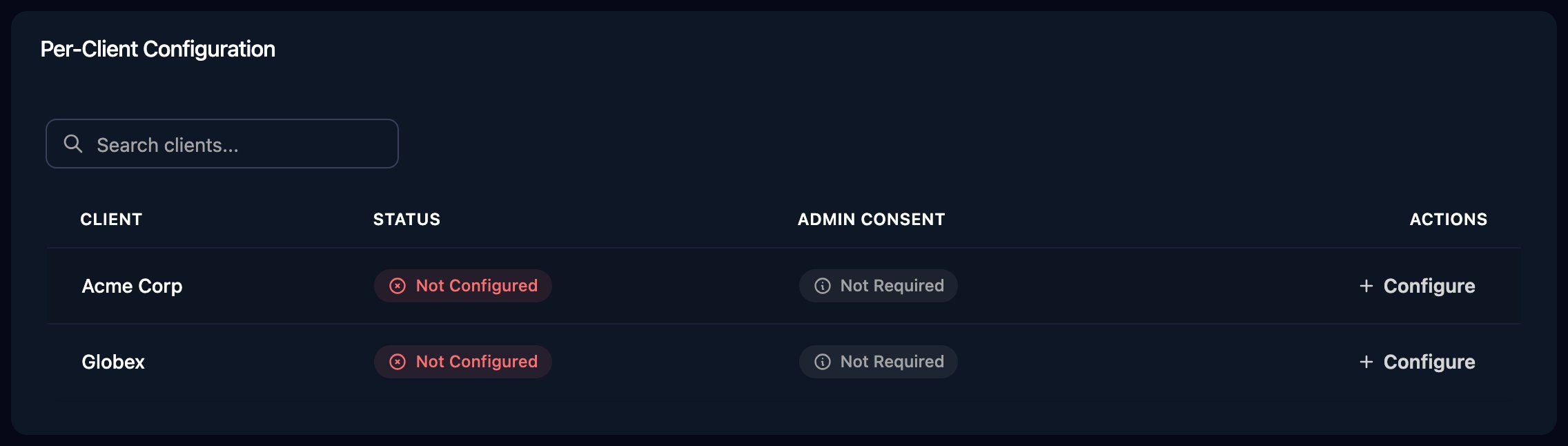
Go to **Integrations > SonicWall** and click **Configure** on the client's row on the Per-Client Configuration card, or on the Base Configuration card for your own firewall.
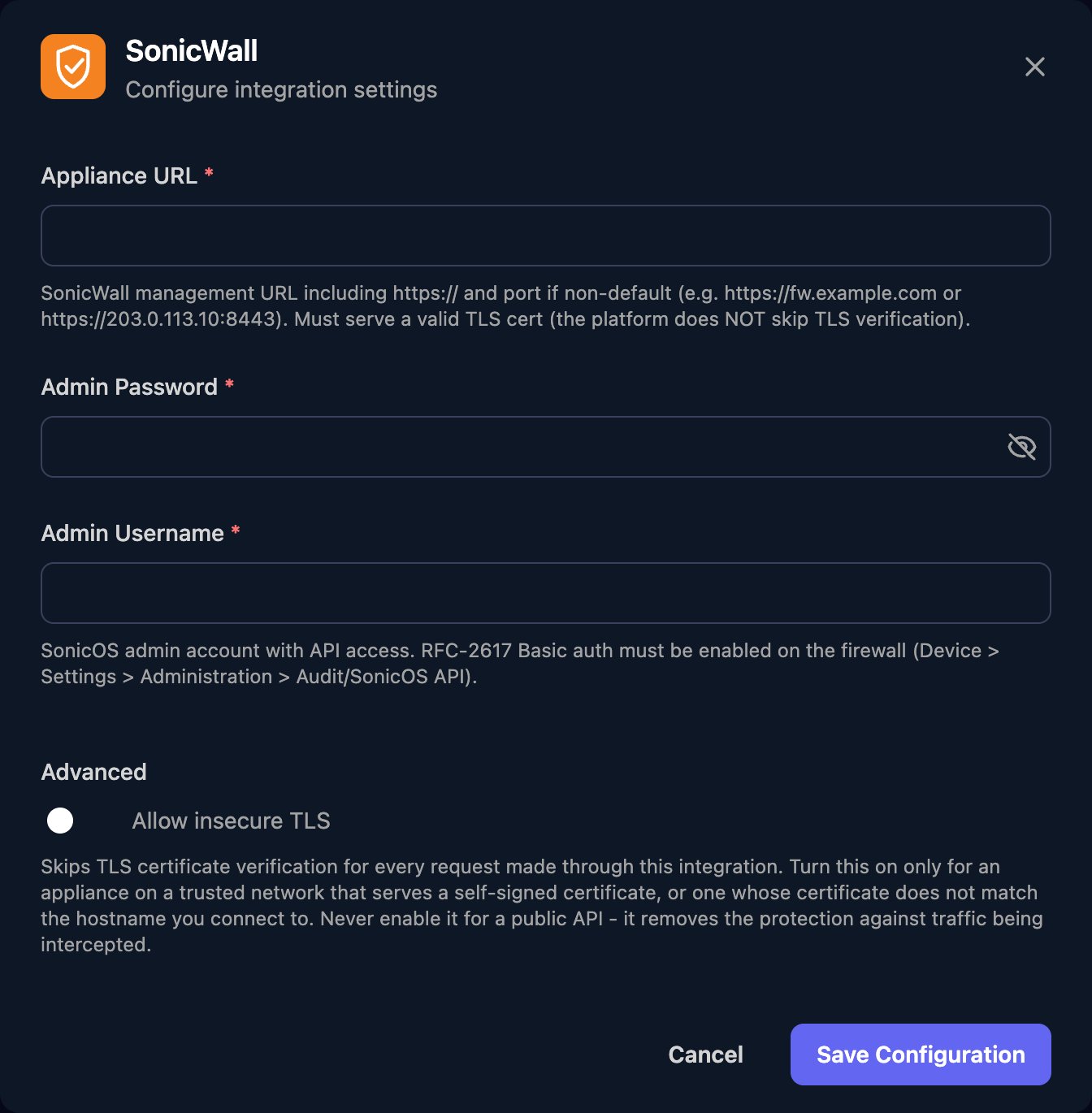
 Enter the Appliance URL with `https://`, the port if it isn't 443 and no path, such as `https://fw.example.com`, then the Admin Username and Admin Password. Turn on Allow insecure TLS if the firewall uses its self-signed certificate, and click Save Configuration.
 Per-client integrations never fall back to the Base Configuration when a workflow runs for a client.
SonicOS stages every change: run Commit Pending after changes, then Logout. Only one administrator can change the configuration at a time, so don't run workflows that change the same firewall at once.
## Troubleshooting
Configure the client's firewall on the Per-Client Configuration card.
Check the Appliance URL and port, that HTTPS management is on for the WAN, and that the management rules allow [Triggr's IP addresses](/security/ip-allowlist).
Turn on Allow insecure TLS, or install a public certificate that matches the hostname.
401: check the username, password and RFC-2617 HTTP Basic Access authentication. 403: the SonicOS API is turned off.
The firewall has reached its maximum number of sessions, usually because another API client or workflow is still signed in. Wait for it to end, then retry.
Run Commit Pending before Logout, make sure no one else is changing the firewall, and use the built-in administrator.
This documentation is built and hosted on [Mintlify](https://mintlify.com), a developer documentation platform.
Per-client integrations never fall back to the Base Configuration when a workflow runs for a client.
SonicOS stages every change: run Commit Pending after changes, then Logout. Only one administrator can change the configuration at a time, so don't run workflows that change the same firewall at once.
## Troubleshooting
Configure the client's firewall on the Per-Client Configuration card.
Check the Appliance URL and port, that HTTPS management is on for the WAN, and that the management rules allow [Triggr's IP addresses](/security/ip-allowlist).
Turn on Allow insecure TLS, or install a public certificate that matches the hostname.
401: check the username, password and RFC-2617 HTTP Basic Access authentication. 403: the SonicOS API is turned off.
The firewall has reached its maximum number of sessions, usually because another API client or workflow is still signed in. Wait for it to end, then retry.
Run Commit Pending before Logout, make sure no one else is changing the firewall, and use the built-in administrator.
This documentation is built and hosted on [Mintlify](https://mintlify.com), a developer documentation platform.