> ## Documentation Index
> Fetch the complete documentation index at: https://university.triggr-app.com/llms.txt
> Use this file to discover all available pages before exploring further.
# SuperOps (US)
> Connect SuperOps to Triggr with a SuperOps API token and your SuperOps subdomain.
Triggr lists SuperOps tickets and runs any query or mutation in SuperOps's GraphQL API, through SuperOps's US data centre at `api.superops.ai`. It acts as the user whose token you use.
## Set up SuperOps
Sign in as the user Triggr should act as, go to **Settings > Your Profile > API token**, click Generate Token and copy it. Each user has one token, and generating a new one replaces it.
Go to **Settings > Company information** and copy your subdomain.
See SuperOps's guide to [using its GraphQL APIs](https://support.superops.com/en/articles/6632215-how-to-integrate-applications-using-superops-ai-graphql-apis) and its [API reference](https://developer.superops.com/msp).
## Connect it in Triggr
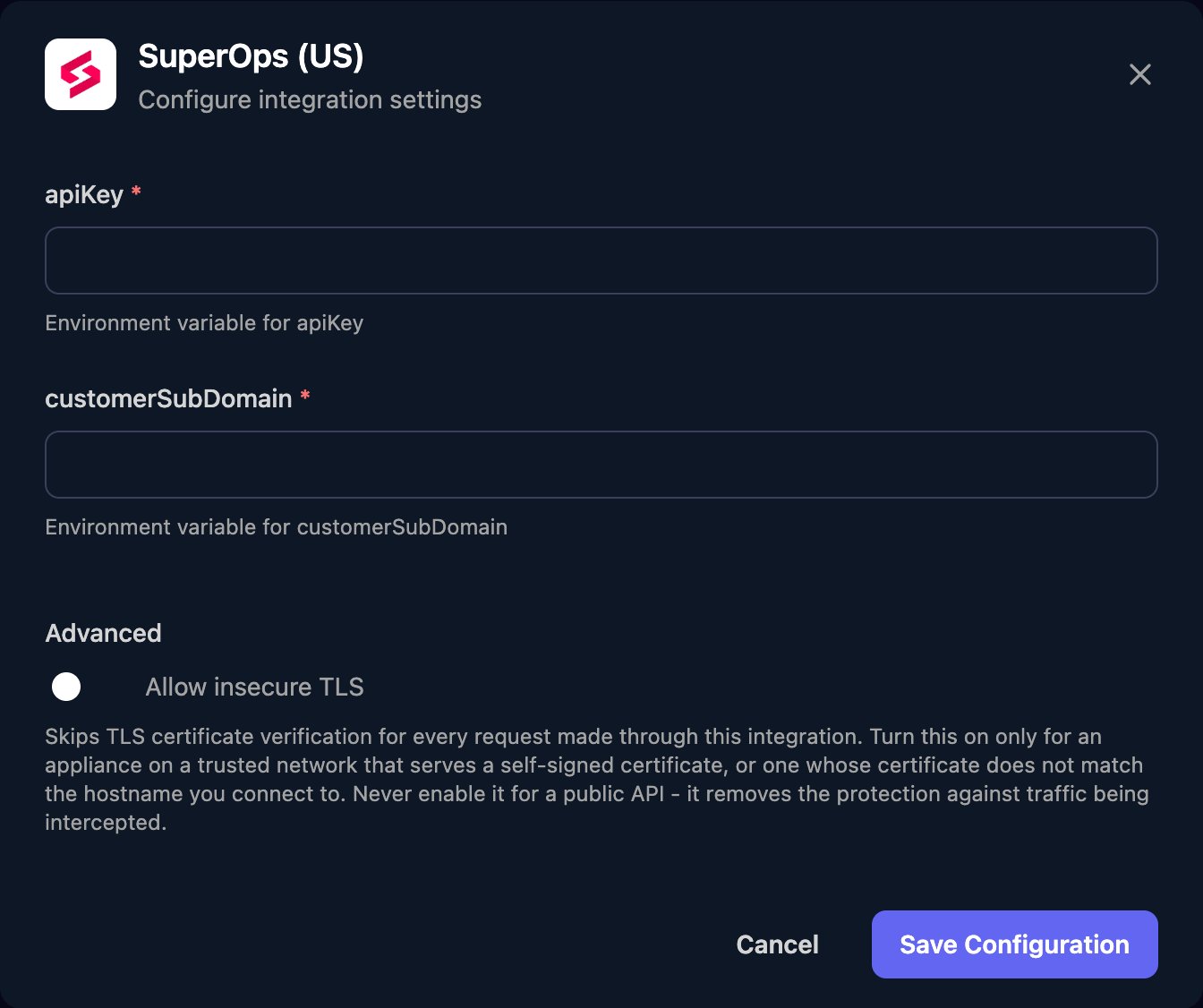
Go to **Integrations > SuperOps (US)** and click **Configure** on the Base Configuration card.
 Paste the token into apiKey, enter your subdomain alone as customerSubDomain, such as `yourcompany`, and click Save Configuration.
 One connection covers all your clients. Execute GraphQL Query sends graphQlQuery as the whole request body, so enter JSON with a `query` (and `variables` if needed), not the query text alone.
## Troubleshooting
SuperOps rejected the token, perhaps because it was regenerated. Generate a new one and paste it into apiKey.
customerSubDomain must be the subdomain alone, without `https://` or `.superops.ai`, and the account must be hosted in SuperOps's US data centre.
SuperOps reports query problems in `body.errors` in the step's output. Check the query and variables against the [API reference](https://developer.superops.com/msp).
If IP Restrictions is on in Settings > Security Management, add [Triggr's IP addresses](/security/ip-allowlist) to the allowed ranges.
This documentation is built and hosted on [Mintlify](https://mintlify.com), a developer documentation platform.
One connection covers all your clients. Execute GraphQL Query sends graphQlQuery as the whole request body, so enter JSON with a `query` (and `variables` if needed), not the query text alone.
## Troubleshooting
SuperOps rejected the token, perhaps because it was regenerated. Generate a new one and paste it into apiKey.
customerSubDomain must be the subdomain alone, without `https://` or `.superops.ai`, and the account must be hosted in SuperOps's US data centre.
SuperOps reports query problems in `body.errors` in the step's output. Check the query and variables against the [API reference](https://developer.superops.com/msp).
If IP Restrictions is on in Settings > Security Management, add [Triggr's IP addresses](/security/ip-allowlist) to the allowed ranges.
This documentation is built and hosted on [Mintlify](https://mintlify.com), a developer documentation platform.