> ## Documentation Index
> Fetch the complete documentation index at: https://university.triggr-app.com/llms.txt
> Use this file to discover all available pages before exploring further.
# Syncro
> Connect Syncro to Triggr with a Syncro API token and your Syncro subdomain.
Triggr works with Syncro customers, contacts, tickets, assets, RMM alerts, portal users, billing, products, purchase orders, vendors, appointments, wiki pages and leads. One connection covers all your clients.
## Set up Syncro
You need to be a Global Admin, or in a security group with API Tokens - Manage.
Go to **Admin > API Tokens** (Admin is under More if it isn't in the top bar) and click **New Token**. Open Custom Permissions, name it `Triggr` and leave the expiration date empty unless you want one.
Tick the permissions for the areas your workflows use. You can change them later without a new token.
| Area | Syncro permissions |
| - | - |
| Customers | Customers - List/Search, Customers - View Detail, Customers - Create, Customers - Edit, Customers - Delete |
| Contacts and phone numbers | Customers - View Detail to read, Customers - Edit to change |
| Tickets | Tickets - List/Search, Tickets - View Details, Tickets - Create, Tickets - Edit, Tickets - Delete |
| Ticket forms | Ticket Workflows - Manage to list, Tickets - Create to read and submit |
| Ticket timers | Ticket Timers - Overview |
| Worksheet results | Tickets - View Details |
| Canned responses | Ticket Canned Responses - Manage |
| Assets | Assets - List/Search, Assets - View Details, Assets - Create, Assets - Edit |
| RMM alerts | RMM Alerts - List, RMM Alerts - Create, RMM Alerts - Clear/Manage, RMM Alerts - Delete |
| Appointments | Appointments - View All to list all |
| Invoices | Invoices - List/Search, Invoices - View Details, Invoices - Create, Invoices - Edit |
| Estimates | Estimates - List/Search, Estimates - View Details, Estimates - Create, Estimates - Edit, Estimates - Delete; converting to an invoice also needs Invoices - Create |
| Recurring invoices | Recurring Invoices - List, Recurring Invoices - New, Recurring Invoices - Edit, Recurring Invoices - Delete |
| Payments | Payments - View List, Payments - Create |
| Contracts | Contracts - List/Search, Contracts - Edit (also to read one), Contracts - Delete |
| Products | Products - List/Search, Products - Create, Products - Edit, Products - Edit Quantities |
| Purchase orders | Purchase Orders - List/Search, Purchase Orders - View Details, Purchase Orders - Edit |
| Parts orders | Parts Orders - List/Search |
| Vendors | Vendors - List, Vendors - View Details, Vendors - New, Vendors - Edit |
| Leads | Leads - List/Search |
| Wiki pages | Documentation - Allow Usage, Documentation - Create, Documentation - Edit, Documentation - Delete |
| Timelogs | Timelogs - Manage for every user's timelogs |
| Portal users, appointment types, line item lists | Global Admin |
Click **Create API Token** and copy the token before you click Done. Syncro shows it only once.
See Syncro's [API Tokens](https://docs.syncrosecure.com/en_US/api-tokens) guide and [API reference](https://api-docs.syncromsp.com/).
## Connect it in Triggr
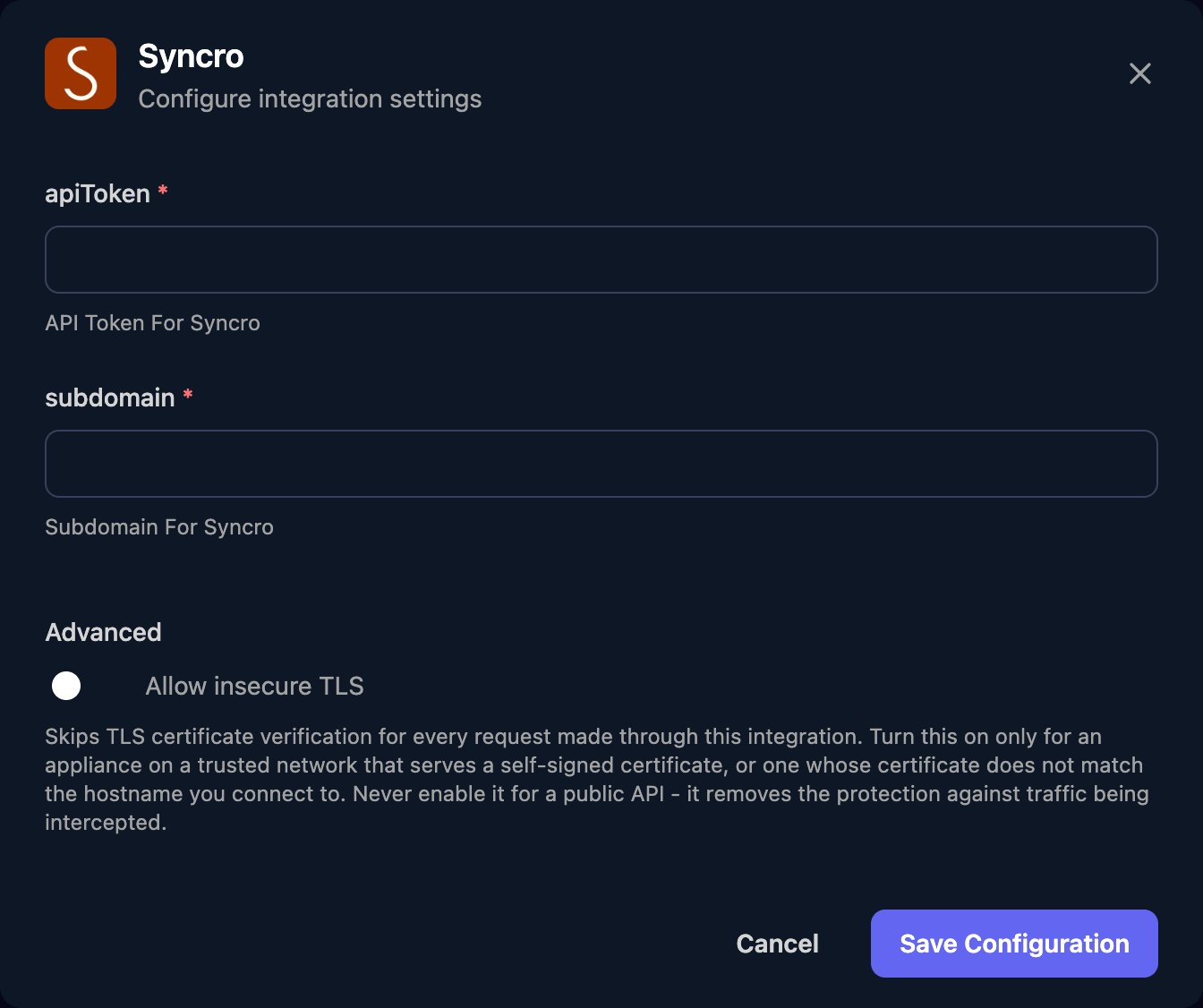
Go to **Integrations > Syncro** and click **Configure** on the Base Configuration card.
 Paste the token into apiToken and enter only your subdomain, such as `yourcompany` for `https://yourcompany.syncromsp.com`. Click Save Configuration.
 ## Troubleshooting
Check subdomain is only the first part of your Syncro address, with no `https://`, `.syncromsp.com` or `/`.
The token is missing a permission. Tick it on the Triggr token in Admin > API Tokens.
Check the token was pasted in full and is still listed and unexpired in Admin > API Tokens. If it's gone, create a new one; Syncro can clone a token with its permissions.
Syncro allows 180 requests a minute per IP address. Spread large workflows out or run them in smaller batches.
This documentation is built and hosted on [Mintlify](https://mintlify.com), a developer documentation platform.
## Troubleshooting
Check subdomain is only the first part of your Syncro address, with no `https://`, `.syncromsp.com` or `/`.
The token is missing a permission. Tick it on the Triggr token in Admin > API Tokens.
Check the token was pasted in full and is still listed and unexpired in Admin > API Tokens. If it's gone, create a new one; Syncro can clone a token with its permissions.
Syncro allows 180 requests a minute per IP address. Spread large workflows out or run them in smaller batches.
This documentation is built and hosted on [Mintlify](https://mintlify.com), a developer documentation platform.