> ## Documentation Index
> Fetch the complete documentation index at: https://university.triggr-app.com/llms.txt
> Use this file to discover all available pages before exploring further.
# Twingate
> Connect Twingate to Triggr with an Admin API token and your network's address.
Triggr works with Twingate networks, Connectors, Resources, groups, users and devices, and can run any Admin API query with Execute GraphQL Query.
## Set up Twingate
You need the Admin role in the Twingate Admin Console.
In the Admin Console, go to **Settings > API**, click **Generate Token** and name it `Triggr`. Choose the lowest permission your workflows need:
| Permission | Workflows will |
| - | - |
| Read only | Only list and look things up |
| Read & Write | Also delete Resources, create groups, change group members, change user roles or set device trust |
| Read, Write & Provision | Also generate Connector tokens or create service account keys with Execute GraphQL Query |
Add Triggr's [outbound IP addresses](/security/ip-allowlist) to the token's allowed ranges. The default, `0.0.0.0/0, ::/0`, allows every address.
Generate the token and copy it before you close the window. Twingate won't show it again.
See Twingate's [API overview](https://www.twingate.com/docs/api-overview).
## Connect it in Triggr
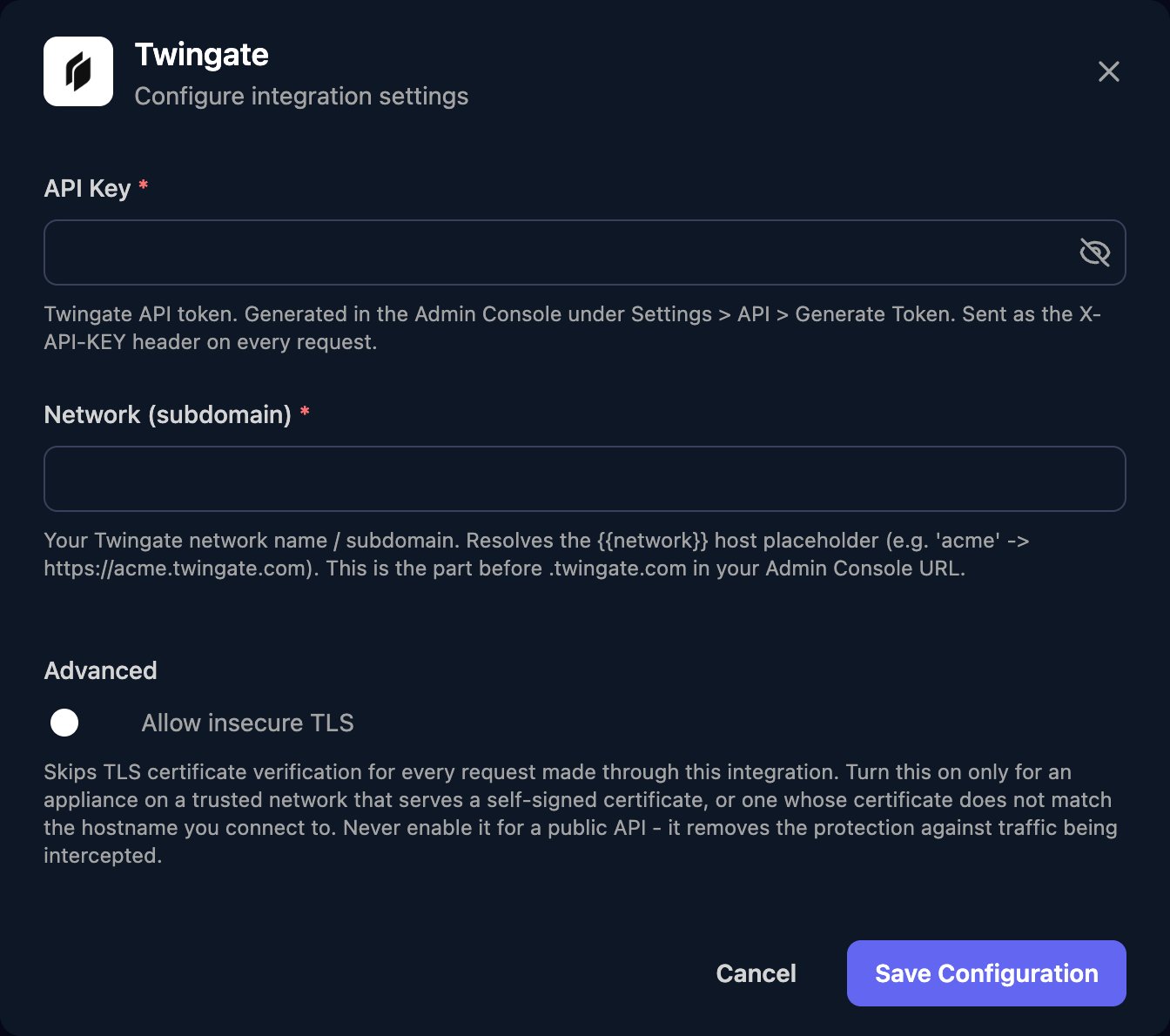
Go to **Integrations > Twingate** and click **Configure** on the Base Configuration card.
 Paste the token into API Key. For Network (subdomain), enter everything before `.twingate.com` in your Admin Console address: `acme` for `https://acme.twingate.com`, or `acme.us1` if it includes a region. Click Save Configuration.
 There's no client mapping: every action runs against this network.
## Use it in workflows
* Take IDs from the `id` of items that List and Get actions return under `data`, such as `data.users.edges[].node`. `userIds` and `resourceIds` take a JSON array, or `[]` in Create Group.
* Actions that change something return `ok` and `error`. Check `ok` before later steps rely on the change.
* Execute GraphQL Query takes `{"query": "...", "variables": {...}}` in `graphQlQuery`. See Twingate's [schema reference](https://www.twingate.com/docs/api).
## Troubleshooting
Network (subdomain) must be only the part before `.twingate.com`, exactly as your Admin Console address shows it, with no `https://` or trailing `/`.
Check API Key holds the full token with no spaces, the token is still enabled under Settings > API, and any allowed ranges include Triggr's [IP addresses](/security/ip-allowlist).
Raise the token's permission under Settings > API. Otherwise, `error` in the response gives Twingate's reason.
Generate a new token, click Edit on the Base Configuration card and paste it into API Key. Then disable the old token under Settings > API.
This documentation is built and hosted on [Mintlify](https://mintlify.com), a developer documentation platform.
There's no client mapping: every action runs against this network.
## Use it in workflows
* Take IDs from the `id` of items that List and Get actions return under `data`, such as `data.users.edges[].node`. `userIds` and `resourceIds` take a JSON array, or `[]` in Create Group.
* Actions that change something return `ok` and `error`. Check `ok` before later steps rely on the change.
* Execute GraphQL Query takes `{"query": "...", "variables": {...}}` in `graphQlQuery`. See Twingate's [schema reference](https://www.twingate.com/docs/api).
## Troubleshooting
Network (subdomain) must be only the part before `.twingate.com`, exactly as your Admin Console address shows it, with no `https://` or trailing `/`.
Check API Key holds the full token with no spaces, the token is still enabled under Settings > API, and any allowed ranges include Triggr's [IP addresses](/security/ip-allowlist).
Raise the token's permission under Settings > API. Otherwise, `error` in the response gives Twingate's reason.
Generate a new token, click Edit on the Base Configuration card and paste it into API Key. Then disable the old token under Settings > API.
This documentation is built and hosted on [Mintlify](https://mintlify.com), a developer documentation platform.