> ## Documentation Index
> Fetch the complete documentation index at: https://university.triggr-app.com/llms.txt
> Use this file to discover all available pages before exploring further.
# UniFi Network
> Connect a UniFi console's Network application to Triggr with a UniFi API key, through Ubiquiti's cloud connector or directly.
Triggr works with one UniFi console's sites, devices (including restarts and PoE power-cycles), connected clients and guest access, and hotspot vouchers. To monitor every console on a UI account at once, use [UniFi Site Manager](/integrations/unifi/site-manager).
Triggr connects one of two ways; the two kinds of key aren't interchangeable, and both need UniFi Network 9.3 or later.
* Remote: a Site Manager key and Console ID (remote). Ubiquiti's cloud relays requests, so nothing is opened on the client's network. Needs UniFi OS 5.0.3 or later.
* Local: a key from the console and Console URL (local). The console must be reachable from the internet over HTTPS.
## Set up UniFi
At [unifi.ui.com](https://unifi.ui.com), signed in with the account that owns the console or your organisation's account, go to **Settings → API Keys**, select **Create New API Key** and copy the key. Ubiquiti shows it only once. A personal account's key only reaches consoles that account owns.
Run List Hosts in UniFi Site Manager and copy the host's `id`, or copy the part after `/consoles/` in the console's address on unifi.ui.com. Include the colon and the digits after it, as in `900A6F003011…:123456789`.
See Ubiquiti's [Site Manager getting started guide](https://developer.ui.com/site-manager/v1.0.0/gettingstarted).
In the console's UniFi Network application (not unifi.ui.com), go to **Settings → Control Plane → Integrations**, select **Create New API Key** and copy the key. Ubiquiti shows it only once.
Give the console a public IP address or hostname, such as `unifi.example.com`, forward HTTPS to it, and allow Triggr's [outbound IP addresses](/security/ip-allowlist) through any firewall.
See Ubiquiti's [Network API getting started guide](https://developer.ui.com/network/v10.6.106/gettingstarted).
## Connect it in Triggr
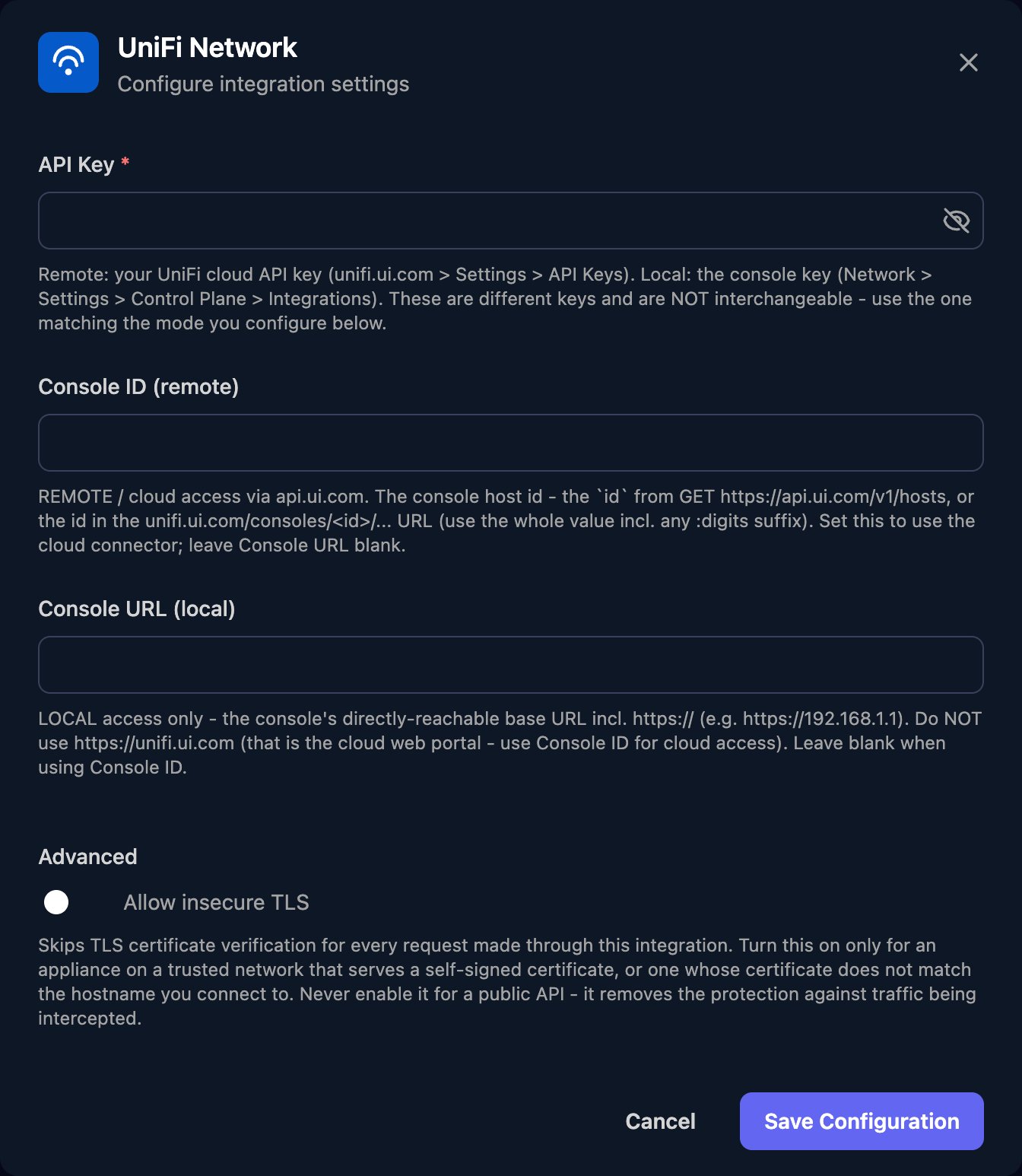
Go to **Integrations > UniFi Network** and click **Configure** on the Base Configuration card.
 Enter the API Key, then fill in only one of Console ID (remote) or Console URL (local): the console's public address with `https://` and any non-443 port, such as `https://unifi.example.com:8443`, with no path. If both have a value, Triggr uses Console ID (remote). For a local console with a self-signed certificate, turn on Allow insecure TLS. Click Save Configuration.
 ## Set up each client
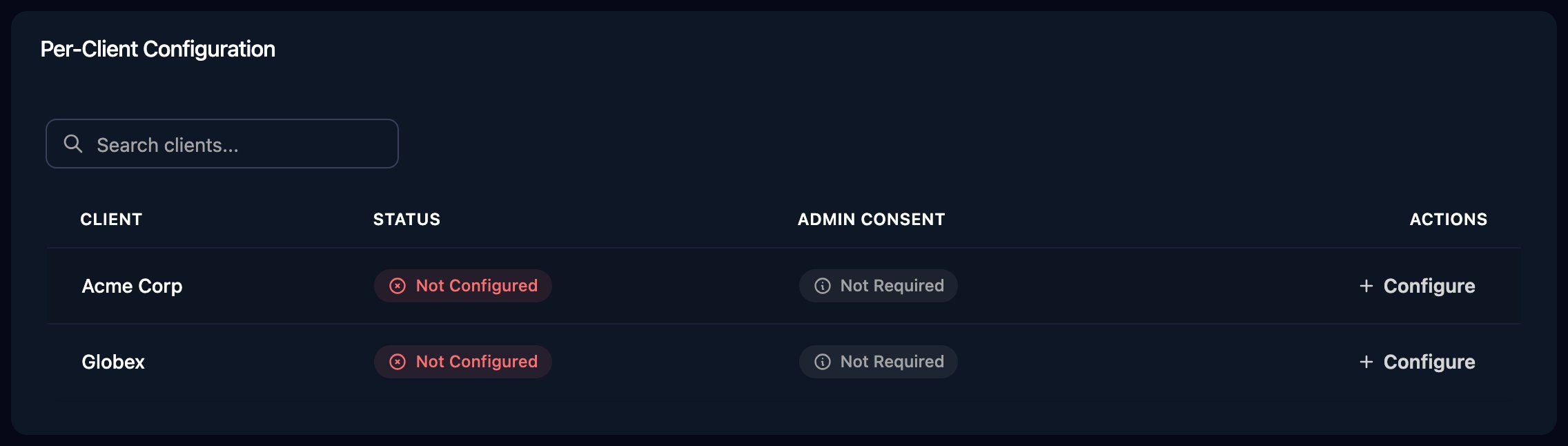
Per-client integrations never fall back to the Base Configuration, so click **Configure** on each client's row and enter its API Key and console ID or URL. Clients under one UI account or organisation can share a Site Manager key with a different Console ID (remote).
## Set up each client
Per-client integrations never fall back to the Base Configuration, so click **Configure** on each client's row and enter its API Key and console ID or URL. Clients under one UI account or organisation can share a Site Manager key with a different Console ID (remote).
 ## Use the actions
Run List Sites first: every other action except Get Application Info needs a site `id`. Device, client and voucher actions also need the ID from their list action. Actions that change something take a JSON body:
| Action | Example body |
| - | - |
| Execute Device Action | `{"action": "RESTART"}` |
| Power-Cycle PoE Port | `{"action": "POWER_CYCLE"}`, with the port number as the port index |
| Execute Client Action | `{"action": "AUTHORIZE_GUEST_ACCESS"}` or `{"action": "UNAUTHORIZE_GUEST_ACCESS"}` |
| Generate Vouchers | `{"name": "Guest Wi-Fi", "timeLimitMinutes": 1440, "count": 5}` |
Ubiquiti's [Network API reference](https://developer.ui.com/network/v10.6.106/gettingstarted) lists the optional fields.
## Troubleshooting
Configure the client on the Per-Client Configuration card, with either a Console ID (remote) or a Console URL (local).
The configuration the workflow used has both fields blank. If the workflow ran for a client, fill in that client's configuration, not the base one.
Match the key to the field, and clear the field you don't use. A remote 403 means the key's account can't reach the console.
Ubiquiti's cloud connector ends requests after 25 seconds and allows 100 requests a minute per console. For a 502, check the console is online and Console ID (remote) includes the part after the colon.
Console URL (local) must be a public address, not one such as `192.168.x.x`, with HTTPS forwarded and Triggr's [IP addresses](/security/ip-allowlist) allowed. For certificate errors, turn on Allow insecure TLS.
This documentation is built and hosted on [Mintlify](https://mintlify.com), a developer documentation platform.
## Use the actions
Run List Sites first: every other action except Get Application Info needs a site `id`. Device, client and voucher actions also need the ID from their list action. Actions that change something take a JSON body:
| Action | Example body |
| - | - |
| Execute Device Action | `{"action": "RESTART"}` |
| Power-Cycle PoE Port | `{"action": "POWER_CYCLE"}`, with the port number as the port index |
| Execute Client Action | `{"action": "AUTHORIZE_GUEST_ACCESS"}` or `{"action": "UNAUTHORIZE_GUEST_ACCESS"}` |
| Generate Vouchers | `{"name": "Guest Wi-Fi", "timeLimitMinutes": 1440, "count": 5}` |
Ubiquiti's [Network API reference](https://developer.ui.com/network/v10.6.106/gettingstarted) lists the optional fields.
## Troubleshooting
Configure the client on the Per-Client Configuration card, with either a Console ID (remote) or a Console URL (local).
The configuration the workflow used has both fields blank. If the workflow ran for a client, fill in that client's configuration, not the base one.
Match the key to the field, and clear the field you don't use. A remote 403 means the key's account can't reach the console.
Ubiquiti's cloud connector ends requests after 25 seconds and allows 100 requests a minute per console. For a 502, check the console is online and Console ID (remote) includes the part after the colon.
Console URL (local) must be a public address, not one such as `192.168.x.x`, with HTTPS forwarded and Triggr's [IP addresses](/security/ip-allowlist) allowed. For certificate errors, turn on Allow insecure TLS.
This documentation is built and hosted on [Mintlify](https://mintlify.com), a developer documentation platform.