> ## Documentation Index
> Fetch the complete documentation index at: https://university.triggr-app.com/llms.txt
> Use this file to discover all available pages before exploring further.
# UniFi Site Manager
> Connect a UI account to Triggr with a Site Manager API key to monitor UniFi consoles, sites and devices from the cloud.
Triggr reads the hosts (consoles), sites, devices and ISP metrics on a UI account. Every action reads data: to make a change on a console, use [UniFi Network](/integrations/unifi/network), which takes the same key and the host `id` from List Hosts as its Console ID (remote).
## Create a Site Manager API key
Sign in to [unifi.ui.com](https://unifi.ui.com), go to **Settings → API Keys**, select **Create New API Key** and copy the key. Ubiquiti shows it only once, and the key sees what its UI account or organisation sees. See Ubiquiti's [Site Manager getting started guide](https://developer.ui.com/site-manager/v1.0.0/gettingstarted).
## Connect it in Triggr
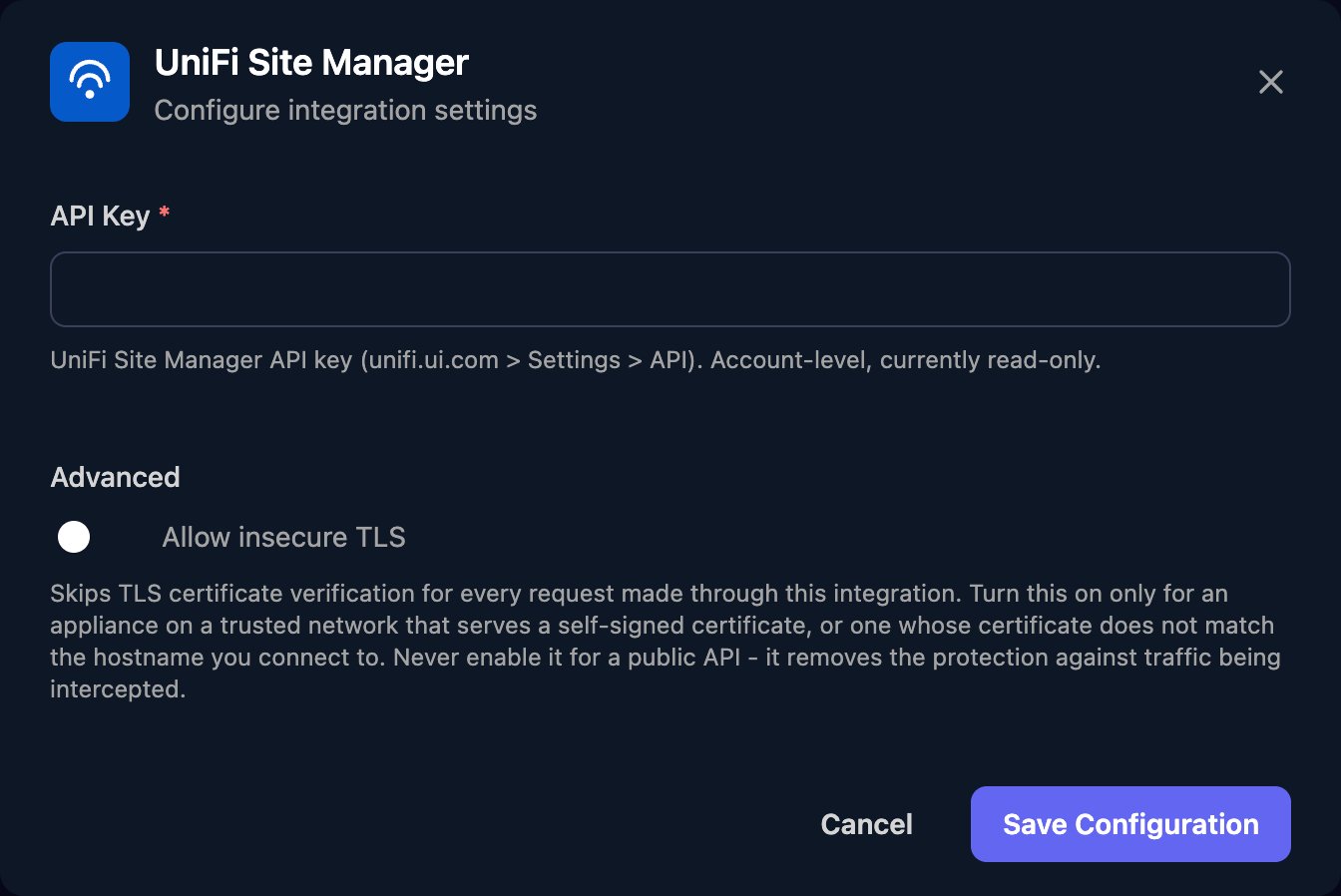
Go to **Integrations > UniFi Site Manager** and click **Configure** on the Base Configuration card.
 Paste the key into API Key and click Save Configuration.
 ## Set up each client
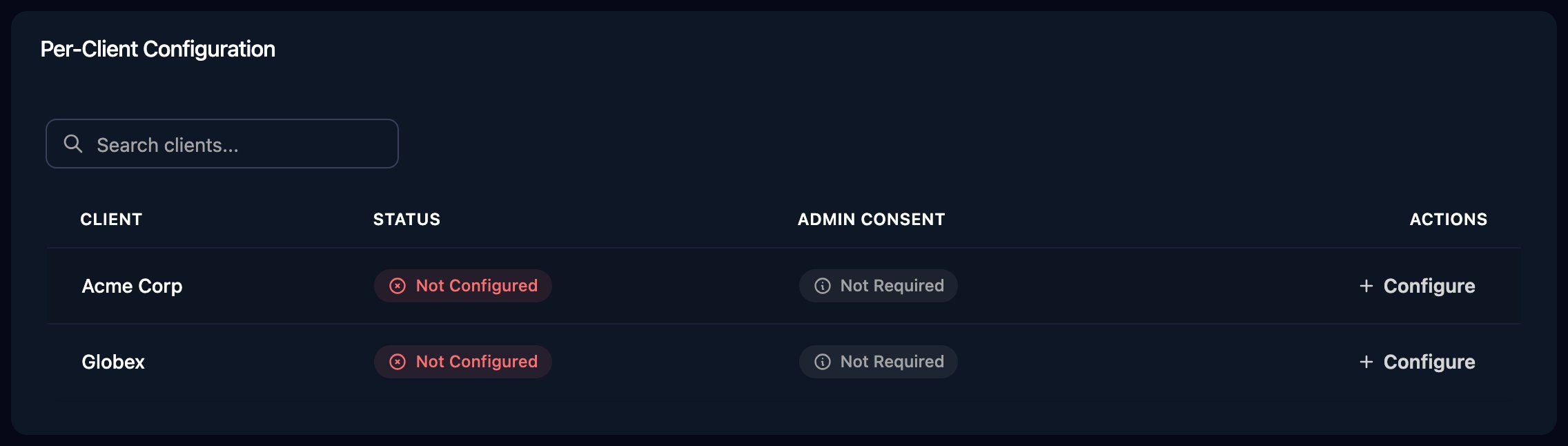
Per-client integrations never fall back to the Base Configuration, so click **Configure** on each client's row and paste a key into API Key: one from the client's own UI account, or from yours if their consoles sit under it (in which case it also returns your other clients' consoles).
## Set up each client
Per-client integrations never fall back to the Base Configuration, so click **Configure** on each client's row and paste a key into API Key: one from the client's own UI account, or from yours if their consoles sit under it (in which case it also returns your other clients' consoles).
 ## Use the actions
* Get Host takes the `id` from List Hosts, including the colon and digits at the end.
* Get ISP Metrics takes a `type` of `5m` or `1h`. Ubiquiti keeps 5-minute metrics for at least 24 hours and 1-hour metrics for at least 30 days.
## Troubleshooting
Check the key is complete, still exists under Settings → API Keys, and comes from unifi.ui.com, not a console's UniFi Network application.
Configure the client on the Per-Client Configuration card.
The key returns only consoles linked to its account. List Sites covers only hosts running the UniFi Network application, and List Devices only hosts where the account is the owner or a super admin.
Spread a large workflow's requests out or run it in smaller batches.
This documentation is built and hosted on [Mintlify](https://mintlify.com), a developer documentation platform.
## Use the actions
* Get Host takes the `id` from List Hosts, including the colon and digits at the end.
* Get ISP Metrics takes a `type` of `5m` or `1h`. Ubiquiti keeps 5-minute metrics for at least 24 hours and 1-hour metrics for at least 30 days.
## Troubleshooting
Check the key is complete, still exists under Settings → API Keys, and comes from unifi.ui.com, not a console's UniFi Network application.
Configure the client on the Per-Client Configuration card.
The key returns only consoles linked to its account. List Sites covers only hosts running the UniFi Network application, and List Devices only hosts where the account is the owner or a super admin.
Spread a large workflow's requests out or run it in smaller batches.
This documentation is built and hosted on [Mintlify](https://mintlify.com), a developer documentation platform.