> ## Documentation Index
> Fetch the complete documentation index at: https://university.triggr-app.com/llms.txt
> Use this file to discover all available pages before exploring further.
# Axcient x360Cloud
> Connect Axcient x360Cloud to Triggr with an x360Portal API key.
Triggr reads your x360Cloud client organisations, their backup status, protected users and shared resources. One configuration covers all your clients. [Axcient x360Recover](/integrations/x360recover) is a separate integration.
## Create an API key in Axcient
You need an administrator account in the Axcient x360Portal.
Sign in to the [x360Portal](https://partner.axcient.com/), go to **Settings > API Keys** and click **Add API Key**.
Name it `Triggr`, select x360Cloud if the form lists products, accept the license agreement and click Generate API Key. Axcient shows the key only once. See Axcient's [Generating and Managing API Keys](https://help.axcient.com/360001190313-Axcient-x360Portal-/generating-and-managing-api-keys).
## Connect it in Triggr
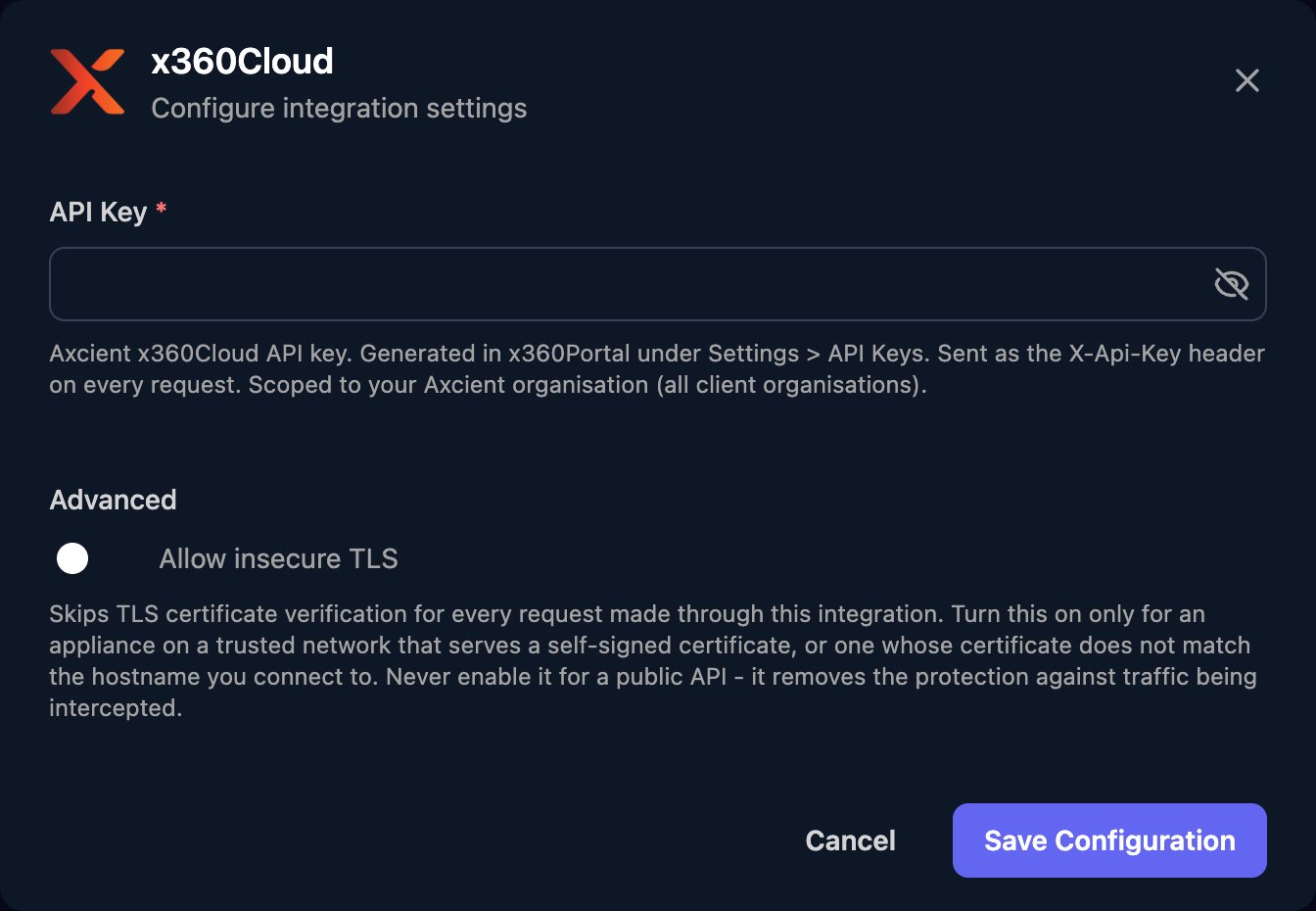
Go to **Integrations > x360Cloud** and click **Configure** on the Base Configuration card.
 Paste the key into API Key and click Save Configuration.
 ## Work with x360Cloud in workflows
There's no client mapping. Run List Client Organizations and pass the organisation's `id` as `clientId` to actions such as Get Client Backup Status; Get User and Get Shared Resource take the ID from the matching list action. Lists are paged from 0, 20 results a page by default, and `numberOfAvailableResults` gives the total.
| Filter | Actions | Values |
| - | - | - |
| Type | List Client Organizations | `Configured`, `NotConfigured`, `AllTypes`, `Microsoft365`, `GoogleWorkspace` |
| Backup status | List Client Organizations, Get Client Backup Status | `Successful`, `Failed`, `Partial`, `InProgress`, `Unavailable`, `Onboarding` |
| Status | User and shared resource lists | `active`, `inactive`, `deleted` |
| Resource type | Shared resource lists | `sharepoint_site`, `shared_drive` |
Dates on Get Client Backup Status take `2024-12-11` or `2025-01-11T16:29:36Z`. See the [x360Cloud API reference](https://developer.axcient.com/x360cloud).
## Troubleshooting
Check the key is complete and still exists under Settings > API Keys; any administrator can delete it. If it's gone, create a new one and paste it in with Edit on the Base Configuration card.
`Configured` returns only organisations set up to protect data. Set the type to `AllTypes`.
If `numberOfAvailableResults` is larger than what came back, request the next page or a larger page size.
This documentation is built and hosted on [Mintlify](https://mintlify.com), a developer documentation platform.
## Work with x360Cloud in workflows
There's no client mapping. Run List Client Organizations and pass the organisation's `id` as `clientId` to actions such as Get Client Backup Status; Get User and Get Shared Resource take the ID from the matching list action. Lists are paged from 0, 20 results a page by default, and `numberOfAvailableResults` gives the total.
| Filter | Actions | Values |
| - | - | - |
| Type | List Client Organizations | `Configured`, `NotConfigured`, `AllTypes`, `Microsoft365`, `GoogleWorkspace` |
| Backup status | List Client Organizations, Get Client Backup Status | `Successful`, `Failed`, `Partial`, `InProgress`, `Unavailable`, `Onboarding` |
| Status | User and shared resource lists | `active`, `inactive`, `deleted` |
| Resource type | Shared resource lists | `sharepoint_site`, `shared_drive` |
Dates on Get Client Backup Status take `2024-12-11` or `2025-01-11T16:29:36Z`. See the [x360Cloud API reference](https://developer.axcient.com/x360cloud).
## Troubleshooting
Check the key is complete and still exists under Settings > API Keys; any administrator can delete it. If it's gone, create a new one and paste it in with Edit on the Base Configuration card.
`Configured` returns only organisations set up to protect data. Set the type to `AllTypes`.
If `numberOfAvailableResults` is larger than what came back, request the next page or a larger page size.
This documentation is built and hosted on [Mintlify](https://mintlify.com), a developer documentation platform.