> ## Documentation Index
> Fetch the complete documentation index at: https://university.triggr-app.com/llms.txt
> Use this file to discover all available pages before exploring further.
# Axcient x360Recover
> Connect Axcient x360Recover to Triggr with an x360Portal API key.
Triggr works with your x360Recover clients, appliances, vaults, protected systems, backup jobs and restore points, and can create Direct-to-Cloud (D2C) agent tokens. One configuration covers all your clients. [Axcient x360Cloud](/integrations/x360cloud) is a separate integration with a key created the same way.
## Create an API key in Axcient
You need an administrator account in the Axcient x360Portal.
Sign in to the [x360Portal](https://partner.axcient.com/), go to **Settings > API Keys** and click **Add API Key**.
Name it `Triggr`, select x360Recover if the form lists products, accept the license agreement and click Generate API Key. Axcient shows the key only once. See Axcient's [Generating and Managing API Keys](https://help.axcient.com/360001190313-Axcient-x360Portal-/generating-and-managing-api-keys).
## Connect it in Triggr
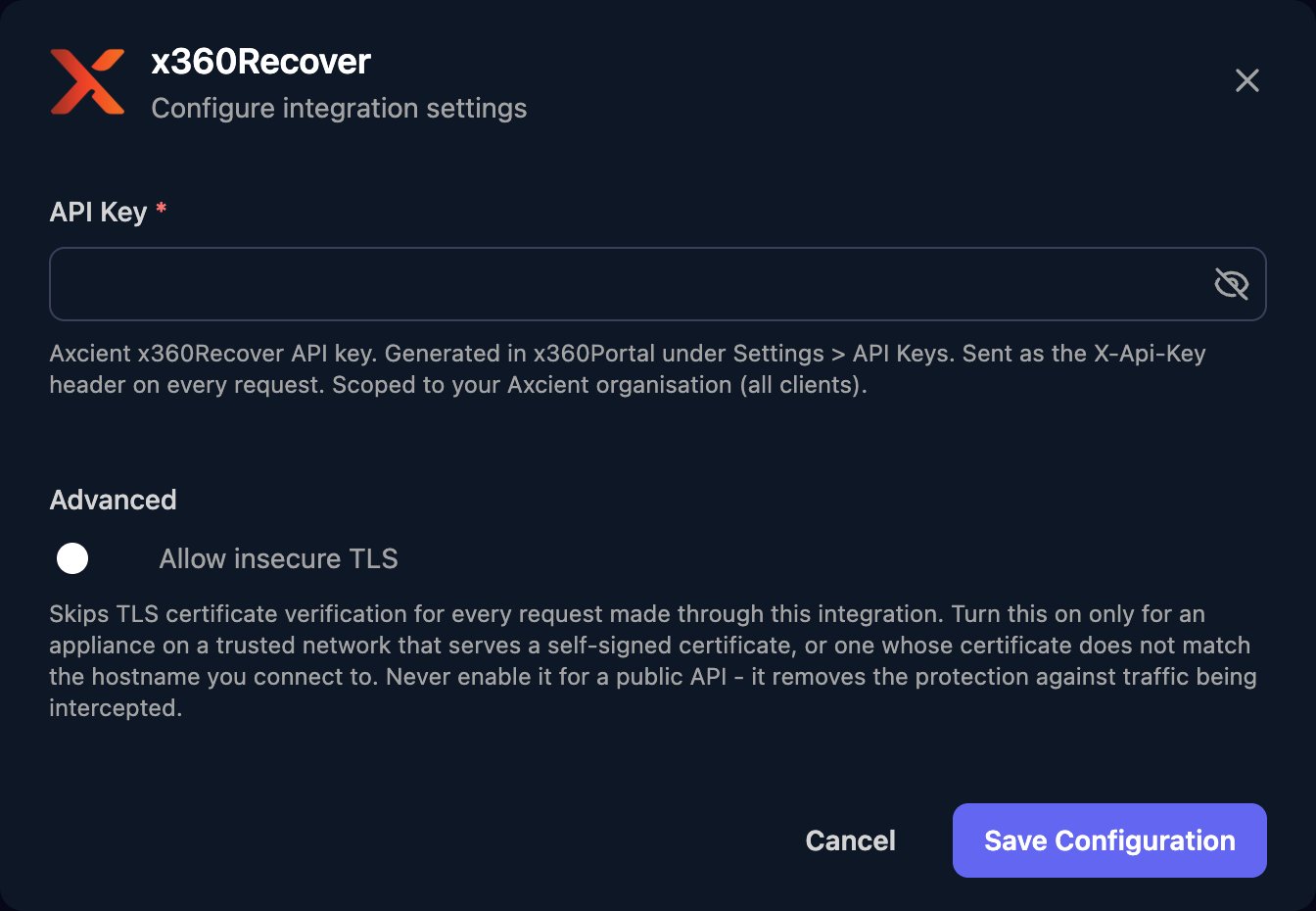
Go to **Integrations > x360Recover** and click **Configure** on the Base Configuration card.
 Paste the key into API Key and click Save Configuration.
 ## Work with x360Recover in workflows
There's no client mapping. Run List Clients and pass the client's `id` as `clientId`. Other IDs come from list actions:
| Input | Where to get it |
| - | - |
| `deviceId` | `id` from List Devices or List Client Devices |
| `applianceId` | `id` from List Appliances or List Client Appliances |
| `vaultId` | `id` from List Vaults |
| `jobId` | `id` from List Device Jobs |
| `userId` | `id` from List Users |
| `asioEndpointId` | A protected system's `asio_endpoint_id` |
Job actions need both `deviceId` and the device's `client_id` as `clientId`. Timestamps such as `maxTimestamp` and `starttimeBegin` are Unix seconds. Set Vault Connectivity Threshold takes `{"threshold": 240}` (minutes) in `jsonBody`, and Create D2C Agent Token takes `{}`. List Devices and Get Job History return up to 500 results; use `offset` for more. See the [x360Recover API reference](https://developer.axcient.com/x360recover).
## Troubleshooting
Check the key is complete and still exists under Settings > API Keys; any administrator can delete it. If it's gone, create a new one and paste it in with Edit on the Base Configuration card.
Pass the numeric `id` from the matching list action, not a name. For job actions, use the device's `client_id` as `clientId`.
This documentation is built and hosted on [Mintlify](https://mintlify.com), a developer documentation platform.
## Work with x360Recover in workflows
There's no client mapping. Run List Clients and pass the client's `id` as `clientId`. Other IDs come from list actions:
| Input | Where to get it |
| - | - |
| `deviceId` | `id` from List Devices or List Client Devices |
| `applianceId` | `id` from List Appliances or List Client Appliances |
| `vaultId` | `id` from List Vaults |
| `jobId` | `id` from List Device Jobs |
| `userId` | `id` from List Users |
| `asioEndpointId` | A protected system's `asio_endpoint_id` |
Job actions need both `deviceId` and the device's `client_id` as `clientId`. Timestamps such as `maxTimestamp` and `starttimeBegin` are Unix seconds. Set Vault Connectivity Threshold takes `{"threshold": 240}` (minutes) in `jsonBody`, and Create D2C Agent Token takes `{}`. List Devices and Get Job History return up to 500 results; use `offset` for more. See the [x360Recover API reference](https://developer.axcient.com/x360recover).
## Troubleshooting
Check the key is complete and still exists under Settings > API Keys; any administrator can delete it. If it's gone, create a new one and paste it in with Edit on the Base Configuration card.
Pass the numeric `id` from the matching list action, not a name. For job actions, use the device's `client_id` as `clientId`.
This documentation is built and hosted on [Mintlify](https://mintlify.com), a developer documentation platform.