> ## Documentation Index
> Fetch the complete documentation index at: https://university.triggr-app.com/llms.txt
> Use this file to discover all available pages before exploring further.
# Zoom
> Connect Zoom to Triggr with a Zoom general app that an admin authorizes for each Zoom account.
Triggr lists an account's Zoom Phone users, and can call other Zoom endpoints within the app's scopes. You need Zoom Phone on a Pro or higher plan.
Only members of the account that owns an unpublished Zoom app can authorize it, so create the app in the account you're connecting: yours for the Base Configuration, each client's for theirs.
## Create a Zoom app
You need the account owner or admin role, or the Zoom for developers role.
In the [Zoom App Marketplace](https://marketplace.zoom.us/), click Developer, then **Develop > Build an app**. Select General app (not Server-to-Server OAuth) and click Create.
On Basic Info, rename the app `Triggr` and choose Admin-managed. Set OAuth redirect URL to `https://app.triggr-app.com/oauth/callback` and add the same URL under OAuth allow lists.
On Scopes, click **Add Scopes**, tick `phone:read:list_users:admin` (or `phone:read:admin` for classic scopes) and add a Scope Description. Add scopes for any other endpoints you'll call, from the [API reference](https://developers.zoom.us/docs/api/).
On Basic Info, copy the Client ID and Client Secret under App Credentials.
See Zoom's [Create an OAuth app](https://developers.zoom.us/docs/integrations/create/) guide.
## Connect it in Triggr
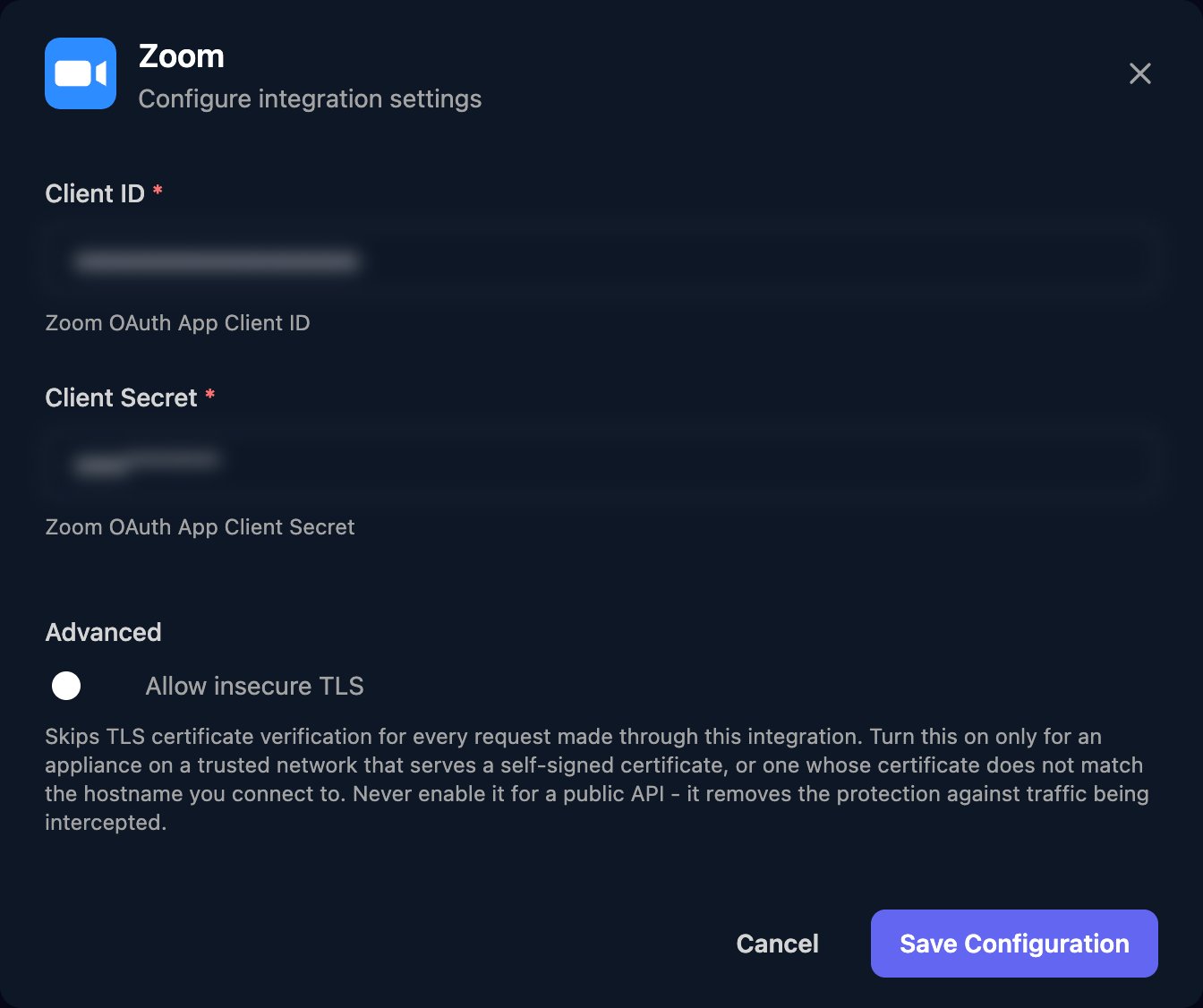
Go to **Integrations > Zoom** and click **Configure** on the Base Configuration card.
 Both fields open with values in them: clear them, paste your app's Client ID and Client Secret, and click Save Configuration.
 Click **Authorize**, sign in as an admin of the Zoom account that owns the app, and click Allow. If your browser is signed in to a different Zoom account, sign out of Zoom first.
Authorize again only if you change the app's scopes or credentials, or the app is removed.
## Set up each client
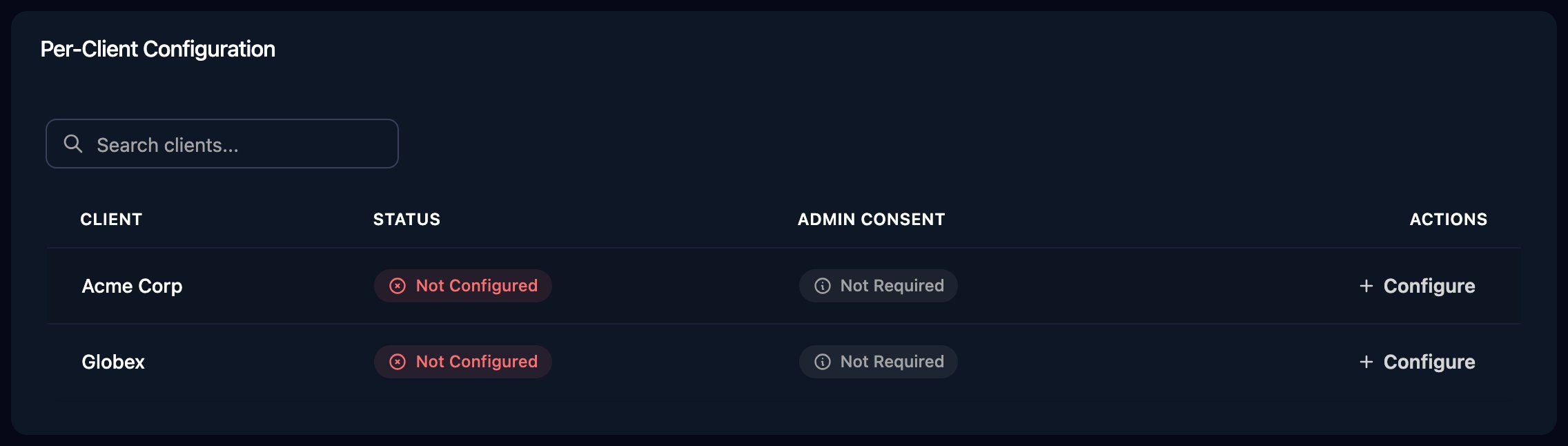
Per-client integrations never fall back to the Base Configuration. For each client, [create a Zoom app](#create-a-zoom-app) in the client's Zoom account, click **Configure** on the client's row, enter that app's Client ID and Client Secret, save, then click Authorize as the client's Zoom admin.
Click **Authorize**, sign in as an admin of the Zoom account that owns the app, and click Allow. If your browser is signed in to a different Zoom account, sign out of Zoom first.
Authorize again only if you change the app's scopes or credentials, or the app is removed.
## Set up each client
Per-client integrations never fall back to the Base Configuration. For each client, [create a Zoom app](#create-a-zoom-app) in the client's Zoom account, click **Configure** on the client's row, enter that app's Client ID and Client Secret, save, then click Authorize as the client's Zoom admin.
 An app [published on the Zoom App Marketplace](https://developers.zoom.us/docs/distribute/) can be authorized by other accounts' admins, so one app can serve every client.
## Use Zoom in workflows
* List Phone Users takes optional filters. Pass the response's `next_page_token` into `nextPageToken` for the next page.
* For other endpoints, use a Generic Integration Action step with URL Type set to Relative to base URL and the path after `https://api.zoom.us/v2`, such as `/phone/sites` (scope `phone:read:list_sites:admin`).
## Troubleshooting
Check OAuth redirect URL is exactly `https://app.triggr-app.com/oauth/callback` and is in OAuth allow lists, then click Authorize again.
Sign in as an owner or admin of the account that owns the app. Check Client ID and Client Secret come from the same app, then click Authorize again.
Configure and authorize the client on the Per-Client Configuration card, as in [Set up each client](#set-up-each-client).
Check the account has Zoom Phone and the app has the scope. After adding a scope, click Authorize again.
The authorization is no longer valid. Update the credentials if they changed, then click Authorize again.
This documentation is built and hosted on [Mintlify](https://mintlify.com), a developer documentation platform.
An app [published on the Zoom App Marketplace](https://developers.zoom.us/docs/distribute/) can be authorized by other accounts' admins, so one app can serve every client.
## Use Zoom in workflows
* List Phone Users takes optional filters. Pass the response's `next_page_token` into `nextPageToken` for the next page.
* For other endpoints, use a Generic Integration Action step with URL Type set to Relative to base URL and the path after `https://api.zoom.us/v2`, such as `/phone/sites` (scope `phone:read:list_sites:admin`).
## Troubleshooting
Check OAuth redirect URL is exactly `https://app.triggr-app.com/oauth/callback` and is in OAuth allow lists, then click Authorize again.
Sign in as an owner or admin of the account that owns the app. Check Client ID and Client Secret come from the same app, then click Authorize again.
Configure and authorize the client on the Per-Client Configuration card, as in [Set up each client](#set-up-each-client).
Check the account has Zoom Phone and the app has the scope. After adding a scope, click Authorize again.
The authorization is no longer valid. Update the credentials if they changed, then click Authorize again.
This documentation is built and hosted on [Mintlify](https://mintlify.com), a developer documentation platform.