> ## Documentation Index
> Fetch the complete documentation index at: https://university.triggr-app.com/llms.txt
> Use this file to discover all available pages before exploring further.
# Zorus
> Connect Zorus to Triggr with a Zorus Portal API token that acts as one of your Zorus users.
Triggr works with Zorus customers, groups, policies, deployment tokens, endpoints and unblock requests. The API token acts as one Zorus user, so Triggr can see and do only what that user can.
## Set up Zorus
You need a Zorus Portal user with the System Administrator permission.
Under Users > User Management, pick a user whose permissions cover the customers and endpoints your workflows use. Zorus's [Portal Permissions Matrix](https://help.dnsfilter.com/hc/en-us/articles/54295818371347-Zorus-Portal-Permissions-Matrix) lists what each permission covers.
In the [Zorus Portal](https://portal.zorustech.com), go to **Integrations > API Access** and click **Generate API Token**. Select the user, name the token `Triggr`, generate it and copy it. Zorus won't show it again. See Zorus's [API QuickStart](https://help.dnsfilter.com/hc/en-us/articles/54295830393363-Zorus-API-QuickStart).
## Connect it in Triggr
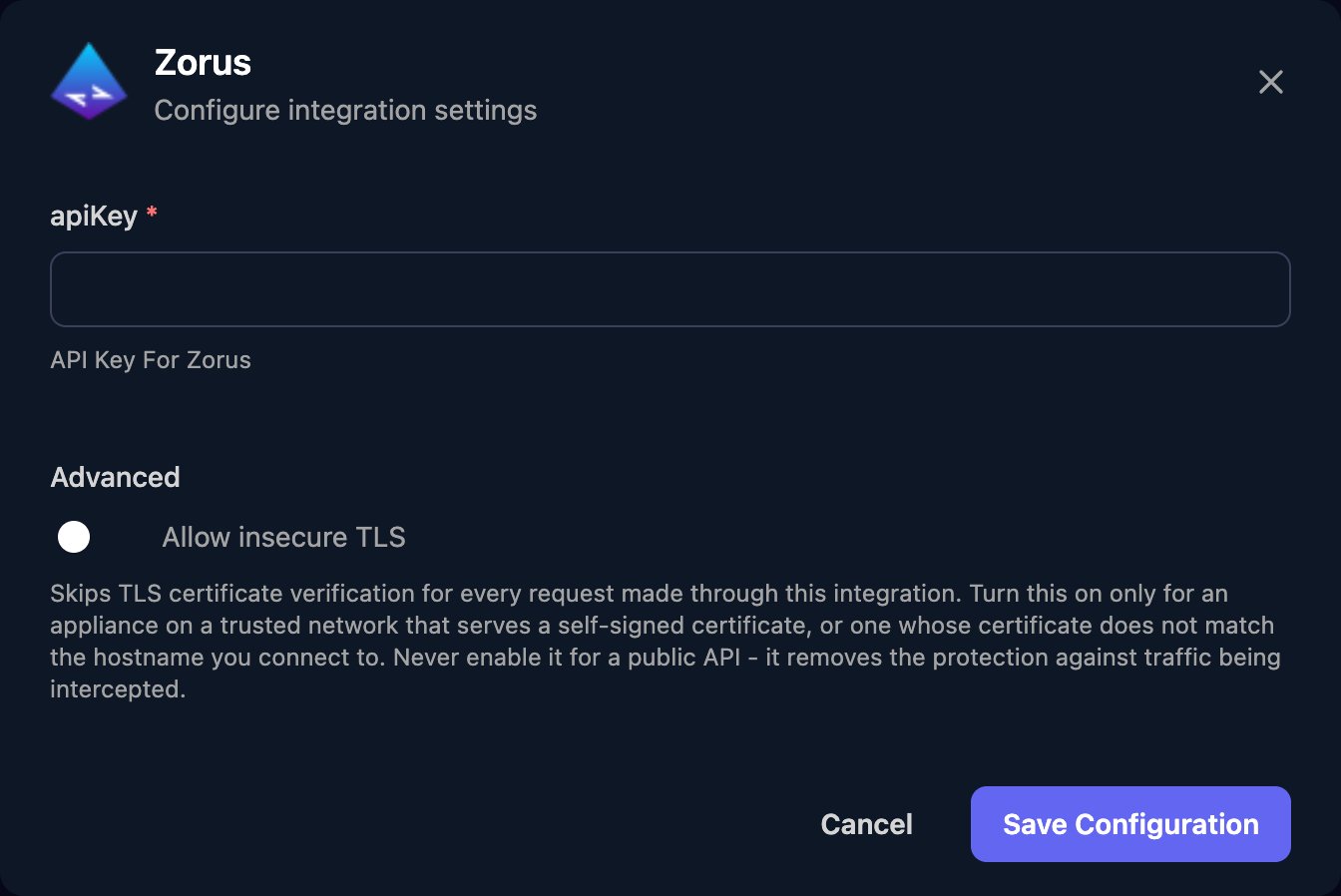
Go to **Integrations > Zorus** and click **Configure** on the Base Configuration card.
 Paste the token alone into apiKey, without `Impersonation` in front, and click Save Configuration.
 There's no client mapping: one token covers every customer the user can access. Workflows identify a customer by the Zorus UUID from Search Customers, and search actions take a JSON filter such as `{"nameContains": "Contoso"}`.
## Troubleshooting
Check apiKey holds only the token, and the token is still enabled under Integrations > API Access and hasn't been rotated or deleted. Rotate Token revokes the old value at once, so paste the new one into Triggr straight away.
Check the impersonated user's permissions and assigned customers, or generate a token for a different user.
Zorus allows 100 API requests a minute per account, shared by everything using it. Spread large workflows out or run them in smaller batches.
This documentation is built and hosted on [Mintlify](https://mintlify.com), a developer documentation platform.
There's no client mapping: one token covers every customer the user can access. Workflows identify a customer by the Zorus UUID from Search Customers, and search actions take a JSON filter such as `{"nameContains": "Contoso"}`.
## Troubleshooting
Check apiKey holds only the token, and the token is still enabled under Integrations > API Access and hasn't been rotated or deleted. Rotate Token revokes the old value at once, so paste the new one into Triggr straight away.
Check the impersonated user's permissions and assigned customers, or generate a token for a different user.
Zorus allows 100 API requests a minute per account, shared by everything using it. Spread large workflows out or run them in smaller batches.
This documentation is built and hosted on [Mintlify](https://mintlify.com), a developer documentation platform.