> ## Documentation Index
> Fetch the complete documentation index at: https://university.triggr-app.com/llms.txt
> Use this file to discover all available pages before exploring further.
# AI in Studio
> Ask Aimbot about your clients and runs, have it build automations, and use the Assistant tab to build workflows and forms from a description.
Studio has two built-in AI helpers for organisation admins: Aimbot in the top bar, for questions and actions across your organisation, and an Assistant tab in the workflow and form designers, for building what's open.
## Aimbot
Click **Aimbot** in the top bar, then type a question or pick a suggestion.
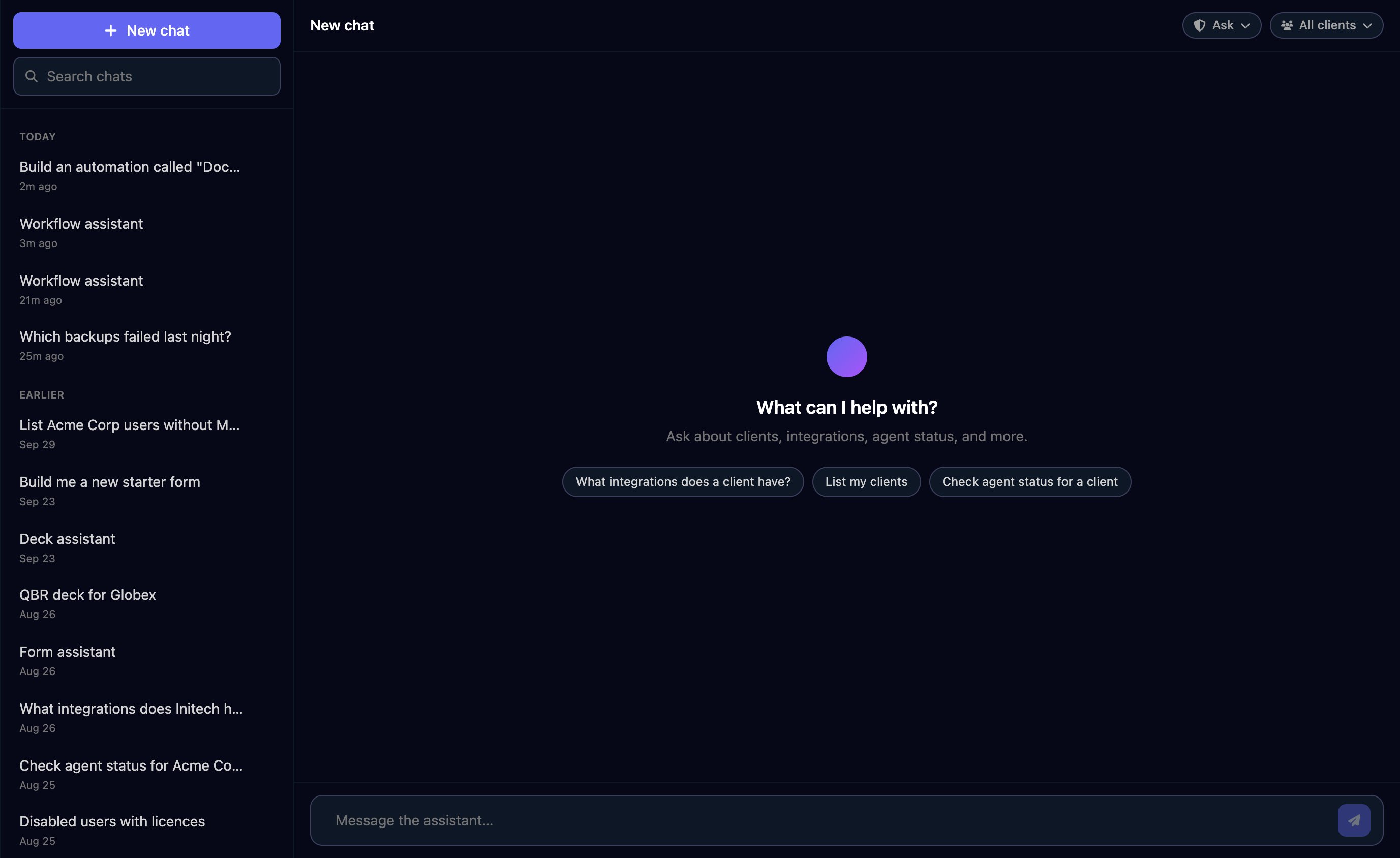 Aimbot has the [MCP server](/studio/mcp)'s tools, apart from Triggr Core settings and PowerShell script editing, so it reads your clients, workflows, runs, forms, approvals and agent status, and fetches live data through your integrations. It can also:
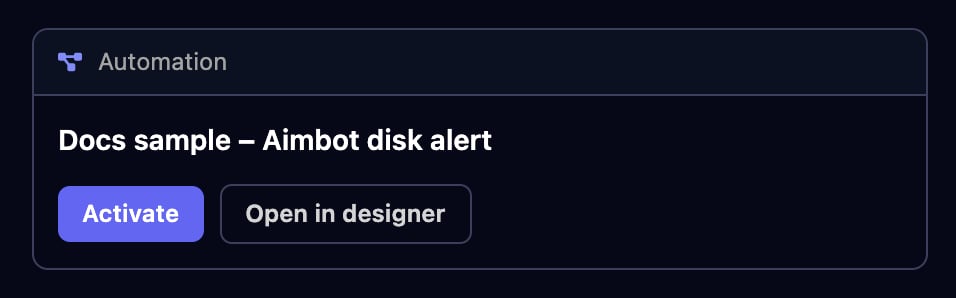
* Build automations. Describe one and Aimbot saves it as an Inactive workflow. Click **Open in designer** to check it, then **Activate**.
Aimbot has the [MCP server](/studio/mcp)'s tools, apart from Triggr Core settings and PowerShell script editing, so it reads your clients, workflows, runs, forms, approvals and agent status, and fetches live data through your integrations. It can also:
* Build automations. Describe one and Aimbot saves it as an Inactive workflow. Click **Open in designer** to check it, then **Activate**.
 * Open a form for you. Ask for one of your forms and fill it in inside the chat; Aimbot never sees your answers. Forms that need a password, Microsoft or Google sign-in open in their own page.
* Run things. Start workflows, approve your approvals and set client variables, once you allow it.
### Choose what it may do without asking
The pill at the top right of a chat sets the permission mode.
* Open a form for you. Ask for one of your forms and fill it in inside the chat; Aimbot never sees your answers. Forms that need a password, Microsoft or Google sign-in open in their own page.
* Run things. Start workflows, approve your approvals and set client variables, once you allow it.
### Choose what it may do without asking
The pill at the top right of a chat sets the permission mode.
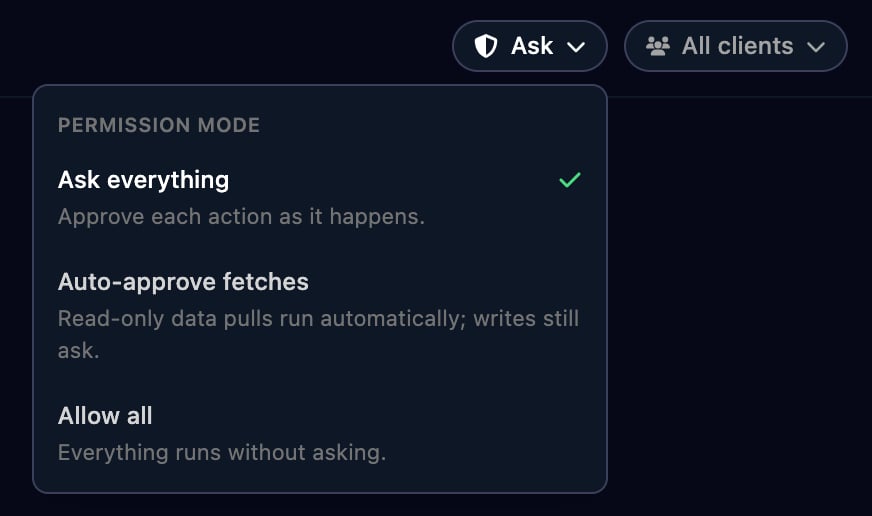 | Mode | Runs without asking |
| - | - |
| Ask everything (default) | Reads of Triggr's own data |
| Auto-approve fetches | Also read-only calls to your integrations |
| Allow all | Everything |
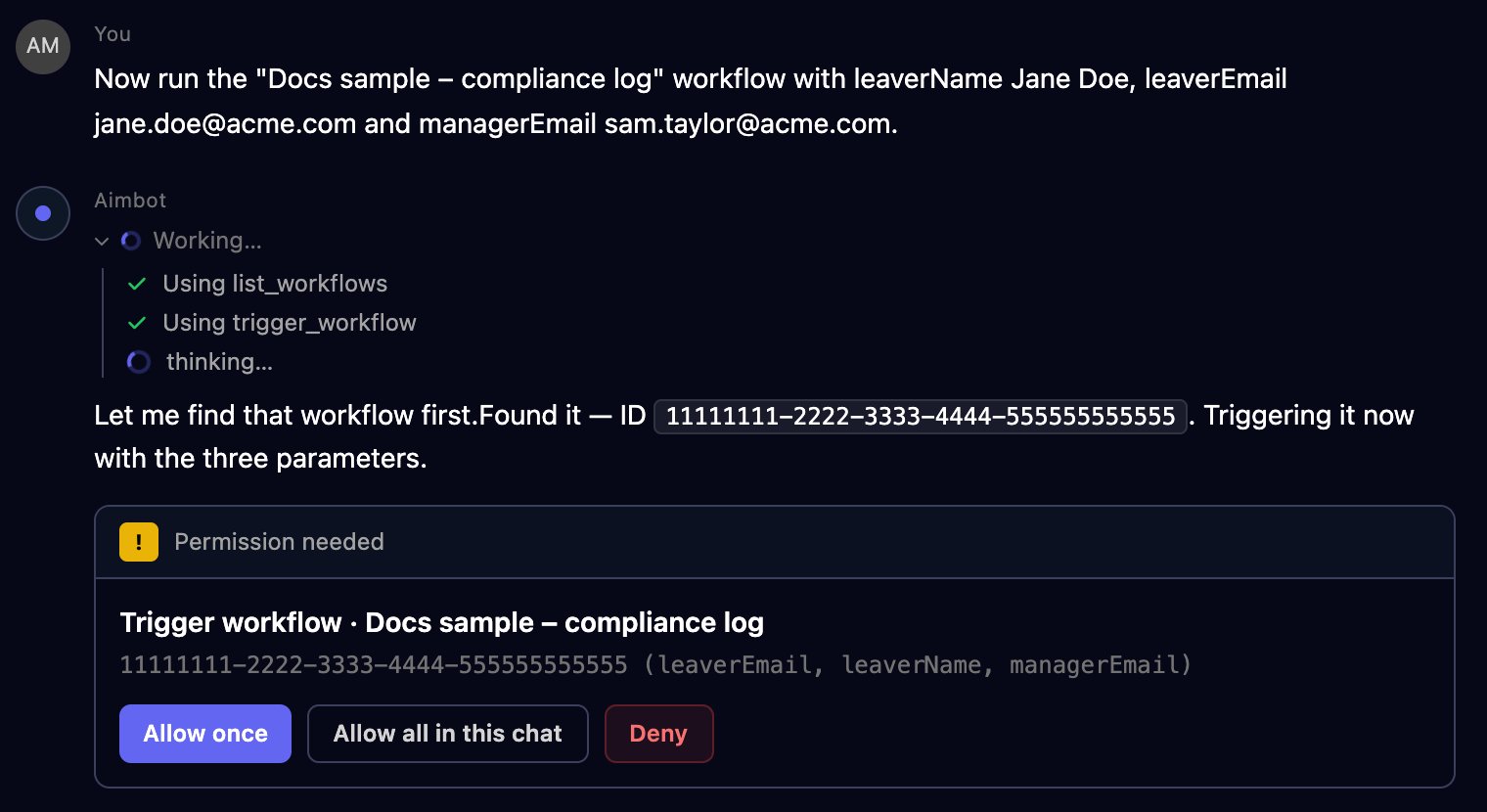
Anything else shows a Permission needed card: click **Allow once**, **Allow all in this chat** (which switches the chat to Allow all) or **Deny**. Aimbot doesn't retry a denied action another way.
| Mode | Runs without asking |
| - | - |
| Ask everything (default) | Reads of Triggr's own data |
| Auto-approve fetches | Also read-only calls to your integrations |
| Allow all | Everything |
Anything else shows a Permission needed card: click **Allow once**, **Allow all in this chat** (which switches the chat to Allow all) or **Deny**. Aimbot doesn't retry a denied action another way.
 To keep a chat to one client, click **All clients** and pick the client before you ask. Chats are private to you.
### Prompts that work well
> Which integrations does Acme Corp have, and is its desktop agent online?
> Which workflow runs failed in the last 7 days? Group them by workflow and show the failing step and error for the top three.
> Build an automation called "Disk space alert". A webhook receives an RMM alert with device, alertType and siteId. Email [helpdesk@example.com](mailto:helpdesk@example.com) with the device and alert type, then finish.
> Open the leaver request form for Globex.
## The Assistant tab in the workflow designer
Open a workflow, click **Assistant** next to Components and describe what it should do or what to change; it builds the trigger, branches and steps on the canvas.
To keep a chat to one client, click **All clients** and pick the client before you ask. Chats are private to you.
### Prompts that work well
> Which integrations does Acme Corp have, and is its desktop agent online?
> Which workflow runs failed in the last 7 days? Group them by workflow and show the failing step and error for the top three.
> Build an automation called "Disk space alert". A webhook receives an RMM alert with device, alertType and siteId. Email [helpdesk@example.com](mailto:helpdesk@example.com) with the device and alert type, then finish.
> Open the leaver request form for Globex.
## The Assistant tab in the workflow designer
Open a workflow, click **Assistant** next to Components and describe what it should do or what to change; it builds the trigger, branches and steps on the canvas.
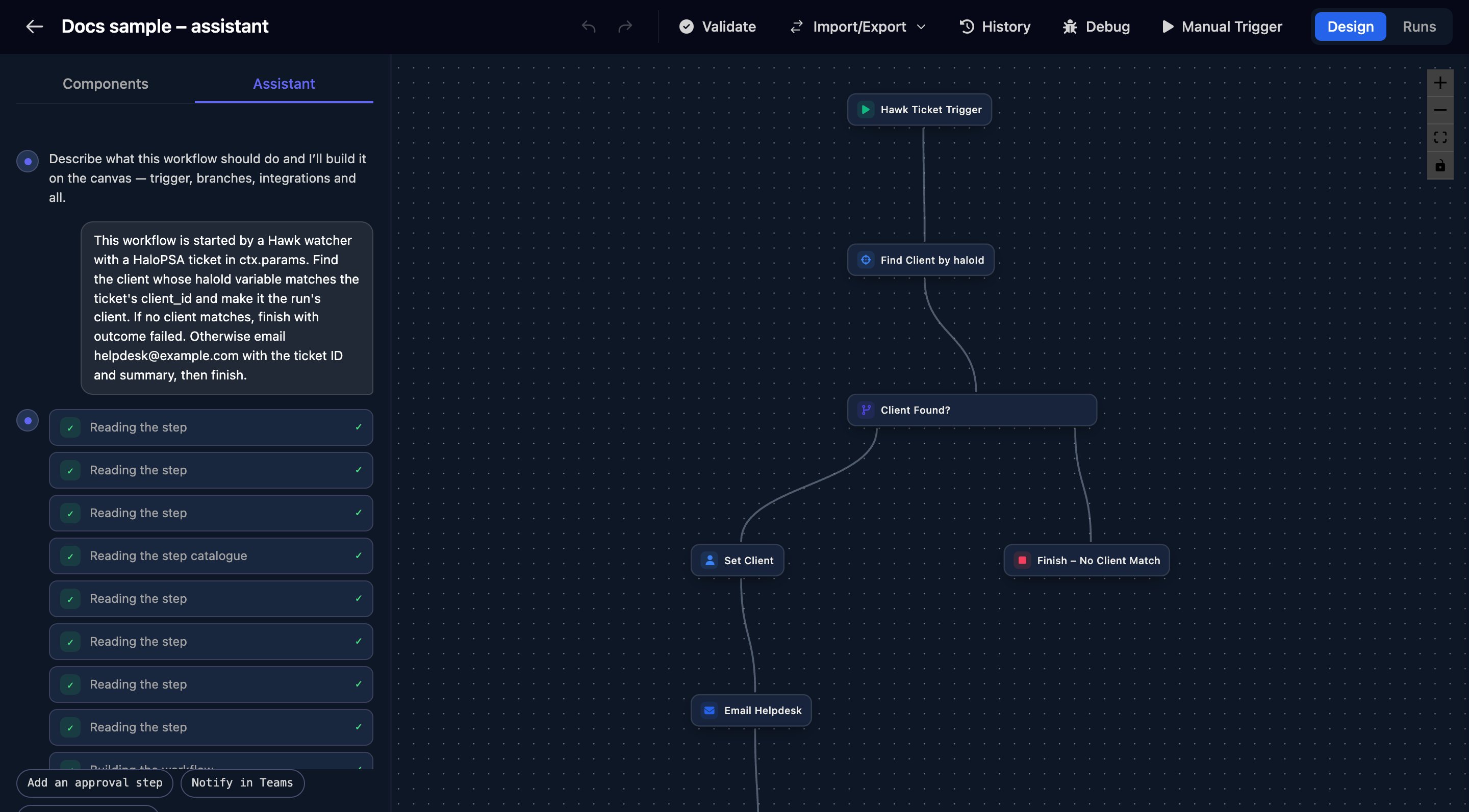 The Assistant saves the workflow at the end of each reply, including edits you hadn't saved, and leaves it Active or Inactive as it was, so an Active workflow runs the new version on its next trigger. Work on an Inactive workflow or a duplicate.
Check each step it added, then test with Manual Trigger before you activate. Be specific about the trigger, the data and the outcome:
> When the "New starter request" form is submitted, create a HaloPSA ticket for the client with the starter's name and start date, then email [helpdesk@example.com](mailto:helpdesk@example.com).
## The Assistant tab in the form designer
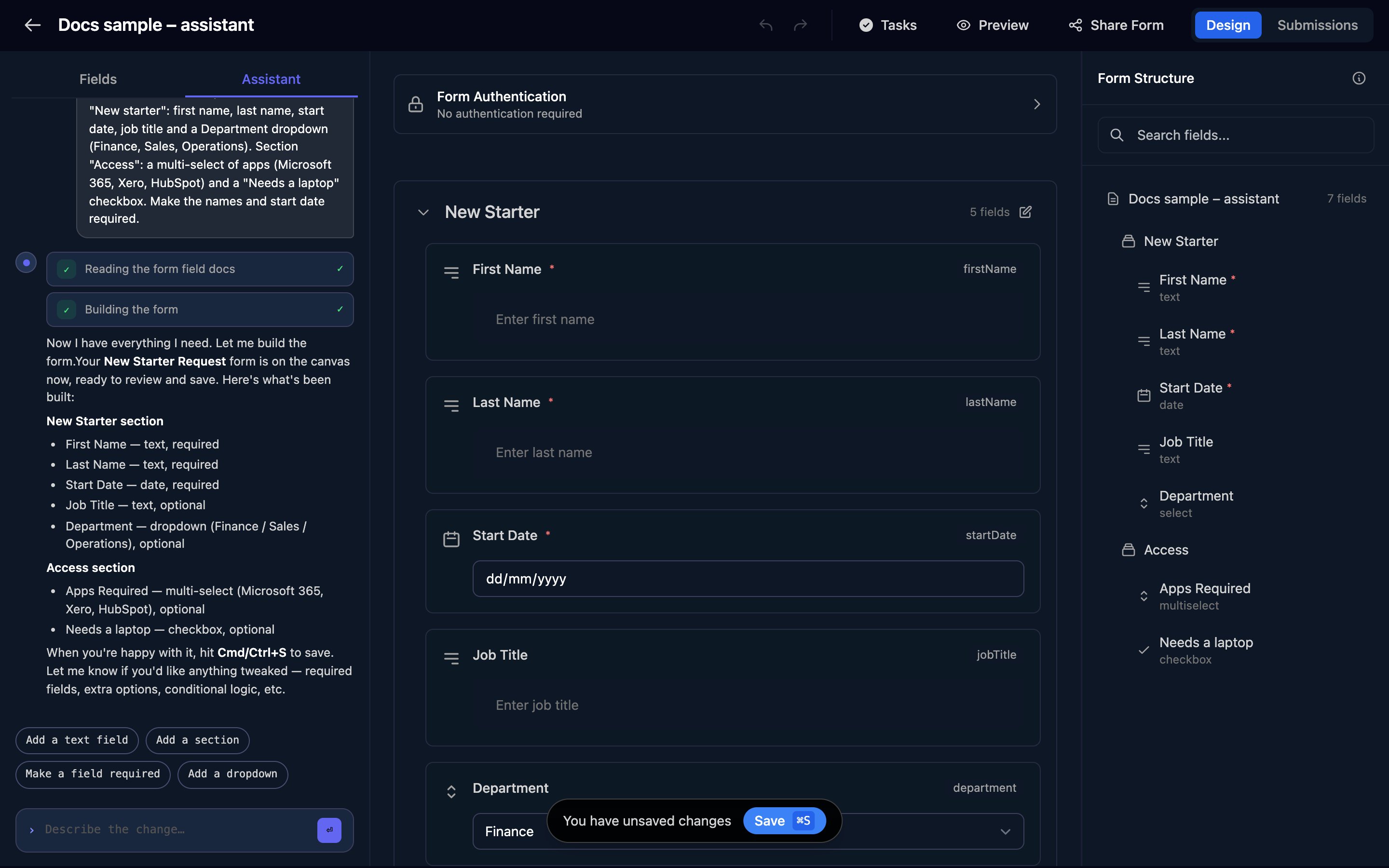
Open a form and click **Assistant** next to Fields. Describe the sections and fields you need and it puts them on the canvas; nothing is saved until you click Save.
The Assistant saves the workflow at the end of each reply, including edits you hadn't saved, and leaves it Active or Inactive as it was, so an Active workflow runs the new version on its next trigger. Work on an Inactive workflow or a duplicate.
Check each step it added, then test with Manual Trigger before you activate. Be specific about the trigger, the data and the outcome:
> When the "New starter request" form is submitted, create a HaloPSA ticket for the client with the starter's name and start date, then email [helpdesk@example.com](mailto:helpdesk@example.com).
## The Assistant tab in the form designer
Open a form and click **Assistant** next to Fields. Describe the sections and fields you need and it puts them on the canvas; nothing is saved until you click Save.
 ## Aimbot or your own AI tool?
| | Aimbot and the Assistant tabs | [MCP](/studio/mcp) |
| - | - | - |
| Where | Inside Studio | Claude Code, Codex, Cursor and other MCP clients |
| Who | Organisation admins | Anyone with an MCP token |
| Approvals | Triggr's permission modes and cards | Your tool's own prompts |
| Workflows it creates | Inactive | Active unless you ask otherwise |
| Also | Fills in forms, builds decks, pins a chat to a client | Triggr Core workflow settings and PowerShell scripts |
## FAQ
Both are for organisation admins. In the workflow designer, the tab is also hidden when you can't edit the workflow.
Refresh the page and try again. If it persists, contact Triggr support.
Inactive stops form and schedule triggers, but a Webhook trigger, a Hawk watcher or another workflow can still start it. See [Triggers](/studio/workflows/triggers).
The Assistant has already saved it. Clicking Save saves the same version again.
Each Assistant tab conversation also appears in Aimbot's chat list, named Workflow assistant, Form assistant or Deck assistant.
No. Integration tools return details about the connection, not its saved credentials.
This documentation is built and hosted on [Mintlify](https://mintlify.com), a developer documentation platform.
## Aimbot or your own AI tool?
| | Aimbot and the Assistant tabs | [MCP](/studio/mcp) |
| - | - | - |
| Where | Inside Studio | Claude Code, Codex, Cursor and other MCP clients |
| Who | Organisation admins | Anyone with an MCP token |
| Approvals | Triggr's permission modes and cards | Your tool's own prompts |
| Workflows it creates | Inactive | Active unless you ask otherwise |
| Also | Fills in forms, builds decks, pins a chat to a client | Triggr Core workflow settings and PowerShell scripts |
## FAQ
Both are for organisation admins. In the workflow designer, the tab is also hidden when you can't edit the workflow.
Refresh the page and try again. If it persists, contact Triggr support.
Inactive stops form and schedule triggers, but a Webhook trigger, a Hawk watcher or another workflow can still start it. See [Triggers](/studio/workflows/triggers).
The Assistant has already saved it. Clicking Save saves the same version again.
Each Assistant tab conversation also appears in Aimbot's chat list, named Workflow assistant, Form assistant or Deck assistant.
No. Integration tools return details about the connection, not its saved credentials.
This documentation is built and hosted on [Mintlify](https://mintlify.com), a developer documentation platform.