> ## Documentation Index
> Fetch the complete documentation index at: https://university.triggr-app.com/llms.txt
> Use this file to discover all available pages before exploring further.
# Exclusion lists
> Hide items such as a client's break-glass admin accounts from your forms' dropdowns, client by client.
An exclusion list hides chosen items from your forms' dropdowns, client by client, so nobody can pick them. Find them in **Settings > Exclusion Lists** (Admin role).
This example hides each client's emergency admin accounts from an offboarding form's User to offboard dropdown, which lists the client's Microsoft users.
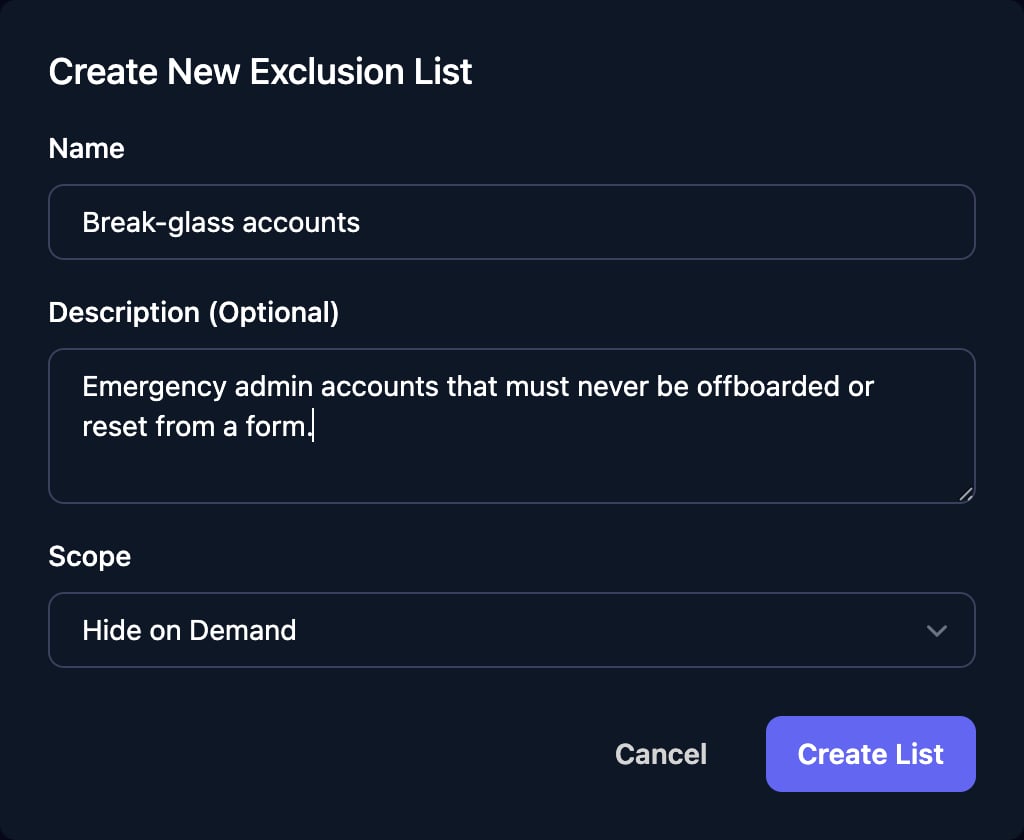
Click **New List**, enter the Name and Description, choose the Scope and click **Create List**.
 | Scope | Hides the items from |
| - | - |
| Hide on Demand | Only the dropdowns you attach the list to |
| Automatically Hide from All Inputs | Every dropdown that loads its options, on every form |
Click **Manage Users** on the list's row.
| Scope | Hides the items from |
| - | - |
| Hide on Demand | Only the dropdowns you attach the list to |
| Automatically Hide from All Inputs | Every dropdown that loads its options, on every form |
Click **Manage Users** on the list's row.
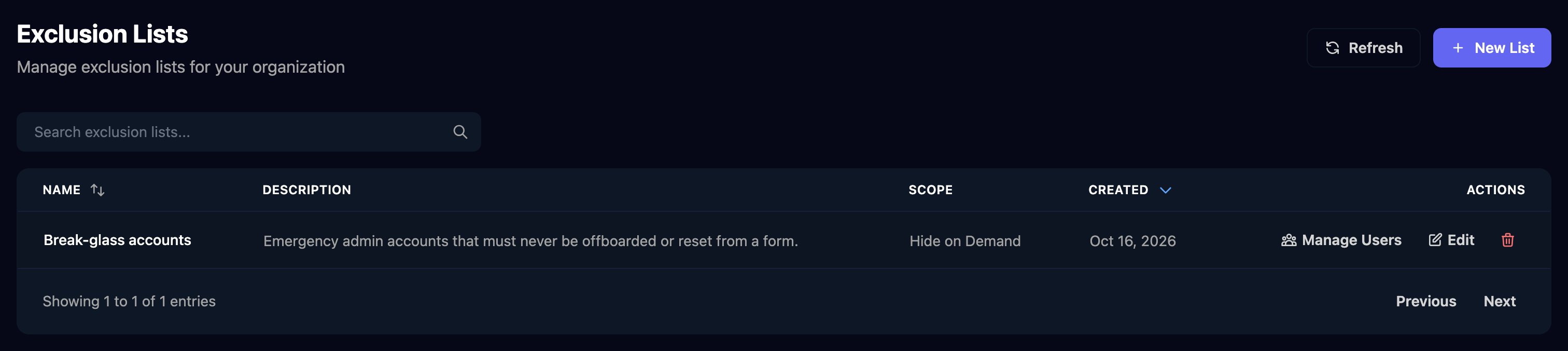 Choose the client at the top, then:
* Microsoft Users: tick each account. The client's users load when you open the tab, and each tick saves.
* Manual Entry: click **Add Row**, enter the Excluded ID and click Save.
Choose the client at the top, then:
* Microsoft Users: tick each account. The client's users load when you open the tab, and each tick saves.
* Manual Entry: click **Add Row**, enter the Excluded ID and click Save.
 An excluded ID must match the value the dropdown's option submits; for Microsoft users, that's the user's object ID.
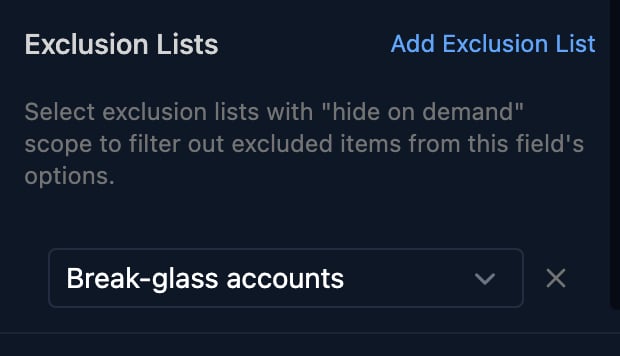
For a Hide on Demand list, click the dropdown in the form designer, click **Add Exclusion List** under Exclusion Lists, choose the list and save the form.
An excluded ID must match the value the dropdown's option submits; for Microsoft users, that's the user's object ID.
For a Hide on Demand list, click the dropdown in the form designer, click **Add Exclusion List** under Exclusion Lists, choose the list and save the form.
 Click **Share Form > Impersonate**, choose the client and one of its users, click **Open as this user**, and open the dropdown: the excluded accounts are missing.
Lists filter dropdowns whose options load from Microsoft, an integration, Triggr, a database, a workflow or a cache; you attach a Hide on Demand list to a Select or Multi Select. The form must know the client, so use Microsoft or Google sign-in, or Internal with Manually Set Client (see [Form authentication](/studio/forms/authentication)).
Exclusion lists only change what a form offers. Workflows still see every item, so add a Condition step if a workflow must never act on an account.
## Troubleshooting
Check the entry is saved for that client, the form identifies the client, and the Excluded ID matches the option's value. A Hide on Demand list must also be attached to the field.
Fields offer only Hide on Demand lists. Automatically Hide from All Inputs lists apply without attaching.
Choose a client at the top of the list first. Loading users needs the client connected through your Microsoft integration.
The new row is empty. Enter the ID, or click Cancel.
This documentation is built and hosted on [Mintlify](https://mintlify.com), a developer documentation platform.
Click **Share Form > Impersonate**, choose the client and one of its users, click **Open as this user**, and open the dropdown: the excluded accounts are missing.
Lists filter dropdowns whose options load from Microsoft, an integration, Triggr, a database, a workflow or a cache; you attach a Hide on Demand list to a Select or Multi Select. The form must know the client, so use Microsoft or Google sign-in, or Internal with Manually Set Client (see [Form authentication](/studio/forms/authentication)).
Exclusion lists only change what a form offers. Workflows still see every item, so add a Condition step if a workflow must never act on an account.
## Troubleshooting
Check the entry is saved for that client, the form identifies the client, and the Excluded ID matches the option's value. A Hide on Demand list must also be attached to the field.
Fields offer only Hide on Demand lists. Automatically Hide from All Inputs lists apply without attaching.
Choose a client at the top of the list first. Loading users needs the client connected through your Microsoft integration.
The new row is empty. Enter the ID, or click Cancel.
This documentation is built and hosted on [Mintlify](https://mintlify.com), a developer documentation platform.