> ## Documentation Index
> Fetch the complete documentation index at: https://university.triggr-app.com/llms.txt
> Use this file to discover all available pages before exploring further.
# Data tables
> Keep simple registers, such as client renewals, in typed tables inside Studio, and let an AI assistant read and update them through MCP.
Data > Data Tables keeps small registers inside Triggr, such as client renewals, which you edit here or through an AI assistant connected by [MCP](/studio/mcp). Workflows, forms and internal apps don't read them; for data your workflows use, connect a [database](/studio/data/databases).
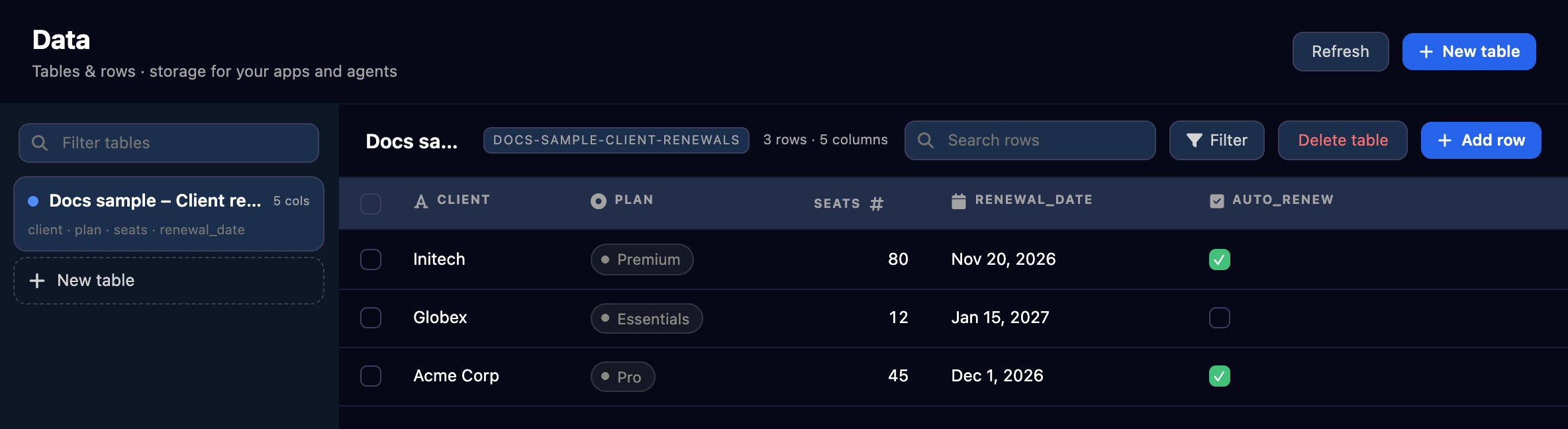 ## Example: a client renewals register
Click **New table** and name the table. The first column starts as `title`: rename it, then click **Add column** for each of the others and choose its type. Tick Required for anything every row must have, and give a `select` column its options, separated by commas. Click **Create table**.
## Example: a client renewals register
Click **New table** and name the table. The first column starts as `title`: rename it, then click **Add column** for each of the others and choose its type. Tick Required for anything every row must have, and give a `select` column its options, separated by commas. Click **Create table**.
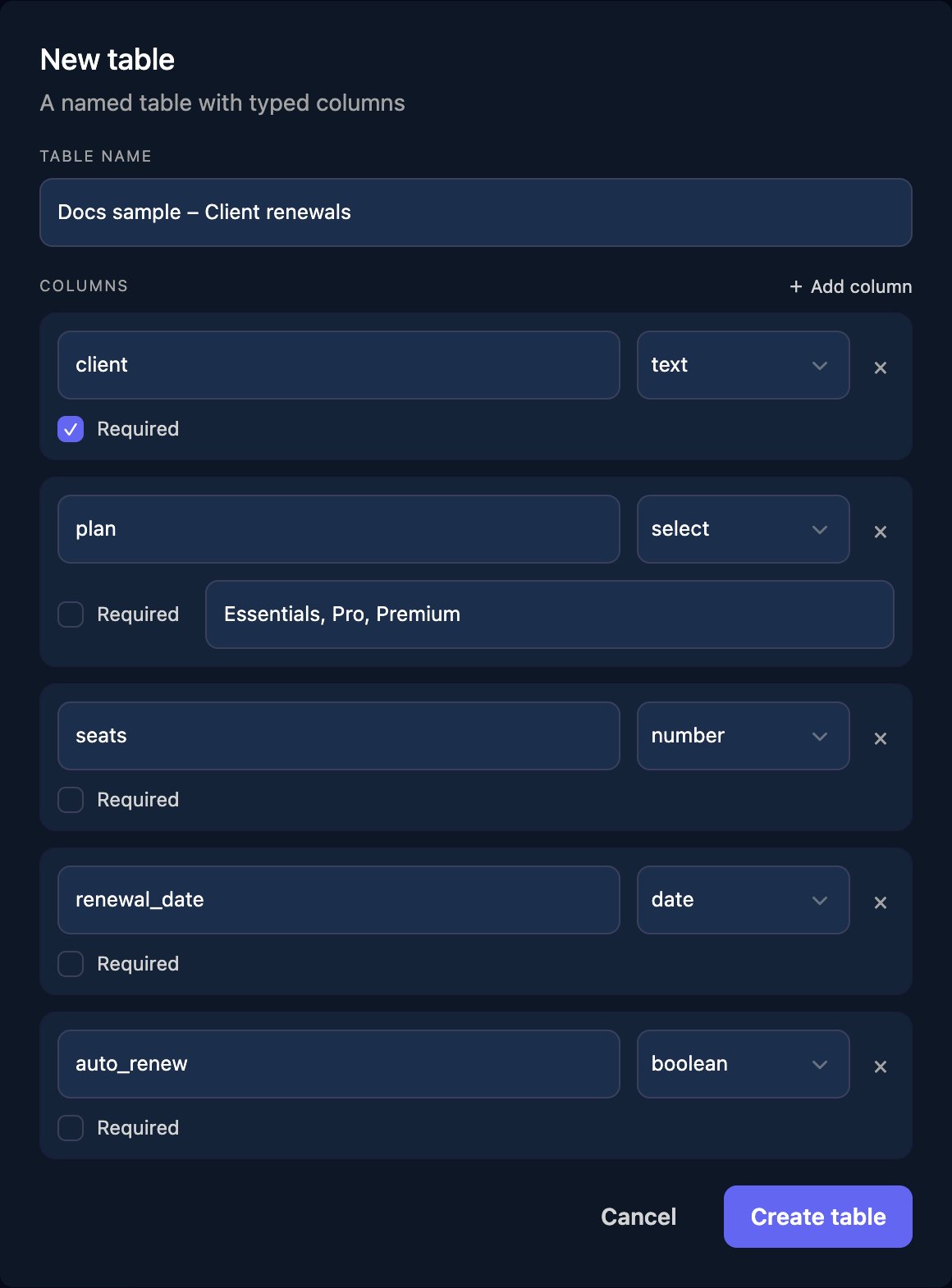 The name and columns can't be changed on this page afterwards.
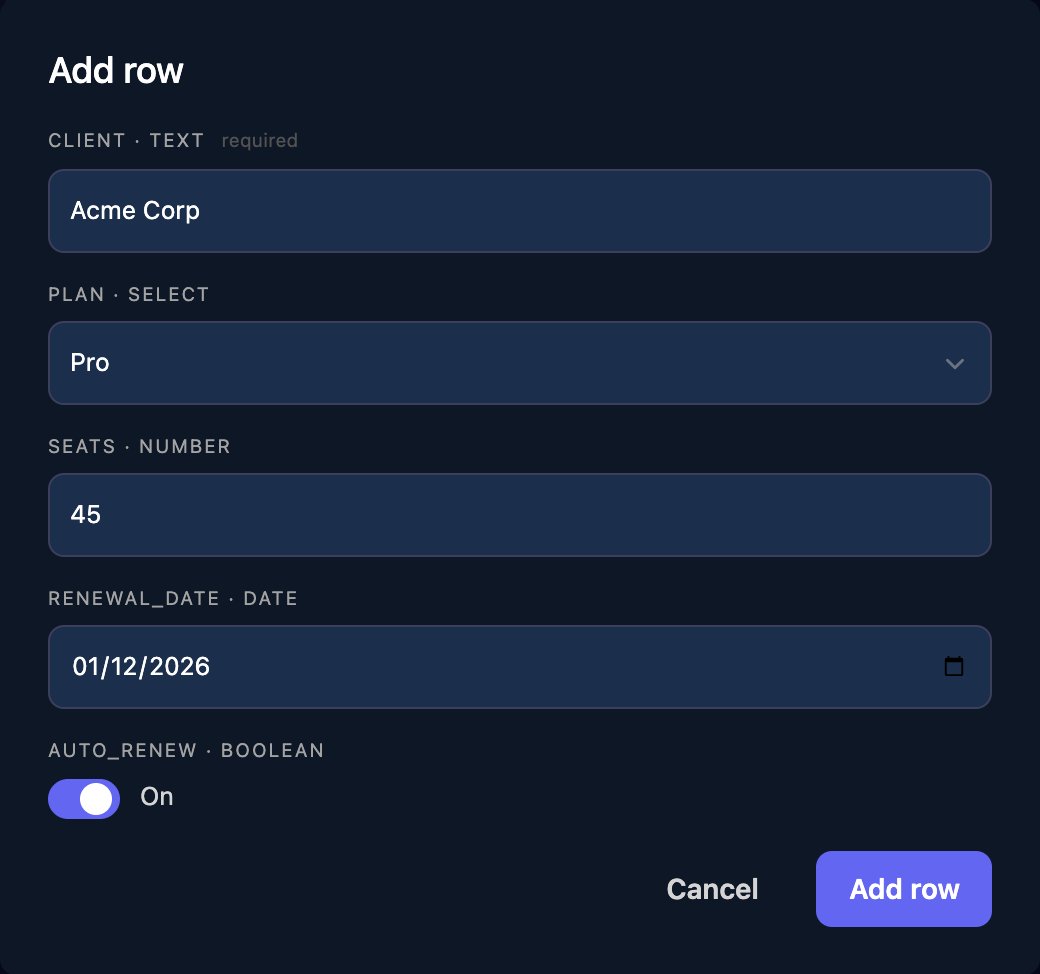
Click **Add row**, fill in the fields and confirm.
The name and columns can't be changed on this page afterwards.
Click **Add row**, fill in the fields and confirm.
 Search matches any cell, a column heading sorts, and **Filter** narrows a `select` column. Hover over a row to edit or delete it, or tick rows to delete several.
 | Column type | Holds |
| - | - |
| `text` | Any text |
| `number` | A number |
| `boolean` | On or off |
| `date` | A date, stored as `YYYY-MM-DD` |
| `datetime` | A date and time with a time zone, such as `2026-10-16T09:00:00Z`, filled in by an AI assistant through MCP. For dates you enter on this page, use `date` |
| `select` | One of the options you listed |
| `json` | Any JSON value |
## Use it from an AI assistant
Connect Claude Code, Codex or Cursor with an [MCP token](/studio/mcp) that includes the Datatables tools, then ask in plain words, naming the table by its slug. The page shows the slug in capitals next to the table's name, but it's lower case, such as `client-renewals`:
> Using the Triggr data table docs-sample-client-renewals, list the clients whose renewal\_date is before 1 January 2027, with their plan and whether they auto-renew.
> Add Umbrella Corp to the client renewals table: plan Essentials, 20 seats, renews 2027-03-31, auto-renew on.
The tools are `list_data_tables`, `get_data_table`, `query_data_table_rows`, `insert_data_table_row`, `update_data_table_row`, `delete_data_table_row`, `create_data_table` and `add_data_table_column`.
## FAQ
No. Keep data your workflows need in your own [database](/studio/data/databases) and use the Execute SQL step.
The page shows the newest 100 rows, and search and filters work on those. Ask an AI assistant through MCP for older rows.
Not on this page. An AI assistant can, with `add_data_table_column`; existing rows leave it empty.
Give an AI assistant connected through MCP the CSV and ask it to add each row.
Add a `client` column, as in the example, and search for the client's name.
## Troubleshooting
Another table's name gives the same slug, for example `Client Renewals` and `client-renewals`. Choose a different name.
Type each `select` column's options, separated by commas, such as `Essentials, Pro, Premium`.
Two columns have the same name. Rename one.
The value isn't one of the column's options. Pick one from the list; option names are case-sensitive.
This documentation is built and hosted on [Mintlify](https://mintlify.com), a developer documentation platform.
| Column type | Holds |
| - | - |
| `text` | Any text |
| `number` | A number |
| `boolean` | On or off |
| `date` | A date, stored as `YYYY-MM-DD` |
| `datetime` | A date and time with a time zone, such as `2026-10-16T09:00:00Z`, filled in by an AI assistant through MCP. For dates you enter on this page, use `date` |
| `select` | One of the options you listed |
| `json` | Any JSON value |
## Use it from an AI assistant
Connect Claude Code, Codex or Cursor with an [MCP token](/studio/mcp) that includes the Datatables tools, then ask in plain words, naming the table by its slug. The page shows the slug in capitals next to the table's name, but it's lower case, such as `client-renewals`:
> Using the Triggr data table docs-sample-client-renewals, list the clients whose renewal\_date is before 1 January 2027, with their plan and whether they auto-renew.
> Add Umbrella Corp to the client renewals table: plan Essentials, 20 seats, renews 2027-03-31, auto-renew on.
The tools are `list_data_tables`, `get_data_table`, `query_data_table_rows`, `insert_data_table_row`, `update_data_table_row`, `delete_data_table_row`, `create_data_table` and `add_data_table_column`.
## FAQ
No. Keep data your workflows need in your own [database](/studio/data/databases) and use the Execute SQL step.
The page shows the newest 100 rows, and search and filters work on those. Ask an AI assistant through MCP for older rows.
Not on this page. An AI assistant can, with `add_data_table_column`; existing rows leave it empty.
Give an AI assistant connected through MCP the CSV and ask it to add each row.
Add a `client` column, as in the example, and search for the client's name.
## Troubleshooting
Another table's name gives the same slug, for example `Client Renewals` and `client-renewals`. Choose a different name.
Type each `select` column's options, separated by commas, such as `Essentials, Pro, Premium`.
Two columns have the same name. Rename one.
The value isn't one of the column's options. Pick one from the list; option names are case-sensitive.
This documentation is built and hosted on [Mintlify](https://mintlify.com), a developer documentation platform.