> ## Documentation Index
> Fetch the complete documentation index at: https://university.triggr-app.com/llms.txt
> Use this file to discover all available pages before exploring further.
# Conditional fields
> Show or hide a form field or section based on another answer, a client or org variable, or the client's environment.
A condition shows or hides a field, or a whole section, as the person fills in the form. Hidden fields are never required.
## Show a field when a box is ticked
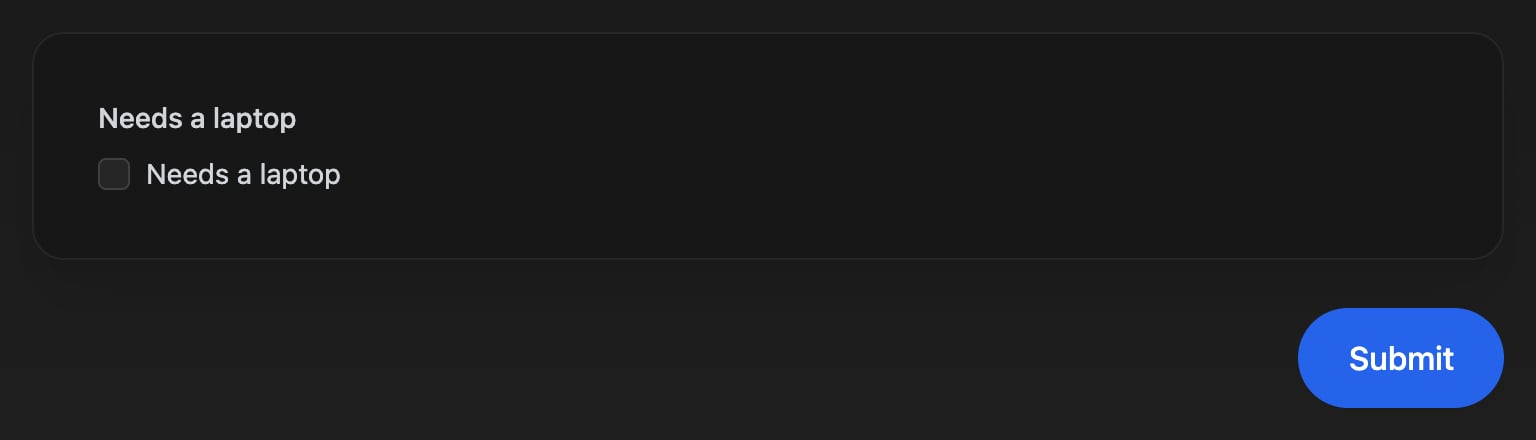
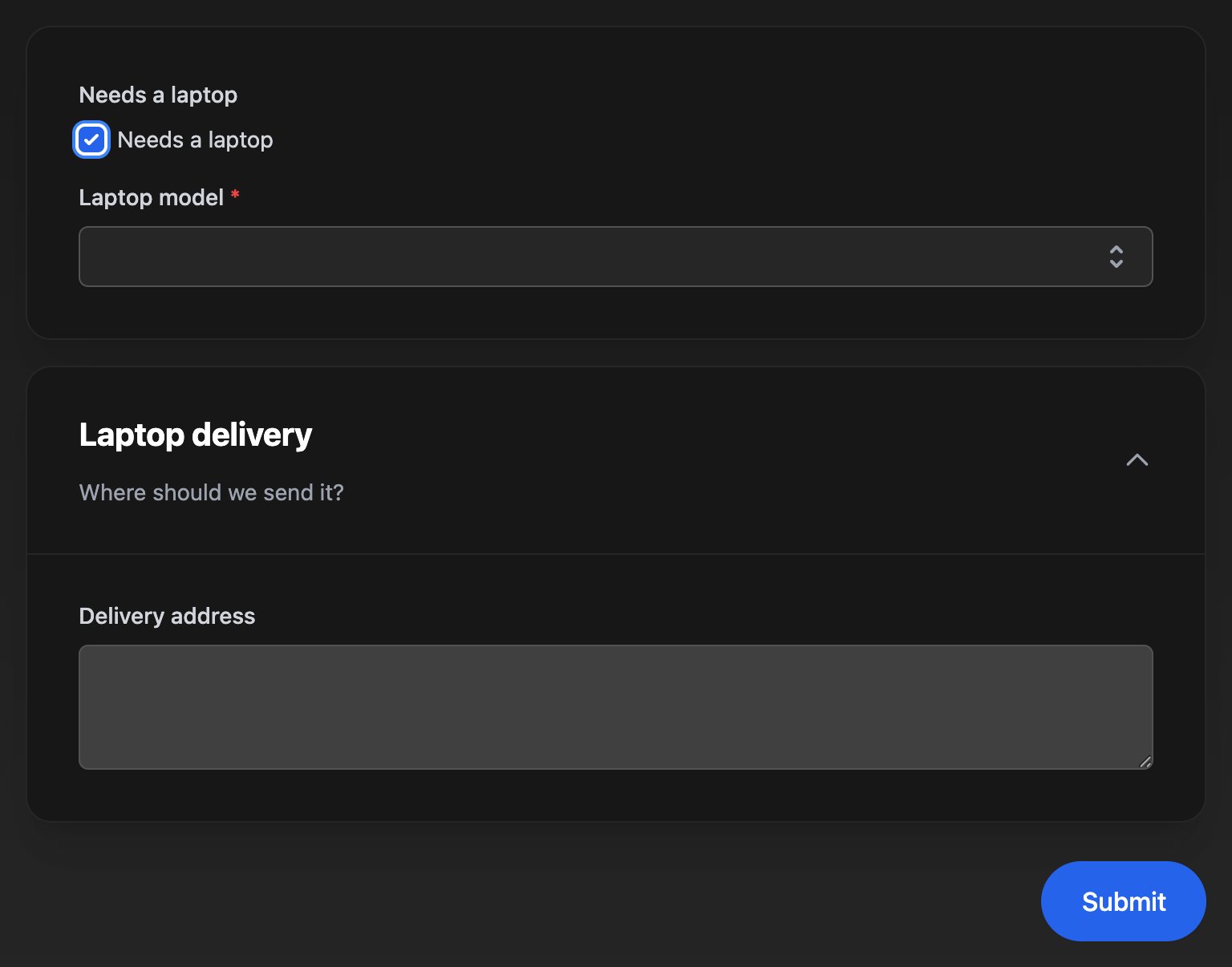
Laptop model appears only when Needs a laptop is ticked.
Add a Checkbox with Field ID `needsLaptop` and Label `Needs a laptop`, then a Select with Field ID `laptopModel`, Label `Laptop model` and Required field ticked.
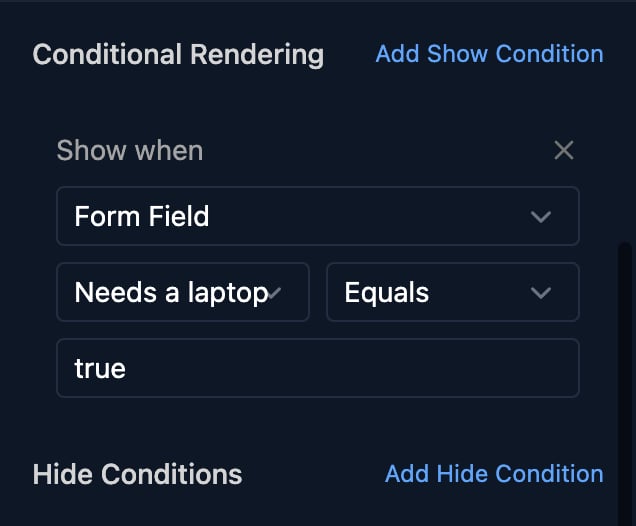
Click Laptop model. Under Conditional Rendering, click **Add Show Condition**, choose Form Field, Needs a laptop and Equals, type `true` and save.
 Click **Preview**. Laptop model is hidden until the box is ticked.
 ## Show a whole section
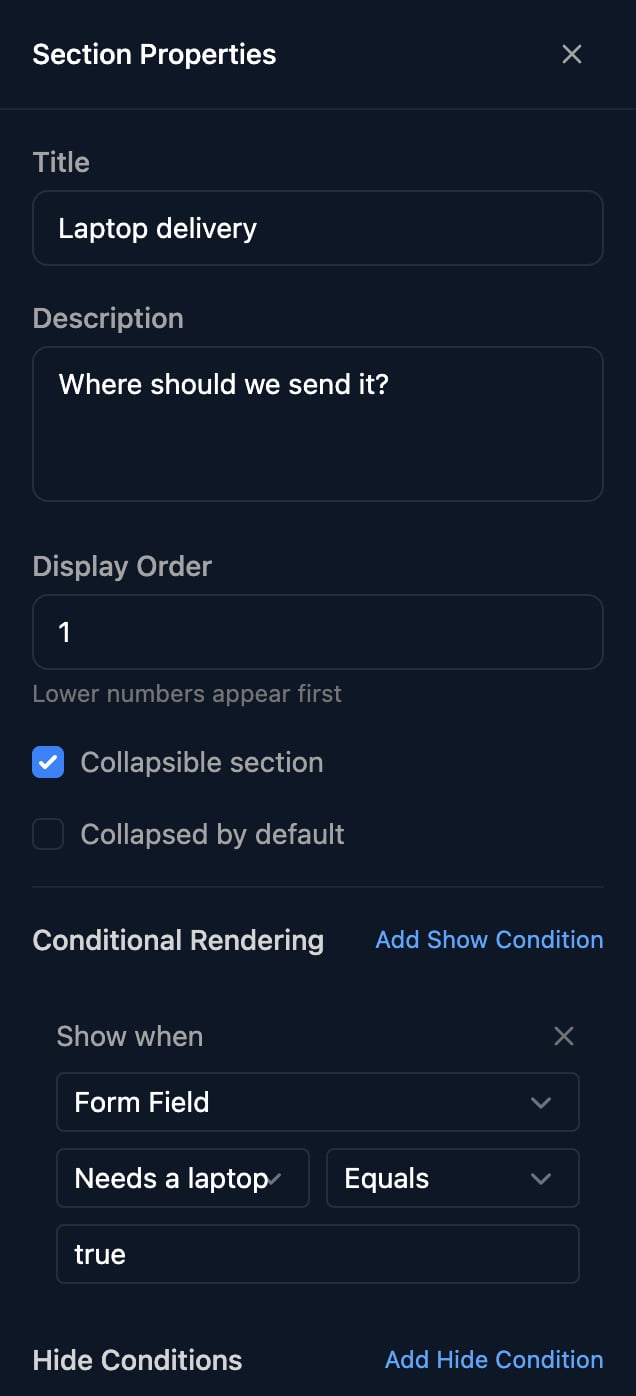
Click the edit icon on a section's title. Section Properties has the same Conditional Rendering and hides every field in the section; Laptop delivery above shows when Needs a laptop Equals `true`.
## Show a whole section
Click the edit icon on a section's title. Section Properties has the same Conditional Rendering and hides every field in the section; Laptop delivery above shows when Needs a laptop Equals `true`.
 ## How conditions work
A field or section shows only when all its show conditions match, and hides when any hide condition matches. Hide wins.
| Condition on | Compares | Checked |
| - | - | - |
| Form Field | Another field's answer | As the person answers |
| Client Variable | A variable of the person's client, by name | When the form opens |
| Org Variable | One of your org variables, by name | When the form opens |
| Client Environment | Cloud Only, On-Prem Only, Cloud + On-Prem Separate or Cloud + On-Prem AD Synced | When the form opens |
Client conditions need a form that [knows the client](/studio/forms/authentication); test them with **Share Form > Impersonate**.
| Operator | Matches when the answer |
| - | - |
| Equals, Not Equals | Is, or isn't, exactly the value. Text is case-sensitive. |
| Contains, Not Contains | Includes, or doesn't include, the value |
| Greater Than, Less Than | Is a bigger or smaller number |
| Is Empty, Is Not Empty | Is blank or has nothing chosen, or isn't |
| Has file, Has no file | Offered instead for a File Upload field |
* Compare a Select, Radio or Multi Select by the option's value, not its label: `macbook-air-13`, not `MacBook Air 13`.
* For a Checkbox, use Equals `true` or Equals `false`. Keep `true` and `false` for Checkboxes: on other fields, Equals `true` matches any answer.
* For a Multi Select, use Contains with one option's value. Contains matches part of a value, so choose option values that don't appear inside each other.
## What hidden fields send
| Hidden by | Required? | Sent to the workflow? |
| - | - | - |
| Its own condition | No | No: `ctx.params.` doesn't exist |
| Its section's condition | No | Yes, usually empty |
A field that's hidden and shown again keeps its answer. A template that names a missing field fails, so read optional answers in a [Code step](/studio/workflows/expressions#recipes): `ctx.params.laptopModel ?? ''`. Option workflows ([Dynamic options](/studio/forms/dynamic-options)) still see every answer.
## FAQ
Check the value is the option's value, not its label, and matches its capitals. For a Checkbox, use `true`.
The field was hidden, so it wasn't submitted. Read it with `ctx.params.laptopModel ?? ''` in a Code step, or branch on `needsLaptop` first.
The form doesn't know the client, or the variable name doesn't match exactly. Client conditions are checked when the form opens, not as the person answers.
Hide it for the other answers instead, since any one hide condition hides it: Hide when Department Equals `it`, and Hide when Department Is Empty.
A condition was added without choosing a field or variable. Fill it in or remove it with its ×.
The condition points at a field that was deleted or given a new Field ID. Choose the field again.
This documentation is built and hosted on [Mintlify](https://mintlify.com), a developer documentation platform.
## How conditions work
A field or section shows only when all its show conditions match, and hides when any hide condition matches. Hide wins.
| Condition on | Compares | Checked |
| - | - | - |
| Form Field | Another field's answer | As the person answers |
| Client Variable | A variable of the person's client, by name | When the form opens |
| Org Variable | One of your org variables, by name | When the form opens |
| Client Environment | Cloud Only, On-Prem Only, Cloud + On-Prem Separate or Cloud + On-Prem AD Synced | When the form opens |
Client conditions need a form that [knows the client](/studio/forms/authentication); test them with **Share Form > Impersonate**.
| Operator | Matches when the answer |
| - | - |
| Equals, Not Equals | Is, or isn't, exactly the value. Text is case-sensitive. |
| Contains, Not Contains | Includes, or doesn't include, the value |
| Greater Than, Less Than | Is a bigger or smaller number |
| Is Empty, Is Not Empty | Is blank or has nothing chosen, or isn't |
| Has file, Has no file | Offered instead for a File Upload field |
* Compare a Select, Radio or Multi Select by the option's value, not its label: `macbook-air-13`, not `MacBook Air 13`.
* For a Checkbox, use Equals `true` or Equals `false`. Keep `true` and `false` for Checkboxes: on other fields, Equals `true` matches any answer.
* For a Multi Select, use Contains with one option's value. Contains matches part of a value, so choose option values that don't appear inside each other.
## What hidden fields send
| Hidden by | Required? | Sent to the workflow? |
| - | - | - |
| Its own condition | No | No: `ctx.params.` doesn't exist |
| Its section's condition | No | Yes, usually empty |
A field that's hidden and shown again keeps its answer. A template that names a missing field fails, so read optional answers in a [Code step](/studio/workflows/expressions#recipes): `ctx.params.laptopModel ?? ''`. Option workflows ([Dynamic options](/studio/forms/dynamic-options)) still see every answer.
## FAQ
Check the value is the option's value, not its label, and matches its capitals. For a Checkbox, use `true`.
The field was hidden, so it wasn't submitted. Read it with `ctx.params.laptopModel ?? ''` in a Code step, or branch on `needsLaptop` first.
The form doesn't know the client, or the variable name doesn't match exactly. Client conditions are checked when the form opens, not as the person answers.
Hide it for the other answers instead, since any one hide condition hides it: Hide when Department Equals `it`, and Hide when Department Is Empty.
A condition was added without choosing a field or variable. Fill it in or remove it with its ×.
The condition points at a field that was deleted or given a new Field ID. Choose the field again.
This documentation is built and hosted on [Mintlify](https://mintlify.com), a developer documentation platform.