> ## Documentation Index
> Fetch the complete documentation index at: https://university.triggr-app.com/llms.txt
> Use this file to discover all available pages before exploring further.
# Dynamic options
> Fill a form dropdown from a workflow, Microsoft 365, an integration, a database or a cache, and reload it when another answer changes.
A Select, Multi Select, Radio or Email Selector can load its options when the form opens. Choose where from under Options Source in the field's properties.
## Options sources
| Options Source | Lists | Value sent to your workflow |
| - | - | - |
| Manually provide options | The options you type, or a CSV ([Field reference](/studio/forms/fields#choices)) | The option's value |
| Use workflow | What a workflow publishes ([below](#fill-a-dropdown-from-a-workflow)) | The item's Value Field |
| Microsoft | Users, Domains or Groups in the client's Microsoft 365 | User or group object ID, or the domain |
| Use integration | A list from an integration ([below](#integration)) | Set by the integration |
| Triggr | Your Clients, or your distributor Packages | Client or package ID |
| Use database | Rows from a SQL query ([Databases](/studio/data/databases#use-it-in-forms)) | The Value Column |
| Use cache | A stored list ([Cache](/studio/data/cache)) | The Value Key |
| Use form params | A list in the form link's `?params=` ([below](#form-params-and-default-values)) | The item's Value Field |
Microsoft and integration lists, and client-specific database or cache lists, need a form that [knows the person's client](/studio/forms/authentication): Microsoft or Google sign-in, or Internal with Manually Set Client. With None or Password, those lists stay empty.
To hide some items, such as break-glass accounts, attach an [exclusion list](/studio/clients/exclusion-lists).
## Fill a dropdown from a workflow
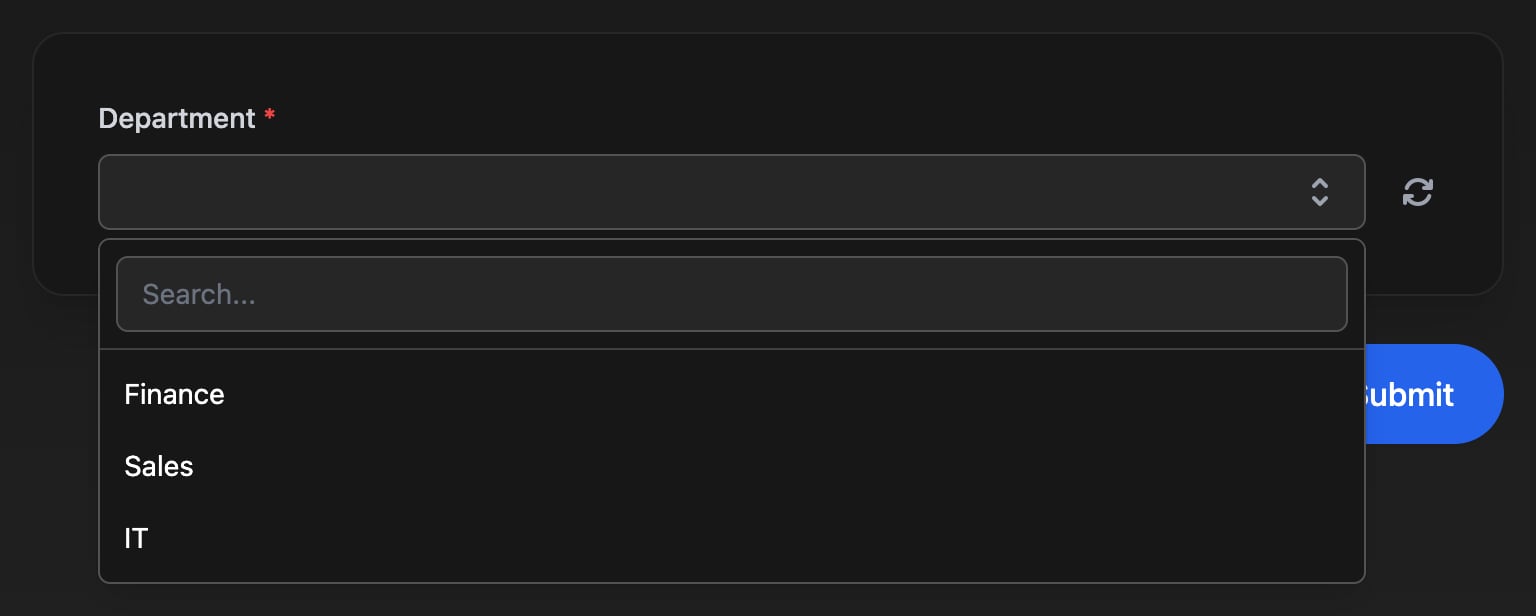
A Department dropdown filled by a workflow; a Code step stands in for a lookup in your PSA.
Create a workflow with a Trigger, a **Code** step and a Finish Workflow. It needs no trigger set up and can stay Inactive.
```js theme={null}
// Stand-in for a lookup in your PSA
return [
{ id: 'finance', name: 'Finance' },
{ id: 'sales', name: 'Sales' },
{ id: 'it', name: 'IT' }
];
```
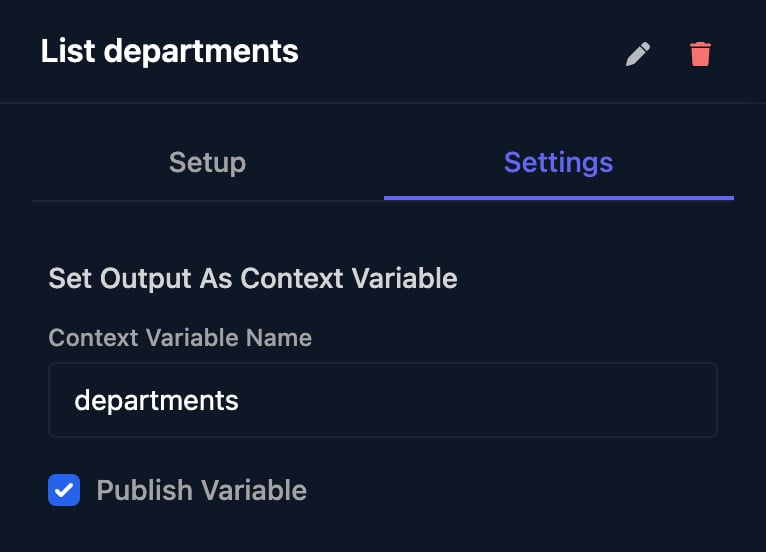
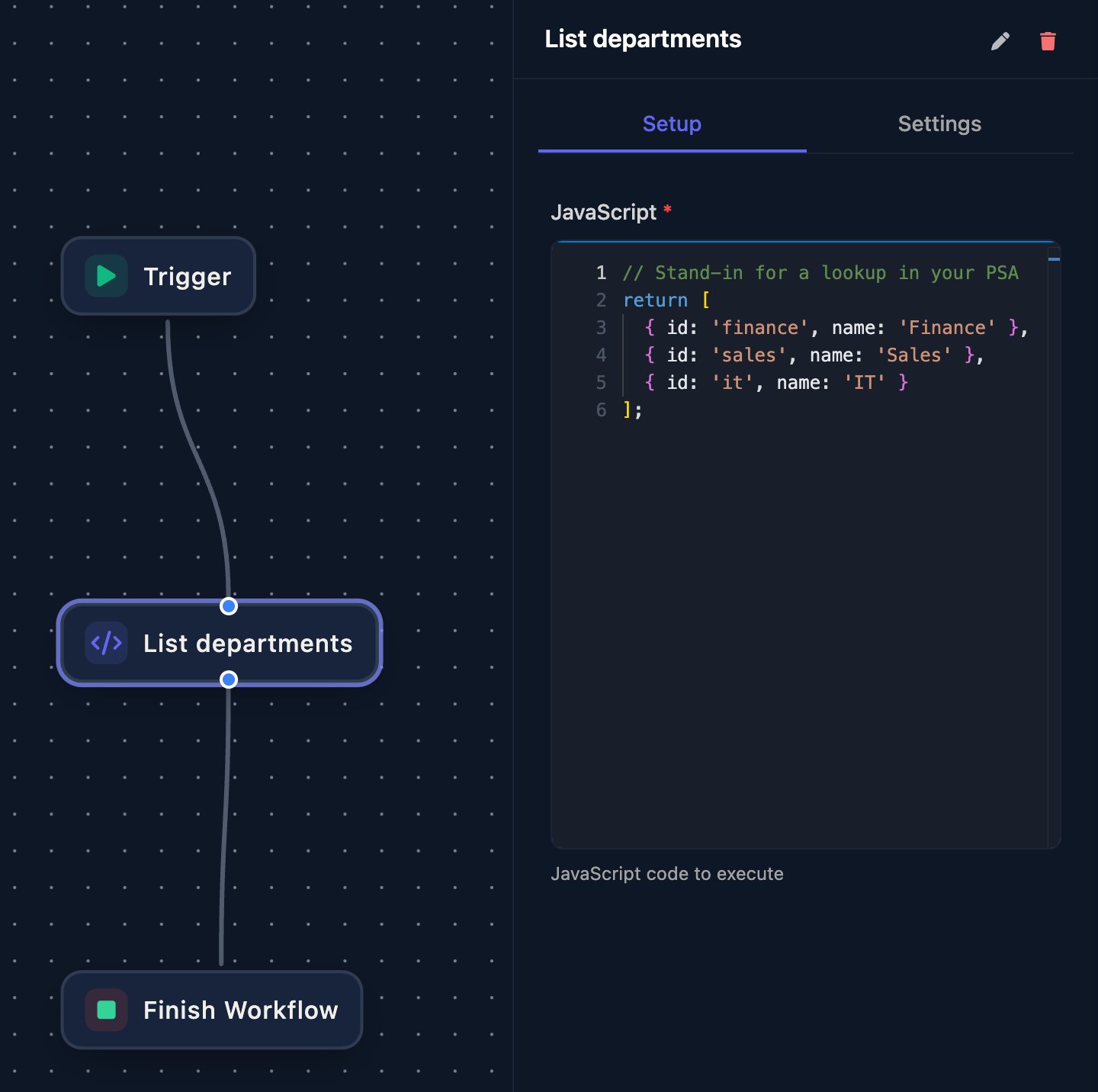 On the Code step's Settings tab, enter `departments` as the **Context Variable Name**, tick **Publish Variable** and save the workflow.
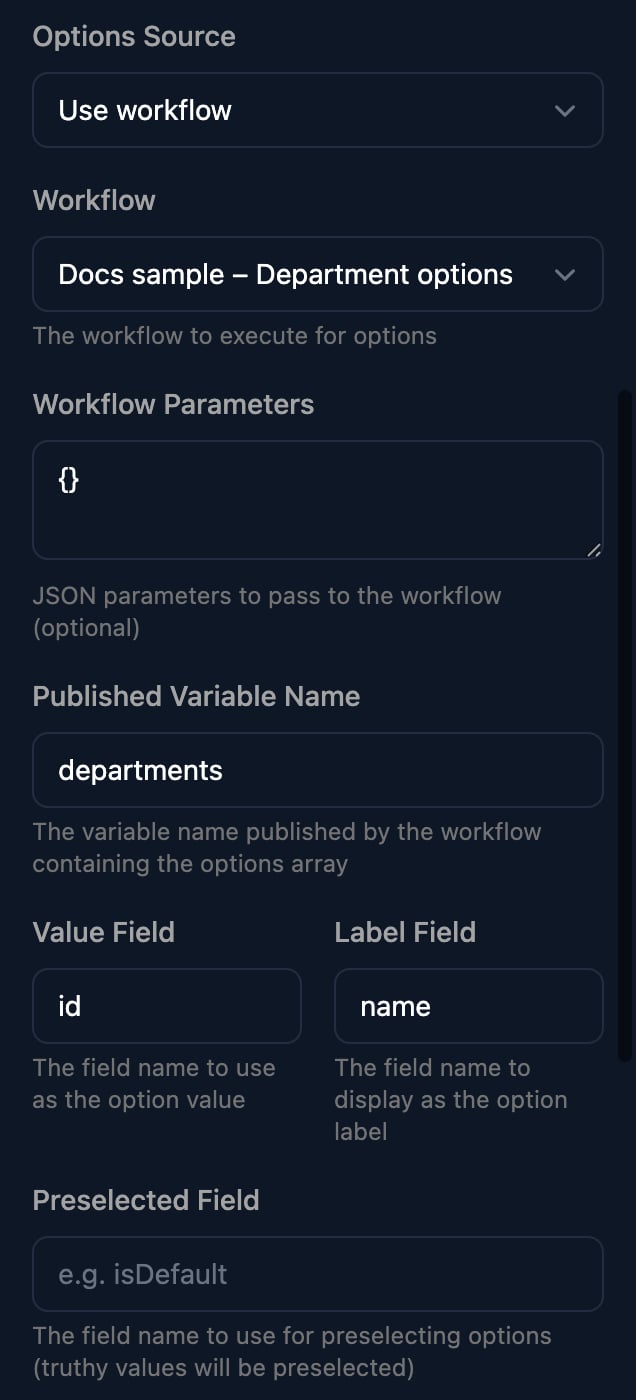
 Click the Department field, set **Options Source** to Use workflow and choose the workflow. Enter `{}` as Workflow Parameters (left blank, the list stays empty) and `departments` as Published Variable Name. Value Field and Label Field already hold `id` and `name`. Save the form.
 Click **Preview** and open the dropdown.
 ### What the workflow receives
| Path | Holds |
| - | - |
| `ctx.params.` | Every answer so far: text, `true` or `false` for a Checkbox, a list for a Multi Select, `""` when empty |
| `ctx.params.` | Keys from Workflow Parameters and the link's `?params=`; answers win when names clash |
| `ctx.metadata.source` | `form_field_options` |
| `ctx.metadata.loadingFormOptionsForTenantId` | The person's client ID (from sign-in or Manually Set Client), or `""` when there's none |
Nothing about the signed-in person is passed. Each load appears on the workflow's Runs page; Initial Context shows what arrived:
### What the workflow receives
| Path | Holds |
| - | - |
| `ctx.params.` | Every answer so far: text, `true` or `false` for a Checkbox, a list for a Multi Select, `""` when empty |
| `ctx.params.` | Keys from Workflow Parameters and the link's `?params=`; answers win when names clash |
| `ctx.metadata.source` | `form_field_options` |
| `ctx.metadata.loadingFormOptionsForTenantId` | The person's client ID (from sign-in or Manually Set Client), or `""` when there's none |
Nothing about the signed-in person is passed. Each load appears on the workflow's Runs page; Initial Context shows what arrived:
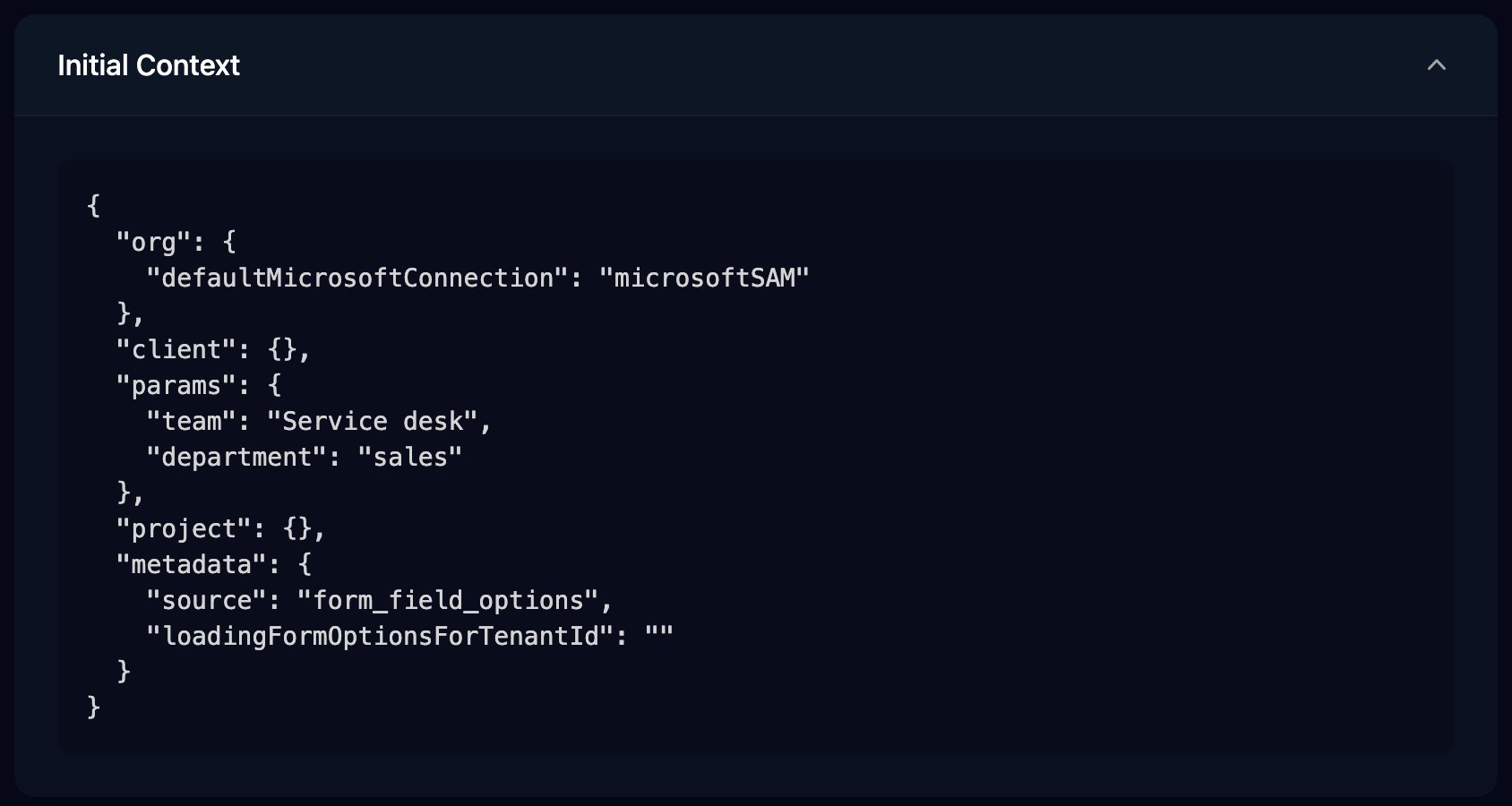 `ctx.client` is empty until a **Set Client From Form** step runs. After it, a Code step can `return ctx.client.sites;` to list a client variable `sites` holding `[{"id": "ldn", "name": "London"}]`. Without a client, the dropdown stays empty.
### What it must return
* One published variable holding a list of objects, such as `[{ "id": "finance", "name": "Finance" }]`.
* Each item needs the Value Field and Label Field keys; items missing either are left out. Numbers and `true`/`false` become text.
* Items whose Preselected Field key is true start selected: the first for a Select, all of them for a Multi Select.
* The run must reach Finish Workflow. Its Outcome isn't used.
An empty list, a misnamed variable or a failed run shows "No options found".
### When it runs
The workflow runs, uncached, when the form opens, when the field appears after being hidden, when a [watched field](#reload-options-when-another-answer-changes) changes and when the person clicks the reload button. The field shows a spinner for up to 5 minutes, so keep the workflow to a few seconds; for slow lookups, fill a [cache](/studio/data/cache) on a schedule and use Use cache instead.
## Reload options when another answer changes
A Team dropdown listing the teams in the chosen Department. Watch Fields reload a field's options whenever another field changes.
As above, publish `teams` from a Code step that reads `ctx.params.department`. Marking the first team `isDefault` selects it.
```js theme={null}
const teams = {
finance: ['Payroll', 'Accounts'],
sales: ['New business', 'Renewals'],
it: ['Service desk', 'Projects']
};
const dept = ctx.params.department;
const list = teams[dept] || [];
return list.map((t, i) => ({
id: t, name: t, isDefault: i === 0
}));
```
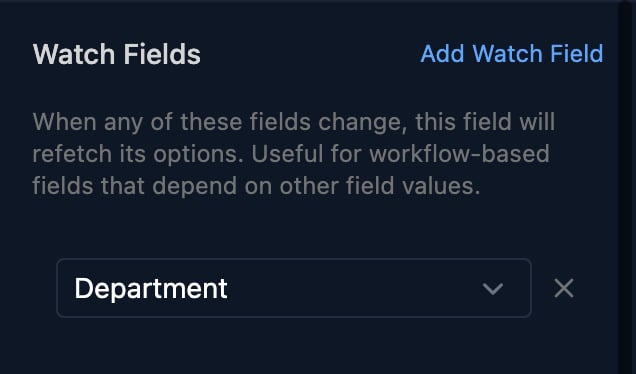
Click the Team field and set Use workflow as before, with Preselected Field `isDefault`. Under Watch Fields, click **Add Watch Field** and choose Department.
`ctx.client` is empty until a **Set Client From Form** step runs. After it, a Code step can `return ctx.client.sites;` to list a client variable `sites` holding `[{"id": "ldn", "name": "London"}]`. Without a client, the dropdown stays empty.
### What it must return
* One published variable holding a list of objects, such as `[{ "id": "finance", "name": "Finance" }]`.
* Each item needs the Value Field and Label Field keys; items missing either are left out. Numbers and `true`/`false` become text.
* Items whose Preselected Field key is true start selected: the first for a Select, all of them for a Multi Select.
* The run must reach Finish Workflow. Its Outcome isn't used.
An empty list, a misnamed variable or a failed run shows "No options found".
### When it runs
The workflow runs, uncached, when the form opens, when the field appears after being hidden, when a [watched field](#reload-options-when-another-answer-changes) changes and when the person clicks the reload button. The field shows a spinner for up to 5 minutes, so keep the workflow to a few seconds; for slow lookups, fill a [cache](/studio/data/cache) on a schedule and use Use cache instead.
## Reload options when another answer changes
A Team dropdown listing the teams in the chosen Department. Watch Fields reload a field's options whenever another field changes.
As above, publish `teams` from a Code step that reads `ctx.params.department`. Marking the first team `isDefault` selects it.
```js theme={null}
const teams = {
finance: ['Payroll', 'Accounts'],
sales: ['New business', 'Renewals'],
it: ['Service desk', 'Projects']
};
const dept = ctx.params.department;
const list = teams[dept] || [];
return list.map((t, i) => ({
id: t, name: t, isDefault: i === 0
}));
```
Click the Team field and set Use workflow as before, with Preselected Field `isDefault`. Under Watch Fields, click **Add Watch Field** and choose Department.
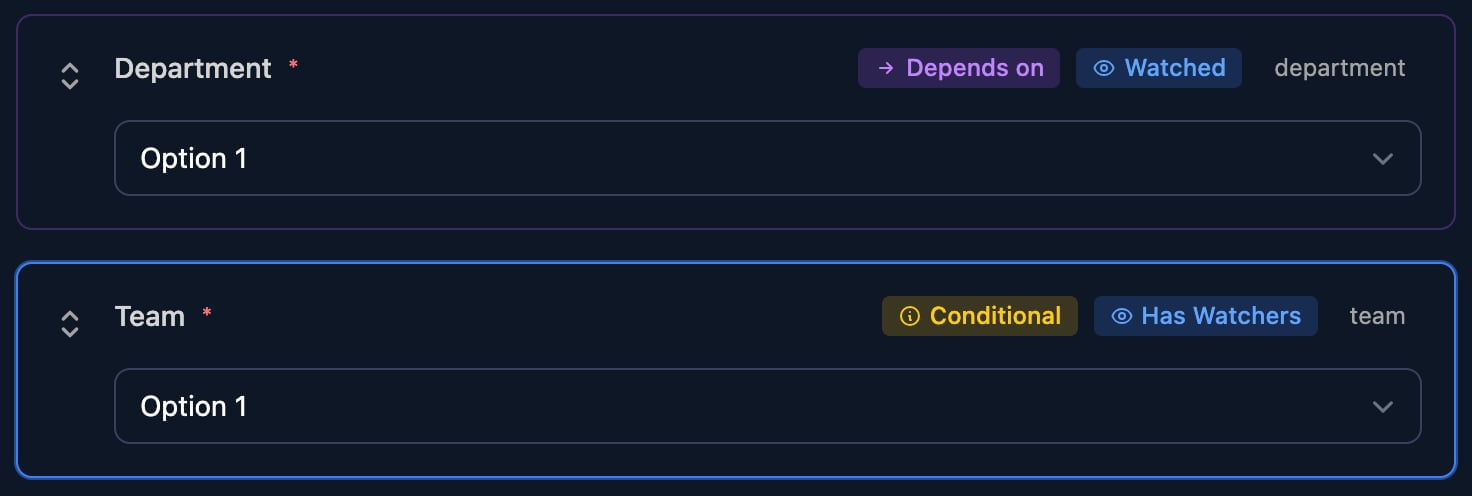
 The canvas tags both fields:
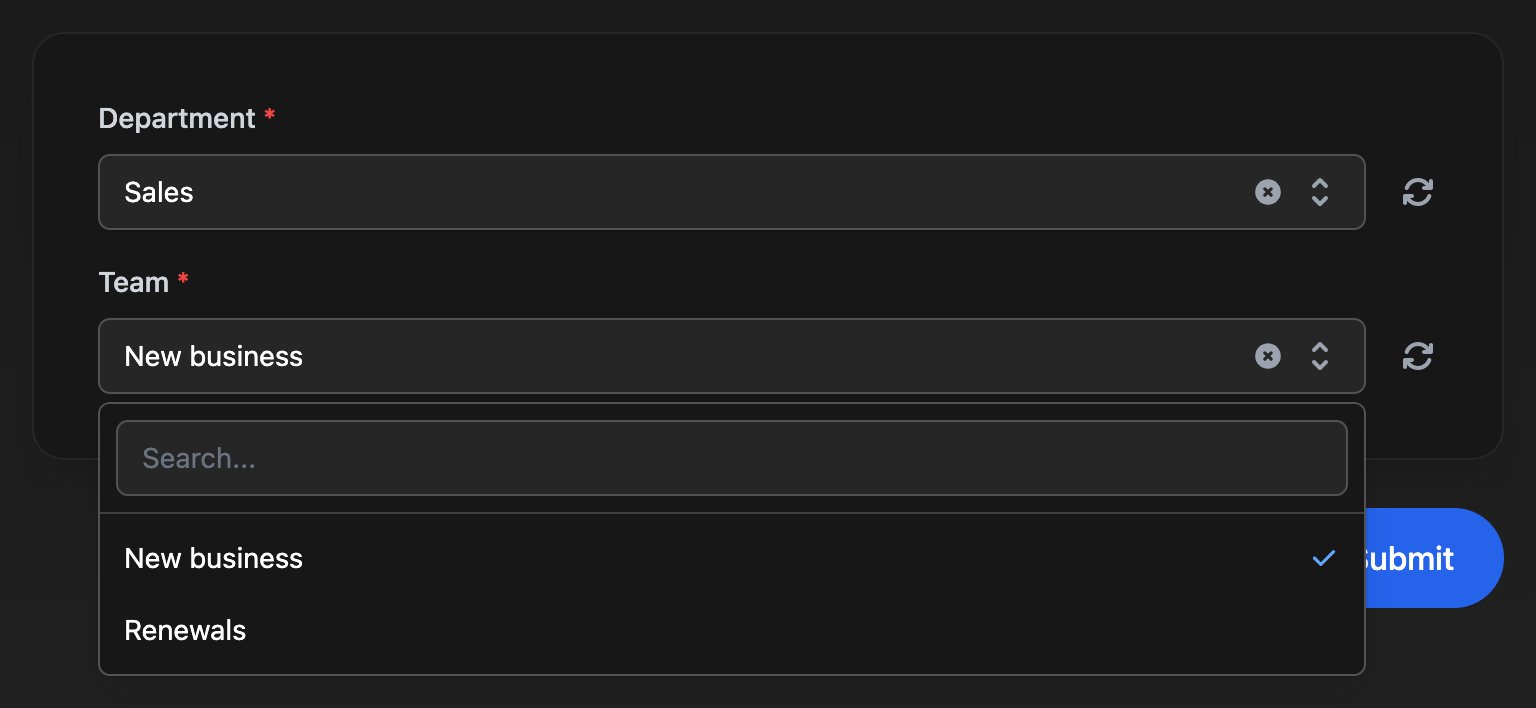
 In Preview, choose Sales. Team lists the Sales teams with the first one chosen.
 * The field reloads half a second after the watched field's last change, and only while it's visible.
* Only Use workflow reads the other answers. Other sources reload with the same list.
* A reload keeps the current answer, even one no longer listed, unless the workflow preselects an option.
* Team here also has a [condition](/studio/forms/conditional-fields) to show only when Department Is Not Empty.
## Other sources
### Microsoft
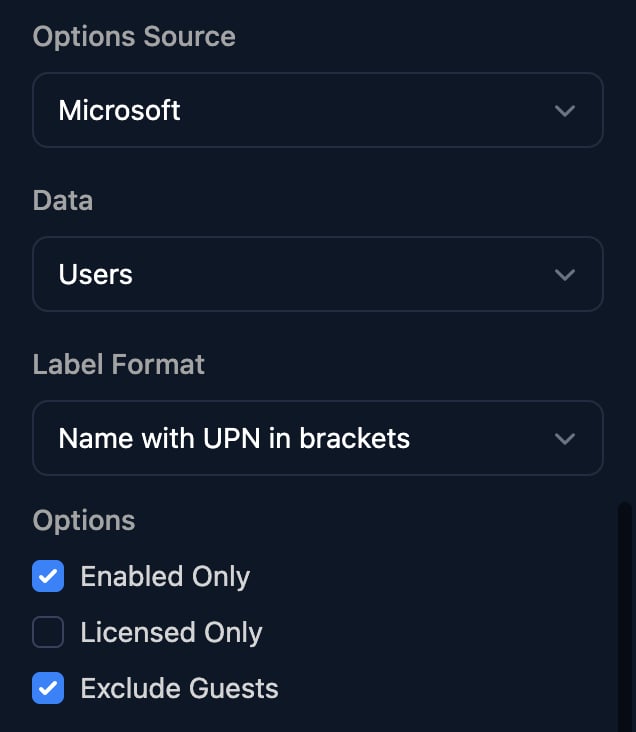
Choose the Data to list. Users can leave out disabled, unlicensed or guest accounts; Groups can be narrowed by type; Domains can leave out onmicrosoft.com domains.
* The field reloads half a second after the watched field's last change, and only while it's visible.
* Only Use workflow reads the other answers. Other sources reload with the same list.
* A reload keeps the current answer, even one no longer listed, unless the workflow preselects an option.
* Team here also has a [condition](/studio/forms/conditional-fields) to show only when Department Is Not Empty.
## Other sources
### Microsoft
Choose the Data to list. Users can leave out disabled, unlicensed or guest accounts; Groups can be narrowed by type; Domains can leave out onmicrosoft.com domains.
 Triggr reads the client's tenant through the connection named in the [org variable](/studio/clients/clients-and-variables#org-variables) `defaultMicrosoftConnection`: `microsoftGDAP`, `microsoftSAM` or `CIPP`. Set it before you use a Microsoft list; without it the list stays empty. On Google-authenticated forms, Groups lists nothing.
To try a Microsoft list in Preview, use an Internal form with Manually Set Client: Preview asks for the client first.
### Integration
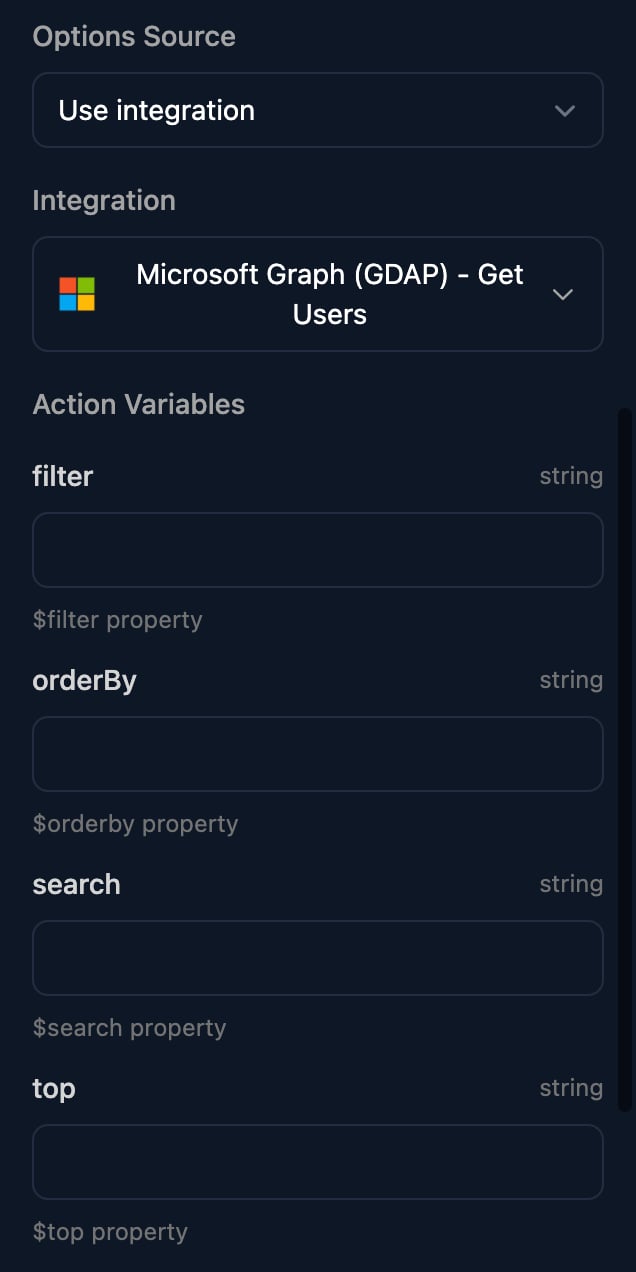
Choose an integration's list, such as HaloPSA's Get Ticket Types or CIPP's List Users, and fill in any Action Variables. The integration sets each option's label and value. Results are reused for a minute; the reload button fetches a fresh list.
Triggr reads the client's tenant through the connection named in the [org variable](/studio/clients/clients-and-variables#org-variables) `defaultMicrosoftConnection`: `microsoftGDAP`, `microsoftSAM` or `CIPP`. Set it before you use a Microsoft list; without it the list stays empty. On Google-authenticated forms, Groups lists nothing.
To try a Microsoft list in Preview, use an Internal form with Manually Set Client: Preview asks for the client first.
### Integration
Choose an integration's list, such as HaloPSA's Get Ticket Types or CIPP's List Users, and fill in any Action Variables. The integration sets each option's label and value. Results are reused for a minute; the reload button fetches a fresh list.
 ### Form params and default values
A form link can carry URL-encoded JSON in `?params=`, such as `?params={"offices":[{"id":"ldn","name":"London"}],"office":"ldn"}`. Use form params lists the `offices` items; Default Value Source From parameters picks the answer from the `office` key.
### Form params and default values
A form link can carry URL-encoded JSON in `?params=`, such as `?params={"offices":[{"id":"ldn","name":"London"}],"office":"ldn"}`. Use form params lists the `offices` items; Default Value Source From parameters picks the answer from the `office` key.
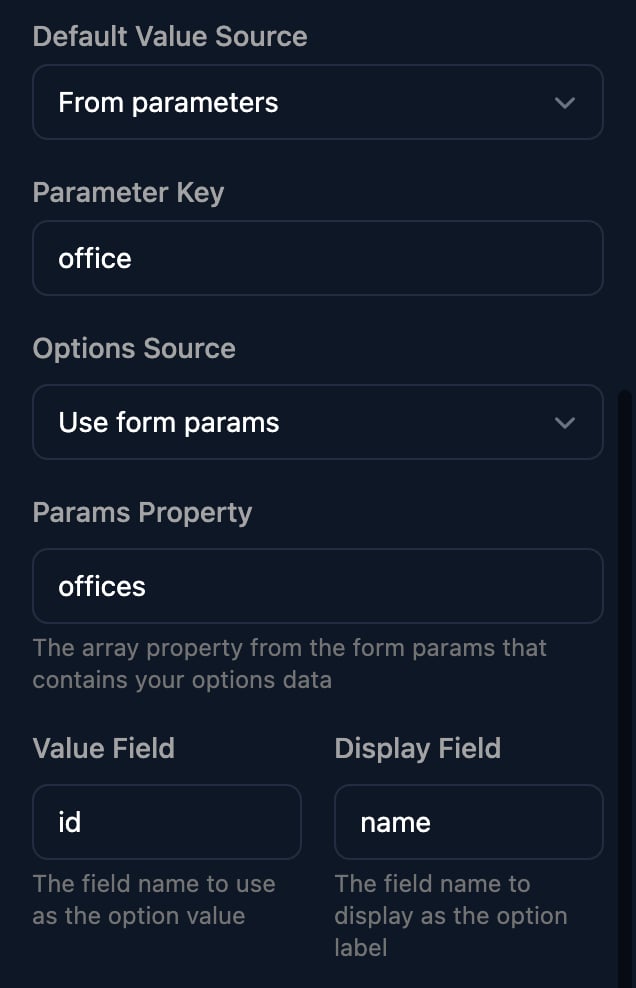 Defaults (From parameters or Static value) apply once, when the form opens; watchers reload options, not defaults. In Preview, click **Debug** to see the params the form received.
## Troubleshooting
Check Workflow Parameters holds `{}`, the Published Variable Name matches the Context Variable Name exactly, Publish Variable is ticked, and every item has the Value Field and Label Field keys. Then open the latest run on the workflow's Runs page.
For Microsoft lists, check that the org variable `defaultMicrosoftConnection` is set. Otherwise the form has no client: use Microsoft or Google authentication and test as a client user with **Share Form > Impersonate**, or Internal with Manually Set Client and pick the client in Preview.
Add the first field under the second's Watch Fields, use Use workflow, and read the answer from `ctx.params.`. To replace a stale answer on each reload, set Preselected Field as in the Team example.
A watch field was added without choosing a field. Choose one or remove it, then save.
Yes, through an option workflow: Set Client From Form, then return the variable's list, as shown [above](#what-the-workflow-receives).
This documentation is built and hosted on [Mintlify](https://mintlify.com), a developer documentation platform.
Defaults (From parameters or Static value) apply once, when the form opens; watchers reload options, not defaults. In Preview, click **Debug** to see the params the form received.
## Troubleshooting
Check Workflow Parameters holds `{}`, the Published Variable Name matches the Context Variable Name exactly, Publish Variable is ticked, and every item has the Value Field and Label Field keys. Then open the latest run on the workflow's Runs page.
For Microsoft lists, check that the org variable `defaultMicrosoftConnection` is set. Otherwise the form has no client: use Microsoft or Google authentication and test as a client user with **Share Form > Impersonate**, or Internal with Manually Set Client and pick the client in Preview.
Add the first field under the second's Watch Fields, use Use workflow, and read the answer from `ctx.params.`. To replace a stale answer on each reload, set Preselected Field as in the Team example.
A watch field was added without choosing a field. Choose one or remove it, then save.
Yes, through an option workflow: Set Client From Form, then return the variable's list, as shown [above](#what-the-workflow-receives).
This documentation is built and hosted on [Mintlify](https://mintlify.com), a developer documentation platform.