> ## Documentation Index
> Fetch the complete documentation index at: https://university.triggr-app.com/llms.txt
> Use this file to discover all available pages before exploring further.
# Go-live checklist
> Everything a new MSP sets up in Triggr Studio before clients use it, in order, with how to tell each step is done.
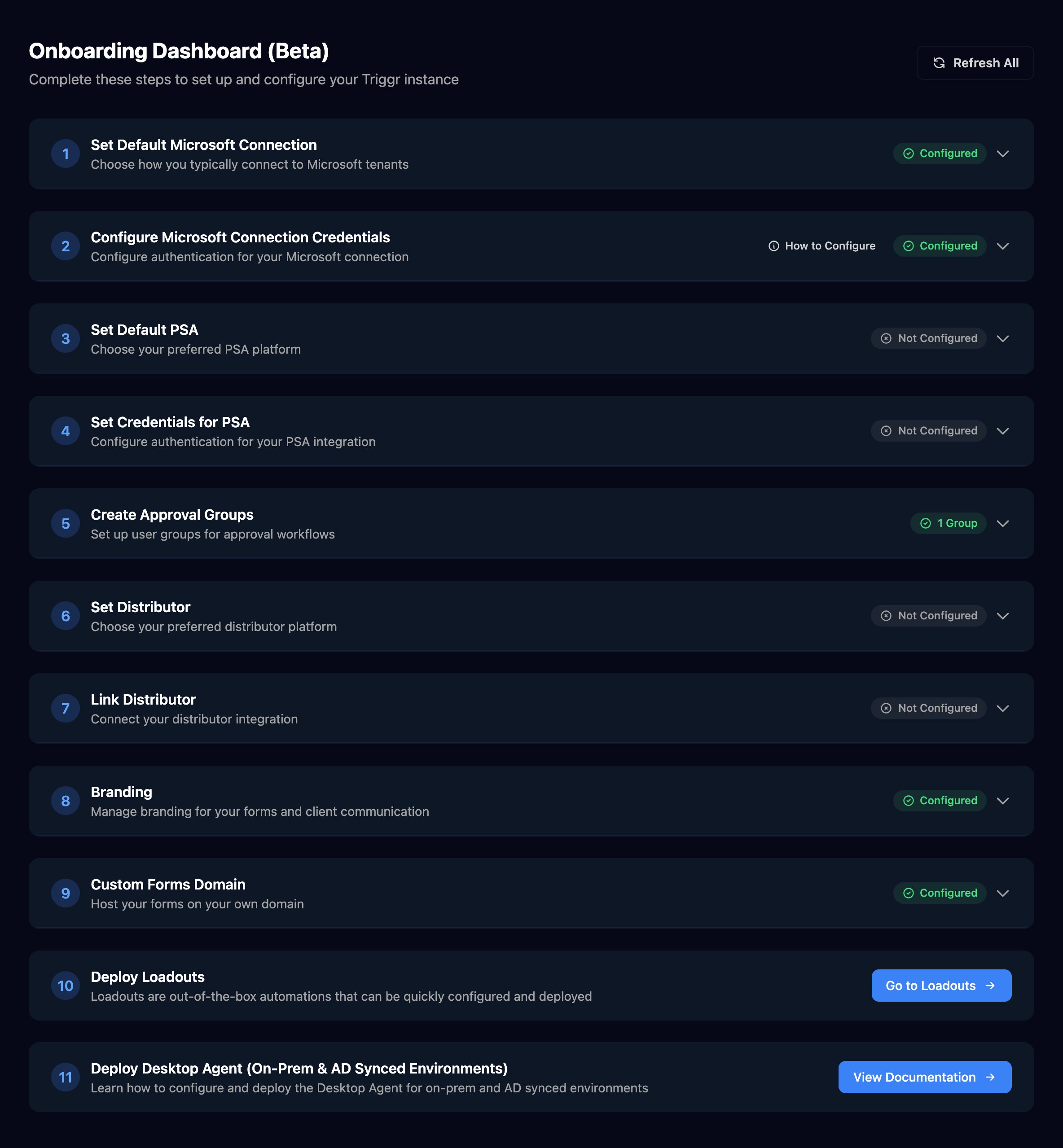
Work through these in order; each links to its guide. Organisation admins can track the first few on the Onboarding Dashboard (Beta): click Onboarding (β) in the top bar, or search for Onboarding with ⌘K once that link has gone.
If our team builds your workflows ([done for you](/studio/introduction#two-ways-to-use-studio)), you still complete this setup so they can run.
 | # | Set up | Where | Done when |
| - | - | - | - |
| 1 | [Invite your team](/studio/clients/team-and-permissions) | Your organisation's name > Manage > Members > Invite | Everyone who builds or approves is on Members |
| 2 | [Add your clients](/studio/clients/clients-and-variables) | Clients > New Client | Every business you support is on Clients |
| 3 | [Choose your defaults](/studio/clients/clients-and-variables#org-variables) | Onboarding (β), or Settings > Org Variables > Setup Wizard | `defaultMicrosoftConnection` and `defaultPSA` appear on Org Variables |
| 4 | Connect Microsoft: [GDAP](/integrations/microsoft-graph/gdap-service-account), [Individual Enterprise Apps](/integrations/microsoft-graph/sam) or [CIPP](/integrations/cipp) | Integrations | Configure Microsoft Connection Credentials shows Configured on the Onboarding Dashboard, and every client has a `microsoftTenantId` variable |
| 5 | Connect your PSA: [HaloPSA](/integrations/halopsa), [ConnectWise PSA](/integrations/connectwise-psa), [Autotask](/integrations/autotask) or [Syncro](/integrations/syncro) | Integrations | Every client is mapped on the integration's Client Mapping card |
| 6 | [Create approval groups](/studio/clients/team-and-permissions#group-your-approvers) | Settings > User Groups > New Group | Create Approval Groups shows at least one group |
| 7 | [Link your distributor](/studio/settings/distributors-and-licensing) (optional) | Onboarding Dashboard > Set Distributor and Link Distributor | Link Distributor shows Configured |
| 8 | [Brand your forms and add your domain](/studio/settings/branding-and-portal) | Settings > Branding | The domain shows Verified and Certificate shows Active |
| 9 | [Send email from your address](/studio/settings/sending-profiles) | Settings > Sending Profiles | A test email from a workflow arrives from your address |
| 10 | Deploy the desktop agent for clients with on-premises AD: [generate credentials](/desktop-agent/generate-credentials), then [install](/desktop-agent/install) | Clients > the client > Agent Credentials | The client's Agent Summary shows Online |
| 11 | Build and test your first [form](/studio/forms/introduction) and [workflow](/studio/workflows/introduction) | Forms and Workflows | A test run through Share Form > Impersonate shows Completed in Workflows > Executions |
| 12 | [Publish your portal](/studio/settings/branding-and-portal#lay-out-the-client-portal) | List on Homepage on each form, then Settings > Portal | `https://forms.yourmsp.com` lists your forms under your logo, and clients have the [client guides](/guides/overview) |
| 13 | Watch for failures: [debug a failed run](/studio/workflows/debugging) or send `execution.failed` to your PSA with a [webhook](/studio/settings/api-and-webhooks#add-a-webhook) | Workflows > Executions, or Settings > Webhooks | A named person is told about every failed run |
## FAQ
It shows only to organisation admins, and only until a default Microsoft connection is set. Admins can still open it from ⌘K search.
No. Core and Studio share your sign-in, team, clients, branding and sending profiles. Core's request forms have their own domain setting.
Choose **Other**. Create Ticket and Log to Ticket work with Halo PSA, ConnectWise PSA and Autotask by Datto; with any other PSA, use its own [integration](/integrations/overview) actions.
Yes: run Setup Wizard again, or edit the variables on Org Variables. Steps use the new value from their next run.
This documentation is built and hosted on [Mintlify](https://mintlify.com), a developer documentation platform.
| # | Set up | Where | Done when |
| - | - | - | - |
| 1 | [Invite your team](/studio/clients/team-and-permissions) | Your organisation's name > Manage > Members > Invite | Everyone who builds or approves is on Members |
| 2 | [Add your clients](/studio/clients/clients-and-variables) | Clients > New Client | Every business you support is on Clients |
| 3 | [Choose your defaults](/studio/clients/clients-and-variables#org-variables) | Onboarding (β), or Settings > Org Variables > Setup Wizard | `defaultMicrosoftConnection` and `defaultPSA` appear on Org Variables |
| 4 | Connect Microsoft: [GDAP](/integrations/microsoft-graph/gdap-service-account), [Individual Enterprise Apps](/integrations/microsoft-graph/sam) or [CIPP](/integrations/cipp) | Integrations | Configure Microsoft Connection Credentials shows Configured on the Onboarding Dashboard, and every client has a `microsoftTenantId` variable |
| 5 | Connect your PSA: [HaloPSA](/integrations/halopsa), [ConnectWise PSA](/integrations/connectwise-psa), [Autotask](/integrations/autotask) or [Syncro](/integrations/syncro) | Integrations | Every client is mapped on the integration's Client Mapping card |
| 6 | [Create approval groups](/studio/clients/team-and-permissions#group-your-approvers) | Settings > User Groups > New Group | Create Approval Groups shows at least one group |
| 7 | [Link your distributor](/studio/settings/distributors-and-licensing) (optional) | Onboarding Dashboard > Set Distributor and Link Distributor | Link Distributor shows Configured |
| 8 | [Brand your forms and add your domain](/studio/settings/branding-and-portal) | Settings > Branding | The domain shows Verified and Certificate shows Active |
| 9 | [Send email from your address](/studio/settings/sending-profiles) | Settings > Sending Profiles | A test email from a workflow arrives from your address |
| 10 | Deploy the desktop agent for clients with on-premises AD: [generate credentials](/desktop-agent/generate-credentials), then [install](/desktop-agent/install) | Clients > the client > Agent Credentials | The client's Agent Summary shows Online |
| 11 | Build and test your first [form](/studio/forms/introduction) and [workflow](/studio/workflows/introduction) | Forms and Workflows | A test run through Share Form > Impersonate shows Completed in Workflows > Executions |
| 12 | [Publish your portal](/studio/settings/branding-and-portal#lay-out-the-client-portal) | List on Homepage on each form, then Settings > Portal | `https://forms.yourmsp.com` lists your forms under your logo, and clients have the [client guides](/guides/overview) |
| 13 | Watch for failures: [debug a failed run](/studio/workflows/debugging) or send `execution.failed` to your PSA with a [webhook](/studio/settings/api-and-webhooks#add-a-webhook) | Workflows > Executions, or Settings > Webhooks | A named person is told about every failed run |
## FAQ
It shows only to organisation admins, and only until a default Microsoft connection is set. Admins can still open it from ⌘K search.
No. Core and Studio share your sign-in, team, clients, branding and sending profiles. Core's request forms have their own domain setting.
Choose **Other**. Create Ticket and Log to Ticket work with Halo PSA, ConnectWise PSA and Autotask by Datto; with any other PSA, use its own [integration](/integrations/overview) actions.
Yes: run Setup Wizard again, or edit the variables on Org Variables. Steps use the new value from their next run.
This documentation is built and hosted on [Mintlify](https://mintlify.com), a developer documentation platform.