> ## Documentation Index
> Fetch the complete documentation index at: https://university.triggr-app.com/llms.txt
> Use this file to discover all available pages before exploring further.
# Introduction to internal apps
> Build pages that Triggr hosts for your team or clients, which can upload files and start your workflows.
An internal app is one or more HTML pages, with your own CSS and JavaScript, hosted by Triggr. Use one when a [form](/studio/forms/introduction) isn't enough: your own layout, several pages, or buttons that start [workflows](/studio/workflows/introduction).
## Build your first app
A one-page app your team uses to send a message to a workflow. You need an active workflow with a step that uses `{{ ctx.params.message }}`; copy its ID from the address bar (`app.triggr-app.com/workflows//design`).
In Internal Apps, click **New App**, enter a Name and click Create App.
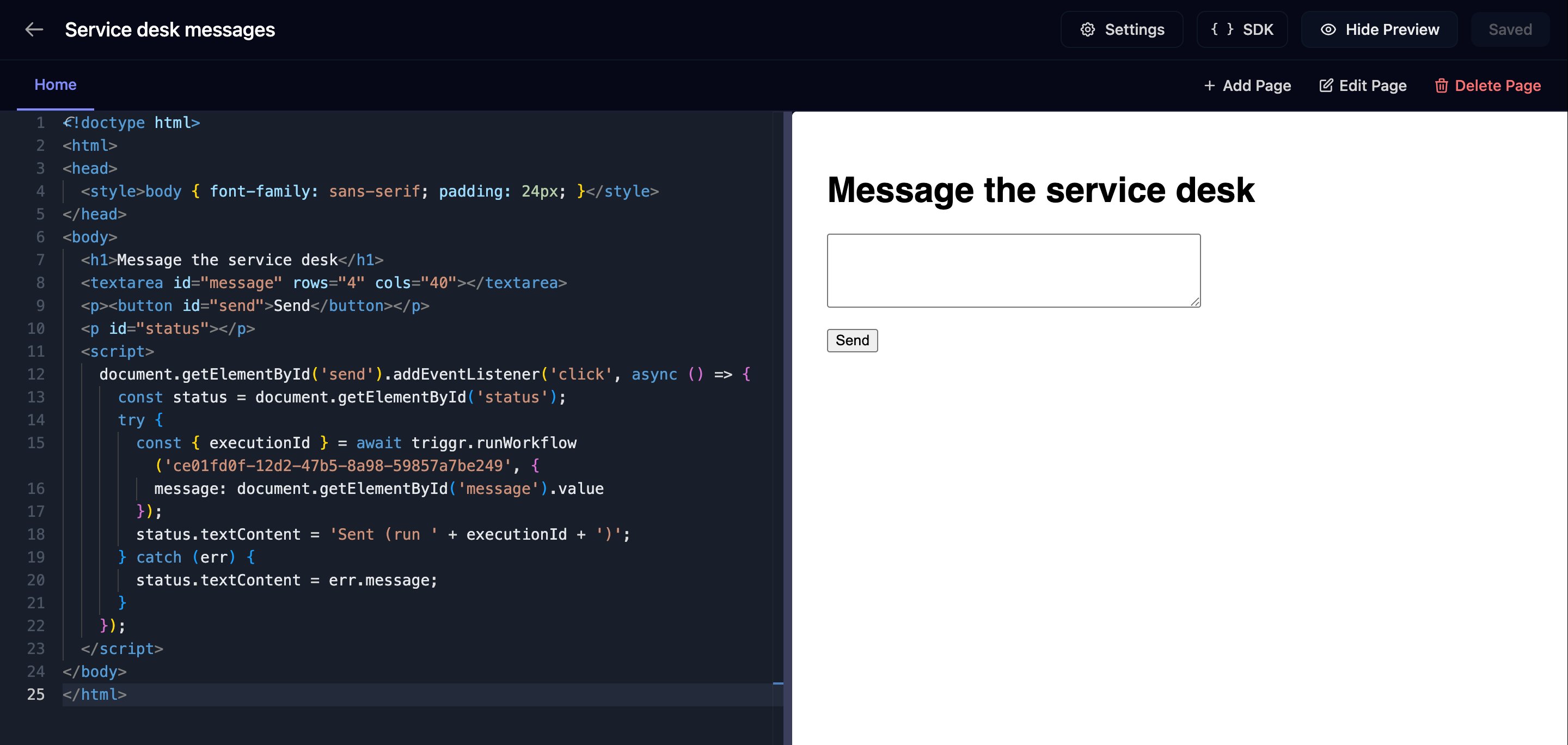
Click **Design** on the app's row, click Add Page, name the page and click Create Page. Paste this into the editor, replace `WORKFLOW_ID` with your workflow's ID and click Save.
```html theme={null}
Message the service desk
```
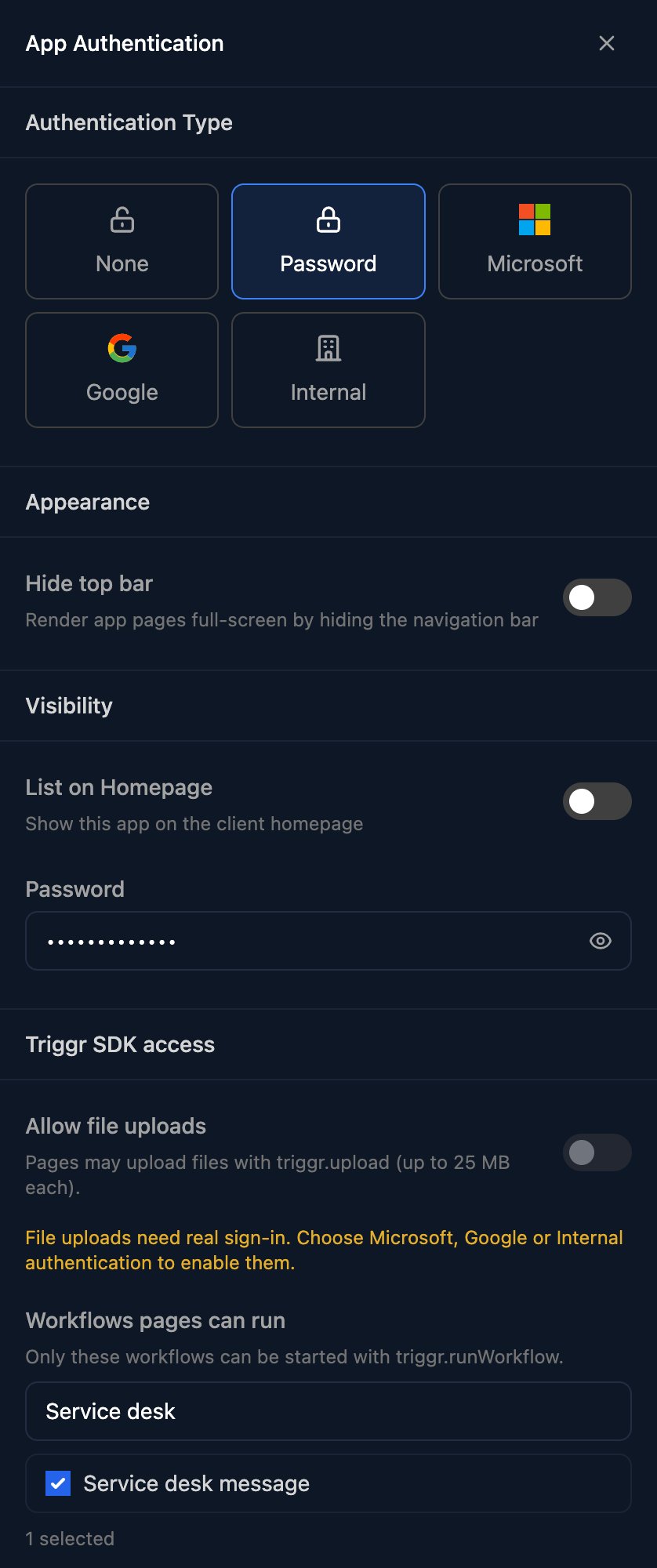
Click **Settings**, choose Password as the Authentication Type and enter a password. Under Workflows pages can run, tick your workflow, then click Save Settings.
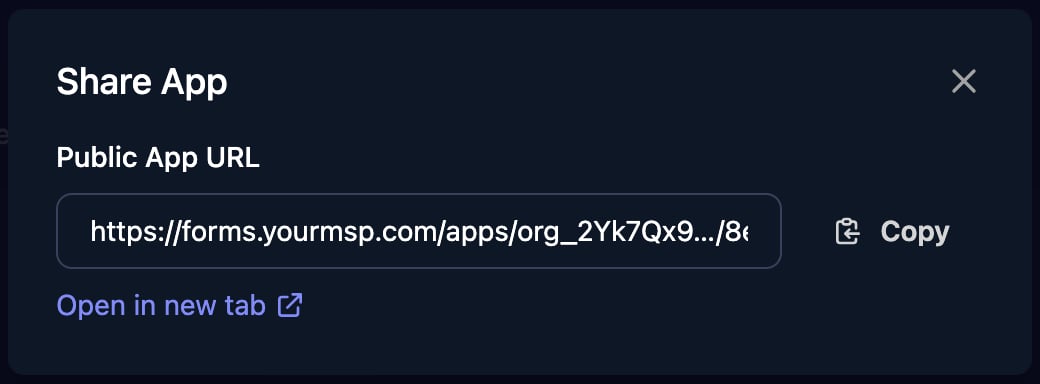
Back on Internal Apps, click **Share** on the app's row, then Open in new tab. Enter the password and send a message: the run appears under Executions. Click Copy and send your team the link and password.
## Who can open an app
New apps start as Internal: your Studio team opens them at `https://app.triggr-app.com/telescope/apps//` with their staff sign-in (**Support > Copy Org ID** in the top bar gives the first ID; the second is in the designer's address bar). None, Password, Microsoft and Google work as they do for [forms](/studio/forms/introduction#who-can-open-a-form) and add a Share link. A Microsoft or Google visitor's workflows run for their client.
Allow file uploads needs Microsoft, Google or Internal authentication. Hide top bar shows only the first page, full-screen.
## The Triggr SDK
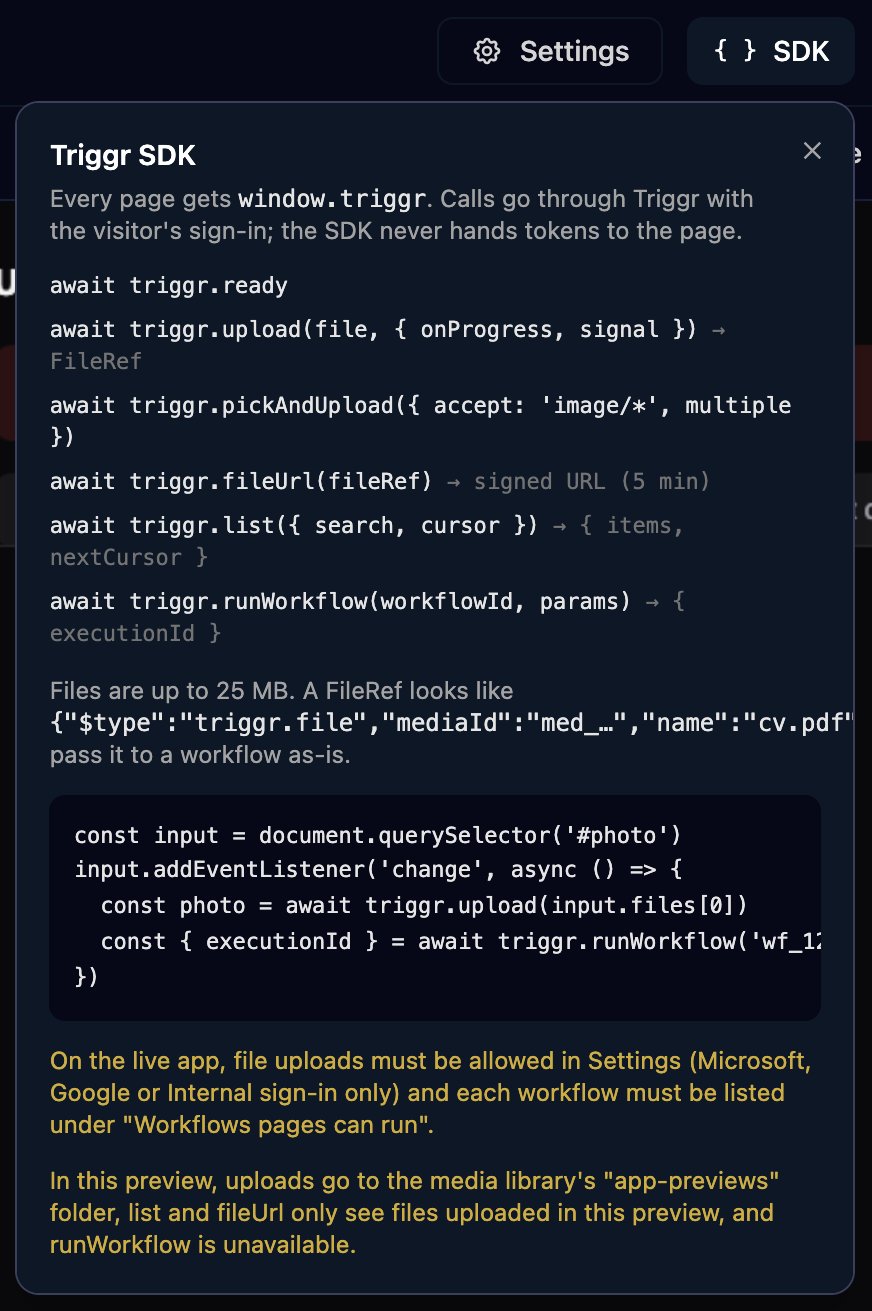
In the live app (the Share link, or the Internal app URL above), each page gets `window.triggr`, which acts as the signed-in visitor: `runWorkflow` starts a ticked workflow and returns its `executionId`, and `upload`, `pickAndUpload`, `list` and `fileUrl` handle files when Allow file uploads is on. Preview and Open show a page's layout, not its calls, so test calls in the live app. Click **SDK** in the editor for the quick reference.
* [SDK reference](/studio/internal-apps/sdk): every call, its limits and errors, and when to use a workflow's webhook instead.
* [Example: build an uptime monitor](/studio/internal-apps/example-uptime-monitor): workflows on a schedule, results in a database, and a page that shows them.
## Troubleshooting
Tick the workflow under **Settings > Workflows pages can run** and click Save Settings, and check the ID in the page matches the workflow's.
On Workflows, click Edit on the workflow's row, set Status to Active and click Save Changes.
The page was opened with Open, which shows it without the SDK. Use **Share > Open in new tab**, or the Internal app URL above.
Ask an admin for permission to edit internal apps.
Next: [Example: build an uptime monitor](/studio/internal-apps/example-uptime-monitor).
This documentation is built and hosted on [Mintlify](https://mintlify.com), a developer documentation platform.
 ## Build your first app
A one-page app your team uses to send a message to a workflow. You need an active workflow with a step that uses `{{ ctx.params.message }}`; copy its ID from the address bar (`app.triggr-app.com/workflows/
## Build your first app
A one-page app your team uses to send a message to a workflow. You need an active workflow with a step that uses `{{ ctx.params.message }}`; copy its ID from the address bar (`app.triggr-app.com/workflows/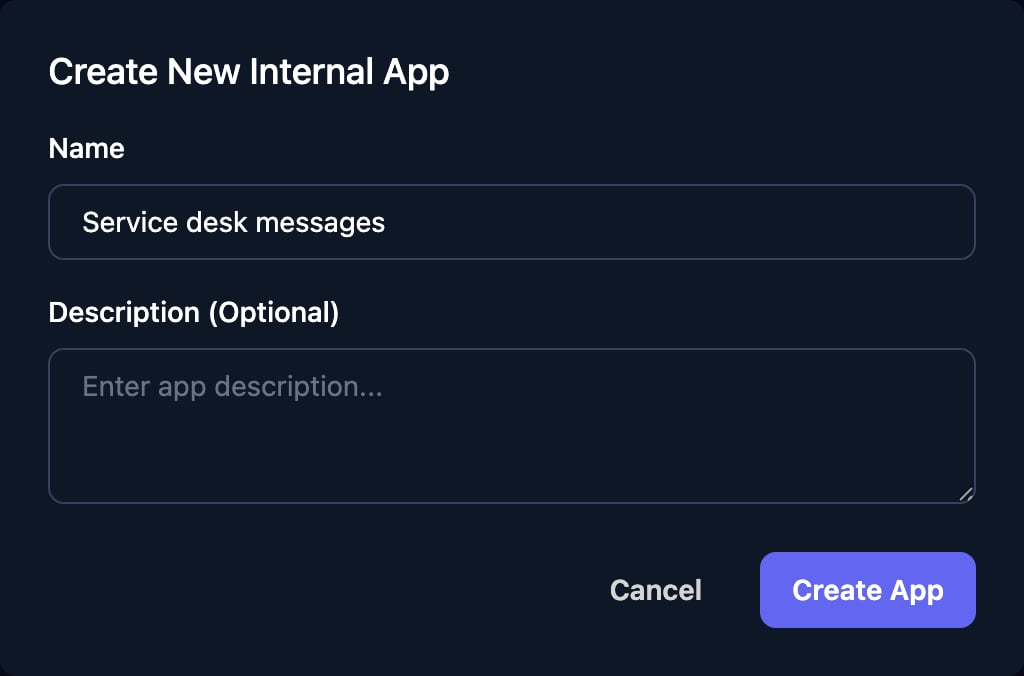
 * [SDK reference](/studio/internal-apps/sdk): every call, its limits and errors, and when to use a workflow's webhook instead.
* [Example: build an uptime monitor](/studio/internal-apps/example-uptime-monitor): workflows on a schedule, results in a database, and a page that shows them.
## Troubleshooting
* [SDK reference](/studio/internal-apps/sdk): every call, its limits and errors, and when to use a workflow's webhook instead.
* [Example: build an uptime monitor](/studio/internal-apps/example-uptime-monitor): workflows on a schedule, results in a database, and a page that shows them.
## Troubleshooting