> ## Documentation Index
> Fetch the complete documentation index at: https://university.triggr-app.com/llms.txt
> Use this file to discover all available pages before exploring further.
# Internal app SDK
> Every window.triggr call an internal app page can make: what it returns, the errors it throws and the app settings it needs.
Every page of an [internal app](/studio/internal-apps/introduction) opened in the live app gets `window.triggr`, so don't add a script tag for it. Calls go through Triggr as the signed-in visitor, and the SDK never hands the page a token or the app's password. Click **SDK** in the editor for this list.
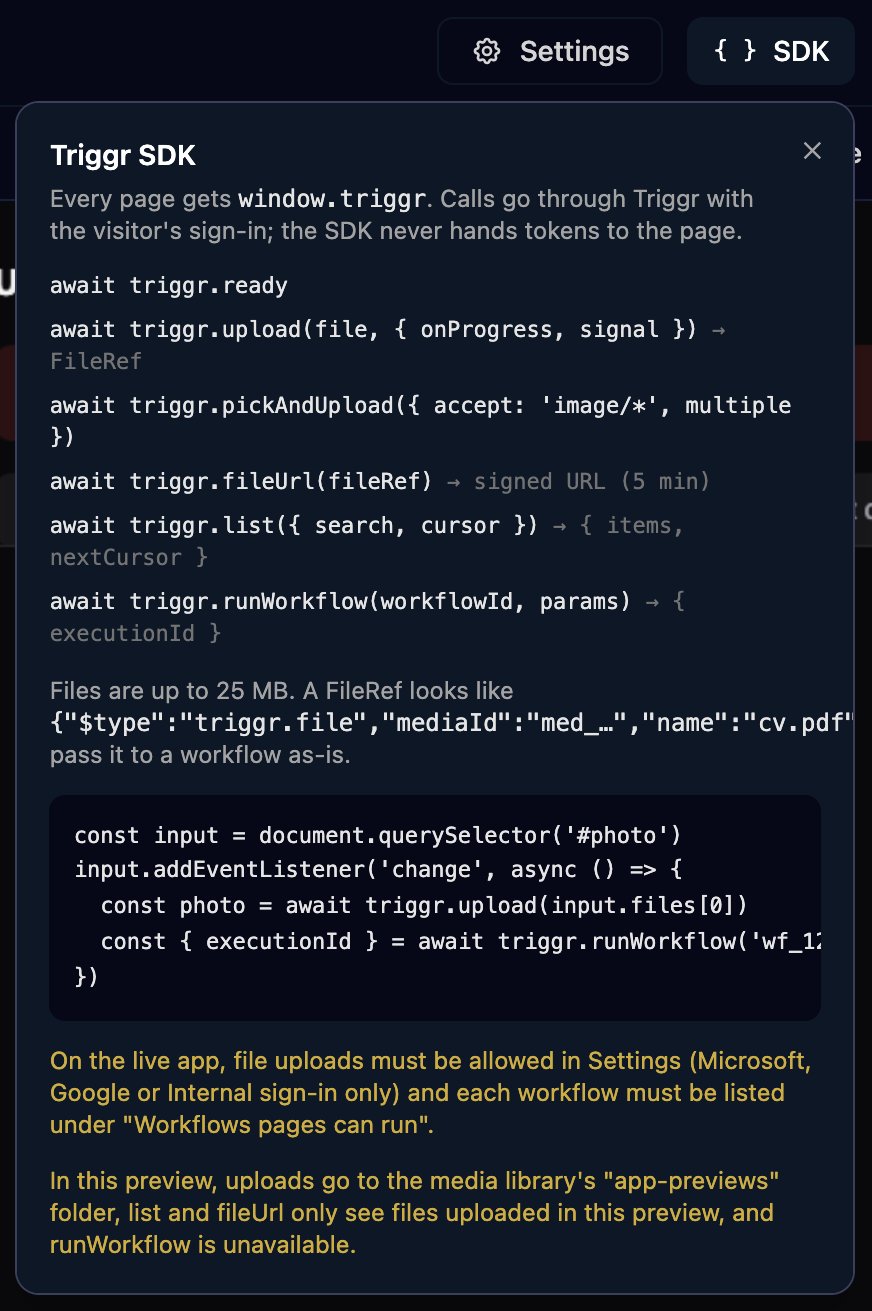 | Call | Returns | Needs |
| - | - | - |
| [`triggr.runWorkflow(workflowId, params)`](#run-a-workflow) | `{ executionId }` | The workflow ticked under Workflows pages can run, and Active |
| [`triggr.upload(file, options)`](#upload-a-file) | A FileRef | Allow file uploads, which needs Microsoft, Google or Internal authentication |
| [`triggr.pickAndUpload(options)`](#upload-a-file) | A FileRef, a list of them, or `null` | As `upload` |
| [`triggr.list(options)`](#list-and-download-files) | `{ items, nextCursor }` | As `upload` |
| [`triggr.fileUrl(fileRef)`](#list-and-download-files) | A link that works for 5 minutes | As `upload` |
| [`triggr.ready`](#test-in-the-live-app) | `{ version, mode }` | Nothing |
No call reads a run's result, your data or your clients; to show a result on a page, see [Get results back](#get-results-back).
## Run a workflow
```js theme={null}
const { executionId } = await triggr.runWorkflow('WORKFLOW_ID', {
message: 'The printer on floor 2 is jammed',
urgent: true
});
```
* `workflowId` is the ID in the workflow's address in Studio: `app.triggr-app.com/workflows//design`.
* `params` is a plain object of up to 256 KB, with no single value over 64 KB, so send files as [FileRefs](#upload-a-file). The workflow reads each value as `{{ ctx.params. }}`.
* It resolves as soon as the run is queued, with the run's ID, not its result.
The run gets `ctx.metadata.source` (`internal_app`), `ctx.metadata.appId` and, on Microsoft, Google and Internal apps, `ctx.metadata.appUser` (`email`, `name`, `id`, `authType`, `tenantId`), so `{{ ctx.metadata.appUser.email }}` says who clicked. On Microsoft and Google apps it runs for the visitor's client, so `{{ ctx.client.name }}` and client variables work without a Set Client step.
An app can run up to 50 workflows, and on apps that aren't Internal each IP address can start 60 runs an hour.
## Upload a file
```js theme={null}
const input = document.getElementById('photo');
input.addEventListener('change', async () => {
const photo = await triggr.upload(input.files[0], {
onProgress: (fraction) => { status.textContent = Math.round(fraction * 100) + '%'; }
});
await triggr.runWorkflow('WORKFLOW_ID', { photo });
});
```
Or let the visitor choose, from a click handler (browsers only open a file picker after a click):
```js theme={null}
document.getElementById('attach').addEventListener('click', async () => {
const files = await triggr.pickAndUpload({ accept: '.pdf,image/*', multiple: true });
if (!files.length) return; // the visitor cancelled
await triggr.runWorkflow('WORKFLOW_ID', { files });
});
```
* `file` is a `File` or `Blob` of up to 25 MB (`triggr.maxFileBytes`): images, PDF, Office files, CSV and text, Outlook `.msg`, and common video and audio formats. SVG, HTML and executables are refused, and the extension must match the content.
* `onProgress` gets a number from 0 to 1; `signal` takes an `AbortSignal` so the visitor can cancel; `accept` takes file types as a string or a list.
* `pickAndUpload` resolves with a FileRef, or a list when `multiple` is `true`, and with `null` (or `[]`) if the visitor cancels. It uploads every chosen file at once, so a sixth fails with `too_many_uploads`.
```json theme={null}
{ "$type": "triggr.file", "mediaId": "med_…", "name": "cv.pdf", "mimeType": "application/pdf", "size": 183422 }
```
Pass FileRefs to `runWorkflow` as they are and use them wherever a step takes a file, such as Attachments on Send Email: `{{ ctx.params.photo }}`. Files are kept in [Media](/studio/media) and count towards your storage. On Microsoft and Google apps, each IP address can start 60 uploads an hour.
## List and download files
```js theme={null}
const { items, nextCursor } = await triggr.list({ search: 'invoice' });
const url = await triggr.fileUrl(items[0]); // a FileRef, or its mediaId
window.open(url);
```
* `items` holds up to 50 files uploaded through this app, newest first, each a FileRef with a `createdAt` time. `search` matches part of the name, ignoring case; for the next 50, pass `cursor: nextCursor` (`null` on the last page).
* Your team sees every file uploaded through an Internal app; Microsoft and Google visitors see only their own client's.
* A download link works for 5 minutes, so get a new one each time.
## Test in the live app
SDK calls run in the live app only. The designer's Preview and Open on Internal Apps (which kiosks and the post-login redirect also use) show a page's layout, not its calls. To test a page, open the live app: **Share > Open in new tab**, or for an Internal app `https://app.triggr-app.com/telescope/apps//` with your staff sign-in (**Support > Copy Org ID** in the top bar gives the first ID; the second is in the designer's address bar).
`triggr.ready` resolves with `{ version, mode }` once the page is connected: `version` is `1.2.0` and `mode` is `app`. You don't have to wait for it.
## Run a workflow from a page or a webhook
A workflow with a [Webhook trigger](/studio/workflows/triggers#webhook) can also be started from a page with `fetch`, but the two differ:
| | `triggr.runWorkflow` | Webhook trigger |
| - | - | - |
| Who can start it | People who can open the app | Anyone with the URL |
| Set up | Ticked under Workflows pages can run, and Active | A saved Webhook trigger; runs even when Inactive |
| Client and user | The visitor's client (Microsoft and Google apps) and `ctx.metadata.appUser` | None |
| Returns | `executionId`, straight away | `executionId`, or the result with [`?await=true`](/studio/workflows/triggers#wait-for-the-result) |
Use `runWorkflow` for anything that changes something or acts for the visitor, and a webhook only to read data that's safe for anyone to see.
Every visitor can read a page's source, including any webhook URL in it, and use that URL outside the app. Never put API keys, MCP tokens, passwords or other secrets in a page.
## Get results back
`runWorkflow` only returns the run's ID. If someone needs to act on the result, have the workflow email, message or update a ticket. If the page needs to show it, add a separate read-only workflow with a Webhook trigger whose Finish Workflow Comment is the data as JSON, and call it with `?await=true`:
```js theme={null}
const res = await fetch('https://api.triggr-app.com/telescope/webhook/WORKFLOW_ID?await=true&timeout=30', {
method: 'POST',
headers: { 'Content-Type': 'application/json' },
body: '{}'
});
const run = await res.json();
if (run.status !== 'completed') throw new Error('The workflow ' + run.status);
const data = JSON.parse(run.output.comment);
```
The [uptime monitor](/studio/internal-apps/example-uptime-monitor) uses both: a Check now button that calls `runWorkflow`, and a read-only webhook workflow that lists results from a database.
## Errors
A failed call rejects with an `Error` that has a `code` and a `message`:
```js theme={null}
try {
await triggr.runWorkflow('WORKFLOW_ID', { message });
} catch (err) {
status.textContent = err.code === 'rate_limited' ? 'Please wait a moment and try again.' : err.message;
}
```
| `code` | `message` | Fix |
| - | - | - |
| `permission_denied` | this app is not allowed to run that workflow | Tick the workflow under Workflows pages can run and click Save Settings; a wrong ID in the page gives this too. |
| `failed_precondition` | workflow is not active | On Workflows, click Edit on its row, set Status to Active and click Save Changes. |
| `not_found` | workflow not found | A ticked workflow was deleted. Untick it in Settings and tick its replacement. |
| `invalid_argument` | workflow params are too large (… the limit is 256 KB), or contain a value over 64 KB | Upload files with `upload` and pass the FileRef. |
| `invalid_argument` | this file type is not supported, or the file's extension does not match its contents | Use an accepted file type with its proper extension. |
| `permission_denied` | file uploads are not enabled for this app | Turn on Allow file uploads, with Microsoft, Google or Internal authentication. |
| `too_large` | *name* is larger than 25 MB | Files must be 25 MB or smaller. |
| `too_many_uploads` | No more than 5 uploads at once | Upload five files at a time or fewer. |
| `resource_exhausted` | too many requests / too many uploads — please try again later | Over 60 runs or uploads an hour from one IP address. |
| `resource_exhausted` | your organisation has reached its file storage limit | Delete files you don't need from Media. |
| `not_found` | file not found | The visitor can't see that file, or it was deleted. |
| `rate_limited` | Too many requests; slow down | The page made more than 10 calls in a second. |
| `timeout` | Triggr did not respond in time (*call*) | A call took over 2 minutes, or an upload made no progress for 10 minutes. Try again. |
| `unauthenticated` | *varies* | The visitor's sign-in has expired. Reload the page. |
| `bridge_unavailable` | Triggr is not available on this page | The page couldn't connect to Triggr, for example in the designer's Preview. Test it in the live app. |
## FAQ
Not directly. Have a workflow read it with Execute SQL and return it through a read-only webhook, as in the [uptime monitor](/studio/internal-apps/example-uptime-monitor).
On Microsoft and Google apps, `window.__TELESCOPE_USER__` holds the visitor's `email` and `name` (Microsoft adds `upn`, `preferredUsername` and `tenantId`). Use it for display only. The workflow a page starts gets `{{ ctx.metadata.appUser.email }}` on Microsoft, Google and Internal apps.
It was opened with Open on Internal Apps, which shows the page without the SDK. Open the live app instead, as in [Test in the live app](#test-in-the-live-app).
No. `runWorkflow` only starts the workflows ticked under Workflows pages can run, up to 50 per app.
This documentation is built and hosted on [Mintlify](https://mintlify.com), a developer documentation platform.
| Call | Returns | Needs |
| - | - | - |
| [`triggr.runWorkflow(workflowId, params)`](#run-a-workflow) | `{ executionId }` | The workflow ticked under Workflows pages can run, and Active |
| [`triggr.upload(file, options)`](#upload-a-file) | A FileRef | Allow file uploads, which needs Microsoft, Google or Internal authentication |
| [`triggr.pickAndUpload(options)`](#upload-a-file) | A FileRef, a list of them, or `null` | As `upload` |
| [`triggr.list(options)`](#list-and-download-files) | `{ items, nextCursor }` | As `upload` |
| [`triggr.fileUrl(fileRef)`](#list-and-download-files) | A link that works for 5 minutes | As `upload` |
| [`triggr.ready`](#test-in-the-live-app) | `{ version, mode }` | Nothing |
No call reads a run's result, your data or your clients; to show a result on a page, see [Get results back](#get-results-back).
## Run a workflow
```js theme={null}
const { executionId } = await triggr.runWorkflow('WORKFLOW_ID', {
message: 'The printer on floor 2 is jammed',
urgent: true
});
```
* `workflowId` is the ID in the workflow's address in Studio: `app.triggr-app.com/workflows//design`.
* `params` is a plain object of up to 256 KB, with no single value over 64 KB, so send files as [FileRefs](#upload-a-file). The workflow reads each value as `{{ ctx.params. }}`.
* It resolves as soon as the run is queued, with the run's ID, not its result.
The run gets `ctx.metadata.source` (`internal_app`), `ctx.metadata.appId` and, on Microsoft, Google and Internal apps, `ctx.metadata.appUser` (`email`, `name`, `id`, `authType`, `tenantId`), so `{{ ctx.metadata.appUser.email }}` says who clicked. On Microsoft and Google apps it runs for the visitor's client, so `{{ ctx.client.name }}` and client variables work without a Set Client step.
An app can run up to 50 workflows, and on apps that aren't Internal each IP address can start 60 runs an hour.
## Upload a file
```js theme={null}
const input = document.getElementById('photo');
input.addEventListener('change', async () => {
const photo = await triggr.upload(input.files[0], {
onProgress: (fraction) => { status.textContent = Math.round(fraction * 100) + '%'; }
});
await triggr.runWorkflow('WORKFLOW_ID', { photo });
});
```
Or let the visitor choose, from a click handler (browsers only open a file picker after a click):
```js theme={null}
document.getElementById('attach').addEventListener('click', async () => {
const files = await triggr.pickAndUpload({ accept: '.pdf,image/*', multiple: true });
if (!files.length) return; // the visitor cancelled
await triggr.runWorkflow('WORKFLOW_ID', { files });
});
```
* `file` is a `File` or `Blob` of up to 25 MB (`triggr.maxFileBytes`): images, PDF, Office files, CSV and text, Outlook `.msg`, and common video and audio formats. SVG, HTML and executables are refused, and the extension must match the content.
* `onProgress` gets a number from 0 to 1; `signal` takes an `AbortSignal` so the visitor can cancel; `accept` takes file types as a string or a list.
* `pickAndUpload` resolves with a FileRef, or a list when `multiple` is `true`, and with `null` (or `[]`) if the visitor cancels. It uploads every chosen file at once, so a sixth fails with `too_many_uploads`.
```json theme={null}
{ "$type": "triggr.file", "mediaId": "med_…", "name": "cv.pdf", "mimeType": "application/pdf", "size": 183422 }
```
Pass FileRefs to `runWorkflow` as they are and use them wherever a step takes a file, such as Attachments on Send Email: `{{ ctx.params.photo }}`. Files are kept in [Media](/studio/media) and count towards your storage. On Microsoft and Google apps, each IP address can start 60 uploads an hour.
## List and download files
```js theme={null}
const { items, nextCursor } = await triggr.list({ search: 'invoice' });
const url = await triggr.fileUrl(items[0]); // a FileRef, or its mediaId
window.open(url);
```
* `items` holds up to 50 files uploaded through this app, newest first, each a FileRef with a `createdAt` time. `search` matches part of the name, ignoring case; for the next 50, pass `cursor: nextCursor` (`null` on the last page).
* Your team sees every file uploaded through an Internal app; Microsoft and Google visitors see only their own client's.
* A download link works for 5 minutes, so get a new one each time.
## Test in the live app
SDK calls run in the live app only. The designer's Preview and Open on Internal Apps (which kiosks and the post-login redirect also use) show a page's layout, not its calls. To test a page, open the live app: **Share > Open in new tab**, or for an Internal app `https://app.triggr-app.com/telescope/apps//` with your staff sign-in (**Support > Copy Org ID** in the top bar gives the first ID; the second is in the designer's address bar).
`triggr.ready` resolves with `{ version, mode }` once the page is connected: `version` is `1.2.0` and `mode` is `app`. You don't have to wait for it.
## Run a workflow from a page or a webhook
A workflow with a [Webhook trigger](/studio/workflows/triggers#webhook) can also be started from a page with `fetch`, but the two differ:
| | `triggr.runWorkflow` | Webhook trigger |
| - | - | - |
| Who can start it | People who can open the app | Anyone with the URL |
| Set up | Ticked under Workflows pages can run, and Active | A saved Webhook trigger; runs even when Inactive |
| Client and user | The visitor's client (Microsoft and Google apps) and `ctx.metadata.appUser` | None |
| Returns | `executionId`, straight away | `executionId`, or the result with [`?await=true`](/studio/workflows/triggers#wait-for-the-result) |
Use `runWorkflow` for anything that changes something or acts for the visitor, and a webhook only to read data that's safe for anyone to see.
Every visitor can read a page's source, including any webhook URL in it, and use that URL outside the app. Never put API keys, MCP tokens, passwords or other secrets in a page.
## Get results back
`runWorkflow` only returns the run's ID. If someone needs to act on the result, have the workflow email, message or update a ticket. If the page needs to show it, add a separate read-only workflow with a Webhook trigger whose Finish Workflow Comment is the data as JSON, and call it with `?await=true`:
```js theme={null}
const res = await fetch('https://api.triggr-app.com/telescope/webhook/WORKFLOW_ID?await=true&timeout=30', {
method: 'POST',
headers: { 'Content-Type': 'application/json' },
body: '{}'
});
const run = await res.json();
if (run.status !== 'completed') throw new Error('The workflow ' + run.status);
const data = JSON.parse(run.output.comment);
```
The [uptime monitor](/studio/internal-apps/example-uptime-monitor) uses both: a Check now button that calls `runWorkflow`, and a read-only webhook workflow that lists results from a database.
## Errors
A failed call rejects with an `Error` that has a `code` and a `message`:
```js theme={null}
try {
await triggr.runWorkflow('WORKFLOW_ID', { message });
} catch (err) {
status.textContent = err.code === 'rate_limited' ? 'Please wait a moment and try again.' : err.message;
}
```
| `code` | `message` | Fix |
| - | - | - |
| `permission_denied` | this app is not allowed to run that workflow | Tick the workflow under Workflows pages can run and click Save Settings; a wrong ID in the page gives this too. |
| `failed_precondition` | workflow is not active | On Workflows, click Edit on its row, set Status to Active and click Save Changes. |
| `not_found` | workflow not found | A ticked workflow was deleted. Untick it in Settings and tick its replacement. |
| `invalid_argument` | workflow params are too large (… the limit is 256 KB), or contain a value over 64 KB | Upload files with `upload` and pass the FileRef. |
| `invalid_argument` | this file type is not supported, or the file's extension does not match its contents | Use an accepted file type with its proper extension. |
| `permission_denied` | file uploads are not enabled for this app | Turn on Allow file uploads, with Microsoft, Google or Internal authentication. |
| `too_large` | *name* is larger than 25 MB | Files must be 25 MB or smaller. |
| `too_many_uploads` | No more than 5 uploads at once | Upload five files at a time or fewer. |
| `resource_exhausted` | too many requests / too many uploads — please try again later | Over 60 runs or uploads an hour from one IP address. |
| `resource_exhausted` | your organisation has reached its file storage limit | Delete files you don't need from Media. |
| `not_found` | file not found | The visitor can't see that file, or it was deleted. |
| `rate_limited` | Too many requests; slow down | The page made more than 10 calls in a second. |
| `timeout` | Triggr did not respond in time (*call*) | A call took over 2 minutes, or an upload made no progress for 10 minutes. Try again. |
| `unauthenticated` | *varies* | The visitor's sign-in has expired. Reload the page. |
| `bridge_unavailable` | Triggr is not available on this page | The page couldn't connect to Triggr, for example in the designer's Preview. Test it in the live app. |
## FAQ
Not directly. Have a workflow read it with Execute SQL and return it through a read-only webhook, as in the [uptime monitor](/studio/internal-apps/example-uptime-monitor).
On Microsoft and Google apps, `window.__TELESCOPE_USER__` holds the visitor's `email` and `name` (Microsoft adds `upn`, `preferredUsername` and `tenantId`). Use it for display only. The workflow a page starts gets `{{ ctx.metadata.appUser.email }}` on Microsoft, Google and Internal apps.
It was opened with Open on Internal Apps, which shows the page without the SDK. Open the live app instead, as in [Test in the live app](#test-in-the-live-app).
No. `runWorkflow` only starts the workflows ticked under Workflows pages can run, up to 50 per app.
This documentation is built and hosted on [Mintlify](https://mintlify.com), a developer documentation platform.