> ## Documentation Index
> Fetch the complete documentation index at: https://university.triggr-app.com/llms.txt
> Use this file to discover all available pages before exploring further.
# Connect Claude Code, Codex and other AI tools
> Use Triggr's MCP server to build workflows, check runs and manage clients from Claude Code, Codex, Cursor or any MCP client.
Triggr's [MCP](https://modelcontextprotocol.io) server lets an AI coding tool work in your Studio organisation: ask "why did last night's onboarding fail?" or "build a workflow that…" and it uses Triggr's tools to answer or make the change. To use AI inside Studio instead, see [AI in Studio](/studio/ai/assistants).
| | |
| - | - |
| Server URL | `https://api.triggr-app.com/mcp/v1` |
| Transport | HTTP (Streamable HTTP, JSON responses) |
| Authentication | `Authorization: Bearer `, using a token from Settings > MCP |
## Create a token
Go to **Settings > MCP** and click **Create Token**. If the button is missing, ask an admin for the Issue MCP Tokens permission.
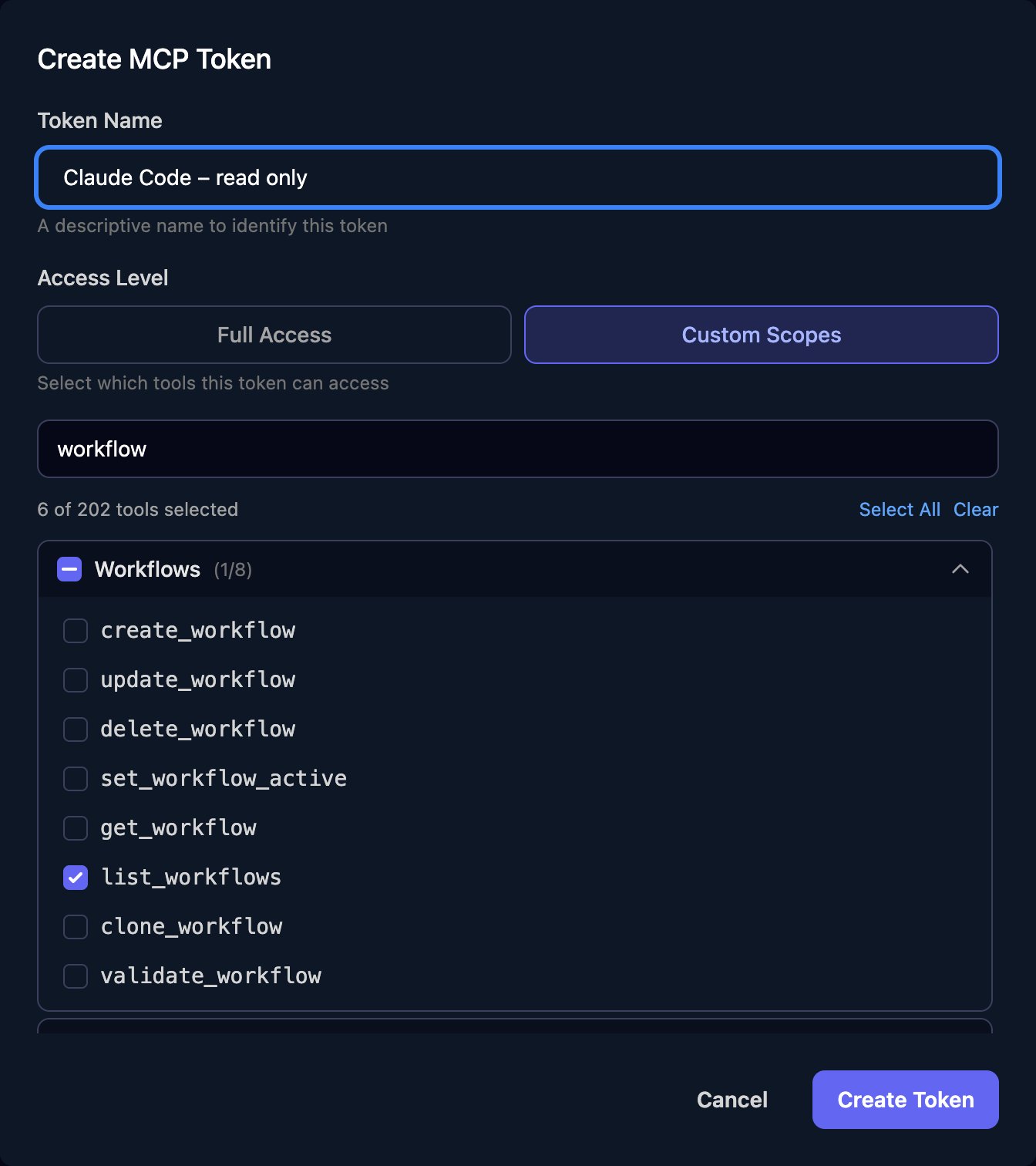
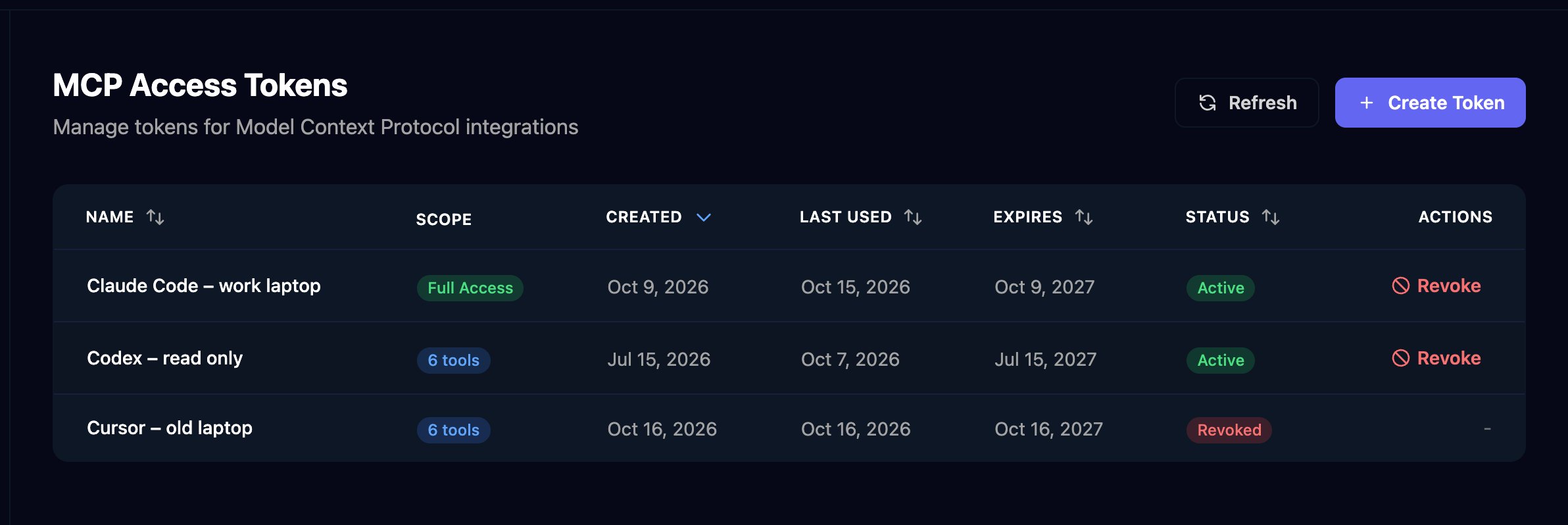 Enter a **Token Name** that says where it's used. Choose **Full Access**, or **Custom Scopes** and tick only the tools it needs.
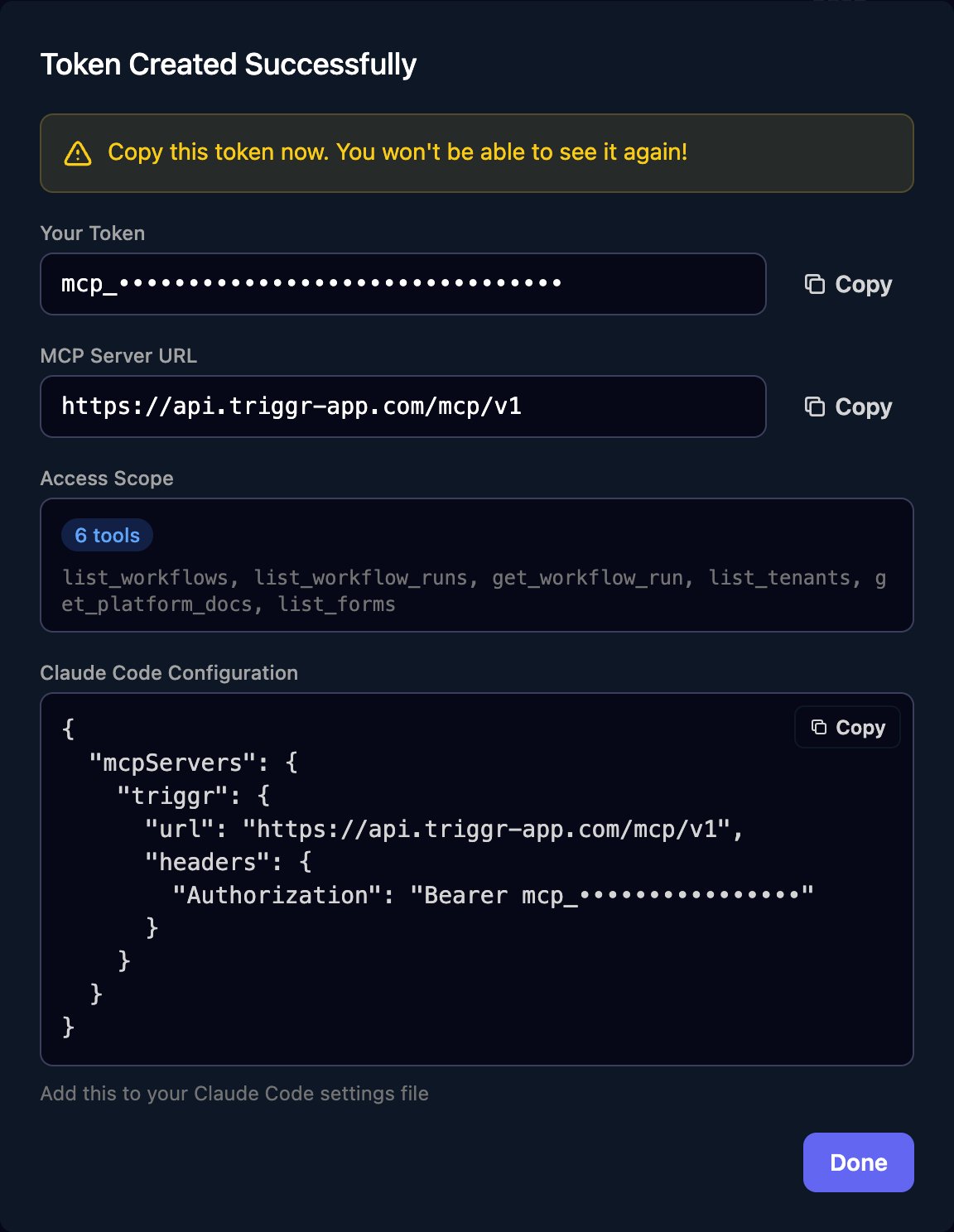
 Click **Create Token**, then **Copy** next to Your Token. Studio shows it only once.
 Start with a read-only token (`list_` and `get_` tools only), and create a Full Access token later if you want the AI to make changes.
## Connect your tool
Keep the token in an environment variable, not a config file, so it never ends up in Git:
```bash theme={null}
export TRIGGR_MCP_TOKEN="mcp_..."
```
For just you, across all your projects:
```bash theme={null}
claude mcp add --transport http --scope user triggr https://api.triggr-app.com/mcp/v1 \
--header "Authorization: Bearer $TRIGGR_MCP_TOKEN"
```
To share it with your team, add `.mcp.json` at the root of the repository instead. Each person sets `TRIGGR_MCP_TOKEN` to their own token:
```json .mcp.json theme={null}
{
"mcpServers": {
"triggr": {
"type": "http",
"url": "https://api.triggr-app.com/mcp/v1",
"headers": { "Authorization": "Bearer ${TRIGGR_MCP_TOKEN}" }
}
}
}
```
Include `"type": "http"`. Don't paste the Claude Code Configuration box from Studio as it is: it leaves out the type and puts the token in the file. Run `claude mcp list` to check triggr shows as connected.
Add this to `~/.codex/config.toml`:
```toml ~/.codex/config.toml theme={null}
[mcp_servers.triggr]
url = "https://api.triggr-app.com/mcp/v1"
bearer_token_env_var = "TRIGGR_MCP_TOKEN"
```
Add this to `~/.cursor/mcp.json`, or to `.cursor/mcp.json` in a project:
```json ~/.cursor/mcp.json theme={null}
{
"mcpServers": {
"triggr": {
"url": "https://api.triggr-app.com/mcp/v1",
"headers": { "Authorization": "Bearer ${env:TRIGGR_MCP_TOKEN}" }
}
}
}
```
Any MCP client that supports remote HTTP servers with a custom header works. Use the server URL above and send `Authorization: Bearer `.
Then ask your tool something simple, such as "List my Triggr workflows."
## Things to ask it
The AI picks the tools itself; the tool names are what to tick for a Custom Scopes token.
> Which workflow runs failed in the last 7 days? Group them by client and workflow, and for the top three show the failing step and its error.
Tools: `get_workflow_failure_stats`, `list_workflow_runs`, `get_workflow_run`, `list_workflow_run_steps`.
> Read the Triggr workflow docs, then create an inactive workflow called "Leaver – disable account" with a form trigger on my "Leaver request" form. It should email [helpdesk@example.com](mailto:helpdesk@example.com) with the leaver's name and last day. Validate it before saving.
Tools: `get_workflow_docs`, `list_forms`, `get_form`, `validate_workflow`, `create_workflow`. New workflows are active unless you ask otherwise, so ask for an inactive one, test it with Manual Trigger in the designer, then switch it on.
> Explain what the "New starter setup" workflow does, step by step. Then add a step that creates a HaloPSA ticket after the email, and show me the change before you save it.
Tools: `get_workflow`, `get_integration_type`, `get_integration_action_schema`, `update_workflow`.
> Add a client called Acme Corp and set its microsoftTenantId variable to 11111111-2222-3333-4444-555555555555.
Tools: `create_tenant`, `set_tenant_metadata`. Microsoft-authenticated [forms](/studio/forms/authentication) then recognise Acme's staff.
## What it can reach
About 200 tools, listed by group under Custom Scopes: forms, workflows, internal apps, PowerShell scripts, data tables, report templates and decks; runs, steps, failure stats and logs; clients and their variables, user groups and desktop agent status; integration types, actions and calls to connected tools; approvals where you're the approver; and Triggr Core workflow settings per client (the `core_` tools).
## Keep it safe
* A token can use every tool in its scope across your whole organisation, whatever your role in Studio. Treat it like an admin password.
* Changes are real and immediate, and integration calls go to the live system. Keep your tool's per-action approval prompts on for anything that creates, updates, deletes or triggers.
* Tokens last one year. Settings > MCP shows each token's Last Used and Expires dates: click **Revoke** on any you no longer need, and on a person's tokens when they leave.
## FAQ
The token was mistyped, revoked or is over a year old. Create a new one and update your environment variable.
The token's Custom Scopes don't include that tool. Scopes can't be edited: create a new token with the tool ticked and revoke the old one.
Run `claude mcp list`. If triggr is missing, check `.mcp.json` has `"type": "http"` and that `TRIGGR_MCP_TOKEN` is set in the shell you started Claude Code from. A project's `.mcp.json` must be approved the first time you run `claude` in that folder.
No. A token belongs to the organisation you created it in; switch organisation in Studio and create another.
No. Integration tools return metadata, not saved credentials, and sending profiles come back without passwords.
Yes, for Core's workflow configuration (the `core_` tools). Core's generated workflows can be cloned but not edited or deleted directly.
This documentation is built and hosted on [Mintlify](https://mintlify.com), a developer documentation platform.
Start with a read-only token (`list_` and `get_` tools only), and create a Full Access token later if you want the AI to make changes.
## Connect your tool
Keep the token in an environment variable, not a config file, so it never ends up in Git:
```bash theme={null}
export TRIGGR_MCP_TOKEN="mcp_..."
```
For just you, across all your projects:
```bash theme={null}
claude mcp add --transport http --scope user triggr https://api.triggr-app.com/mcp/v1 \
--header "Authorization: Bearer $TRIGGR_MCP_TOKEN"
```
To share it with your team, add `.mcp.json` at the root of the repository instead. Each person sets `TRIGGR_MCP_TOKEN` to their own token:
```json .mcp.json theme={null}
{
"mcpServers": {
"triggr": {
"type": "http",
"url": "https://api.triggr-app.com/mcp/v1",
"headers": { "Authorization": "Bearer ${TRIGGR_MCP_TOKEN}" }
}
}
}
```
Include `"type": "http"`. Don't paste the Claude Code Configuration box from Studio as it is: it leaves out the type and puts the token in the file. Run `claude mcp list` to check triggr shows as connected.
Add this to `~/.codex/config.toml`:
```toml ~/.codex/config.toml theme={null}
[mcp_servers.triggr]
url = "https://api.triggr-app.com/mcp/v1"
bearer_token_env_var = "TRIGGR_MCP_TOKEN"
```
Add this to `~/.cursor/mcp.json`, or to `.cursor/mcp.json` in a project:
```json ~/.cursor/mcp.json theme={null}
{
"mcpServers": {
"triggr": {
"url": "https://api.triggr-app.com/mcp/v1",
"headers": { "Authorization": "Bearer ${env:TRIGGR_MCP_TOKEN}" }
}
}
}
```
Any MCP client that supports remote HTTP servers with a custom header works. Use the server URL above and send `Authorization: Bearer `.
Then ask your tool something simple, such as "List my Triggr workflows."
## Things to ask it
The AI picks the tools itself; the tool names are what to tick for a Custom Scopes token.
> Which workflow runs failed in the last 7 days? Group them by client and workflow, and for the top three show the failing step and its error.
Tools: `get_workflow_failure_stats`, `list_workflow_runs`, `get_workflow_run`, `list_workflow_run_steps`.
> Read the Triggr workflow docs, then create an inactive workflow called "Leaver – disable account" with a form trigger on my "Leaver request" form. It should email [helpdesk@example.com](mailto:helpdesk@example.com) with the leaver's name and last day. Validate it before saving.
Tools: `get_workflow_docs`, `list_forms`, `get_form`, `validate_workflow`, `create_workflow`. New workflows are active unless you ask otherwise, so ask for an inactive one, test it with Manual Trigger in the designer, then switch it on.
> Explain what the "New starter setup" workflow does, step by step. Then add a step that creates a HaloPSA ticket after the email, and show me the change before you save it.
Tools: `get_workflow`, `get_integration_type`, `get_integration_action_schema`, `update_workflow`.
> Add a client called Acme Corp and set its microsoftTenantId variable to 11111111-2222-3333-4444-555555555555.
Tools: `create_tenant`, `set_tenant_metadata`. Microsoft-authenticated [forms](/studio/forms/authentication) then recognise Acme's staff.
## What it can reach
About 200 tools, listed by group under Custom Scopes: forms, workflows, internal apps, PowerShell scripts, data tables, report templates and decks; runs, steps, failure stats and logs; clients and their variables, user groups and desktop agent status; integration types, actions and calls to connected tools; approvals where you're the approver; and Triggr Core workflow settings per client (the `core_` tools).
## Keep it safe
* A token can use every tool in its scope across your whole organisation, whatever your role in Studio. Treat it like an admin password.
* Changes are real and immediate, and integration calls go to the live system. Keep your tool's per-action approval prompts on for anything that creates, updates, deletes or triggers.
* Tokens last one year. Settings > MCP shows each token's Last Used and Expires dates: click **Revoke** on any you no longer need, and on a person's tokens when they leave.
## FAQ
The token was mistyped, revoked or is over a year old. Create a new one and update your environment variable.
The token's Custom Scopes don't include that tool. Scopes can't be edited: create a new token with the tool ticked and revoke the old one.
Run `claude mcp list`. If triggr is missing, check `.mcp.json` has `"type": "http"` and that `TRIGGR_MCP_TOKEN` is set in the shell you started Claude Code from. A project's `.mcp.json` must be approved the first time you run `claude` in that folder.
No. A token belongs to the organisation you created it in; switch organisation in Studio and create another.
No. Integration tools return metadata, not saved credentials, and sending profiles come back without passwords.
Yes, for Core's workflow configuration (the `core_` tools). Core's generated workflows can be cloned but not edited or deleted directly.
This documentation is built and hosted on [Mintlify](https://mintlify.com), a developer documentation platform.