> ## Documentation Index
> Fetch the complete documentation index at: https://university.triggr-app.com/llms.txt
> Use this file to discover all available pages before exploring further.
# Media
> Find, upload, rename and delete the files your forms, internal apps and workflows collect, and keep workflow files in the library.
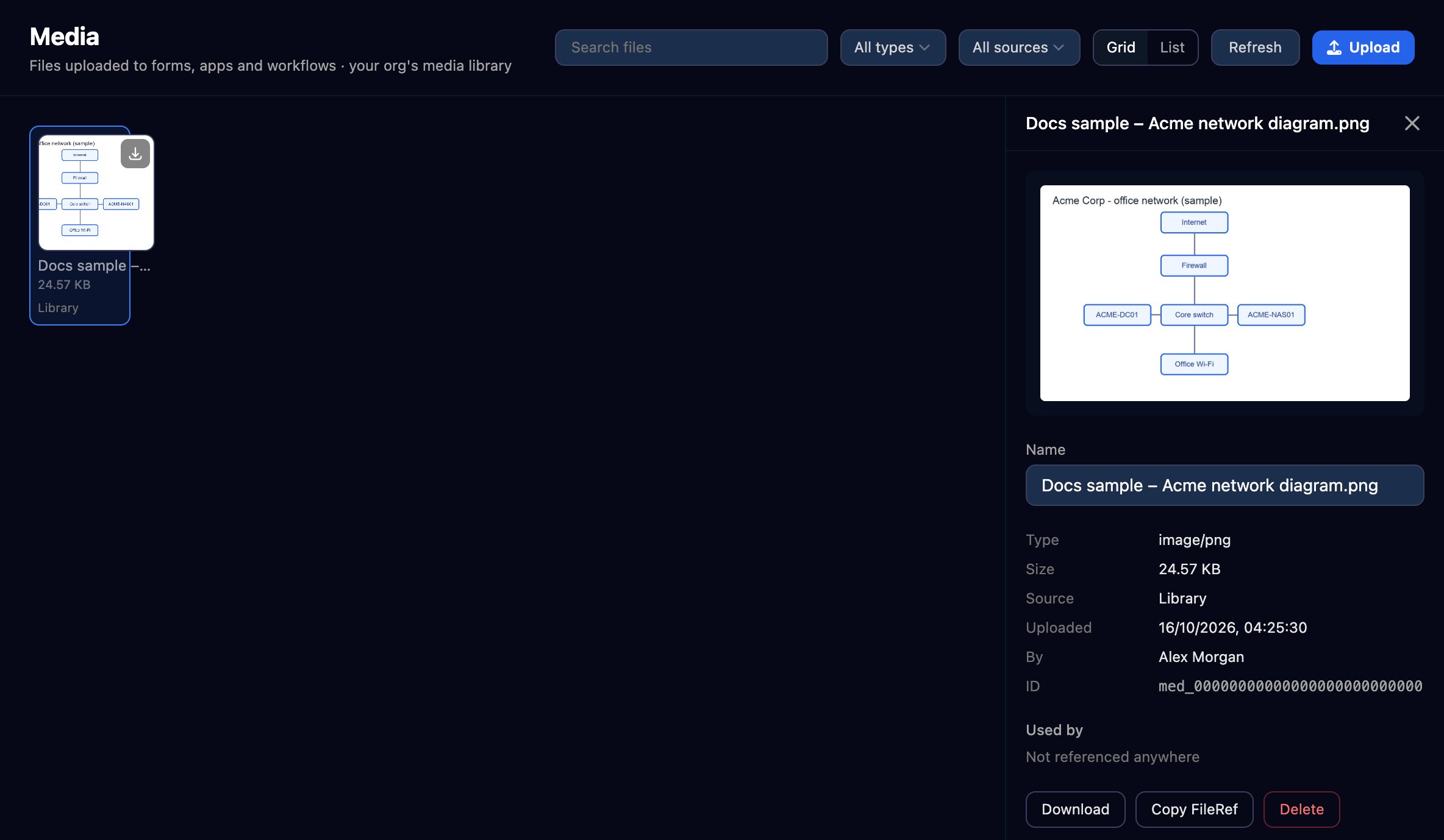
Media is your organisation's file library: everything uploaded through forms, internal apps and workflows, plus files you upload here.
 ## Upload and find files
* Click **Upload**, or drop files anywhere on the page: up to 25 MB each, 5 GB for your organisation.
* Filter by type or source, or search by name.
* Click a file to preview, rename, download or delete it; Used by shows what refers to it.
Triggr checks each file's contents, not just its name, and accepts:
| Type | Extensions |
| - | - |
| Images | `.png`, `.jpg`, `.jpeg`, `.gif`, `.webp`, `.heic`, `.heif` |
| Documents | `.pdf`, `.docx`, `.xlsx`, `.pptx`, `.csv`, `.txt`, `.zip` |
| Email | `.msg`, `.eml` |
| Video and audio | `.mp4`, `.mov`, `.webm`, `.mp3`, `.m4a`, `.wav` |
## Where files come from
| Source | Kept |
| - | - |
| A form's File Upload or Media upload field | With the submission, until you delete the file or the form; files picked but never submitted go within a day |
| An internal app page using [`triggr.upload`](/studio/internal-apps/sdk) | Until you delete it |
| A workflow's Create File step | 7 days, unless its Save to Media Library option is on |
| Upload here, or a workflow's Save to Media Library step | Until you delete it |
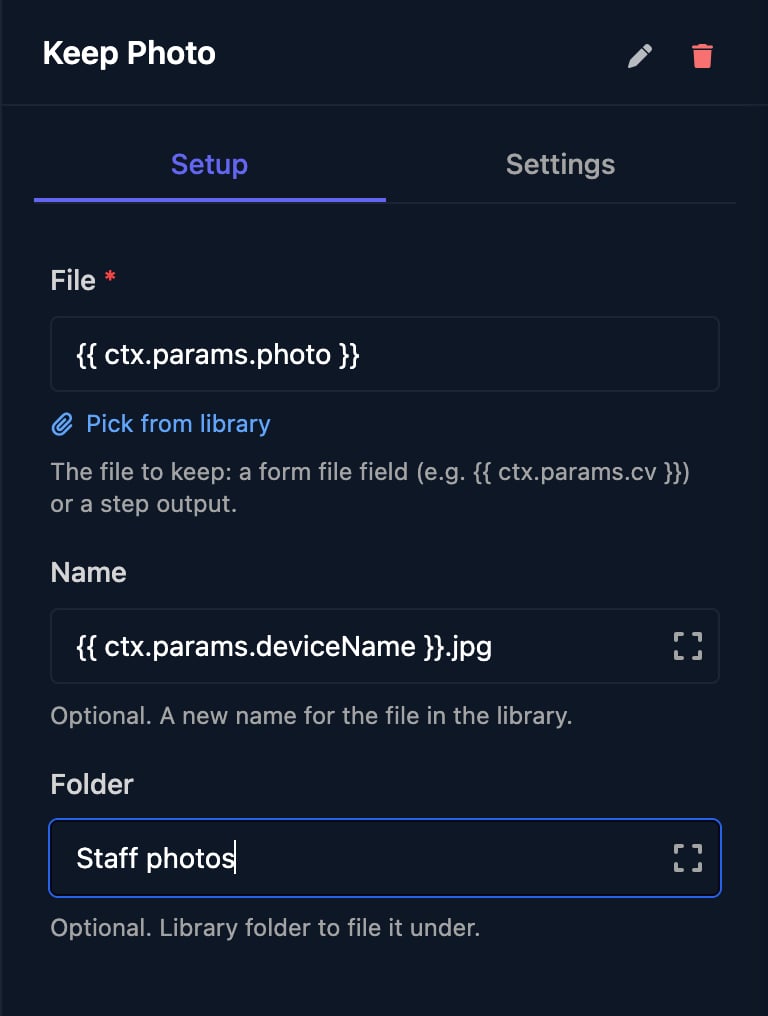
To keep a form upload or created file, add **Save to Media Library** from Utilities and set File to the form field, such as `{{ ctx.params.photo }}`, with an optional new name and folder.
## Upload and find files
* Click **Upload**, or drop files anywhere on the page: up to 25 MB each, 5 GB for your organisation.
* Filter by type or source, or search by name.
* Click a file to preview, rename, download or delete it; Used by shows what refers to it.
Triggr checks each file's contents, not just its name, and accepts:
| Type | Extensions |
| - | - |
| Images | `.png`, `.jpg`, `.jpeg`, `.gif`, `.webp`, `.heic`, `.heif` |
| Documents | `.pdf`, `.docx`, `.xlsx`, `.pptx`, `.csv`, `.txt`, `.zip` |
| Email | `.msg`, `.eml` |
| Video and audio | `.mp4`, `.mov`, `.webm`, `.mp3`, `.m4a`, `.wav` |
## Where files come from
| Source | Kept |
| - | - |
| A form's File Upload or Media upload field | With the submission, until you delete the file or the form; files picked but never submitted go within a day |
| An internal app page using [`triggr.upload`](/studio/internal-apps/sdk) | Until you delete it |
| A workflow's Create File step | 7 days, unless its Save to Media Library option is on |
| Upload here, or a workflow's Save to Media Library step | Until you delete it |
To keep a form upload or created file, add **Save to Media Library** from Utilities and set File to the form field, such as `{{ ctx.params.photo }}`, with an optional new name and folder.
 ## Who can open files
Files are private: Download gives a link that works for 5 minutes, with no permanent public link. To send a file outside Studio, attach it to a Send Email step: up to 10 files, 22 MB in total from Triggr's default address or 25 MB with a [sending profile](/studio/settings/sending-profiles).
## FAQ
Deleting a form deletes its uploads. Keep the ones you need with a Save to Media Library step in the form's workflow.
Not on this page. The Save to Media Library and Create File steps take a folder, such as `Staff photos`, which the file keeps.
A form submission or workflow still refers to it; that reference stops working once you delete it.
## Troubleshooting
The file isn't one of the types above. Zip it, or convert it to PDF.
Compress or split the file.
The file was renamed, such as a `.png` saved as `.jpg`. Save it with its real extension.
Your organisation has used its 5 GB. Delete files you no longer need.
This documentation is built and hosted on [Mintlify](https://mintlify.com), a developer documentation platform.
## Who can open files
Files are private: Download gives a link that works for 5 minutes, with no permanent public link. To send a file outside Studio, attach it to a Send Email step: up to 10 files, 22 MB in total from Triggr's default address or 25 MB with a [sending profile](/studio/settings/sending-profiles).
## FAQ
Deleting a form deletes its uploads. Keep the ones you need with a Save to Media Library step in the form's workflow.
Not on this page. The Save to Media Library and Create File steps take a folder, such as `Staff photos`, which the file keeps.
A form submission or workflow still refers to it; that reference stops working once you delete it.
## Troubleshooting
The file isn't one of the types above. Zip it, or convert it to PDF.
Compress or split the file.
The file was renamed, such as a `.png` saved as `.jpg`. Save it with its real extension.
Your organisation has used its 5 GB. Delete files you no longer need.
This documentation is built and hosted on [Mintlify](https://mintlify.com), a developer documentation platform.