> ## Documentation Index
> Fetch the complete documentation index at: https://university.triggr-app.com/llms.txt
> Use this file to discover all available pages before exploring further.
# On-prem scripts
> Write PowerShell in Studio, run it on a client's network through the desktop agent from a workflow, and read what it returns.
On-Prem > Scripts holds the PowerShell your workflows run on a client's machine through the [desktop agent](/desktop-agent/overview). The client needs an [installed agent](/desktop-agent/install) showing Online.
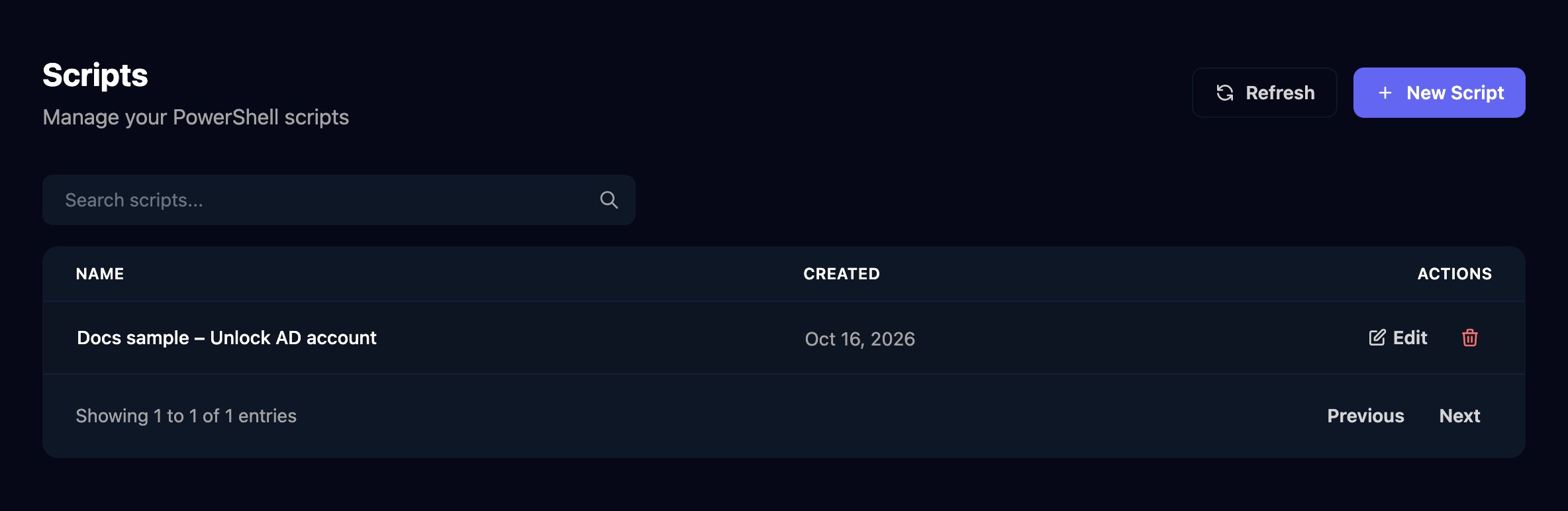 ## Example: unlock an AD account
The script unlocks a user in a client's Active Directory and reports their last logon.
Click **New Script**, name it, paste the script and click **Create Script**.
```powershell theme={null}
$ErrorActionPreference = 'Stop'
Import-Module ActiveDirectory
$user = Get-ADUser -Identity '{{Username}}' -Properties LockedOut, LastLogonDate
$wasLocked = $user.LockedOut
if ($wasLocked) { Unlock-ADAccount -Identity $user }
$lastLogon = 'Never'
if ($user.LastLogonDate) { $lastLogon = $user.LastLogonDate.ToString('yyyy-MM-dd HH:mm') }
[ordered]@{ username = $user.SamAccountName; wasLocked = $wasLocked; lastLogonDate = $lastLogon } | ConvertTo-Json -Compress
```
## Example: unlock an AD account
The script unlocks a user in a client's Active Directory and reports their last logon.
Click **New Script**, name it, paste the script and click **Create Script**.
```powershell theme={null}
$ErrorActionPreference = 'Stop'
Import-Module ActiveDirectory
$user = Get-ADUser -Identity '{{Username}}' -Properties LockedOut, LastLogonDate
$wasLocked = $user.LockedOut
if ($wasLocked) { Unlock-ADAccount -Identity $user }
$lastLogon = 'Never'
if ($user.LastLogonDate) { $lastLogon = $user.LastLogonDate.ToString('yyyy-MM-dd HH:mm') }
[ordered]@{ username = $user.SamAccountName; wasLocked = $wasLocked; lastLogonDate = $lastLogon } | ConvertTo-Json -Compress
```
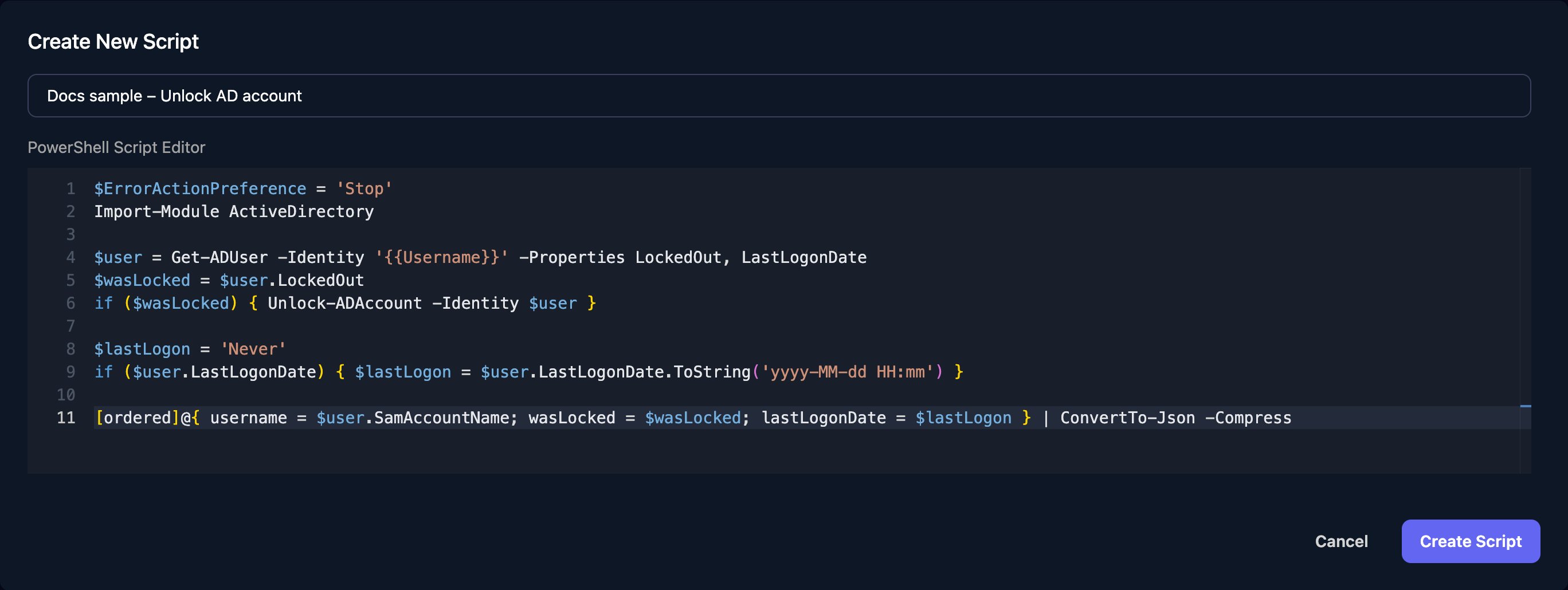 `{{Username}}` is a parameter Triggr fills in before the script runs; `$ErrorActionPreference = 'Stop'` makes any error fail the run, and the last line returns the result as one line of JSON.
Add **Execute PowerShell (Timeout)** from On Prem and rename it `Unlock Account` with the pencil (it starts as Execute Powershell With Timeout). Choose the script, fill in Parameters and set Client ID (or leave it empty to use the client an earlier Client step set).
`{{Username}}` is a parameter Triggr fills in before the script runs; `$ErrorActionPreference = 'Stop'` makes any error fail the run, and the last line returns the result as one line of JSON.
Add **Execute PowerShell (Timeout)** from On Prem and rename it `Unlock Account` with the pencil (it starts as Execute Powershell With Timeout). Choose the script, fill in Parameters and set Client ID (or leave it empty to use the client an earlier Client step set).
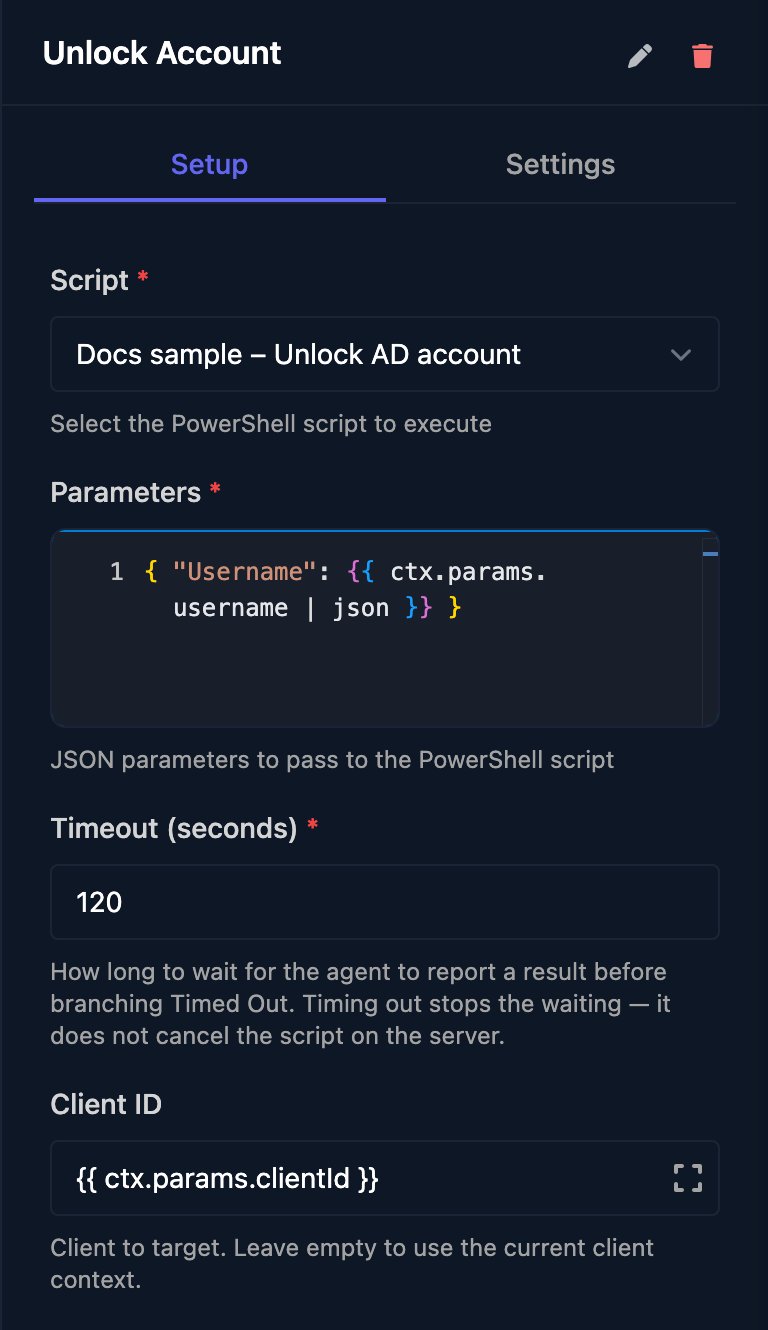 Each key in Parameters fills the placeholder with the same name; `| json` keeps quotes in form or webhook values from breaking the JSON (see [Build JSON](/studio/workflows/expressions#build-json)).
Connect the Completed, Failed and Timed Out branches; Timed Out means no agent reported back in time, usually because it's offline.
Each key in Parameters fills the placeholder with the same name; `| json` keeps quotes in form or webhook values from breaking the JSON (see [Build JSON](/studio/workflows/expressions#build-json)).
Connect the Completed, Failed and Timed Out branches; Timed Out means no agent reported back in time, usually because it's offline.
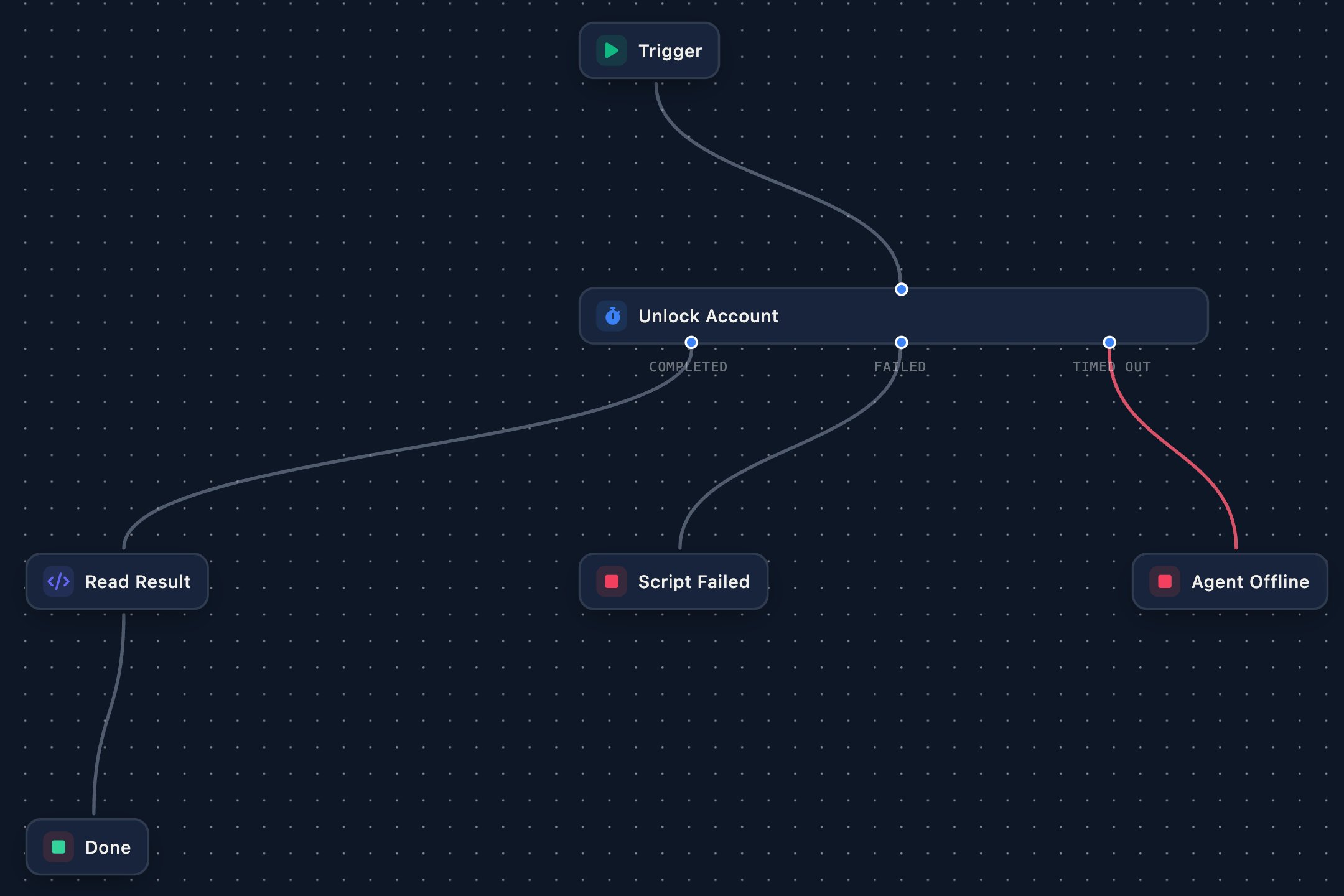 The script's output arrives as text in `output`. On the Completed branch, add a Code step named `Read Result` that parses it, so later steps can use `{{ ctx.steps['Read Result'].lastLogonDate }}`.
```javascript theme={null}
return JSON.parse(ctx.steps['Unlock Account'].output);
```
The script's output arrives as text in `output`. On the Completed branch, add a Code step named `Read Result` that parses it, so later steps can use `{{ ctx.steps['Read Result'].lastLogonDate }}`.
```javascript theme={null}
return JSON.parse(ctx.steps['Unlock Account'].output);
```
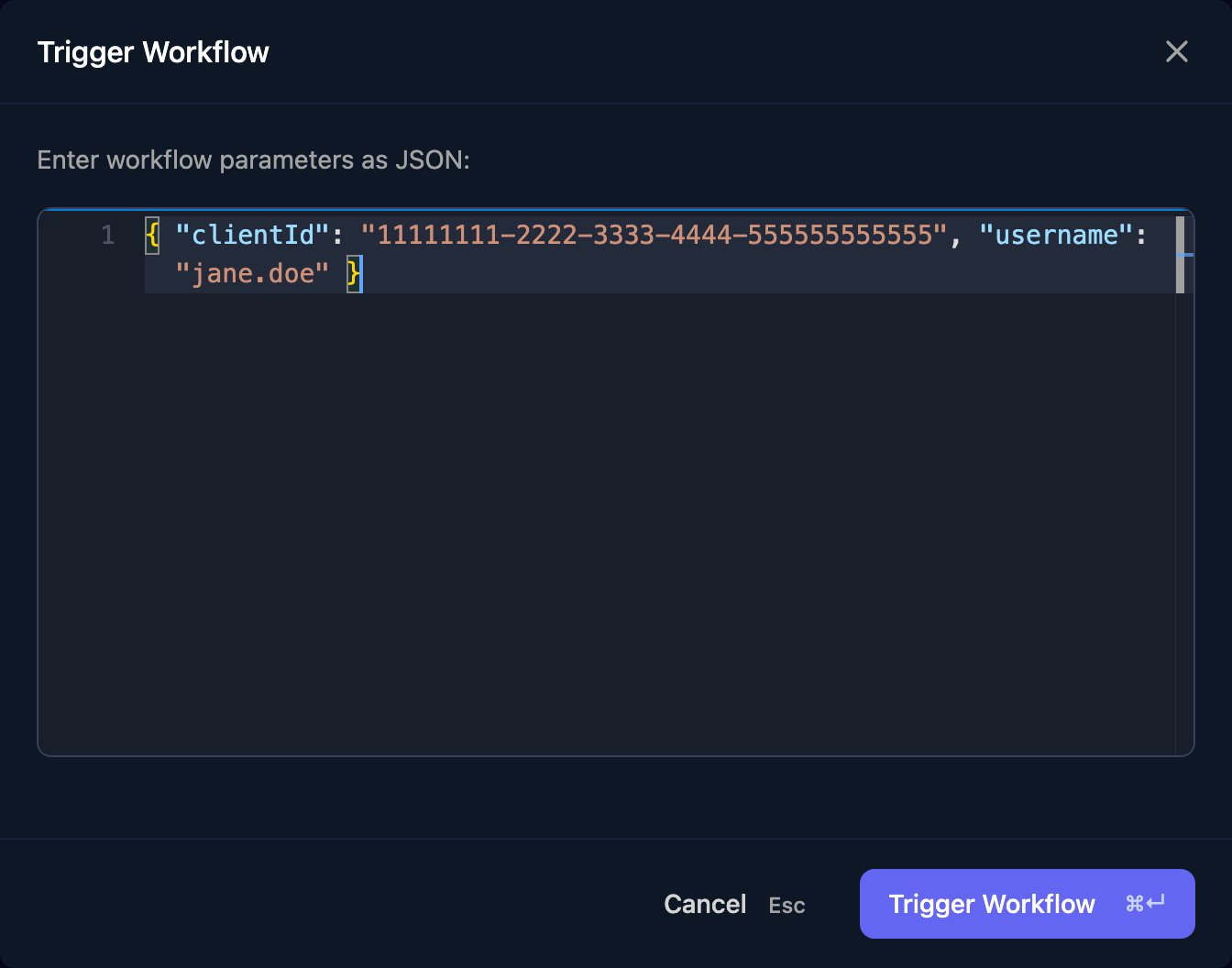
![The Read Result Code step with JavaScript return JSON.parse(ctx.steps['Unlock Account'].output);](https://mintcdn.com/triggr/XztmSfsoAUpshfIO/images/studio/on-prem/read-result-step.png?fit=max&auto=format&n=XztmSfsoAUpshfIO&q=85&s=bbe55de8161a909a66260e9bb6e1d3f3) Save, click **Manual Trigger** and enter a real user and the client's ID from its page in [Clients](/studio/clients/clients-and-variables). The run waits on Unlock Account until the agent reports back; click the step to see its output.
Save, click **Manual Trigger** and enter a real user and the client's ID from its page in [Clients](/studio/clients/clients-and-variables). The run waits on Unlock Account until the agent reports back; click the step to see its output.
 ## What the step returns
| Field | Holds |
| - | - |
| `status` | `completed`, `failed` or `timed_out` |
| `output` | Everything the script wrote, as text |
| `error` | Why it failed, such as `PowerShell script failed with exit code 1` |
| `completed`, `timedOut` | `true` or `false` |
| `executionId` | The run's ID in On-Prem > Executions |
The plain Execute PowerShell step has no deadline or branches: it waits for an agent, then carries on whether the script worked or not, so check `{{ ctx.steps['Step name'].completed }}` in a Condition step. Check Agents Online tests an agent is up first ([On Prem steps](/studio/workflows/steps#on-prem)).
## How scripts run
* The agent stops a script after 10 minutes, whatever the step's timeout, and the step fails.
* Scripts run in PowerShell 7 if it's installed, otherwise Windows PowerShell 5.1, under the agent service's account (Local System unless you changed it).
* Any online agent for the client can run the script, so install the modules you need on each.
* A placeholder becomes the value's text exactly. Keep it in single quotes and check form input first: a `'` in the value ends the string early.
## Executions
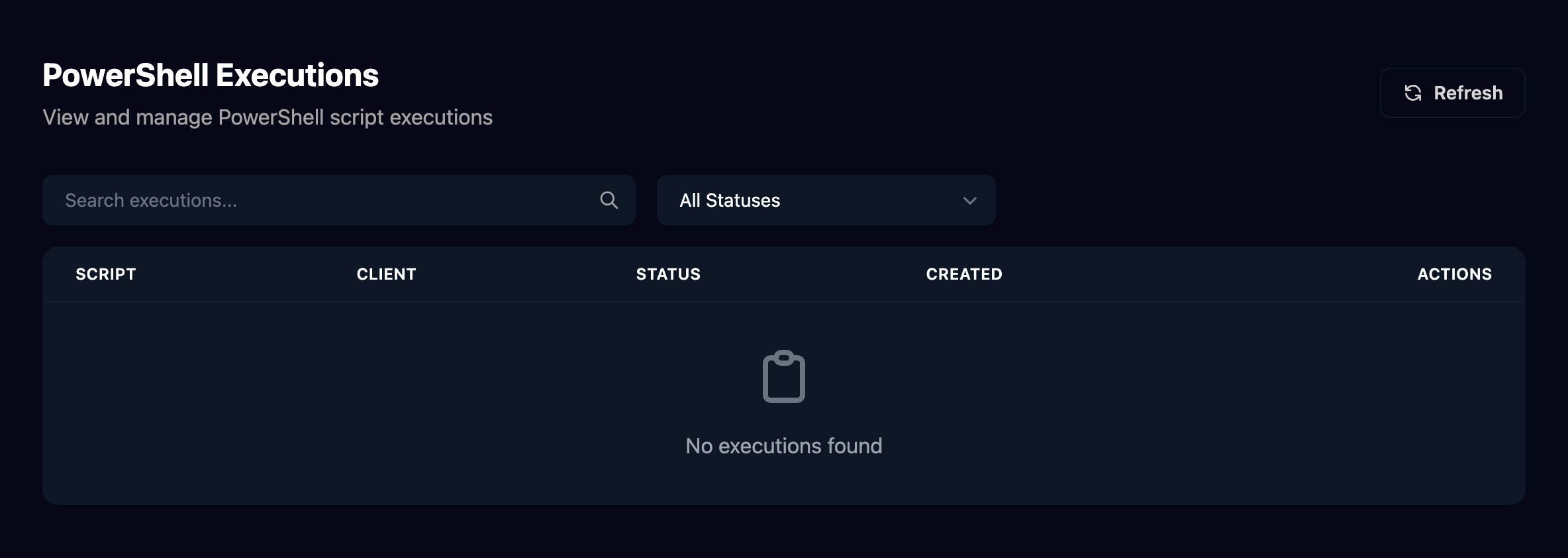
**On-Prem > Executions** lists every run with its script, client and status; a run is Pending until an agent picks it up. Runs that timed out show under All Statuses. Click View for its parameters, output and error.
## What the step returns
| Field | Holds |
| - | - |
| `status` | `completed`, `failed` or `timed_out` |
| `output` | Everything the script wrote, as text |
| `error` | Why it failed, such as `PowerShell script failed with exit code 1` |
| `completed`, `timedOut` | `true` or `false` |
| `executionId` | The run's ID in On-Prem > Executions |
The plain Execute PowerShell step has no deadline or branches: it waits for an agent, then carries on whether the script worked or not, so check `{{ ctx.steps['Step name'].completed }}` in a Condition step. Check Agents Online tests an agent is up first ([On Prem steps](/studio/workflows/steps#on-prem)).
## How scripts run
* The agent stops a script after 10 minutes, whatever the step's timeout, and the step fails.
* Scripts run in PowerShell 7 if it's installed, otherwise Windows PowerShell 5.1, under the agent service's account (Local System unless you changed it).
* Any online agent for the client can run the script, so install the modules you need on each.
* A placeholder becomes the value's text exactly. Keep it in single quotes and check form input first: a `'` in the value ends the string early.
## Executions
**On-Prem > Executions** lists every run with its script, client and status; a run is Pending until an agent picks it up. Runs that timed out show under All Statuses. Click View for its parameters, output and error.
 Parameters show in full on the execution's page and in the workflow run, so don't pass passwords to scripts: generate them on the machine.
## FAQ
No. Make a small workflow with an Execute PowerShell step and run it with Manual Trigger.
No. Write `{{Name}}` wherever a value goes. A placeholder with no matching key in Parameters stays as it is.
Numbers in Parameters are written with six decimal places. Pass them as text, such as `"Days": "30"`.
`output` includes `Write-Host` lines and warnings. Make the JSON line the only output: remove `Write-Host` and pipe other output to `Out-Null`.
Saving a script changes it for every workflow that uses it from the next run; there's no version history, and deleting one doesn't check which workflows use it.
## Troubleshooting
No agent for that client reported back in time. Check the client's agent is Online ([Install the agent](/desktop-agent/install)).
The script hit an error or ran past 10 minutes. `output` holds PowerShell's error message.
The run has no client. Set Client ID, or start the workflow with a [Client step](/studio/workflows/steps#client) such as Set Client By ID.
A filled-in value has quotes in it. Add `| json` to the template: `{ "Username": {{ ctx.params.username | json }} }`.
The agent's machine lacks the ActiveDirectory module. Install the RSAT Active Directory tools there, or install the agent on a domain controller.
This documentation is built and hosted on [Mintlify](https://mintlify.com), a developer documentation platform.
Parameters show in full on the execution's page and in the workflow run, so don't pass passwords to scripts: generate them on the machine.
## FAQ
No. Make a small workflow with an Execute PowerShell step and run it with Manual Trigger.
No. Write `{{Name}}` wherever a value goes. A placeholder with no matching key in Parameters stays as it is.
Numbers in Parameters are written with six decimal places. Pass them as text, such as `"Days": "30"`.
`output` includes `Write-Host` lines and warnings. Make the JSON line the only output: remove `Write-Host` and pipe other output to `Out-Null`.
Saving a script changes it for every workflow that uses it from the next run; there's no version history, and deleting one doesn't check which workflows use it.
## Troubleshooting
No agent for that client reported back in time. Check the client's agent is Online ([Install the agent](/desktop-agent/install)).
The script hit an error or ran past 10 minutes. `output` holds PowerShell's error message.
The run has no client. Set Client ID, or start the workflow with a [Client step](/studio/workflows/steps#client) such as Set Client By ID.
A filled-in value has quotes in it. Add `| json` to the template: `{ "Username": {{ ctx.params.username | json }} }`.
The agent's machine lacks the ActiveDirectory module. Install the RSAT Active Directory tools there, or install the agent on a domain controller.
This documentation is built and hosted on [Mintlify](https://mintlify.com), a developer documentation platform.