> ## Documentation Index
> Fetch the complete documentation index at: https://university.triggr-app.com/llms.txt
> Use this file to discover all available pages before exploring further.
# Decks
> Have Triggr's assistant build a branded 16:9 slide deck, such as a quarterly business review, then present it or export it as HTML or PDF.
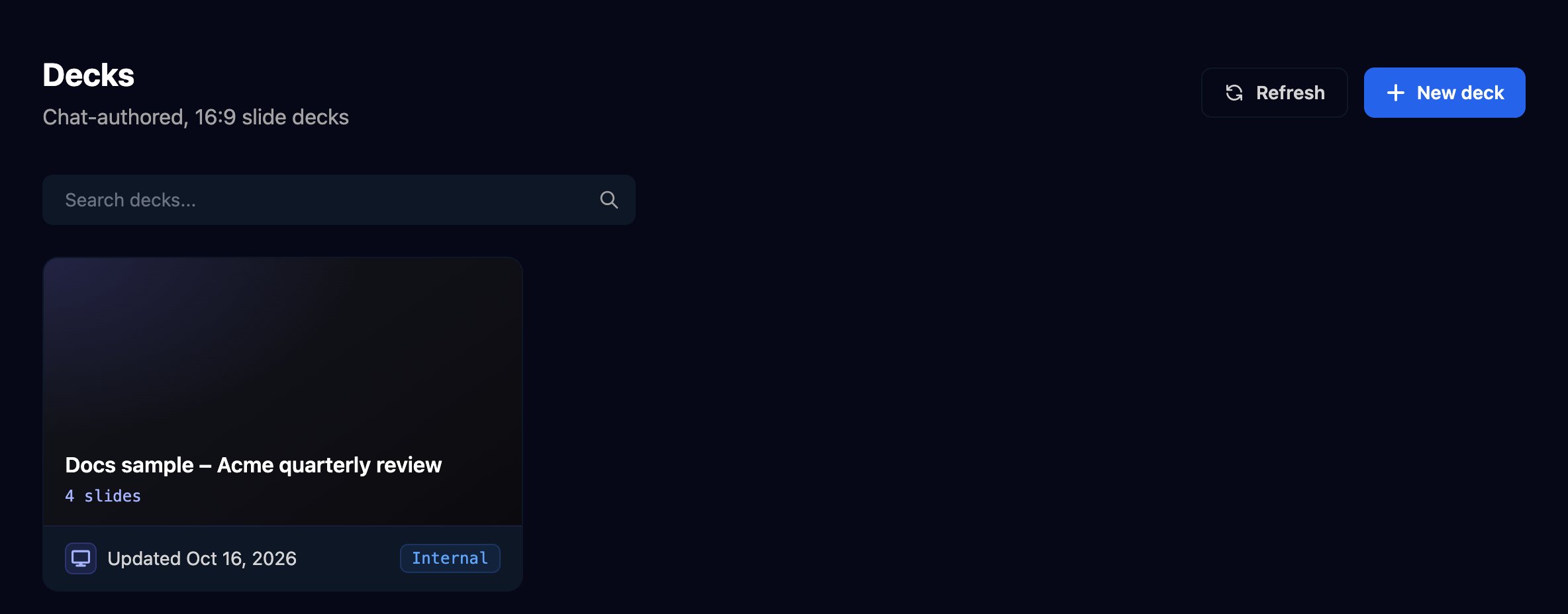
Decks are 16:9 slide decks Triggr's assistant writes on your branding, such as a client's quarterly business review. The assistant is available to organisation admins.
 ## Build a quarterly review
Click **New deck**. The designer opens with one cover slide; click the name at the top to rename it.
Tell the assistant what the deck is for and the facts to use, then press Enter:
> Build a 4-slide quarterly service review for Acme Corp. Cover: Acme Corp – Q3 2026 service review. Metrics: 312 tickets opened, 305 closed, 1h 40m average first response, 99.95% uptime. Projects: Windows 11 rollout 80% done, new firewall installed, MFA enforced for all 45 staff. Next quarter: finish Windows 11, replace ACME-NAS01, phishing training in November.
## Build a quarterly review
Click **New deck**. The designer opens with one cover slide; click the name at the top to rename it.
Tell the assistant what the deck is for and the facts to use, then press Enter:
> Build a 4-slide quarterly service review for Acme Corp. Cover: Acme Corp – Q3 2026 service review. Metrics: 312 tickets opened, 305 closed, 1h 40m average first response, 99.95% uptime. Projects: Windows 11 rollout 80% done, new firewall installed, MFA enforced for all 45 staff. Next quarter: finish Windows 11, replace ACME-NAS01, phishing training in November.
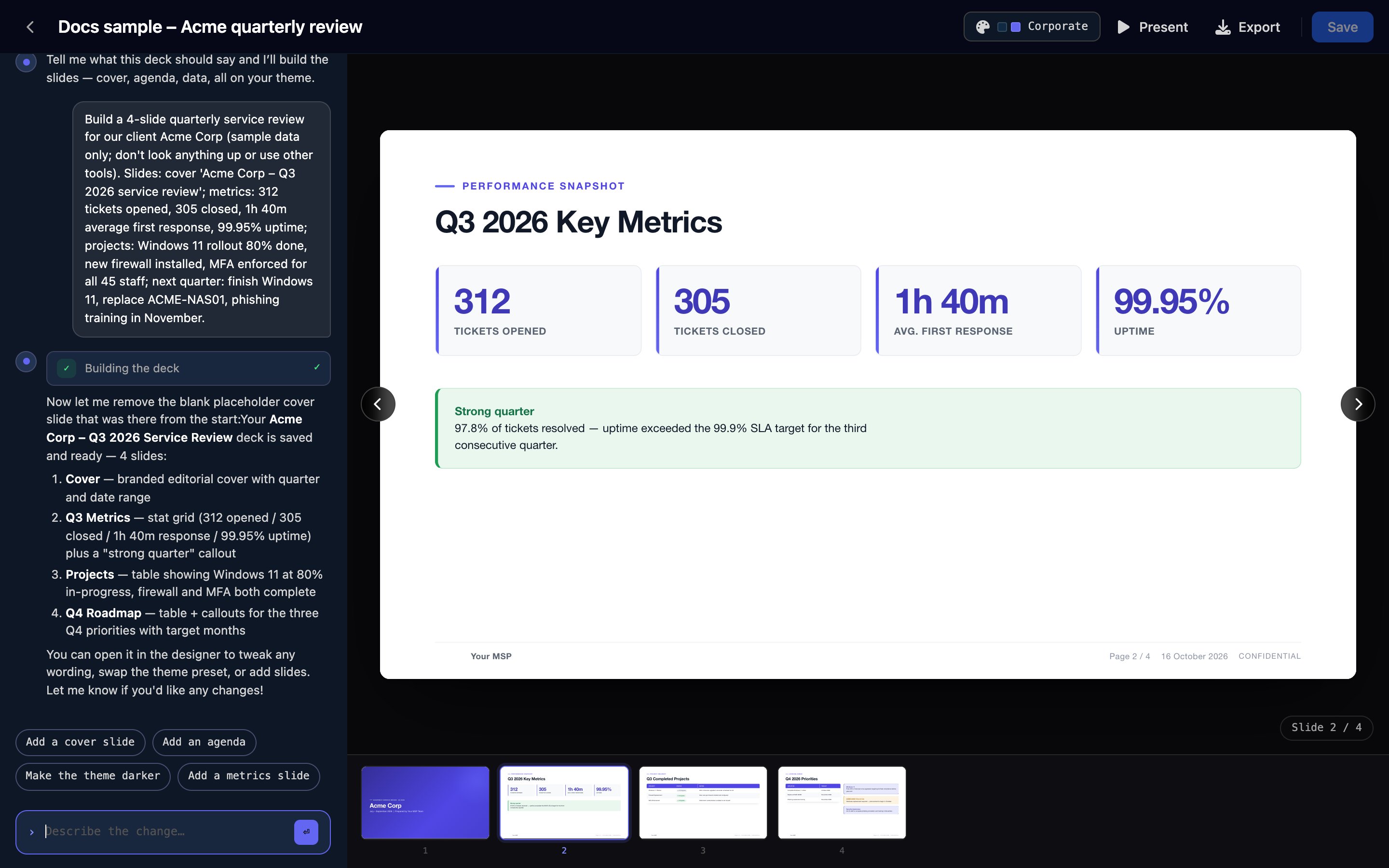 While it works, the chat shows "Building the deck". When it finishes, the slides appear, with your logo, page numbers and the date in each footer. Ask for changes the same way, such as "Make slide 3 a table". Changes save automatically.
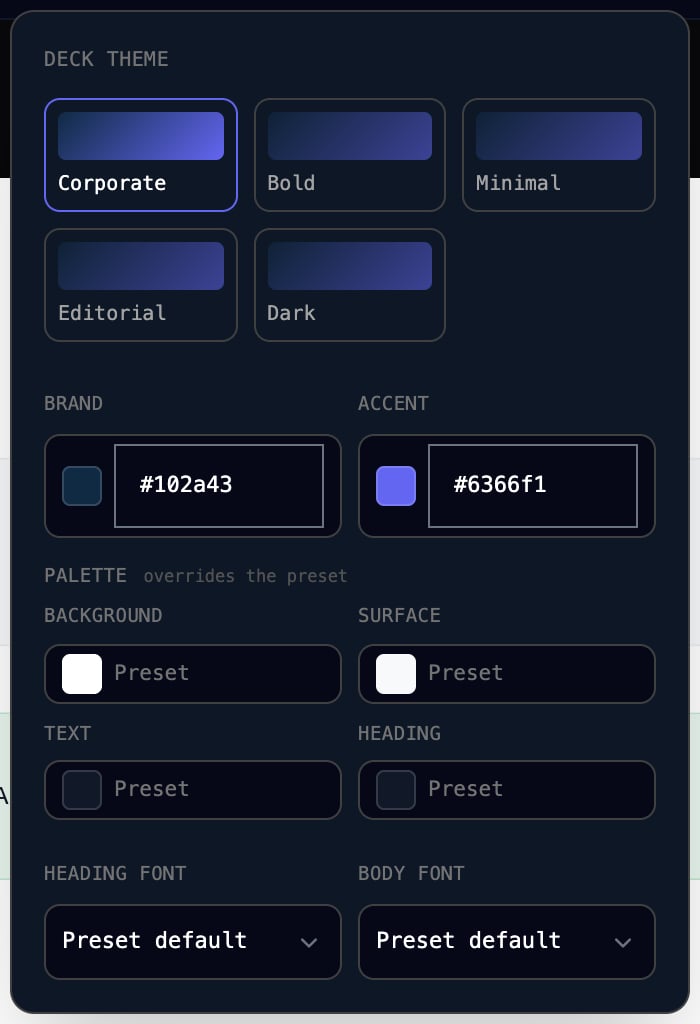
Click the theme button (Corporate on a new deck) to choose a preset and set brand and accent colours, palette and fonts.
While it works, the chat shows "Building the deck". When it finishes, the slides appear, with your logo, page numbers and the date in each footer. Ask for changes the same way, such as "Make slide 3 a table". Changes save automatically.
Click the theme button (Corporate on a new deck) to choose a preset and set brand and accent colours, palette and fonts.
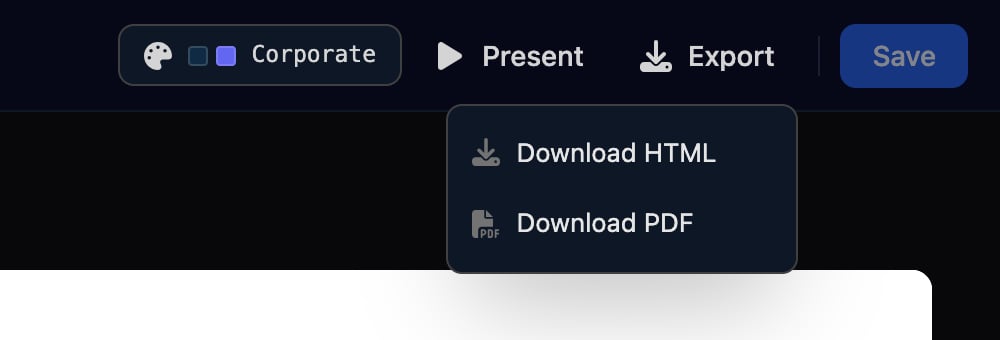
 **Present** shows the deck full screen (arrow keys move between slides, Esc leaves). **Export** offers Download HTML or Download PDF; PDF opens your browser's print dialog, where you choose Save as PDF.
 ## FAQ
Ask the assistant, naming the slide and the change: "On slide 2, change the uptime to 99.97%".
Export it as PDF or HTML and send the file. Decks don't have a public link.
No. An AI assistant connected through [MCP](/studio/mcp) can, with Decks tools such as `create_deck` and `update_deck`. For a page a workflow fills in every month, use a [report template](/studio/reporting/reports).
Export as PDF or HTML instead.
Its content is bigger than a 16:9 slide. Ask the assistant to trim the slide or split it in two.
It's available to organisation admins. Ask an admin to build or change the deck.
This documentation is built and hosted on [Mintlify](https://mintlify.com), a developer documentation platform.
## FAQ
Ask the assistant, naming the slide and the change: "On slide 2, change the uptime to 99.97%".
Export it as PDF or HTML and send the file. Decks don't have a public link.
No. An AI assistant connected through [MCP](/studio/mcp) can, with Decks tools such as `create_deck` and `update_deck`. For a page a workflow fills in every month, use a [report template](/studio/reporting/reports).
Export as PDF or HTML instead.
Its content is bigger than a 16:9 slide. Ask the assistant to trim the slide or split it in two.
It's available to organisation admins. Ask an admin to build or change the deck.
This documentation is built and hosted on [Mintlify](https://mintlify.com), a developer documentation platform.