> ## Documentation Index
> Fetch the complete documentation index at: https://university.triggr-app.com/llms.txt
> Use this file to discover all available pages before exploring further.
# API keys and webhooks
> Create Triggr Public API keys and event webhooks from Studio, and find the API reference under Tools.
Studio's API Keys and Webhooks pages manage the same keys and webhooks as Triggr Core's Settings > API and Webhooks: one Public API at `https://api.triggr-app.com/api/v1` for your whole organisation. Only organisation admins can see or change them. Scopes, retries and signature checks are in [API and webhooks](/core/manage/api-and-webhooks).
## Create an API key
Go to **Settings > API Keys** and click **Create Key**.
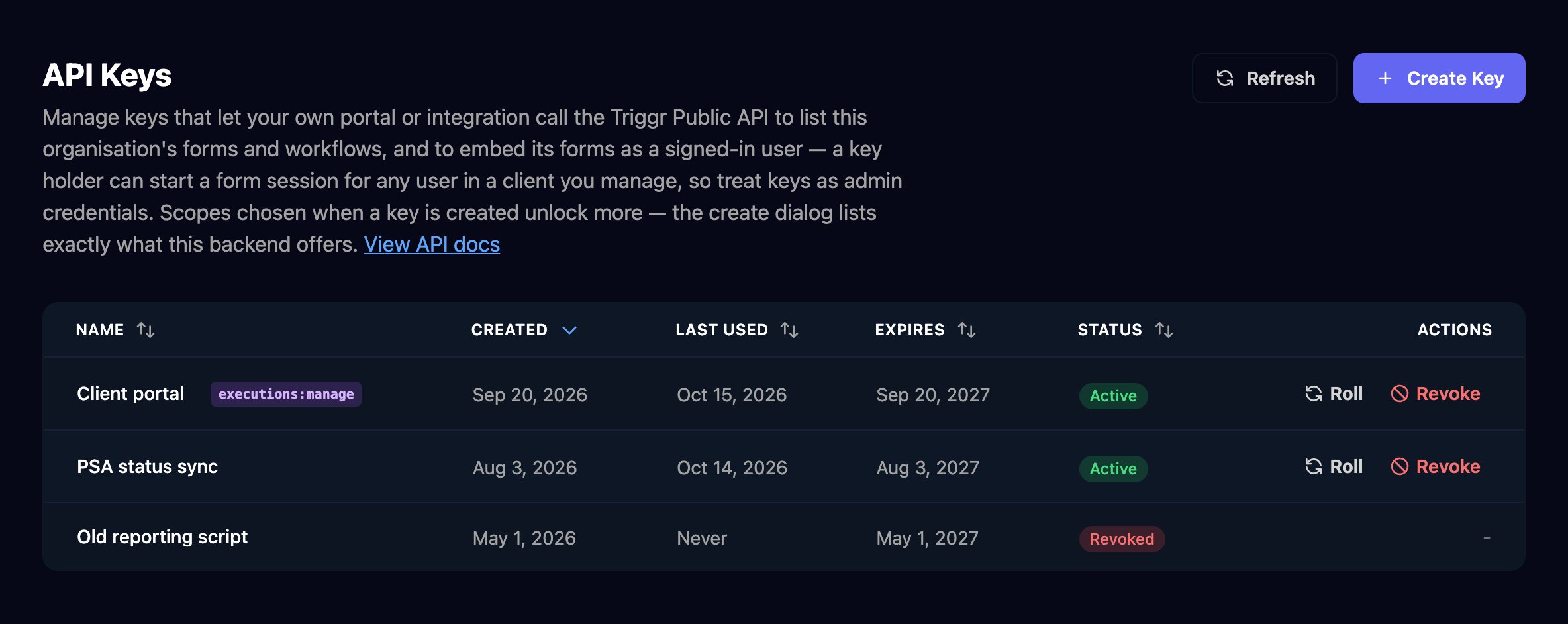 Enter a **Key Name** that says where it's used. Every key can read your clients, forms, workflows and runs; tick a scope only if the key needs more, then click Create Key.
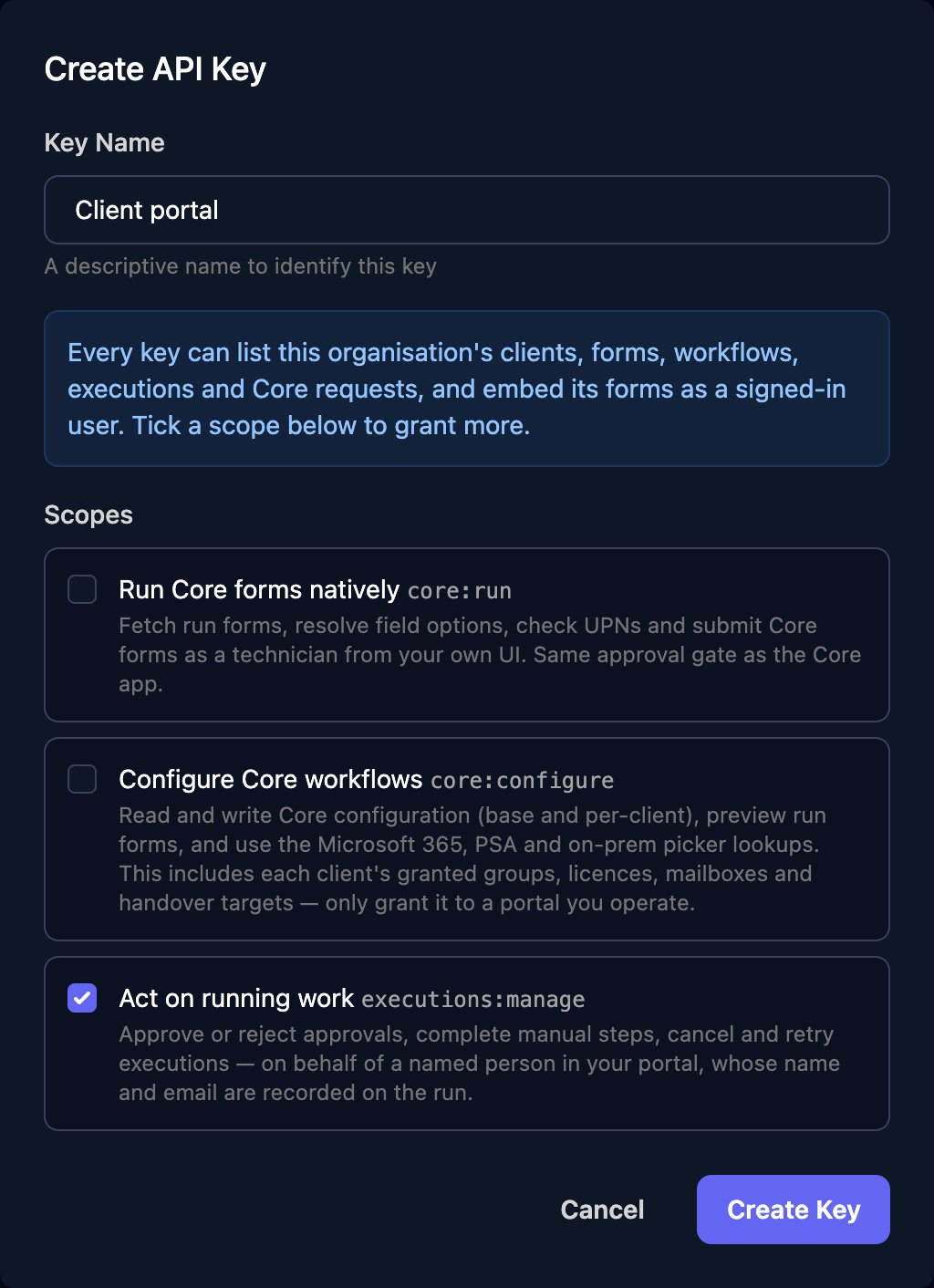 Click **Copy** next to Your API Key and store it in your portal or password manager. Studio shows it once, and it expires after a year.
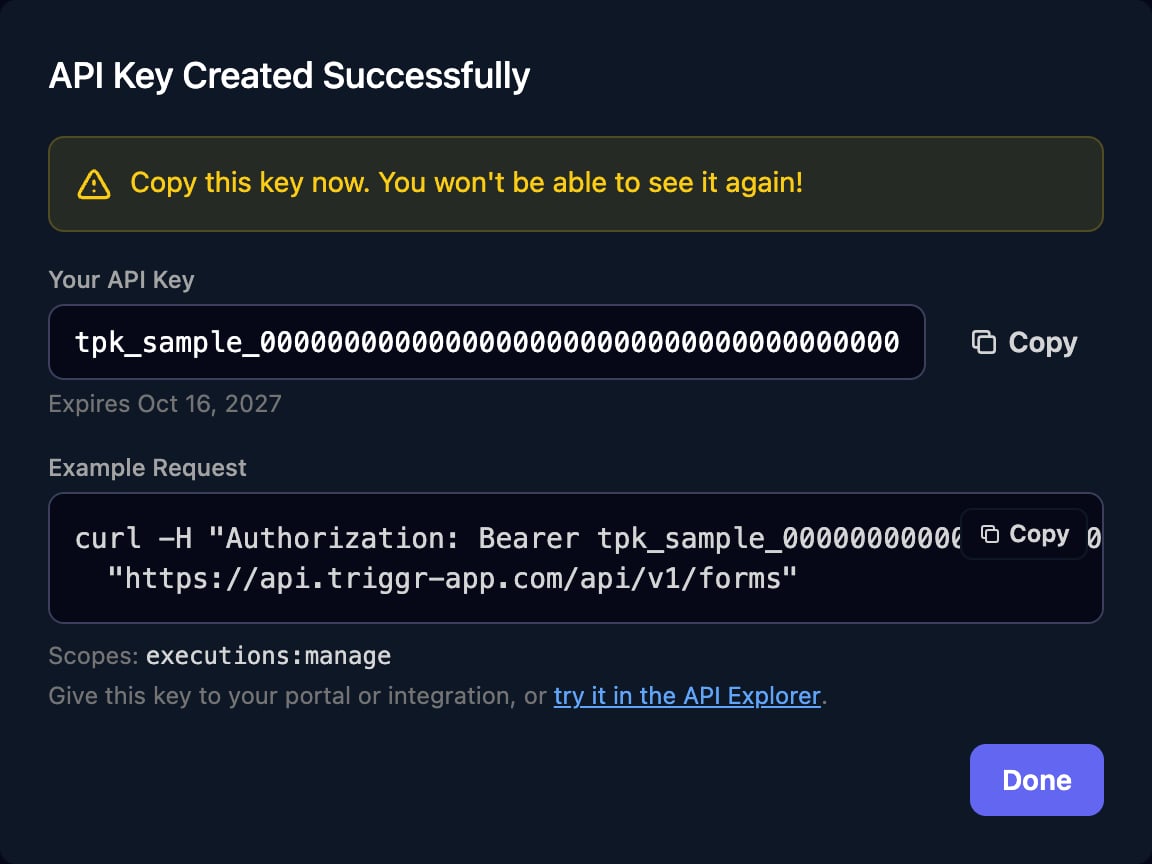 Act on running work (`executions:manage`) lets the key approve or reject approvals, complete manual steps, and cancel or retry runs. Roll issues a new key and keeps the old one working for the grace period you pick (1, 24 or 72 hours); Revoke stops it at once.
## Explore the API
Tools > Developer API documents every endpoint with code samples, links to the OpenAPI (JSON) file, and ends with Try it, which sends real requests with a key you paste in.
Act on running work (`executions:manage`) lets the key approve or reject approvals, complete manual steps, and cancel or retry runs. Roll issues a new key and keeps the old one working for the grace period you pick (1, 24 or 72 hours); Revoke stops it at once.
## Explore the API
Tools > Developer API documents every endpoint with code samples, links to the OpenAPI (JSON) file, and ends with Try it, which sends real requests with a key you paste in.
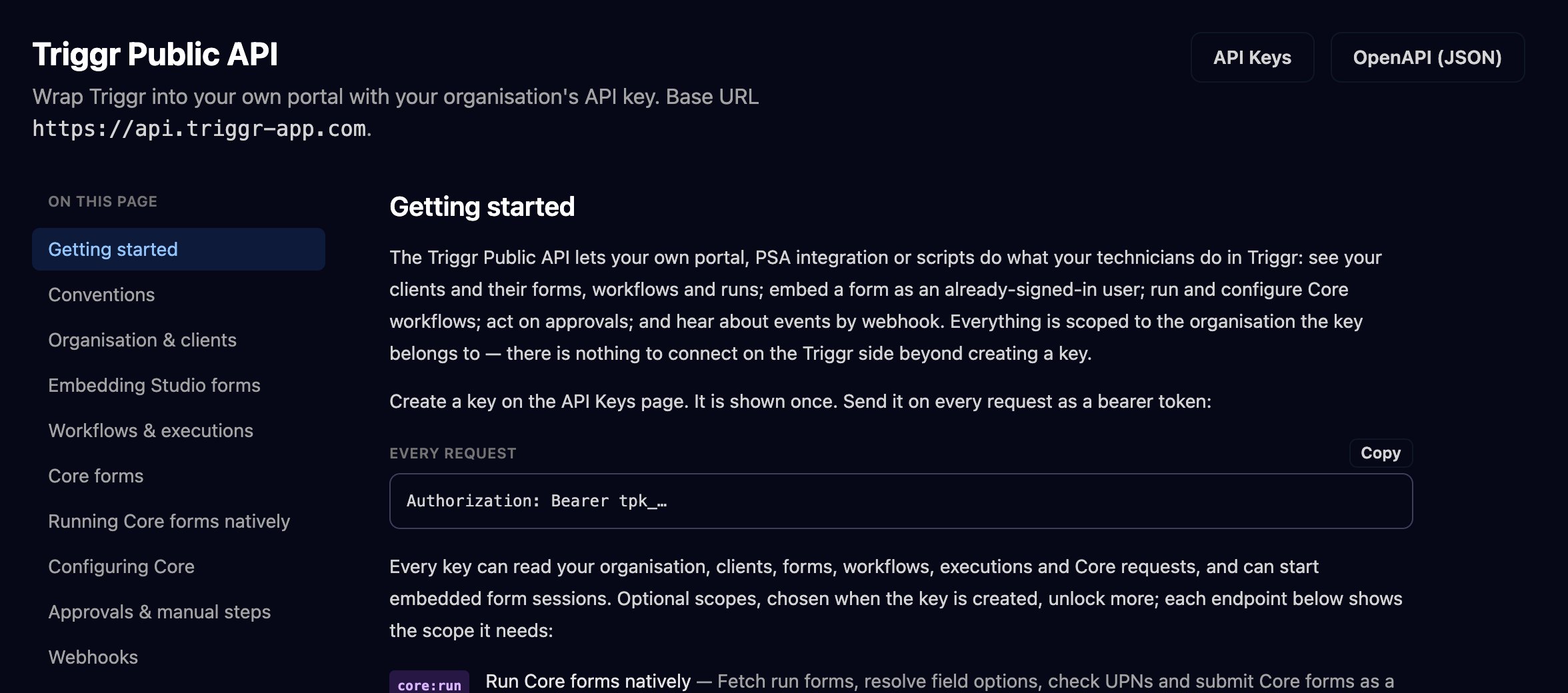 Send the key as a bearer token:
```bash theme={null}
curl -H "Authorization: Bearer tpk_..." "https://api.triggr-app.com/api/v1/workflows"
```
Every key can embed a Studio form as an already-signed-in user (Embedding Studio forms). To start a workflow from your own system, use the workflow's [Webhook trigger](/studio/workflows/triggers#webhook). For AI coding tools, use an [MCP token](/studio/mcp) instead.
## Add a webhook
For example, send every failed Studio run to your PSA so someone picks it up.
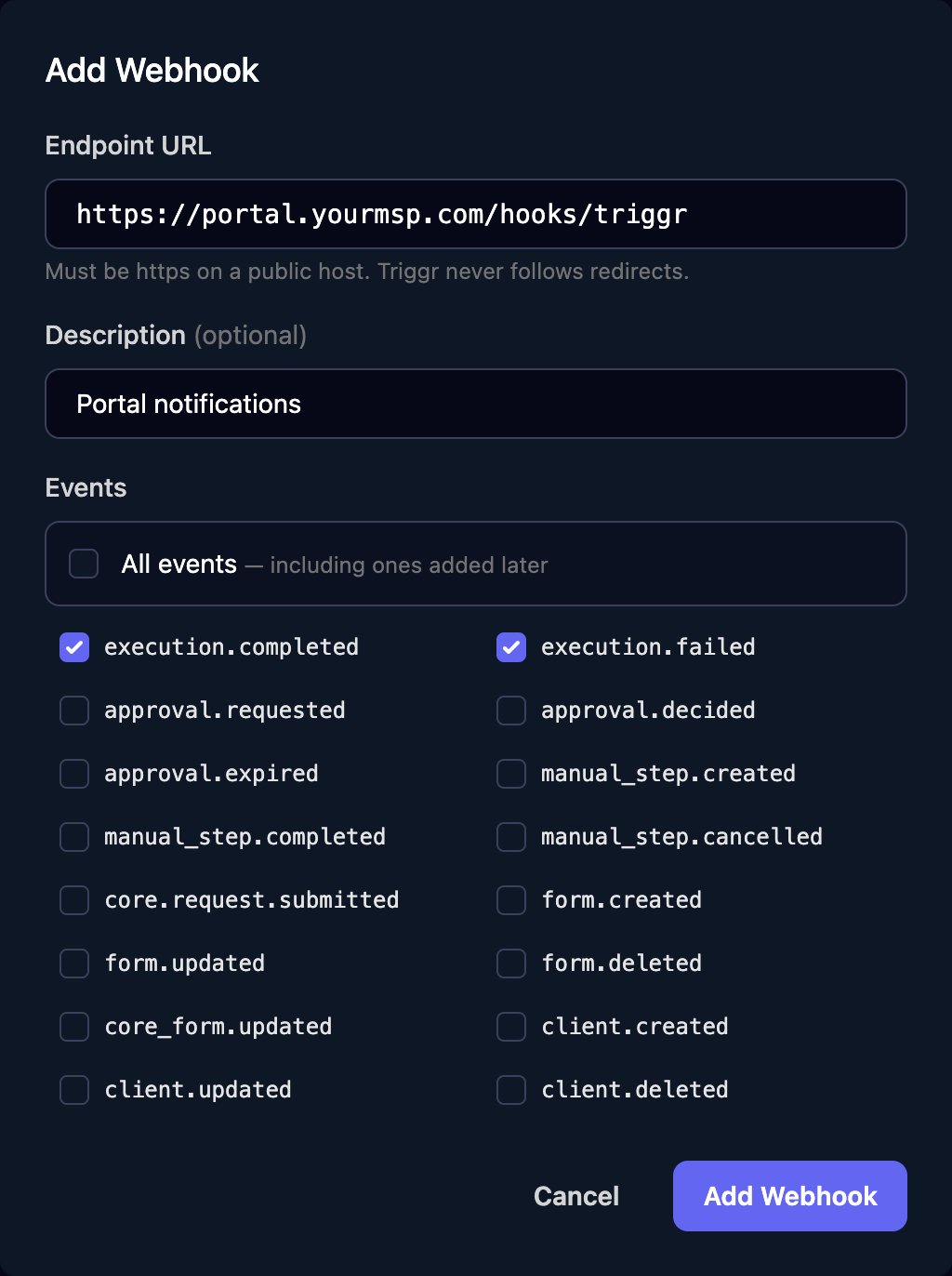
Go to **Settings > Webhooks** and click **Add Webhook**. Enter an https **Endpoint URL** on a public host, tick the Events you want (or All events) and click Add Webhook.
Send the key as a bearer token:
```bash theme={null}
curl -H "Authorization: Bearer tpk_..." "https://api.triggr-app.com/api/v1/workflows"
```
Every key can embed a Studio form as an already-signed-in user (Embedding Studio forms). To start a workflow from your own system, use the workflow's [Webhook trigger](/studio/workflows/triggers#webhook). For AI coding tools, use an [MCP token](/studio/mcp) instead.
## Add a webhook
For example, send every failed Studio run to your PSA so someone picks it up.
Go to **Settings > Webhooks** and click **Add Webhook**. Enter an https **Endpoint URL** on a public host, tick the Events you want (or All events) and click Add Webhook.
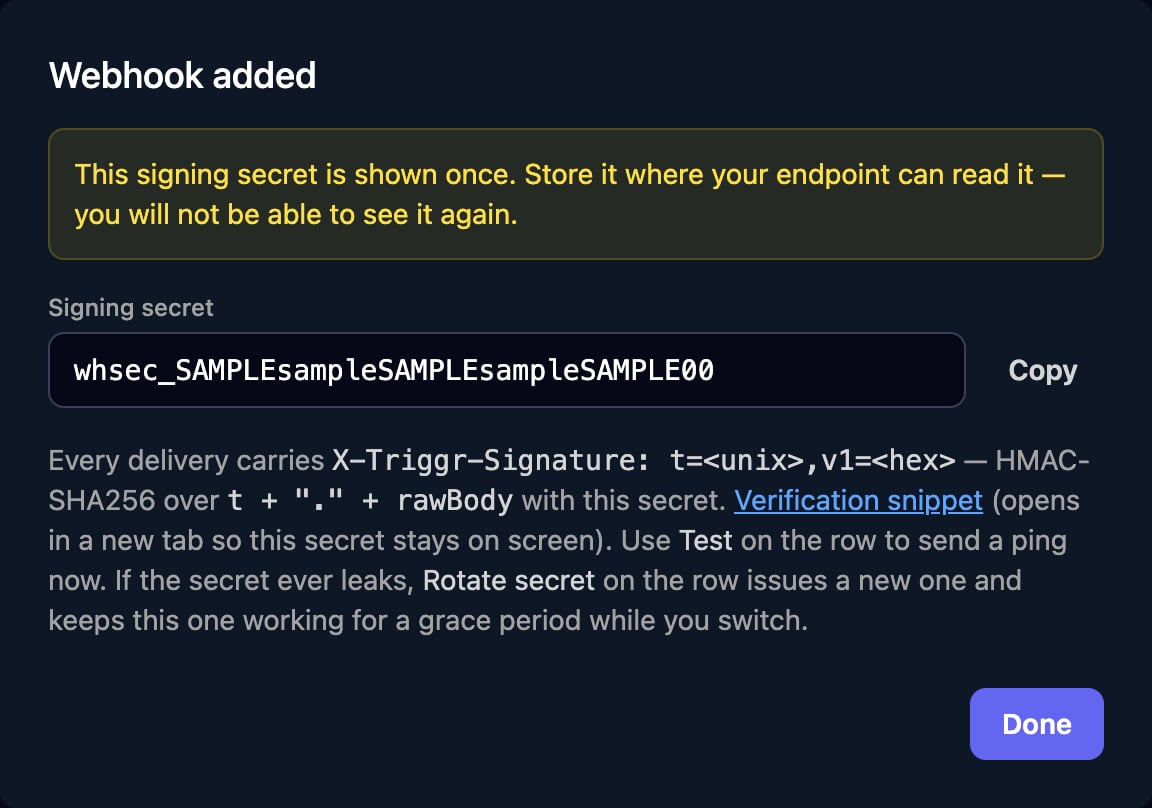
 Click **Copy** next to Signing secret and store it where your endpoint can read it. Studio shows it once.
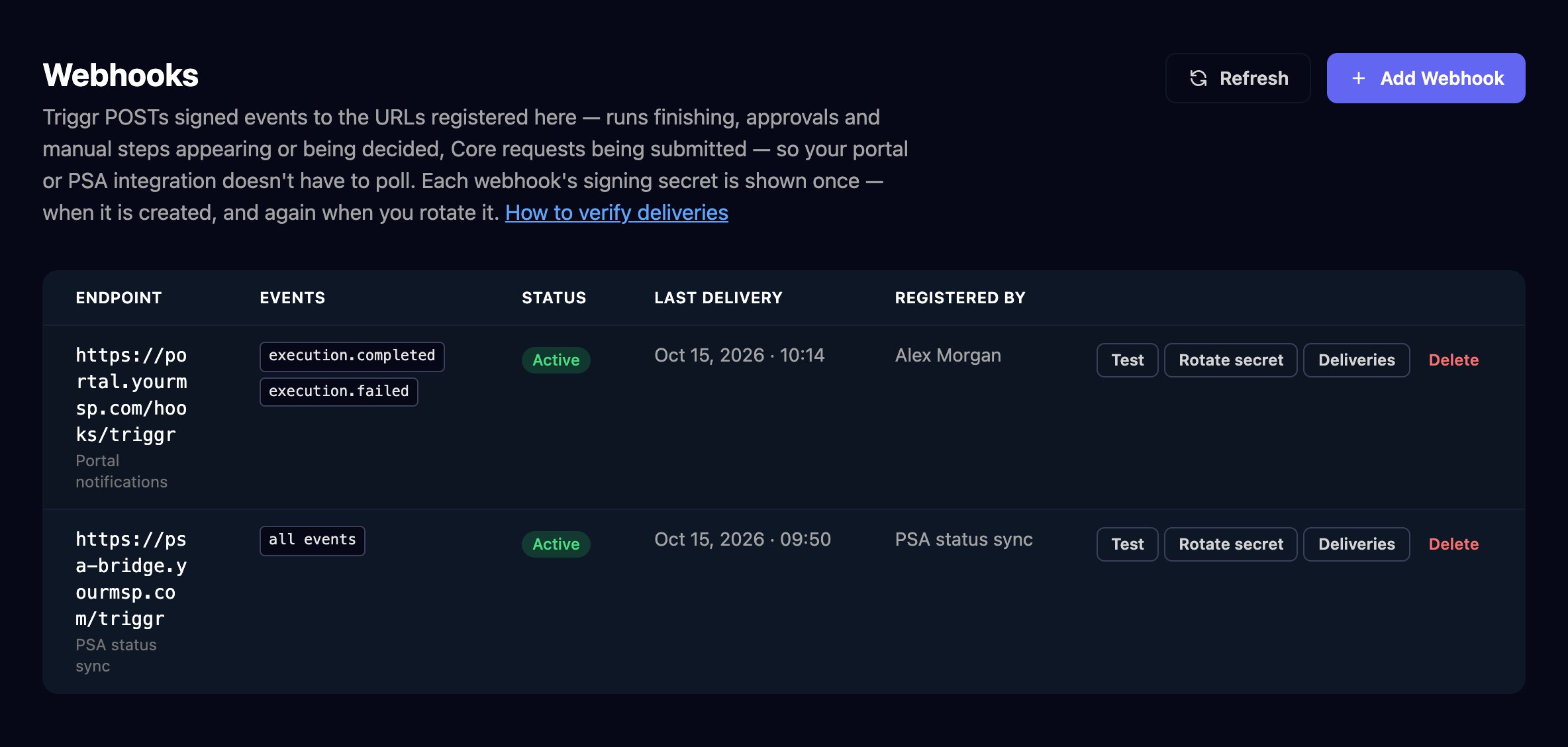
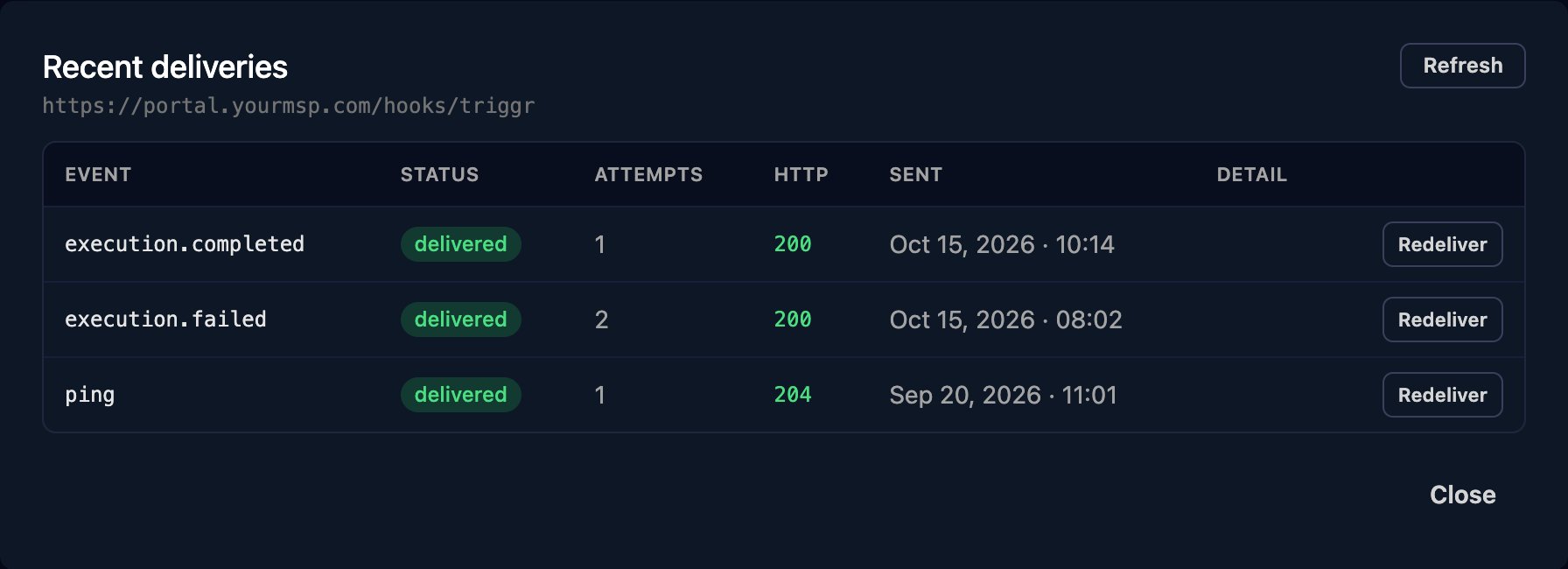
 Click **Test** on the webhook's row; a toast reports your endpoint's answer. Deliveries lists what was sent, with Redeliver on each.
 | Event | Sent when |
| - | - |
| `execution.completed`, `execution.failed` | A Studio or Core run finishes or fails. |
| `approval.requested`, `approval.decided`, `approval.expired` | An approval is created, decided or expires. |
| `manual_step.created`, `manual_step.completed`, `manual_step.cancelled` | A manual step is created, completed or cancelled. |
| `form.created`, `form.updated`, `form.deleted` | A Studio form changes. |
| `client.created`, `client.updated`, `client.deleted` | A client changes. |
| `core.request.submitted`, `core_form.updated` | A Core form is submitted, or its settings change. |
Check each delivery's `X-Triggr-Signature` as shown in [Verify the signature](/core/manage/api-and-webhooks#verify-the-signature).
## Troubleshooting
Ask an organisation admin to create the key or webhook, or to change your role.
The page shows only for organisation admins.
The URL must be https on a public host and answer within 15 seconds without redirecting. Fix the endpoint, then click Test again.
It failed too many deliveries in a row. Fix the endpoint and click **Enable** on its row.
The key is mistyped, revoked or over a year old: create a new one. `missing authorization header` means the request didn't send `Authorization: Bearer tpk_...`.
This documentation is built and hosted on [Mintlify](https://mintlify.com), a developer documentation platform.
| Event | Sent when |
| - | - |
| `execution.completed`, `execution.failed` | A Studio or Core run finishes or fails. |
| `approval.requested`, `approval.decided`, `approval.expired` | An approval is created, decided or expires. |
| `manual_step.created`, `manual_step.completed`, `manual_step.cancelled` | A manual step is created, completed or cancelled. |
| `form.created`, `form.updated`, `form.deleted` | A Studio form changes. |
| `client.created`, `client.updated`, `client.deleted` | A client changes. |
| `core.request.submitted`, `core_form.updated` | A Core form is submitted, or its settings change. |
Check each delivery's `X-Triggr-Signature` as shown in [Verify the signature](/core/manage/api-and-webhooks#verify-the-signature).
## Troubleshooting
Ask an organisation admin to create the key or webhook, or to change your role.
The page shows only for organisation admins.
The URL must be https on a public host and answer within 15 seconds without redirecting. Fix the endpoint, then click Test again.
It failed too many deliveries in a row. Fix the endpoint and click **Enable** on its row.
The key is mistyped, revoked or over a year old: create a new one. `missing authorization header` means the request didn't send `Authorization: Bearer tpk_...`.
This documentation is built and hosted on [Mintlify](https://mintlify.com), a developer documentation platform.