> ## Documentation Index
> Fetch the complete documentation index at: https://university.triggr-app.com/llms.txt
> Use this file to discover all available pages before exploring further.
# Distributors and licensing
> Browse your distributors' customers and subscriptions, build product packages, set licence assignment rules and look up Microsoft SKUs in Studio.
Distributors shows each distributor's customers and subscriptions, Settings > Licensing decides which Microsoft licences a new user gets, and Tools > Microsoft Product Resolver turns a SKU ID into a product name. Buying seats automatically during onboarding happens in Triggr Core: see [Licences and distributors](/core/manage/licences-and-distributors).
## Distributors
You need Configure Integrations.
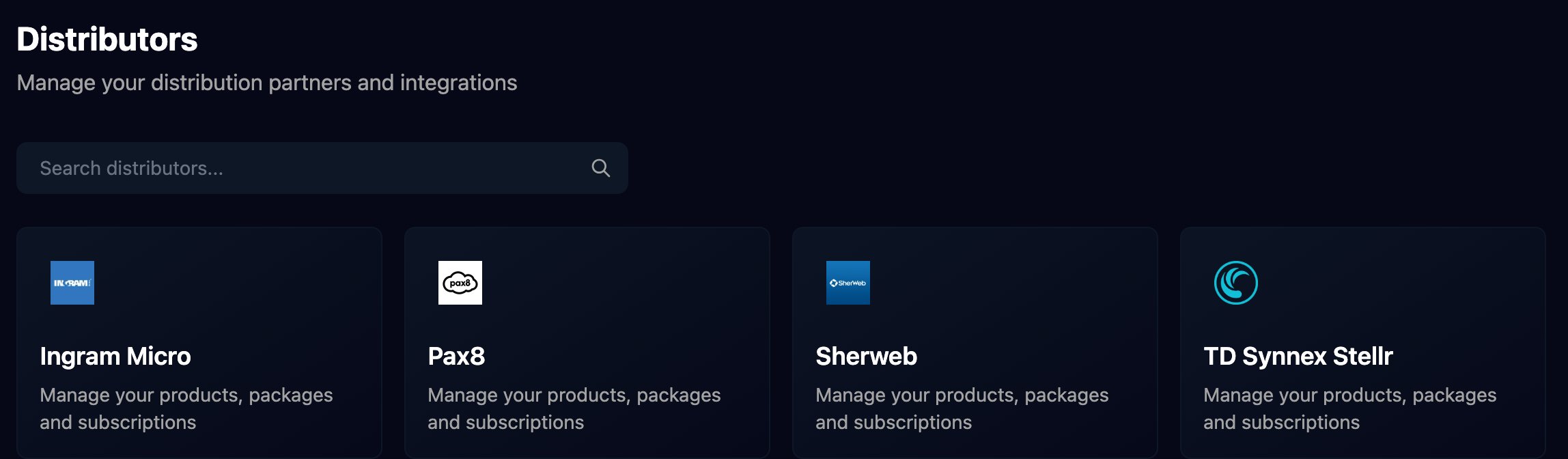
Click **Distributors** in the sidebar, then the distributor's card.
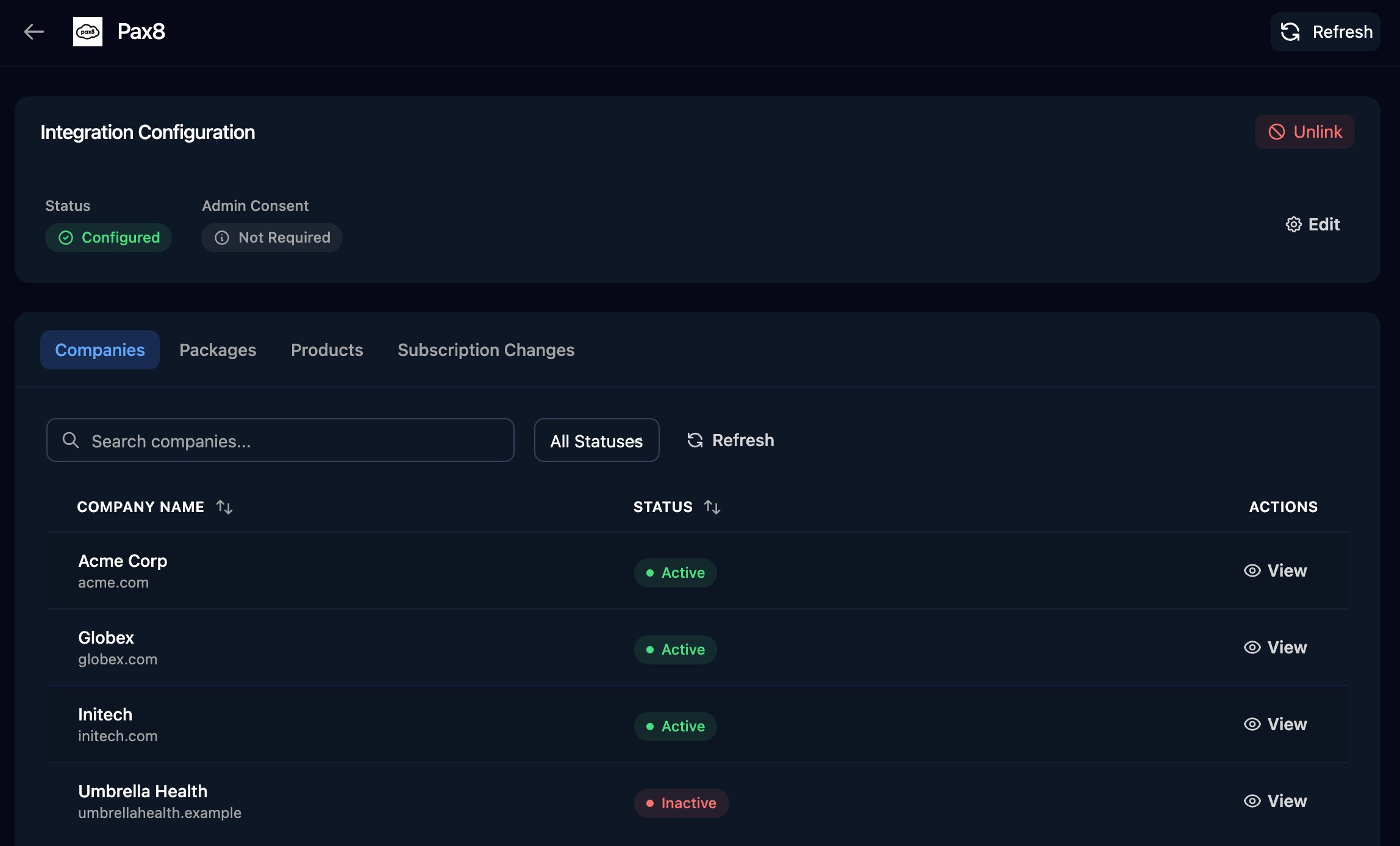
 Click **Configure** on Integration Configuration and follow [Pax8](/integrations/pax8), [Sherweb](/integrations/sherweb) or [TD SYNNEX StreamOne Stellr](/integrations/td-synnex/stellr). The tabs appear once Status reads Configured.
Companies lists your customers at the distributor, live. Click **View** for a customer's subscriptions and quantities.
Click **Configure** on Integration Configuration and follow [Pax8](/integrations/pax8), [Sherweb](/integrations/sherweb) or [TD SYNNEX StreamOne Stellr](/integrations/td-synnex/stellr). The tabs appear once Status reads Configured.
Companies lists your customers at the distributor, live. Click **View** for a customer's subscriptions and quantities.
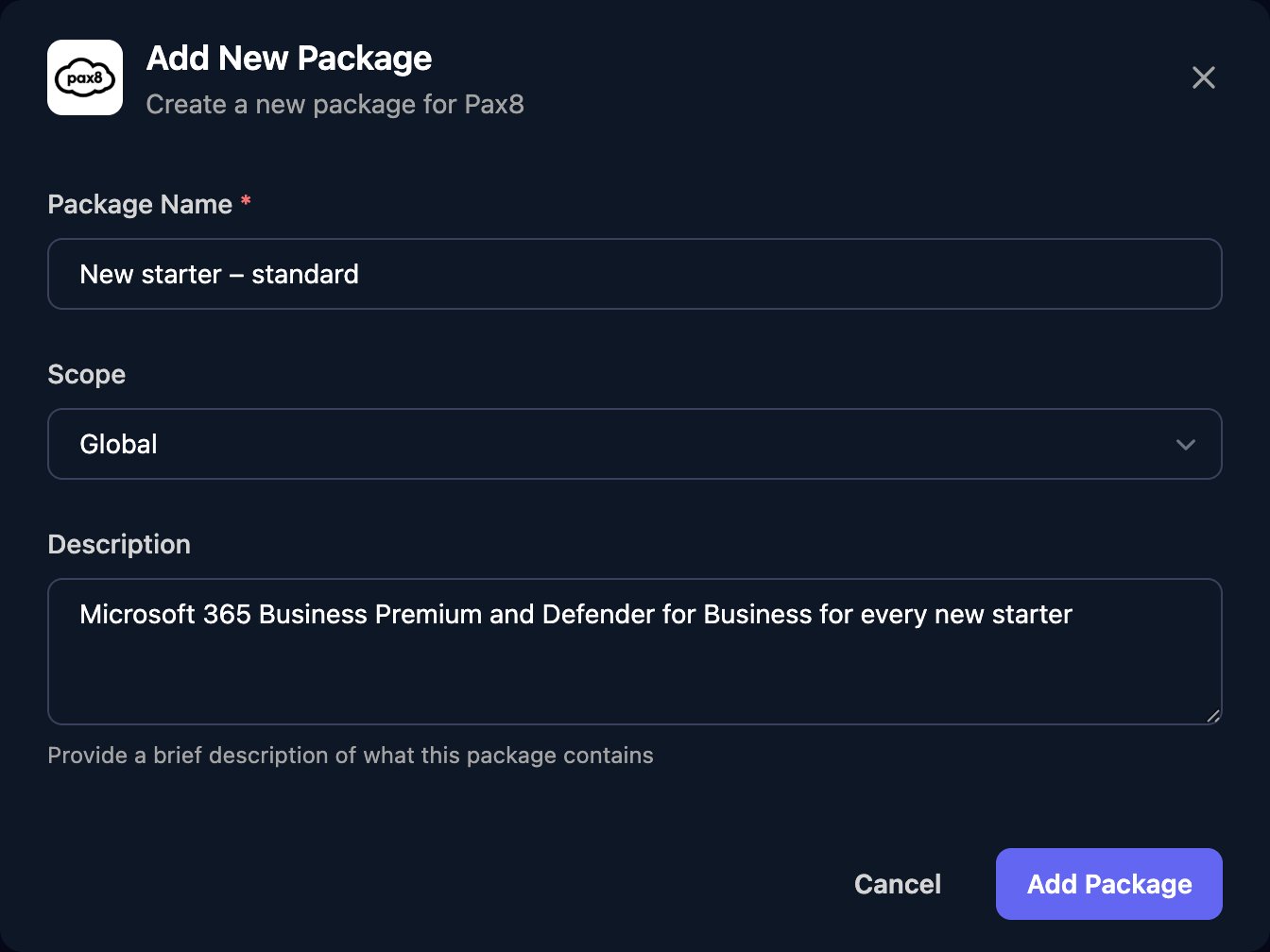
 A package is a named bundle of products, such as everything a new starter gets. On Packages, click **Add Package**, then Manage and Add Product: Pax8 searches its catalogue; for other distributors, enter the product's details.
 | Tab | Shows | Distributors |
| - | - | - |
| Companies | Customers and their subscriptions, live | Pax8, Sherweb, TD Synnex Stellr |
| Packages | Your product bundles | All except Sherweb |
| Products | Products saved for packages | All except Sherweb |
| Subscription Changes | Seat changes your workflows scheduled | All |
Workflows read packages with List Packages and List Products For Package (Distribution). Map clients to distributor customers in Core or on the integration's Client Mapping card, not here.
Unlink deletes the distributor's Base Configuration: Core's auto-buy and every workflow action for that distributor stop until you configure it again.
## Licence assignment rules
Settings > Licensing chooses a user's Microsoft licences from their job title, department, email domain and so on. Anyone who can open Settings can edit the rules.
On Global, click **Add Rule** and name it. Untick **No conditions (matches all)**, set a field, operator and value, then under Then choose Assign and the licences (or Deny or Ask Technician) and click Save.
| Tab | Shows | Distributors |
| - | - | - |
| Companies | Customers and their subscriptions, live | Pax8, Sherweb, TD Synnex Stellr |
| Packages | Your product bundles | All except Sherweb |
| Products | Products saved for packages | All except Sherweb |
| Subscription Changes | Seat changes your workflows scheduled | All |
Workflows read packages with List Packages and List Products For Package (Distribution). Map clients to distributor customers in Core or on the integration's Client Mapping card, not here.
Unlink deletes the distributor's Base Configuration: Core's auto-buy and every workflow action for that distributor stop until you configure it again.
## Licence assignment rules
Settings > Licensing chooses a user's Microsoft licences from their job title, department, email domain and so on. Anyone who can open Settings can edit the rules.
On Global, click **Add Rule** and name it. Untick **No conditions (matches all)**, set a field, operator and value, then under Then choose Assign and the licences (or Deny or Ask Technician) and click Save.
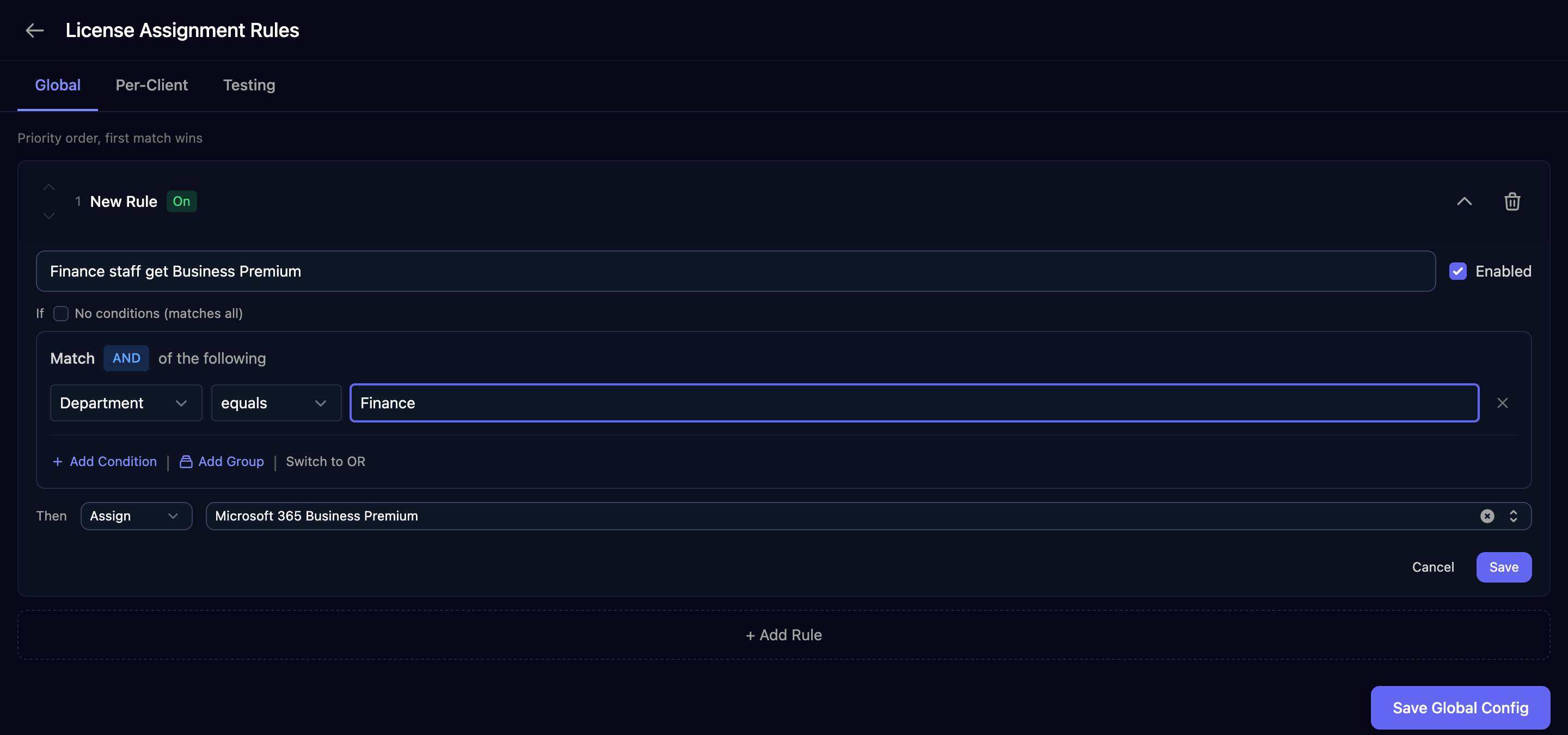 Add rules in the order you want them checked (the first match wins), then click **Save Global Config**.
On Testing, enter a sample user and click **Test Rules**. Tests use the saved rules.
Add rules in the order you want them checked (the first match wins), then click **Save Global Config**.
On Testing, enter a sample user and click **Test Rules**. Tests use the saved rules.
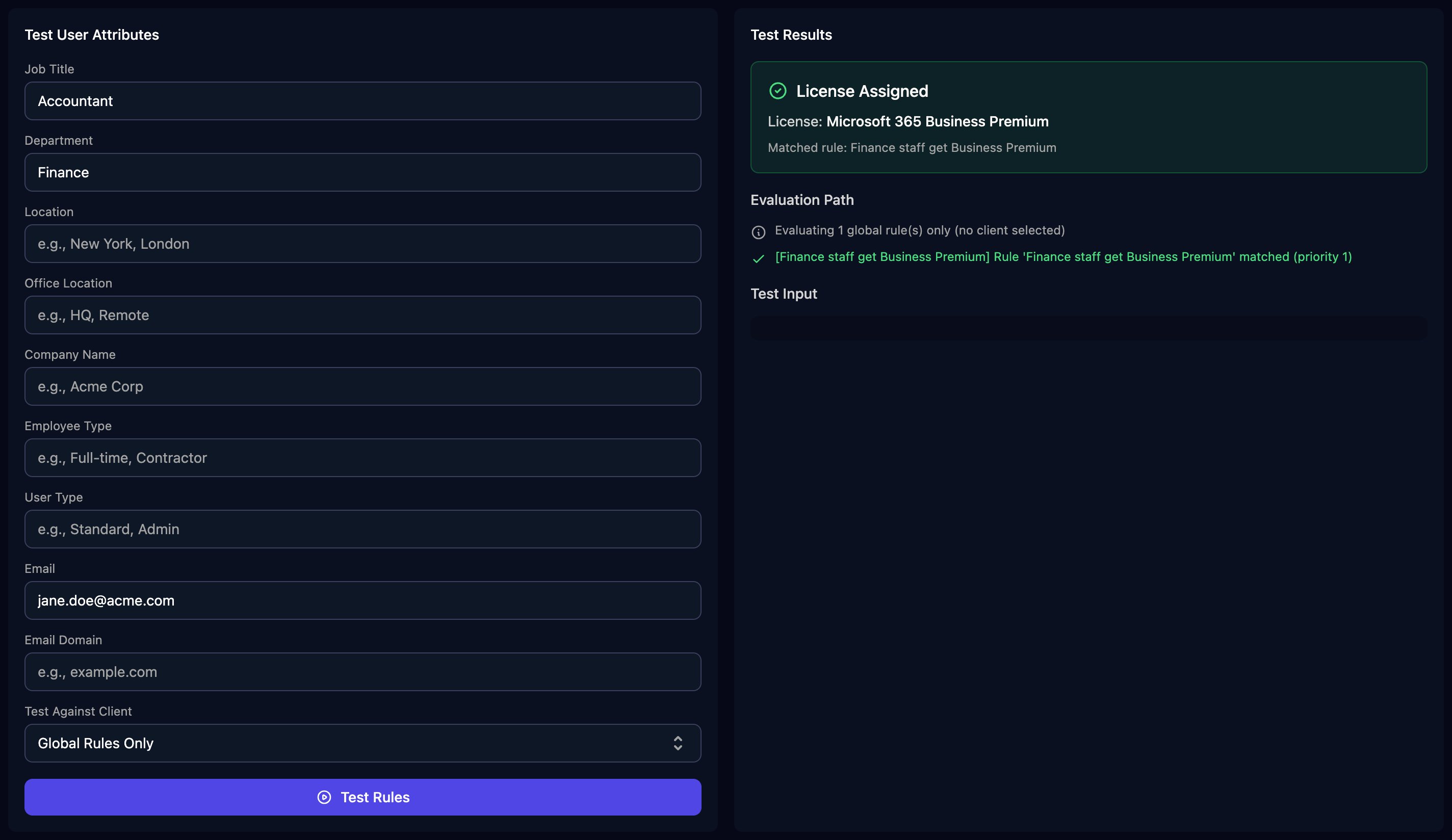 In a workflow, add Get Licenses to Assign (Microsoft) with the new user's details. It needs a client: the run's client, or the Client ID you give it. It outputs `outcome.action` (`assign`, `deny` or `manual`) and `outcome.skuPartNumbers`, such as `SPB`. Matching ignores case.
## Microsoft Product Resolver
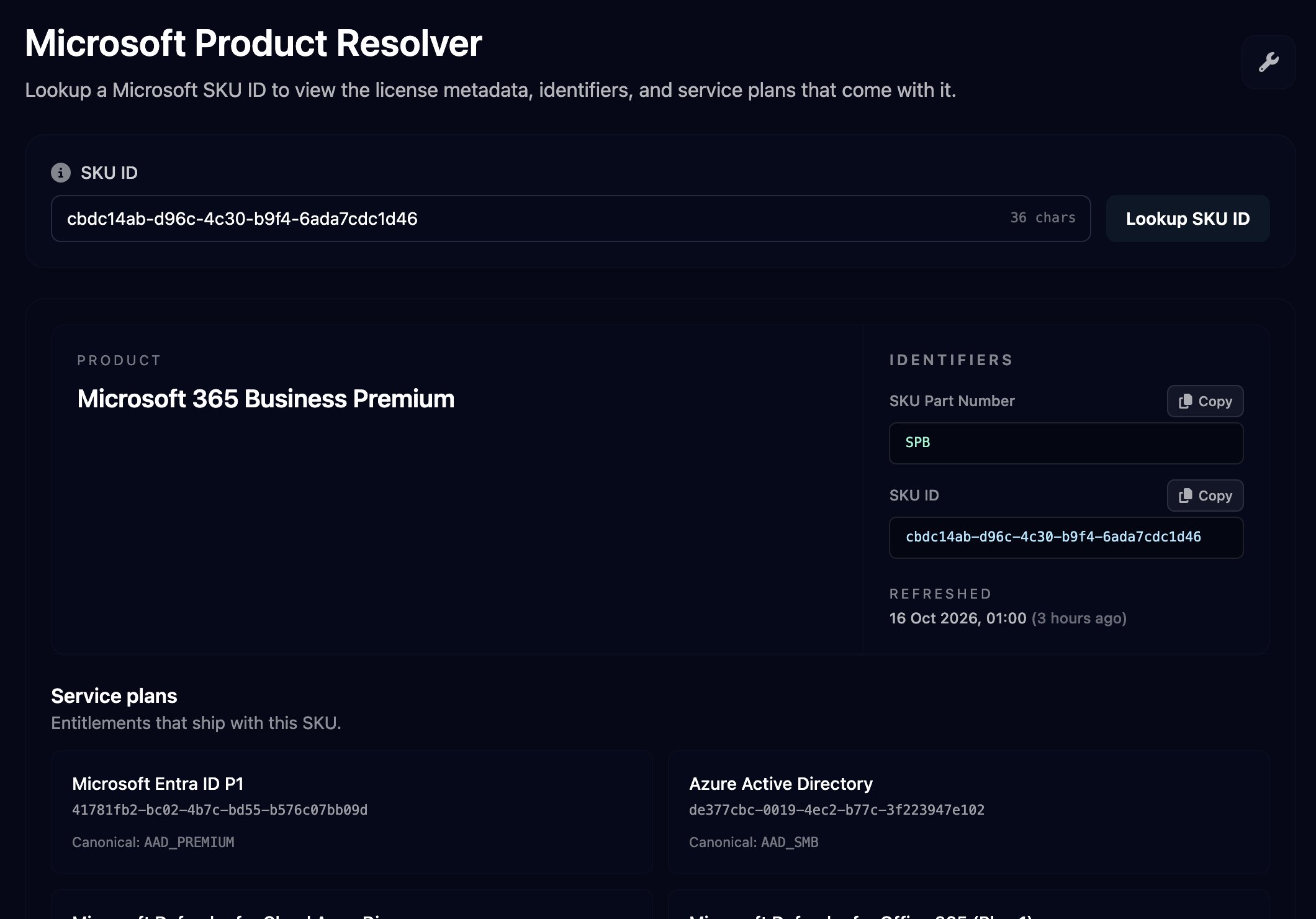
Tools > Microsoft Product Resolver shows the product, part number and service plans for a Microsoft SKU ID (the `skuId` in a Microsoft Graph licence). Paste the ID and click **Lookup SKU ID**. Triggr refreshes the list from Microsoft daily.
In a workflow, add Get Licenses to Assign (Microsoft) with the new user's details. It needs a client: the run's client, or the Client ID you give it. It outputs `outcome.action` (`assign`, `deny` or `manual`) and `outcome.skuPartNumbers`, such as `SPB`. Matching ignores case.
## Microsoft Product Resolver
Tools > Microsoft Product Resolver shows the product, part number and service plans for a Microsoft SKU ID (the `skuId` in a Microsoft Graph licence). Paste the ID and click **Lookup SKU ID**. Triggr refreshes the list from Microsoft daily.
 ## FAQ
Check the distributor's credentials: click **Edit** on Integration Configuration and re-enter them.
Package names are unique per distributor. Choose another name, or add products to the existing package.
Paste the SKU ID itself (a GUID), exactly as Microsoft gives it. A part number such as `SPB` or a product name won't match.
An Assign rule needs at least one licence. Pick one, or change Then to Deny or Ask Technician.
No. Core's auto-buy uses its own licence mapping on each client: see [Licences and distributors](/core/manage/licences-and-distributors).
This documentation is built and hosted on [Mintlify](https://mintlify.com), a developer documentation platform.
## FAQ
Check the distributor's credentials: click **Edit** on Integration Configuration and re-enter them.
Package names are unique per distributor. Choose another name, or add products to the existing package.
Paste the SKU ID itself (a GUID), exactly as Microsoft gives it. A part number such as `SPB` or a product name won't match.
An Assign rule needs at least one licence. Pick one, or change Then to Deny or Ask Technician.
No. Core's auto-buy uses its own licence mapping on each client: see [Licences and distributors](/core/manage/licences-and-distributors).
This documentation is built and hosted on [Mintlify](https://mintlify.com), a developer documentation platform.