> ## Documentation Index
> Fetch the complete documentation index at: https://university.triggr-app.com/llms.txt
> Use this file to discover all available pages before exploring further.
# Debug a failed run
> Find a failed Studio workflow run, read the step that failed, fix it and run it again, and look up common error messages.
The red step in a failed run says why. This example follows a disk-space alert workflow whose email step failed; [Common errors](#common-errors) lists the messages you're most likely to meet.
## Find the run
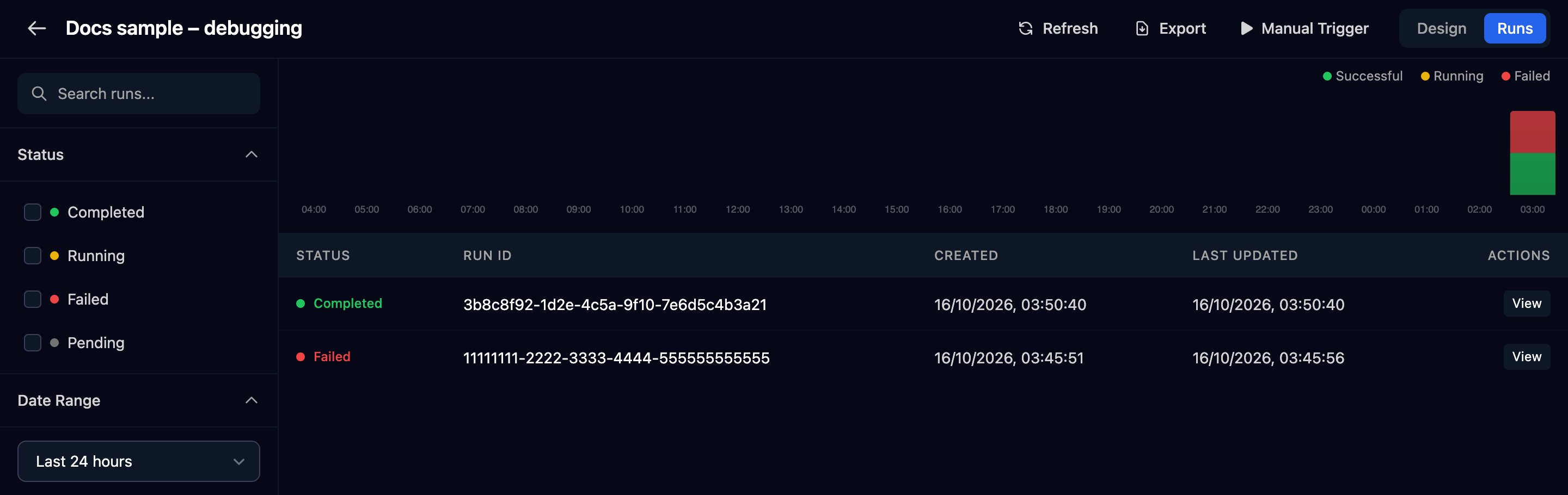
Click **Runs** in the designer, or on the workflow's row in Workflows, and filter by Status and Date Range. It shows the last 24 hours until you change Date Range.
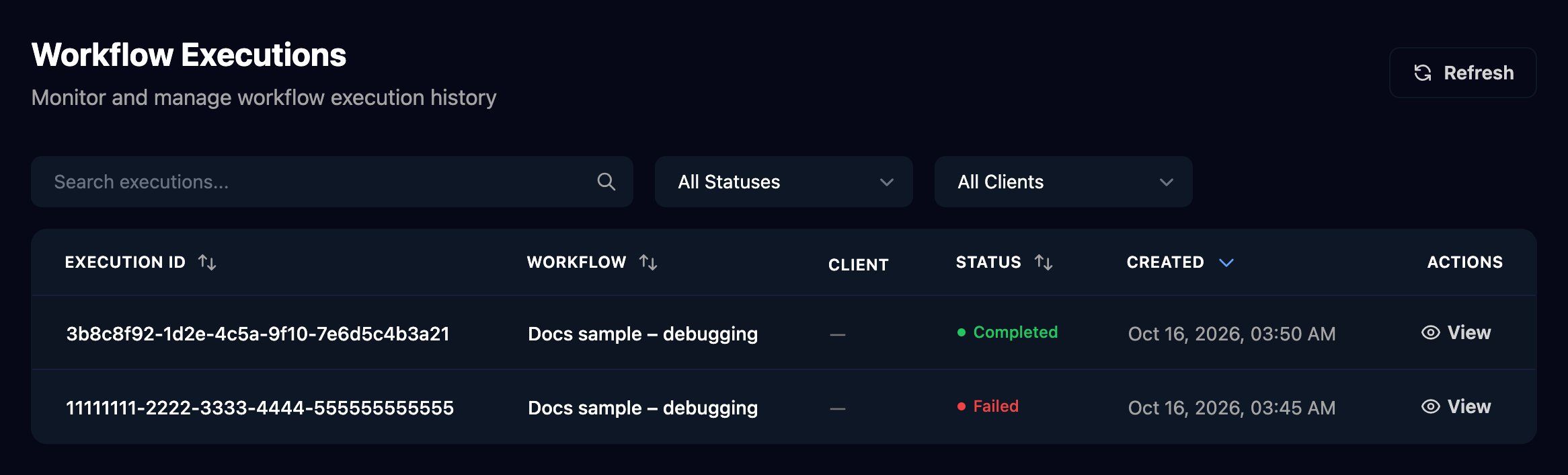
 **Workflows > Executions** lists runs from all workflows. Filter by status or client, or search for an execution or workflow ID.
 If Runs is missing, ask an admin for the View Executions permission.
## Read the failed run
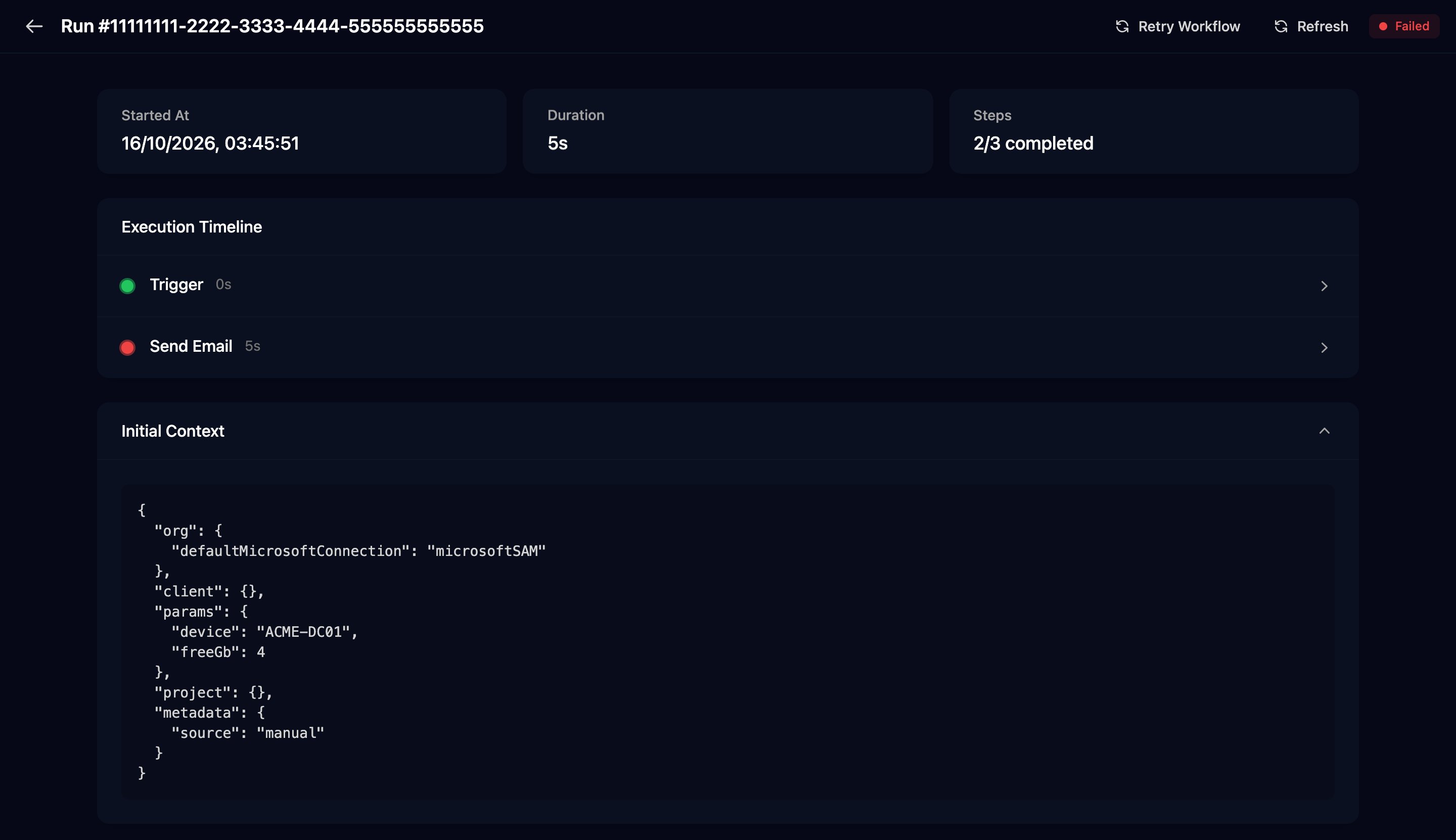
Click **View**. The Execution Timeline lists each step the run reached; the red one failed. Click **Initial Context** to see what the trigger sent, under `params`.
If Runs is missing, ask an admin for the View Executions permission.
## Read the failed run
Click **View**. The Execution Timeline lists each step the run reached; the red one failed. Click **Initial Context** to see what the trigger sent, under `params`.
 Click the red step: its Output holds the error.
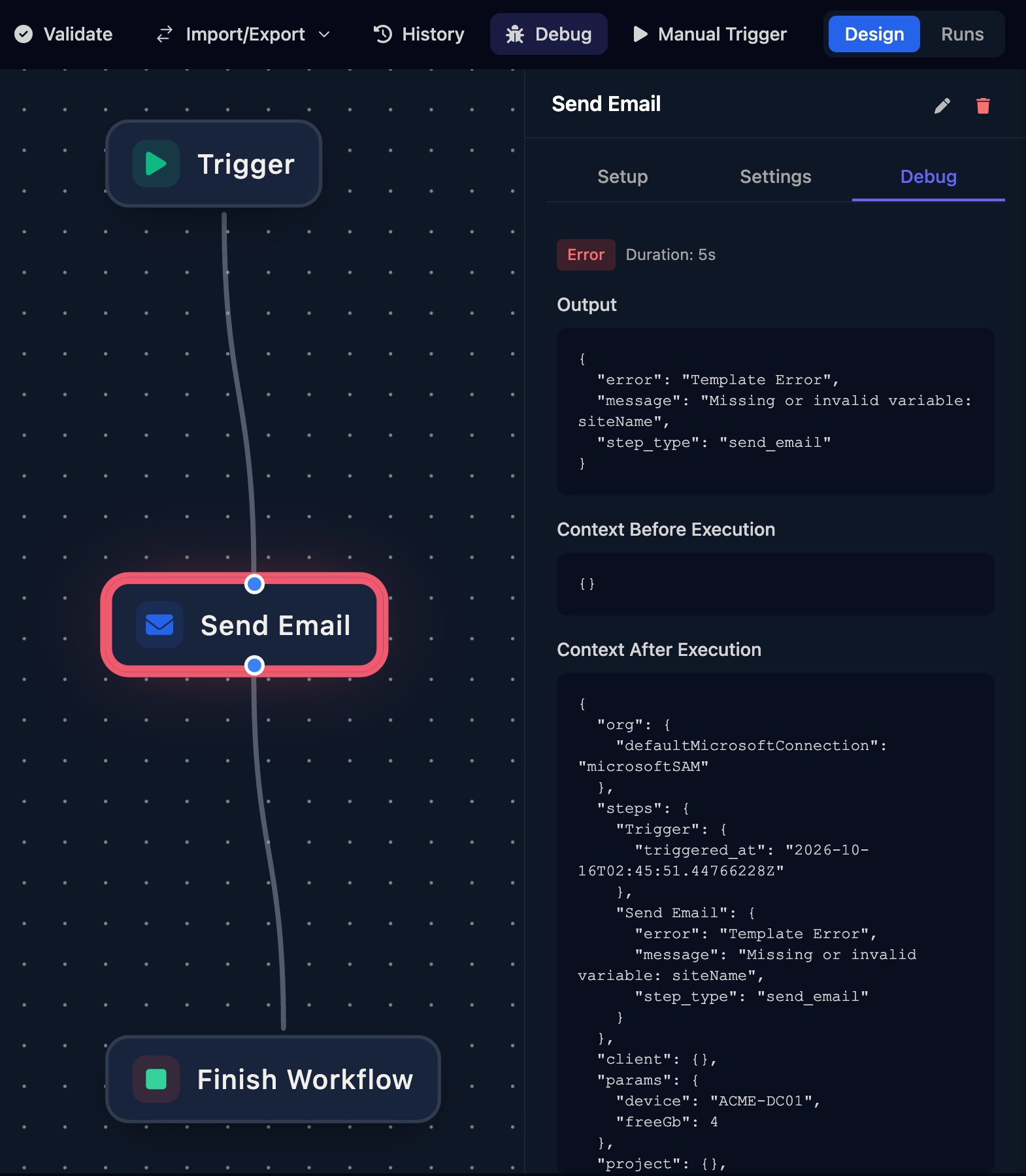
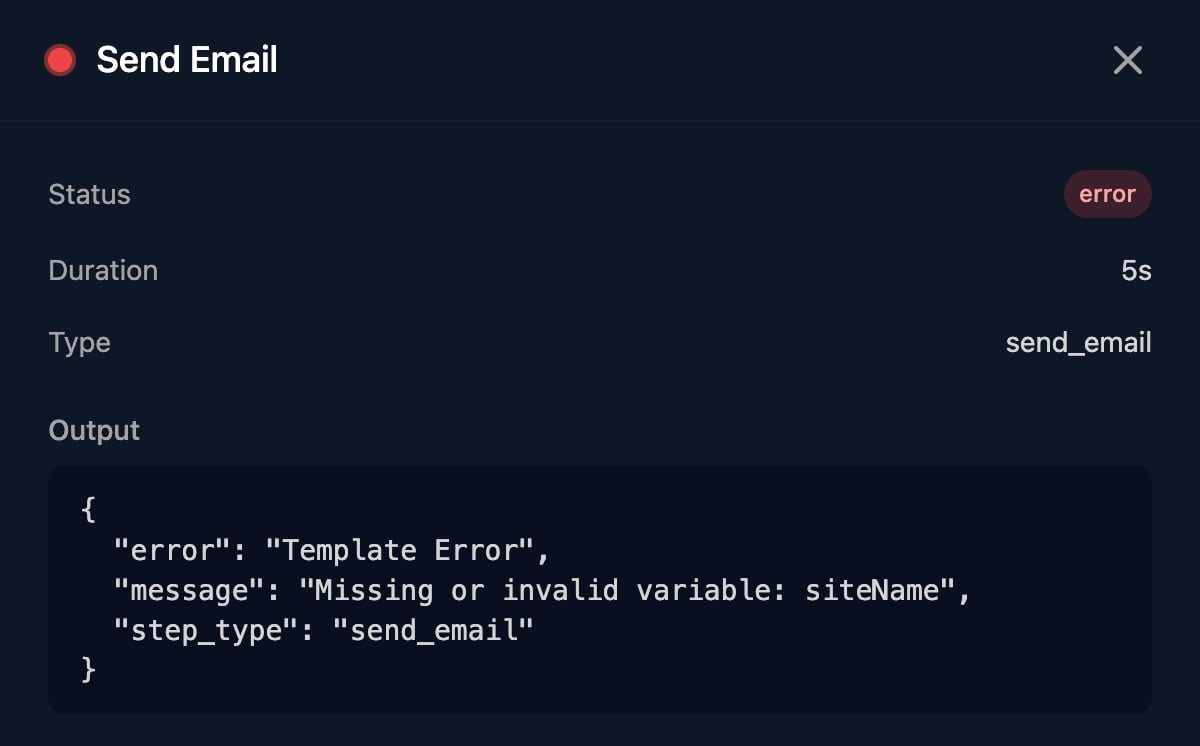 Here the email body uses `{{ ctx.params.siteName }}` and the alert didn't send `siteName`.
In the designer, click **Debug** and choose the run. The failed step is outlined in red, and each step's Debug tab shows that run's output and context.
Here the email body uses `{{ ctx.params.siteName }}` and the alert didn't send `siteName`.
In the designer, click **Debug** and choose the run. The failed step is outlined in red, and each step's Debug tab shows that run's output and context.
 ## Fix it and run it again
Change the step, or the system that starts the run, then click **Save**. Runs always use the last saved version.
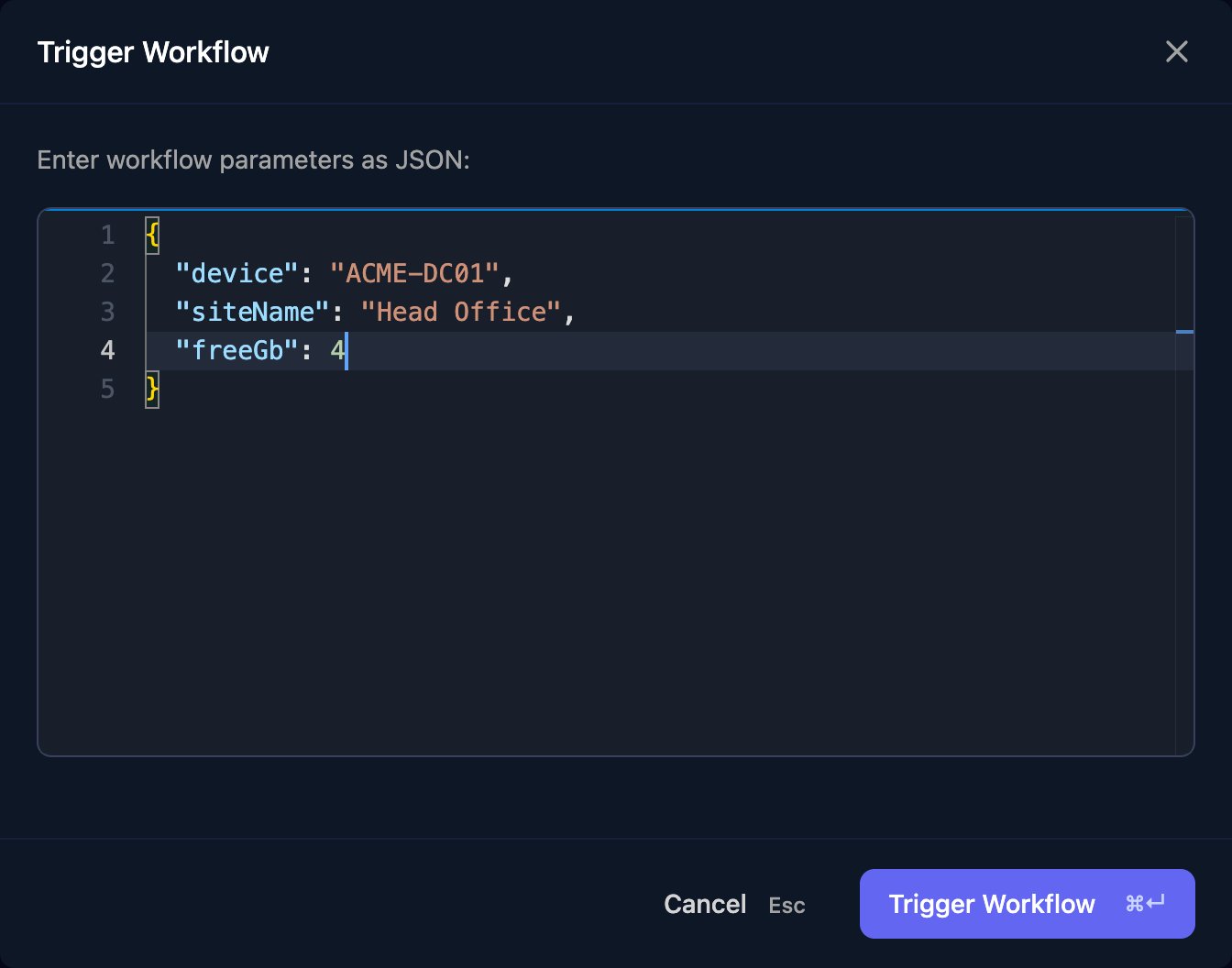
Click **Manual Trigger** and paste the corrected `params` from Initial Context.
## Fix it and run it again
Change the step, or the system that starts the run, then click **Save**. Runs always use the last saved version.
Click **Manual Trigger** and paste the corrected `params` from Initial Context.
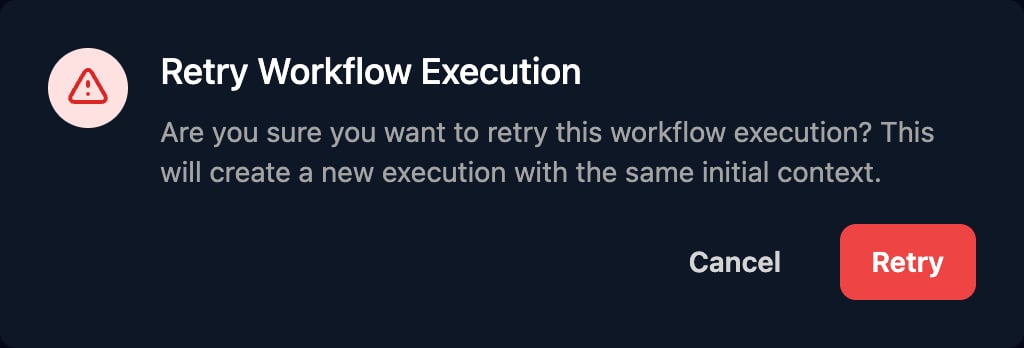
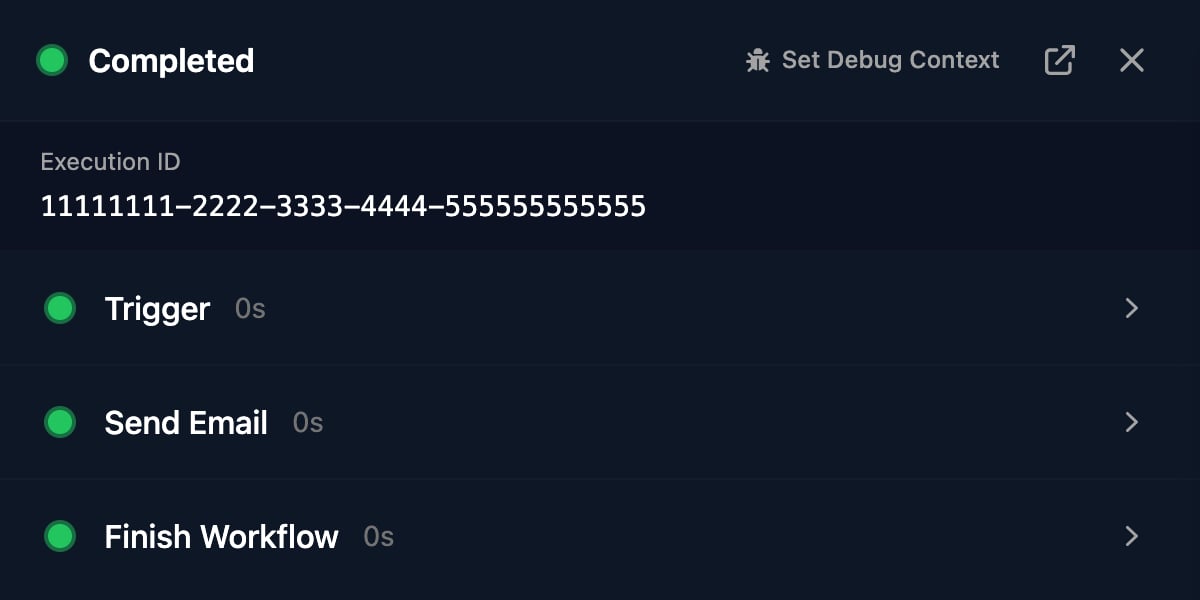 To rerun the original input unchanged, click **Retry Workflow** on the failed run: it starts a new run of the latest saved version with the same input and client.
 A failing step is tried once more after 5 seconds before the run fails, so a call that reached the other system may have landed twice.
## Stop a stuck run
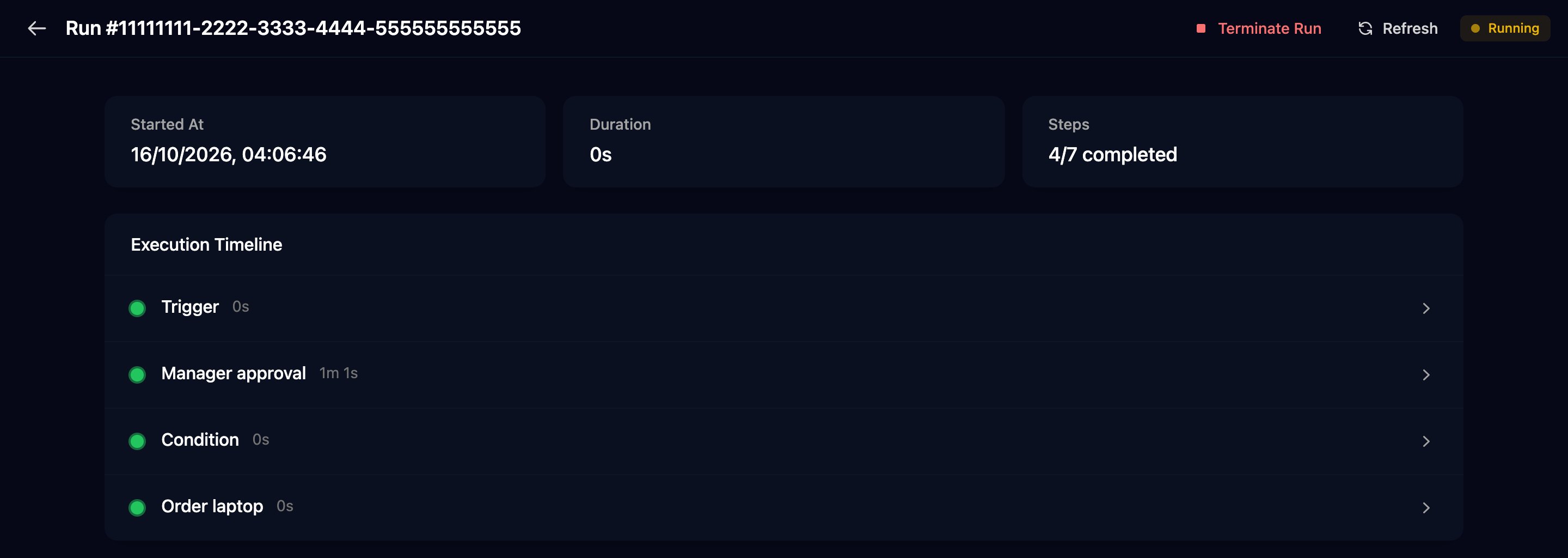
A run stays Running while a step waits: an approval, a manual step, a delay, an awaited workflow or an on-premises agent. Open it to see which step it's on, and click **Terminate Run** to stop it as Failed.
A failing step is tried once more after 5 seconds before the run fails, so a call that reached the other system may have landed twice.
## Stop a stuck run
A run stays Running while a step waits: an approval, a manual step, a delay, an awaited workflow or an on-premises agent. Open it to see which step it's on, and click **Terminate Run** to stop it as Failed.
 ## Catch failures early
* An admin can send the `execution.failed` event to your own systems from **Settings > Webhooks**. See [API keys and webhooks](/studio/settings/api-and-webhooks).
* The Dashboard's Execution Stats (Past 7 Days) charts failed runs across your organisation.
* An AI tool connected through [MCP](/studio/mcp) can rank failures with `get_workflow_failure_stats` and show each integration call's URL, status and response with `list_api_request_logs`.
## Common errors
The failed step's Output holds the message, sometimes after a code such as `internal:` or `failed_precondition:`.
No value at that path: the trigger didn't send it, an earlier step didn't return it or ran on another branch, or the name or capitals differ. Compare with Initial Context and the earlier step's Output.
The integration has a separate login per client and the run's client has none. Add it on the integration's Per-Client Configuration card in Integrations, or check the run set the right client.
The integration isn't set up. Configure it in Integrations using its [guide](/integrations/overview).
A field the integration needs is empty. Fill it in on the Base Configuration or the client's per-client configuration.
The integration's sign-in has lapsed. Open it in Integrations and click **Authorize** again.
The vendor refused Triggr's credentials (401) or the account lacks a permission (403); its message follows `Response:`. Renew the credential or grant the role in the integration's guide.
The vendor is rate-limiting you or having problems. Add a Delay inside a For Loop, or Retry Workflow later.
The vendor didn't answer in time or couldn't be reached. Check it's reachable from the internet and allow [Triggr's IP addresses](/security/ip-allowlist) through any firewall or vendor allowlist.
The address resolves to a private IP, which Triggr doesn't call. Publish the system at a public address, or reach it with Execute PowerShell through the [desktop agent](/desktop-agent/overview).
The client isn't linked to GDAP; with `microsoftSAM`, it hasn't approved the per-client app. See the [Microsoft and GDAP FAQ](/core/reference/microsoft-faq#errors-you-might-see).
The step needs a client and the run has none. Add Set Client By ID or Set Client From Form before it.
Choose a Connection Type on the step, or add `defaultMicrosoftConnection` (`microsoftGDAP`, `microsoftSAM` or `CIPP`) in Settings > Org Variables.
Triggr's access to the tenant lacks a role or permission for this action. Check the client's GDAP roles against [Recommended roles](/integrations/microsoft-graph/recommended-roles).
Triggr is repairing a consent or permission gap. Wait a few minutes, then click **Retry Workflow**.
Renew it in Partner Center, then retry the run.
Set Client By ID got a value that isn't one of your clients' IDs. Check the earlier steps' Output.
The client's [desktop agent](/desktop-agent/overview) is offline. Terminate the run or retry once it's online, and use Execute PowerShell (Timeout) or Check Agents Online so an offline agent can't hold a run.
A script error doesn't fail the step: its output has `completed: false` and `error`. Branch on `completed`, or use the Failed branch of Execute PowerShell (Timeout).
`relation "…" does not exist` is a wrong table name, `syntax error` a typo, and `permission denied` a missing right for the database user.
To resolved to something that isn't an email address, usually an empty or misspelt variable.
The condition read a field of something missing (`Cannot read property … of undefined`). Check the path in the earlier step's Output.
It ended at a Finish Workflow set to Fail; its Comment says why.
A step is waiting (see [Stop a stuck run](#stop-a-stuck-run)), or the path has no Finish Workflow: a run only completes when it reaches one.
This documentation is built and hosted on [Mintlify](https://mintlify.com), a developer documentation platform.
## Catch failures early
* An admin can send the `execution.failed` event to your own systems from **Settings > Webhooks**. See [API keys and webhooks](/studio/settings/api-and-webhooks).
* The Dashboard's Execution Stats (Past 7 Days) charts failed runs across your organisation.
* An AI tool connected through [MCP](/studio/mcp) can rank failures with `get_workflow_failure_stats` and show each integration call's URL, status and response with `list_api_request_logs`.
## Common errors
The failed step's Output holds the message, sometimes after a code such as `internal:` or `failed_precondition:`.
No value at that path: the trigger didn't send it, an earlier step didn't return it or ran on another branch, or the name or capitals differ. Compare with Initial Context and the earlier step's Output.
The integration has a separate login per client and the run's client has none. Add it on the integration's Per-Client Configuration card in Integrations, or check the run set the right client.
The integration isn't set up. Configure it in Integrations using its [guide](/integrations/overview).
A field the integration needs is empty. Fill it in on the Base Configuration or the client's per-client configuration.
The integration's sign-in has lapsed. Open it in Integrations and click **Authorize** again.
The vendor refused Triggr's credentials (401) or the account lacks a permission (403); its message follows `Response:`. Renew the credential or grant the role in the integration's guide.
The vendor is rate-limiting you or having problems. Add a Delay inside a For Loop, or Retry Workflow later.
The vendor didn't answer in time or couldn't be reached. Check it's reachable from the internet and allow [Triggr's IP addresses](/security/ip-allowlist) through any firewall or vendor allowlist.
The address resolves to a private IP, which Triggr doesn't call. Publish the system at a public address, or reach it with Execute PowerShell through the [desktop agent](/desktop-agent/overview).
The client isn't linked to GDAP; with `microsoftSAM`, it hasn't approved the per-client app. See the [Microsoft and GDAP FAQ](/core/reference/microsoft-faq#errors-you-might-see).
The step needs a client and the run has none. Add Set Client By ID or Set Client From Form before it.
Choose a Connection Type on the step, or add `defaultMicrosoftConnection` (`microsoftGDAP`, `microsoftSAM` or `CIPP`) in Settings > Org Variables.
Triggr's access to the tenant lacks a role or permission for this action. Check the client's GDAP roles against [Recommended roles](/integrations/microsoft-graph/recommended-roles).
Triggr is repairing a consent or permission gap. Wait a few minutes, then click **Retry Workflow**.
Renew it in Partner Center, then retry the run.
Set Client By ID got a value that isn't one of your clients' IDs. Check the earlier steps' Output.
The client's [desktop agent](/desktop-agent/overview) is offline. Terminate the run or retry once it's online, and use Execute PowerShell (Timeout) or Check Agents Online so an offline agent can't hold a run.
A script error doesn't fail the step: its output has `completed: false` and `error`. Branch on `completed`, or use the Failed branch of Execute PowerShell (Timeout).
`relation "…" does not exist` is a wrong table name, `syntax error` a typo, and `permission denied` a missing right for the database user.
To resolved to something that isn't an email address, usually an empty or misspelt variable.
The condition read a field of something missing (`Cannot read property … of undefined`). Check the path in the earlier step's Output.
It ended at a Finish Workflow set to Fail; its Comment says why.
A step is waiting (see [Stop a stuck run](#stop-a-stuck-run)), or the path has no Finish Workflow: a run only completes when it reaches one.
This documentation is built and hosted on [Mintlify](https://mintlify.com), a developer documentation platform.