> ## Documentation Index
> Fetch the complete documentation index at: https://university.triggr-app.com/llms.txt
> Use this file to discover all available pages before exploring further.
# Data and expressions
> Use trigger data, step outputs, client and org variables in any step with templates, transform them with Code steps, and handle failures.
Any text field in a step can include data from the run: write a path between `{{ }}` and Triggr fills it in when the step runs.
## Insert a value
Type `{{ ctx.steps['` to list the workflow's steps and pick one that runs before this step, or `{{ ctx.params.` to pick a field of the trigger's form.
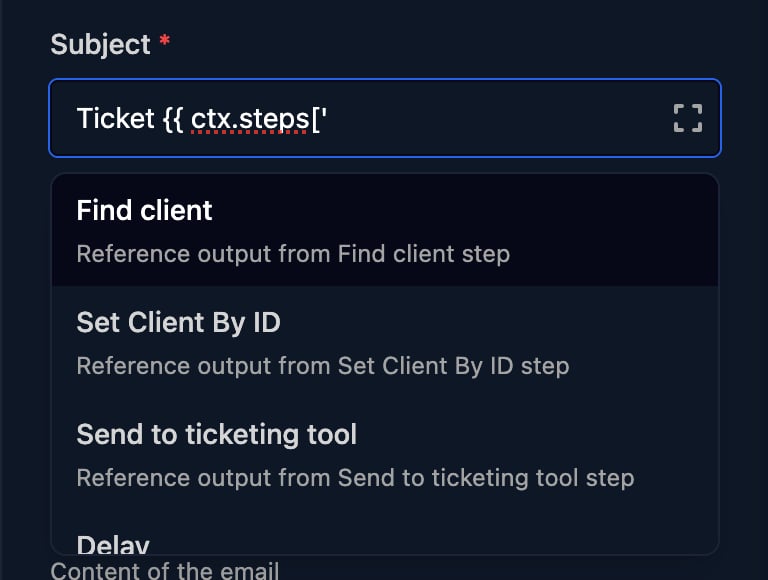 The picker inserts the whole output, `{{ ctx.steps['Prepare details'] }}`. Add the field before `}}`: `{{ ctx.steps['Prepare details'].fullName }}`. For a list, add the item's position: `{{ ctx.params.starters[0].firstName }}`. A Group field's sub-fields aren't listed, so type them.
Click away from the box when you've finished: Enter or Tab replaces the template with the suggestion. The list only appears in single-line fields; in Body, Comment and Code, type the path.
Click **Manual Trigger**, then a step in the run: its Output lists the fields you can read.
The picker inserts the whole output, `{{ ctx.steps['Prepare details'] }}`. Add the field before `}}`: `{{ ctx.steps['Prepare details'].fullName }}`. For a list, add the item's position: `{{ ctx.params.starters[0].firstName }}`. A Group field's sub-fields aren't listed, so type them.
Click away from the box when you've finished: Enter or Tab replaces the template with the suggestion. The list only appears in single-line fields; in Body, Comment and Code, type the path.
Click **Manual Trigger**, then a step in the run: its Output lists the fields you can read.
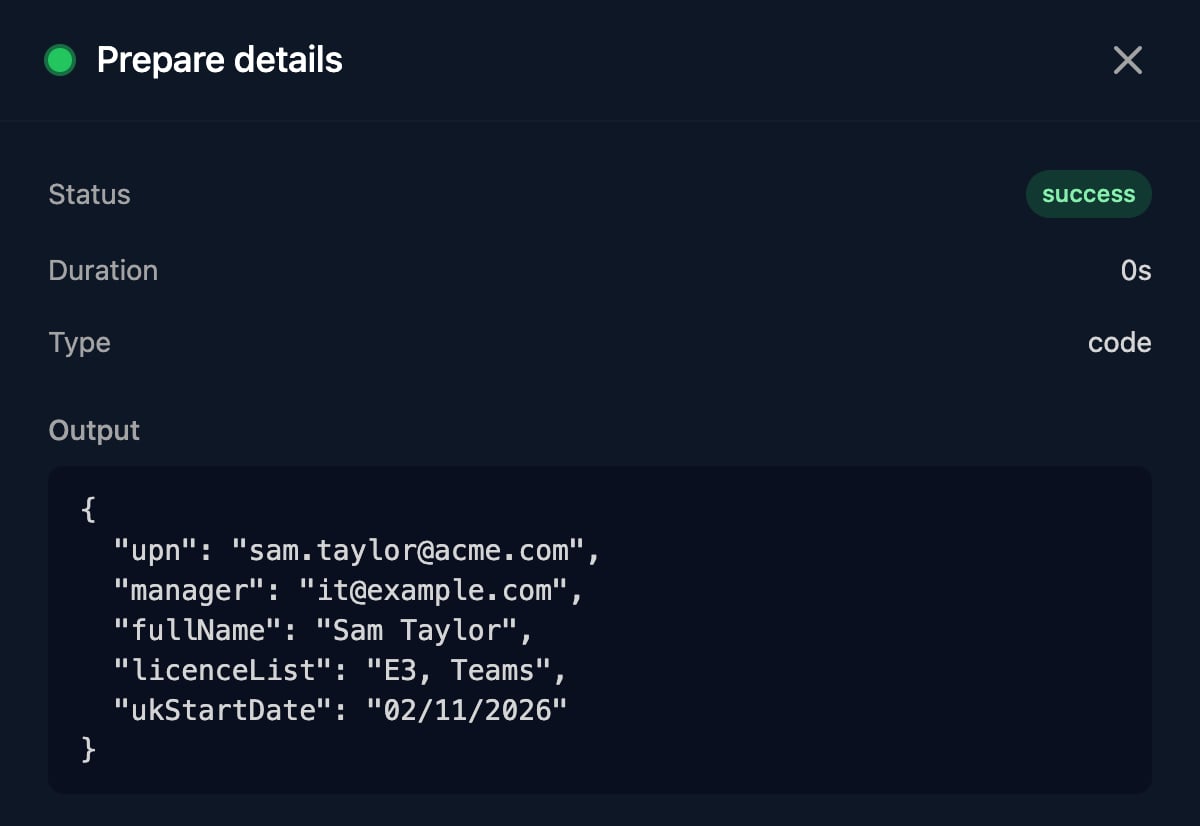 In the run, click **Set Debug Context**. Each step's panel then has a **Debug** tab with that run's Output and context, beside the fields you're editing.
## What you can read
| Path | Holds |
| - | - |
| `ctx.params.` | What the trigger sent, such as form answers by Field ID. See [Workflow triggers](/studio/workflows/triggers). |
| `ctx.steps['Step name'].` | An earlier step's output. See [Step types](/studio/workflows/steps). |
| `ctx.client.id`, `ctx.client.name`, `ctx.client.` | The run's client and its client variables, once a client is set, for example by a Set Client step. Until then it's empty. |
| `ctx.org.` | Your org variables, from Settings > Org Variables. |
| `ctx.metadata.source` | What started the run, plus who submitted a form. See [Workflow triggers](/studio/workflows/triggers). |
| `ctx.` | The current item inside a For Loop; after the loop, the last item. |
| `ctx.` | A step's output saved under a short name (below). |
| `ctx.ticket.id` | The PSA ticket from Create Ticket or Set Ticket ID. |
To see what a step could read, run the workflow with **Manual Trigger**, click the step in the run and look at Context Before. Context After adds the step's own output. Neither shows a For Loop's current item.
Use `.name` for simple names and `['Name']` for names with spaces or punctuation, such as step names. `[0]` picks the first item of a list: `{{ ctx.steps['Find client'].clients[0].id }}`. When you rename a step, update the steps that read it.
## How templates fill in
With a trigger that sent `{"firstName": "Sam", "lastName": "Taylor", "licences": ["E3", "Teams"], "notes": "Dell \"5440\" laptop"}`:
| Template | Becomes |
| - | - |
| `{{ ctx.params.firstName }} {{ ctx.params.lastName }}` | `Sam Taylor` |
| `{{ ctx.params.licences[0] }}` | `E3` |
| `{{ ctx.params.licences }}` | `["E3","Teams"]` |
| `{{ ctx.params.notes }}` | `Dell "5440" laptop` |
| `{{ ctx.params.notes \| json }}` | `"Dell \"5440\" laptop"` |
* The result is always text: numbers and `true`/`false` become text, lists and objects become JSON, and `null` becomes nothing.
* `| json` is the only filter. It writes the value as JSON, adding quotes and escaping to text.
* There are no defaults, maths or functions: `{{ ctx.params.a || 'x' }}` and `{{ ctx.params.name | upper }}` fail. Use a [Code step](#recipes).
* A path that doesn't exist fails the step, as does anything between `{{` and `}}` that isn't a `ctx.` path, even inside an inserted value such as a form answer.
In the run, click **Set Debug Context**. Each step's panel then has a **Debug** tab with that run's Output and context, beside the fields you're editing.
## What you can read
| Path | Holds |
| - | - |
| `ctx.params.` | What the trigger sent, such as form answers by Field ID. See [Workflow triggers](/studio/workflows/triggers). |
| `ctx.steps['Step name'].` | An earlier step's output. See [Step types](/studio/workflows/steps). |
| `ctx.client.id`, `ctx.client.name`, `ctx.client.` | The run's client and its client variables, once a client is set, for example by a Set Client step. Until then it's empty. |
| `ctx.org.` | Your org variables, from Settings > Org Variables. |
| `ctx.metadata.source` | What started the run, plus who submitted a form. See [Workflow triggers](/studio/workflows/triggers). |
| `ctx.` | The current item inside a For Loop; after the loop, the last item. |
| `ctx.` | A step's output saved under a short name (below). |
| `ctx.ticket.id` | The PSA ticket from Create Ticket or Set Ticket ID. |
To see what a step could read, run the workflow with **Manual Trigger**, click the step in the run and look at Context Before. Context After adds the step's own output. Neither shows a For Loop's current item.
Use `.name` for simple names and `['Name']` for names with spaces or punctuation, such as step names. `[0]` picks the first item of a list: `{{ ctx.steps['Find client'].clients[0].id }}`. When you rename a step, update the steps that read it.
## How templates fill in
With a trigger that sent `{"firstName": "Sam", "lastName": "Taylor", "licences": ["E3", "Teams"], "notes": "Dell \"5440\" laptop"}`:
| Template | Becomes |
| - | - |
| `{{ ctx.params.firstName }} {{ ctx.params.lastName }}` | `Sam Taylor` |
| `{{ ctx.params.licences[0] }}` | `E3` |
| `{{ ctx.params.licences }}` | `["E3","Teams"]` |
| `{{ ctx.params.notes }}` | `Dell "5440" laptop` |
| `{{ ctx.params.notes \| json }}` | `"Dell \"5440\" laptop"` |
* The result is always text: numbers and `true`/`false` become text, lists and objects become JSON, and `null` becomes nothing.
* `| json` is the only filter. It writes the value as JSON, adding quotes and escaping to text.
* There are no defaults, maths or functions: `{{ ctx.params.a || 'x' }}` and `{{ ctx.params.name | upper }}` fail. Use a [Code step](#recipes).
* A path that doesn't exist fails the step, as does anything between `{{` and `}}` that isn't a `ctx.` path, even inside an inserted value such as a form answer.
![A failed Finish Workflow step in a run: Status error, Duration 5s, and Output with error Template Error and message Missing or invalid variable: steps['Run child'].finishNodeOutput.comment.](https://mintcdn.com/triggr/rFRD51HB_88hTzdJ/images/studio/workflows/run-template-error.png?fit=max&auto=format&n=rFRD51HB_88hTzdJ&q=85&s=4104ef4d763f3e8b1ffa1afd226ec3bc) ### Build JSON
Parameters in Trigger Workflow and Execute PowerShell, and a JSON Body in HTTP Request, are parsed as JSON after templates fill in. Put `| json` on values and leave out the quotes around them, so text with quotes or line breaks stays valid:
```json theme={null}
{
"name": {{ ctx.steps['Prepare details'].fullName | json }},
"notes": {{ ctx.params.notes | json }},
"licences": {{ ctx.params.licences | json }},
"clientId": "{{ ctx.client.id }}"
}
```
### Conditions, loops and Code
A Condition set to Javascript, a For Loop's Expression and a Code step run JavaScript, so they read `ctx` directly without braces: `ctx.params.department === 'Finance'`.
## Recipes
When a template isn't enough, add a **Code** step (Data) and `return` an object. Later steps read its fields: `{{ ctx.steps['Prepare details'].ukStartDate }}`.
* Code reads `ctx` directly. Whatever you `return` is the step's output; returning nothing gives `false`.
* A new Code step's **JavaScript** box starts with three comment lines: replace them with your script.
* An error in the script fails the step. Check the step's Output in a test run after each change.
* Don't end the script with a `//` comment line: the step then fails with a syntax error.
* There's no `console`, no web requests and no `await`. Use HTTP Request to call other systems.
```js theme={null}
// A form's Date field sends local midnight as a UTC timestamp, e.g. 2026-06-30T23:00:00.000Z
// for 1 July in UK summer time. Adding 12 hours gets back the day that was picked.
const picked = new Date(Date.parse(ctx.params.startDate) + 12 * 60 * 60 * 1000);
const day = String(picked.getUTCDate()).padStart(2, '0');
const month = String(picked.getUTCMonth() + 1).padStart(2, '0');
return {
fullName: ctx.params.firstName + ' ' + ctx.params.lastName,
upn: (ctx.params.firstName + '.' + ctx.params.lastName).toLowerCase() + '@acme.com',
ukStartDate: day + '/' + month + '/' + picked.getUTCFullYear(),
startDay: picked.getUTCFullYear() + '-' + month + '-' + day,
licenceList: ctx.params.licences.join(', '),
manager: ctx.params.managerEmail || 'it@example.com'
};
```
### Shape a list for later steps
A Group field sends a list, one object per entry. This Code step, **Shape starters**, turns each entry into what Create User needs:
```js theme={null}
// One clean record per starter, ready for Create account
const domain = ctx.client.microsoftTenantDomain;
const starters = ctx.params.starters.map(s => {
const first = s.firstName.trim();
const last = s.lastName.trim();
return {
displayName: first + ' ' + last,
upn: (first + '.' + last).toLowerCase().replace(/[^a-z.]/g, '') + '@' + domain,
jobTitle: s.jobTitle || 'New starter'
};
});
return { starters: starters, count: starters.length };
```
With **Context Variable Name** `batch` on its Settings tab, later steps read `{{ ctx.batch.starters[0].upn }}` (without one, `{{ ctx.steps['Shape starters'].starters[0].upn }}`). To act on every entry, loop over `ctx.batch.starters` with a For Loop and [collect the results](#collect-results-in-a-loop).
| To | Write |
| - | - |
| Join names from a list | `ctx.steps['List Users'].users.map(u => u.displayName).join(', ')` |
| Pick the first match | `ctx.steps['List Users'].users.find(u => !u.accountEnabled)` |
| Pick the last item | `ctx.steps['List Users'].users.slice(-1)[0]` |
| Count items | `ctx.steps['List Users'].users.length` |
| Use a fallback | `ctx.params.managerEmail \|\| 'it@example.com'` |
| Read a value that may be missing | `ctx.params.manager?.email ?? ''` |
| Choose text | `ctx.params.department === 'Finance' ? 'Welcome to Finance' : 'Welcome aboard'` |
| Today's date (UTC) | `new Date().toISOString().slice(0, 10)` |
| Escape a value for SQL | `ctx.params.surname.replace(/'/g, "''")` |
`toLocaleDateString` always gives US order, so split dates as above. Read `ctx` in Code rather than pasting `{{ }}` into it: a value containing a quote would break the script. Use `.map`, `.filter` and `.find` rather than the built-in `_.map`, `_.filter` and `_.find`, which can't see your script's own variables.
## Collect results in a loop
A step inside a For Loop keeps only its latest pass. To keep every pass, end the Body with a **Code** step that adds to its own last output, then End For Loop.
```js theme={null}
const done = ctx.steps['Collect results'] || [];
done.push({ name: ctx.starter.displayName, upn: ctx.account.userPrincipalName });
return done;
```
This is **Collect results**, after Create account (Context Variable Name `account`) in a loop whose Variable Name is `starter`. On the first pass it has no output yet, so `|| []` starts an empty list; each pass returns the list one item longer. Steps on the On Completion path read the whole list, such as a Code step that counts it:
```js theme={null}
const done = ctx.steps['Collect results'] || [];
return {
count: done.length,
lines: done.map(r => r.name + ' (' + r.upn + ')').join('
### Build JSON
Parameters in Trigger Workflow and Execute PowerShell, and a JSON Body in HTTP Request, are parsed as JSON after templates fill in. Put `| json` on values and leave out the quotes around them, so text with quotes or line breaks stays valid:
```json theme={null}
{
"name": {{ ctx.steps['Prepare details'].fullName | json }},
"notes": {{ ctx.params.notes | json }},
"licences": {{ ctx.params.licences | json }},
"clientId": "{{ ctx.client.id }}"
}
```
### Conditions, loops and Code
A Condition set to Javascript, a For Loop's Expression and a Code step run JavaScript, so they read `ctx` directly without braces: `ctx.params.department === 'Finance'`.
## Recipes
When a template isn't enough, add a **Code** step (Data) and `return` an object. Later steps read its fields: `{{ ctx.steps['Prepare details'].ukStartDate }}`.
* Code reads `ctx` directly. Whatever you `return` is the step's output; returning nothing gives `false`.
* A new Code step's **JavaScript** box starts with three comment lines: replace them with your script.
* An error in the script fails the step. Check the step's Output in a test run after each change.
* Don't end the script with a `//` comment line: the step then fails with a syntax error.
* There's no `console`, no web requests and no `await`. Use HTTP Request to call other systems.
```js theme={null}
// A form's Date field sends local midnight as a UTC timestamp, e.g. 2026-06-30T23:00:00.000Z
// for 1 July in UK summer time. Adding 12 hours gets back the day that was picked.
const picked = new Date(Date.parse(ctx.params.startDate) + 12 * 60 * 60 * 1000);
const day = String(picked.getUTCDate()).padStart(2, '0');
const month = String(picked.getUTCMonth() + 1).padStart(2, '0');
return {
fullName: ctx.params.firstName + ' ' + ctx.params.lastName,
upn: (ctx.params.firstName + '.' + ctx.params.lastName).toLowerCase() + '@acme.com',
ukStartDate: day + '/' + month + '/' + picked.getUTCFullYear(),
startDay: picked.getUTCFullYear() + '-' + month + '-' + day,
licenceList: ctx.params.licences.join(', '),
manager: ctx.params.managerEmail || 'it@example.com'
};
```
### Shape a list for later steps
A Group field sends a list, one object per entry. This Code step, **Shape starters**, turns each entry into what Create User needs:
```js theme={null}
// One clean record per starter, ready for Create account
const domain = ctx.client.microsoftTenantDomain;
const starters = ctx.params.starters.map(s => {
const first = s.firstName.trim();
const last = s.lastName.trim();
return {
displayName: first + ' ' + last,
upn: (first + '.' + last).toLowerCase().replace(/[^a-z.]/g, '') + '@' + domain,
jobTitle: s.jobTitle || 'New starter'
};
});
return { starters: starters, count: starters.length };
```
With **Context Variable Name** `batch` on its Settings tab, later steps read `{{ ctx.batch.starters[0].upn }}` (without one, `{{ ctx.steps['Shape starters'].starters[0].upn }}`). To act on every entry, loop over `ctx.batch.starters` with a For Loop and [collect the results](#collect-results-in-a-loop).
| To | Write |
| - | - |
| Join names from a list | `ctx.steps['List Users'].users.map(u => u.displayName).join(', ')` |
| Pick the first match | `ctx.steps['List Users'].users.find(u => !u.accountEnabled)` |
| Pick the last item | `ctx.steps['List Users'].users.slice(-1)[0]` |
| Count items | `ctx.steps['List Users'].users.length` |
| Use a fallback | `ctx.params.managerEmail \|\| 'it@example.com'` |
| Read a value that may be missing | `ctx.params.manager?.email ?? ''` |
| Choose text | `ctx.params.department === 'Finance' ? 'Welcome to Finance' : 'Welcome aboard'` |
| Today's date (UTC) | `new Date().toISOString().slice(0, 10)` |
| Escape a value for SQL | `ctx.params.surname.replace(/'/g, "''")` |
`toLocaleDateString` always gives US order, so split dates as above. Read `ctx` in Code rather than pasting `{{ }}` into it: a value containing a quote would break the script. Use `.map`, `.filter` and `.find` rather than the built-in `_.map`, `_.filter` and `_.find`, which can't see your script's own variables.
## Collect results in a loop
A step inside a For Loop keeps only its latest pass. To keep every pass, end the Body with a **Code** step that adds to its own last output, then End For Loop.
```js theme={null}
const done = ctx.steps['Collect results'] || [];
done.push({ name: ctx.starter.displayName, upn: ctx.account.userPrincipalName });
return done;
```
This is **Collect results**, after Create account (Context Variable Name `account`) in a loop whose Variable Name is `starter`. On the first pass it has no output yet, so `|| []` starts an empty list; each pass returns the list one item longer. Steps on the On Completion path read the whole list, such as a Code step that counts it:
```js theme={null}
const done = ctx.steps['Collect results'] || [];
return {
count: done.length,
lines: done.map(r => r.name + ' (' + r.upn + ')').join('
')
};
```
* When you save, Validation lists `STEP_REFERENCE_UNREACHABLE` ("Step 'Collect results' is not reachable before this step executes") for a step after the loop that reads it. The run isn't affected.
* Push into the list you return. A change to a list inside an object from `ctx`, such as `prev.lines.push(x)`, isn't kept.
* In the collector, read its own output as `ctx.steps['…']`, not by a Context Variable Name, which Validation also flags.
* Use one collector per loop. If the Body branches on a Condition, join the branches at the collector.
* Keep one For Loop per path. For a list inside each item, use [Trigger Workflow](/studio/workflows/steps#trigger-workflow) with Await Completion and loop in the other workflow.
## Save an output under a short name
On a step's **Settings** tab, enter a **Context Variable Name**, one word such as `details`, to also save its output as `ctx.`; later steps can then write `{{ ctx.details.fullName }}`.
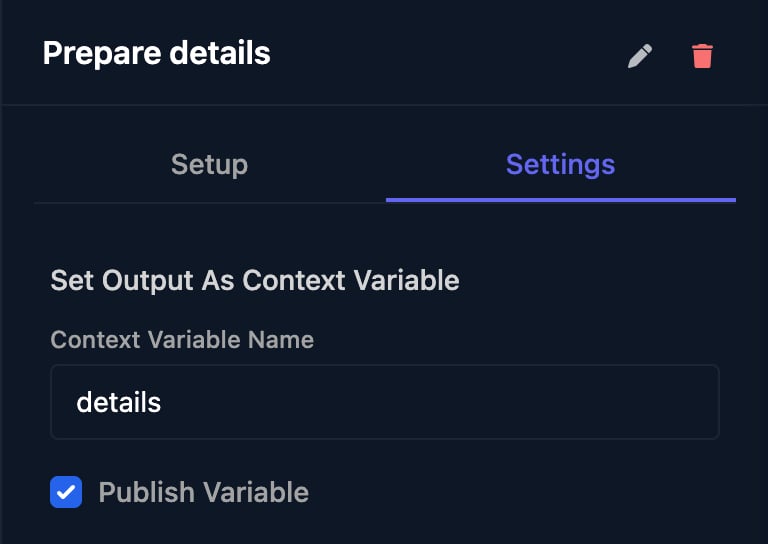 Tick **Publish Variable** to return it to callers that wait for the run, such as a [webhook with `?await=true`](/studio/workflows/triggers#wait-for-the-result). Don't use `params`, `steps`, `client`, `org`, `metadata`, `ticket` or `publishedVariables`: a reserved Context Variable Name is ignored, and a reserved loop Variable Name fails the run.
## When a step fails
A failing step is tried once more after 5 seconds; if it fails again, the run stops as Failed. See [Debug a failed run](/studio/workflows/debugging). To handle failures you expect:
* HTTP Request and Generic Integration Action: tick **Allow Non-2xx Status** and branch on `status` or `statusCode` with a Condition.
* Use the branching steps: Execute PowerShell (Timeout), Check Agents Online, Await Webhook and Check If Integrated.
* An awaited Trigger Workflow carries on when the other workflow fails, with `status` `failed`.
* End a path on purpose with Finish Workflow set to Fail.
* Trigger Workflow, Create Ticket, Log to Ticket, Add User to Group, Remove User from Group, Assign Licenses, Edit User and Revoke User Sessions accept `continueOnError`, which outputs `success: false` and `error` instead of failing. The designer doesn't show it; an AI tool connected through [MCP](/studio/mcp) can set it.
## FAQ
The run has no value at that path. Check the spelling and capitals against the step's Output, that the step ran on this path, and that it hasn't been renamed.
Text pasted into JSON broke it. Use `"key": {{ value | json }}` without quotes around the template.
Add a **Code** step that returns `ctx.params.field || 'default'` and read that.
Condition Language is Triggr Lang, which reads `params.field` without `ctx.`. Switch it to **Javascript**.
Connect the tool as an [integration](/integrations/overview) and use **Generic Integration Action**. Org variables appear in every run's details, so don't keep secrets there.
This documentation is built and hosted on [Mintlify](https://mintlify.com), a developer documentation platform.
Tick **Publish Variable** to return it to callers that wait for the run, such as a [webhook with `?await=true`](/studio/workflows/triggers#wait-for-the-result). Don't use `params`, `steps`, `client`, `org`, `metadata`, `ticket` or `publishedVariables`: a reserved Context Variable Name is ignored, and a reserved loop Variable Name fails the run.
## When a step fails
A failing step is tried once more after 5 seconds; if it fails again, the run stops as Failed. See [Debug a failed run](/studio/workflows/debugging). To handle failures you expect:
* HTTP Request and Generic Integration Action: tick **Allow Non-2xx Status** and branch on `status` or `statusCode` with a Condition.
* Use the branching steps: Execute PowerShell (Timeout), Check Agents Online, Await Webhook and Check If Integrated.
* An awaited Trigger Workflow carries on when the other workflow fails, with `status` `failed`.
* End a path on purpose with Finish Workflow set to Fail.
* Trigger Workflow, Create Ticket, Log to Ticket, Add User to Group, Remove User from Group, Assign Licenses, Edit User and Revoke User Sessions accept `continueOnError`, which outputs `success: false` and `error` instead of failing. The designer doesn't show it; an AI tool connected through [MCP](/studio/mcp) can set it.
## FAQ
The run has no value at that path. Check the spelling and capitals against the step's Output, that the step ran on this path, and that it hasn't been renamed.
Text pasted into JSON broke it. Use `"key": {{ value | json }}` without quotes around the template.
Add a **Code** step that returns `ctx.params.field || 'default'` and read that.
Condition Language is Triggr Lang, which reads `params.field` without `ctx.`. Switch it to **Javascript**.
Connect the tool as an [integration](/integrations/overview) and use **Generic Integration Action**. Org variables appear in every run's details, so don't keep secrets there.
This documentation is built and hosted on [Mintlify](https://mintlify.com), a developer documentation platform.