> ## Documentation Index
> Fetch the complete documentation index at: https://university.triggr-app.com/llms.txt
> Use this file to discover all available pages before exploring further.
# Step types
> Every step in the workflow designer's Components panel: what it does, what to fill in and the output fields later steps read.
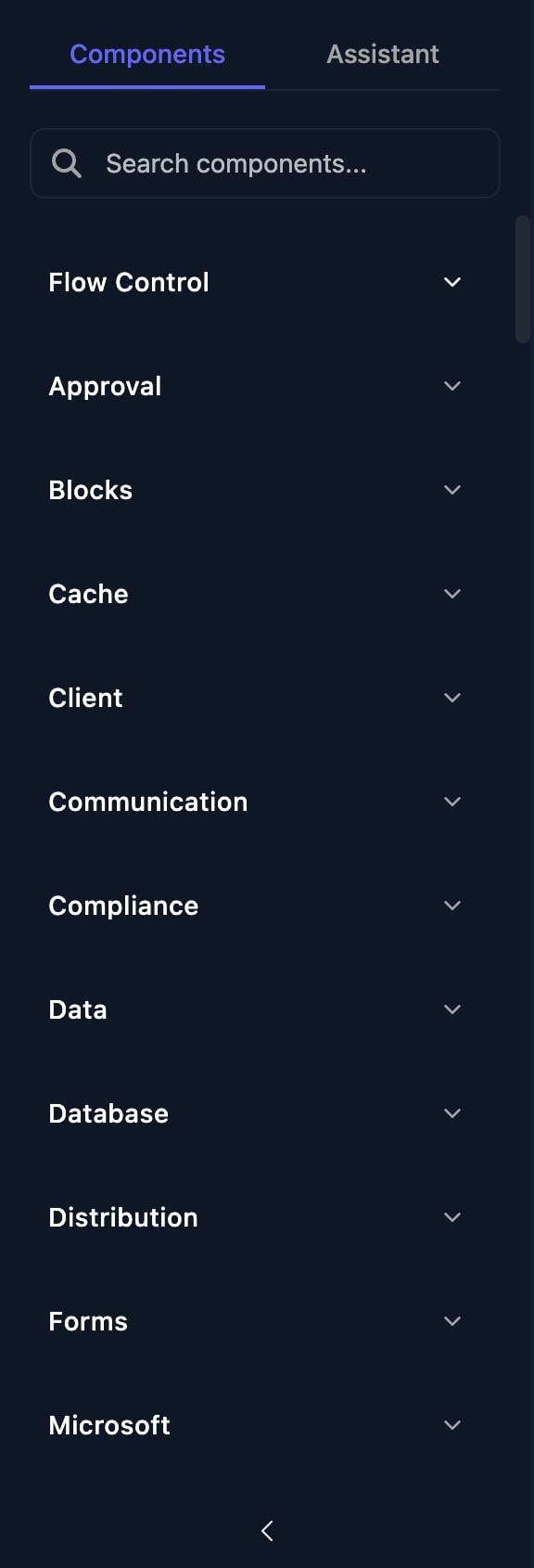
Every step in Components, by group. A later step reads a step's output as `{{ ctx.steps['Step name'].field }}`: see [Data and expressions](/studio/workflows/expressions).
 Branching steps have one dot per branch along the bottom: drag from the branch you want. End every path with Finish Workflow.
## Flow Control
| Step | What it does | Fill in | Output |
| - | - | - | - |
| Trigger | Starts the run. See [Workflow triggers](/studio/workflows/triggers). | Triggers | `triggered_at` |
| Finish Workflow | Ends the path with the run's result. | Outcome, Comment | `outcome`, `comment` |
| Condition | Follows the first branch whose expression is true. | Conditions, Default Branch, Condition Language | `condition_label`, `matched_condition` |
| For Loop | Runs its Body once per item in a list. | Expression, Variable Name | `items`, `currentIndex` |
| End For Loop | Ends a loop pass. | | |
| Delay | Pauses the run. | Duration, Time Unit | `duration`, `unit` |
| Wait Until | Pauses until a date and time. | Date and Time | `completed`, `targetDate`, `timezone` |
| Await Webhook | Waits for a call to a Create Webhook URL. Branches Continued or Timed Out. | Webhook ID, Timeout Override (seconds) | `body`, `headers`, `method`, `params`, `timedOut` |
| Break For Loop | Leaves the loop for On Completion. | | `message`, `action` |
| Check If Integrated | Branches Yes or No on whether an integration is set up. | Integration Type | `integrated` |
| Create Webhook | Makes a one-off callback URL. | Expires In (seconds), Response Body, Max Uses | `webhookUrl`, `webhookId`, `expiresAt` |
### Condition
Add a Condition per branch, each with an expression and a Label. Triggr tries them top to bottom and follows the first that's true, otherwise the Default Branch.
Branching steps have one dot per branch along the bottom: drag from the branch you want. End every path with Finish Workflow.
## Flow Control
| Step | What it does | Fill in | Output |
| - | - | - | - |
| Trigger | Starts the run. See [Workflow triggers](/studio/workflows/triggers). | Triggers | `triggered_at` |
| Finish Workflow | Ends the path with the run's result. | Outcome, Comment | `outcome`, `comment` |
| Condition | Follows the first branch whose expression is true. | Conditions, Default Branch, Condition Language | `condition_label`, `matched_condition` |
| For Loop | Runs its Body once per item in a list. | Expression, Variable Name | `items`, `currentIndex` |
| End For Loop | Ends a loop pass. | | |
| Delay | Pauses the run. | Duration, Time Unit | `duration`, `unit` |
| Wait Until | Pauses until a date and time. | Date and Time | `completed`, `targetDate`, `timezone` |
| Await Webhook | Waits for a call to a Create Webhook URL. Branches Continued or Timed Out. | Webhook ID, Timeout Override (seconds) | `body`, `headers`, `method`, `params`, `timedOut` |
| Break For Loop | Leaves the loop for On Completion. | | `message`, `action` |
| Check If Integrated | Branches Yes or No on whether an integration is set up. | Integration Type | `integrated` |
| Create Webhook | Makes a one-off callback URL. | Expires In (seconds), Response Body, Max Uses | `webhookUrl`, `webhookId`, `expiresAt` |
### Condition
Add a Condition per branch, each with an expression and a Label. Triggr tries them top to bottom and follows the first that's true, otherwise the Default Branch.
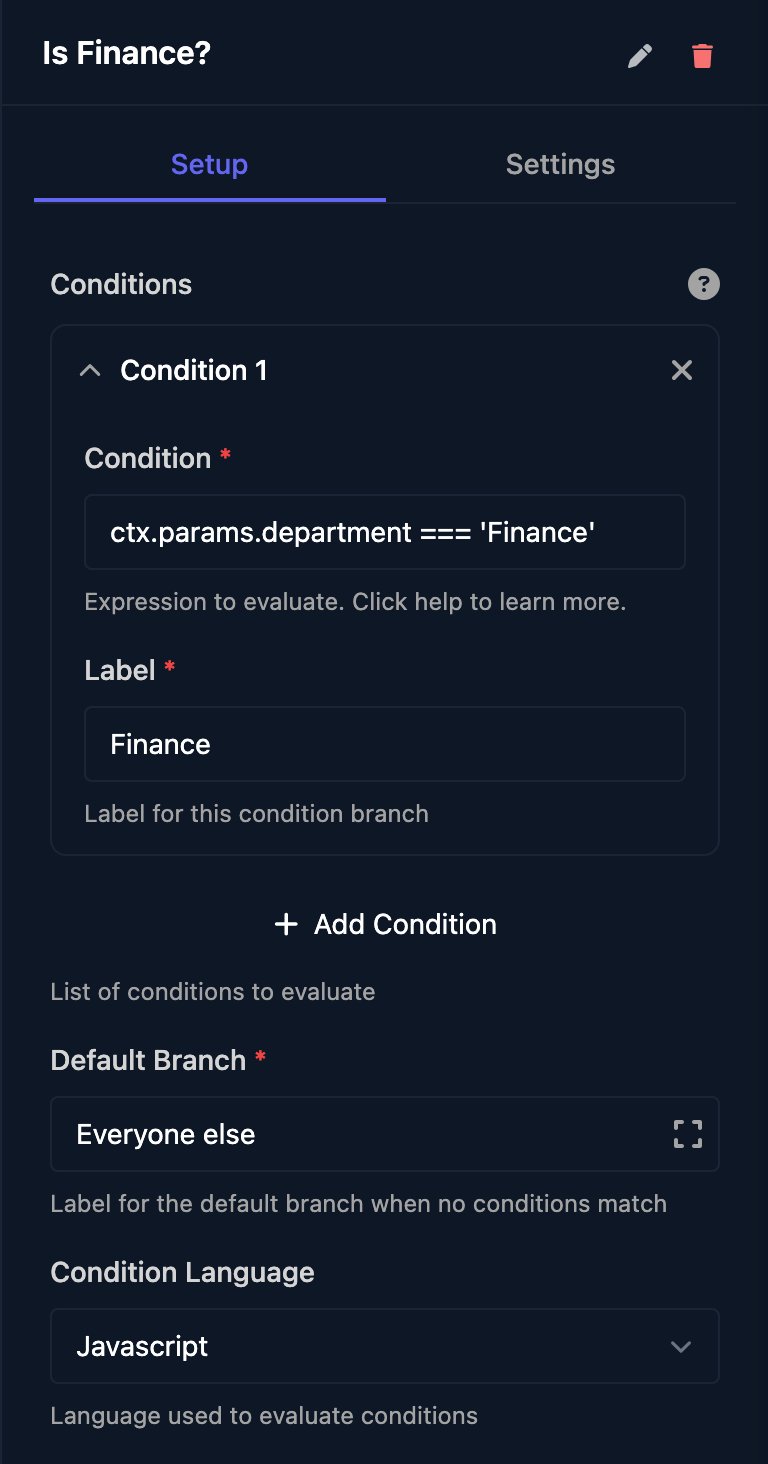 With Condition Language Javascript, write `ctx.` paths without braces: `ctx.params.department === 'Finance'`. The default, Triggr Lang, drops `ctx.` and needs double quotes: `params.department == "Finance"`.
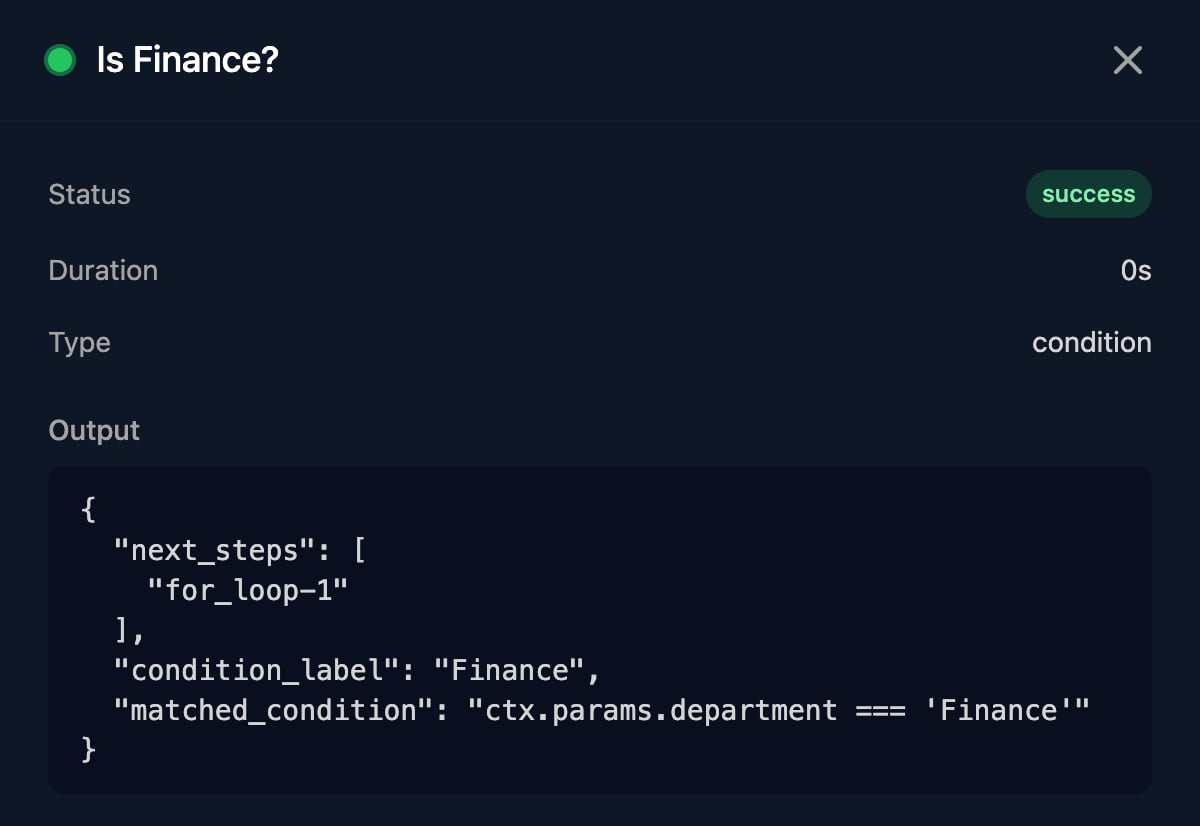
In a run, `condition_label` shows the branch taken, or `Default` when no condition matched:
With Condition Language Javascript, write `ctx.` paths without braces: `ctx.params.department === 'Finance'`. The default, Triggr Lang, drops `ctx.` and needs double quotes: `params.department == "Finance"`.
In a run, `condition_label` shows the branch taken, or `Default` when no condition matched:
 ### For Loop
Expression is JavaScript that returns a list, such as `ctx.params.licences`. The body reads the current item as `ctx.`: `{{ ctx.licence }}`, or `{{ ctx.user.mail }}` for a list of objects.
### For Loop
Expression is JavaScript that returns a list, such as `ctx.params.licences`. The body reads the current item as `ctx.`: `{{ ctx.licence }}`, or `{{ ctx.user.mail }}` for a list of objects.
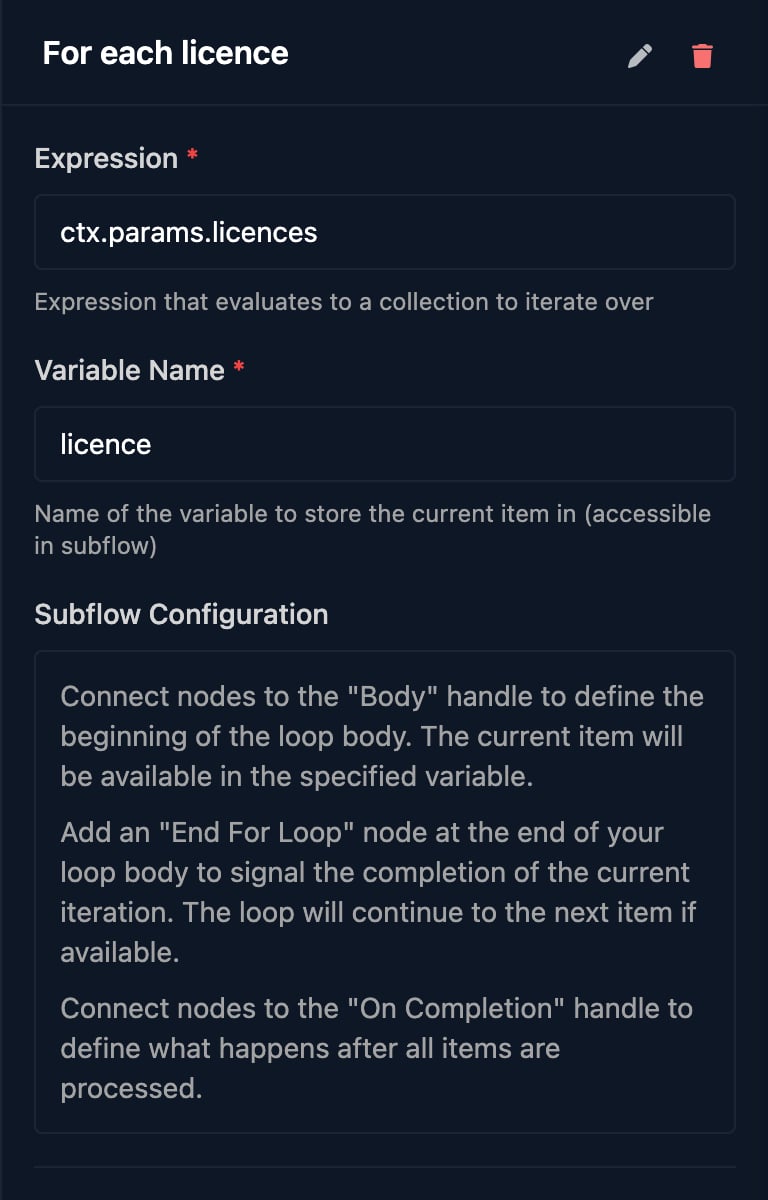 Body (left dot) runs the steps to repeat, ending with End For Loop; On Completion (right dot) runs after the last item.
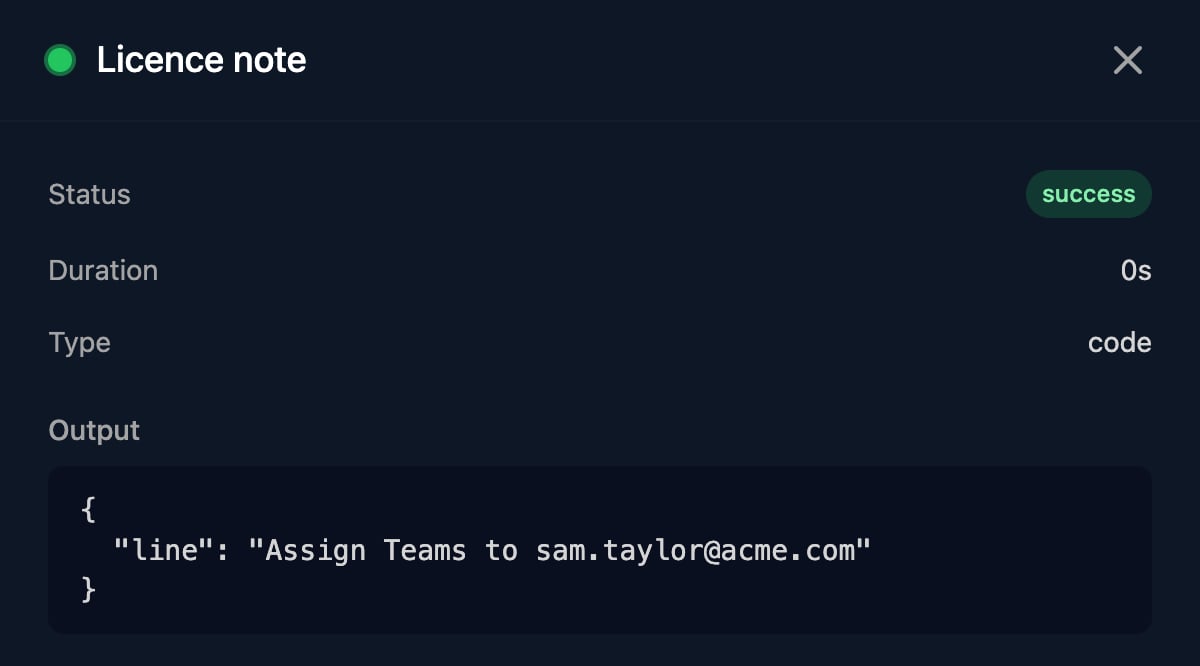
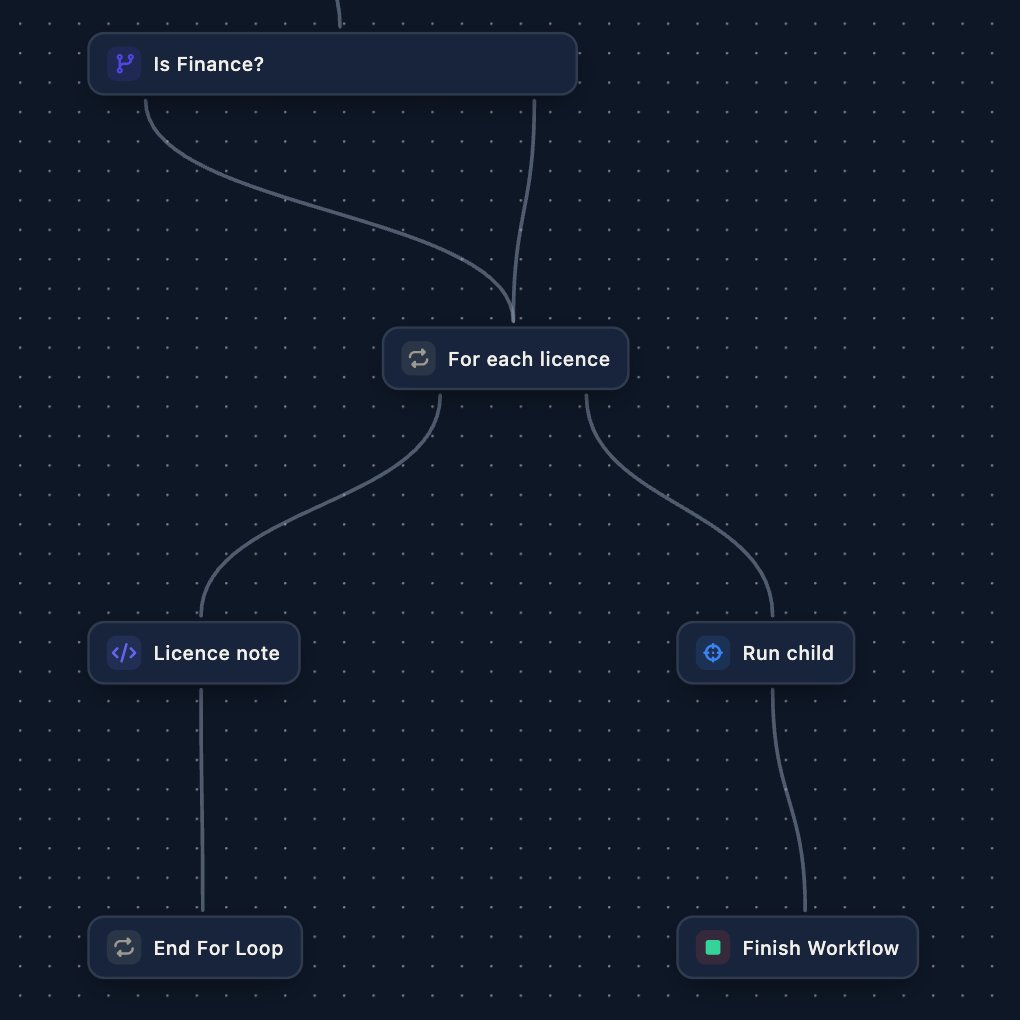 Items run one at a time, and an empty list goes straight to On Completion. In the body, `ctx.steps['Name']` holds a step's latest pass: until the step runs again, it still holds the previous pass's output. To keep every pass, see [Collect results in a loop](/studio/workflows/expressions#collect-results-in-a-loop). Here Licence note returns `'Assign ' + ctx.licence + ' to ' + ctx.details.upn`; its second pass:
 ### Delay and Wait Until
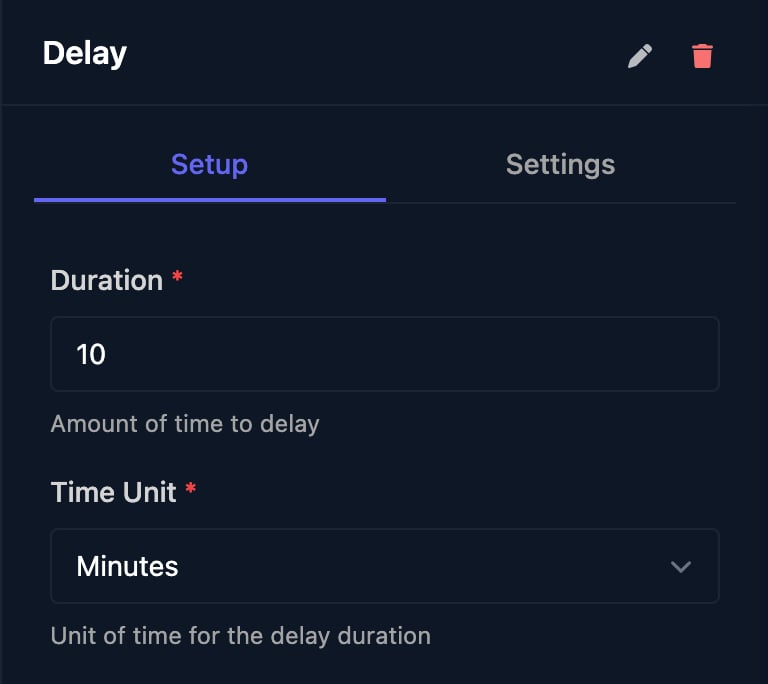
Delay waits a fixed Duration.
### Delay and Wait Until
Delay waits a fixed Duration.
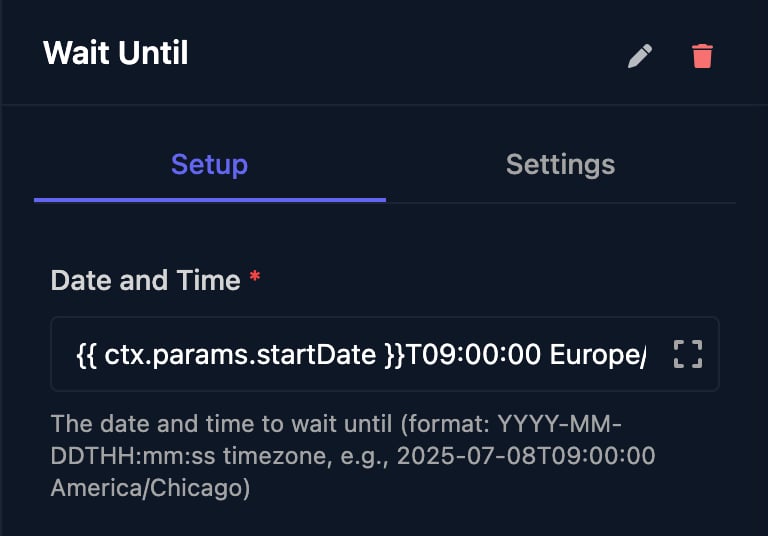
 Wait Until takes `YYYY-MM-DDTHH:MM:SS` and a time zone. A `YYYY-MM-DD` value from a webhook or **Manual Trigger** works as shown: `{{ ctx.params.startDate }}T09:00:00 Europe/London`. A form's Date field sends a timestamp instead, so use the day from a Code step ([recipe](/studio/workflows/expressions#recipes)): `{{ ctx.steps['Prepare details'].startDay }}T09:00:00 Europe/London`.
 ### Trigger Workflow
Trigger Workflow (Triggr) starts another workflow, which reads Parameters as `ctx.params`. The client isn't inherited: pass `{{ ctx.client.id }}` and add Set Client By ID there.
### Trigger Workflow
Trigger Workflow (Triggr) starts another workflow, which reads Parameters as `ctx.params`. The client isn't inherited: pass `{{ ctx.client.id }}` and add Set Client By ID there.
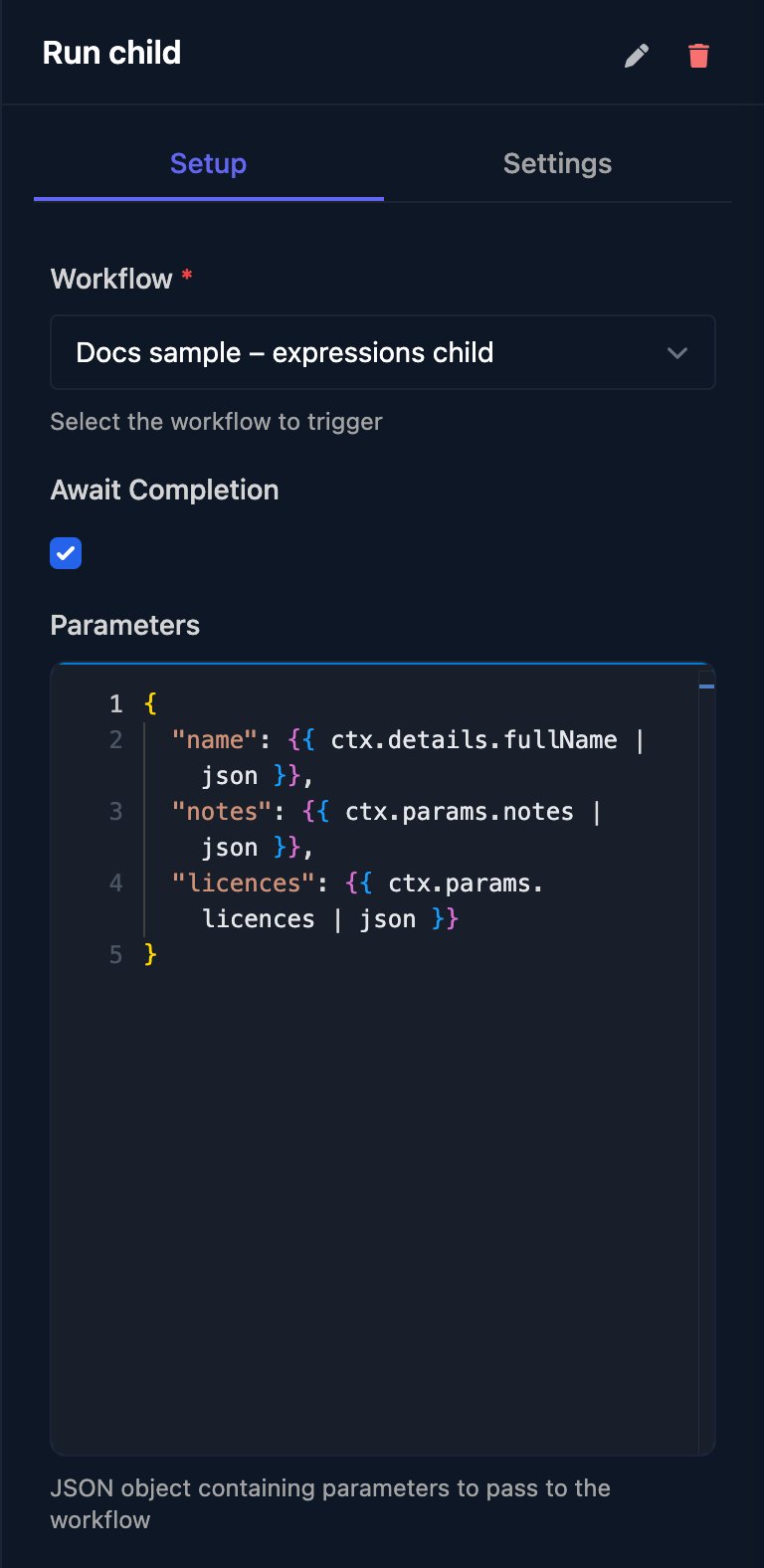 * Without Await Completion: this run carries on at once. Output: `triggeredWorkflowExecutionId`, `workflowName`.
* With it: this step waits for the other workflow, however long. Output: `status` (`completed` or `failed`), `finishNodeOutput.outcome` and `finishNodeOutput.comment`, so return values in that workflow's Finish Workflow Comment.
* Without Await Completion: this run carries on at once. Output: `triggeredWorkflowExecutionId`, `workflowName`.
* With it: this step waits for the other workflow, however long. Output: `status` (`completed` or `failed`), `finishNodeOutput.outcome` and `finishNodeOutput.comment`, so return values in that workflow's Finish Workflow Comment.
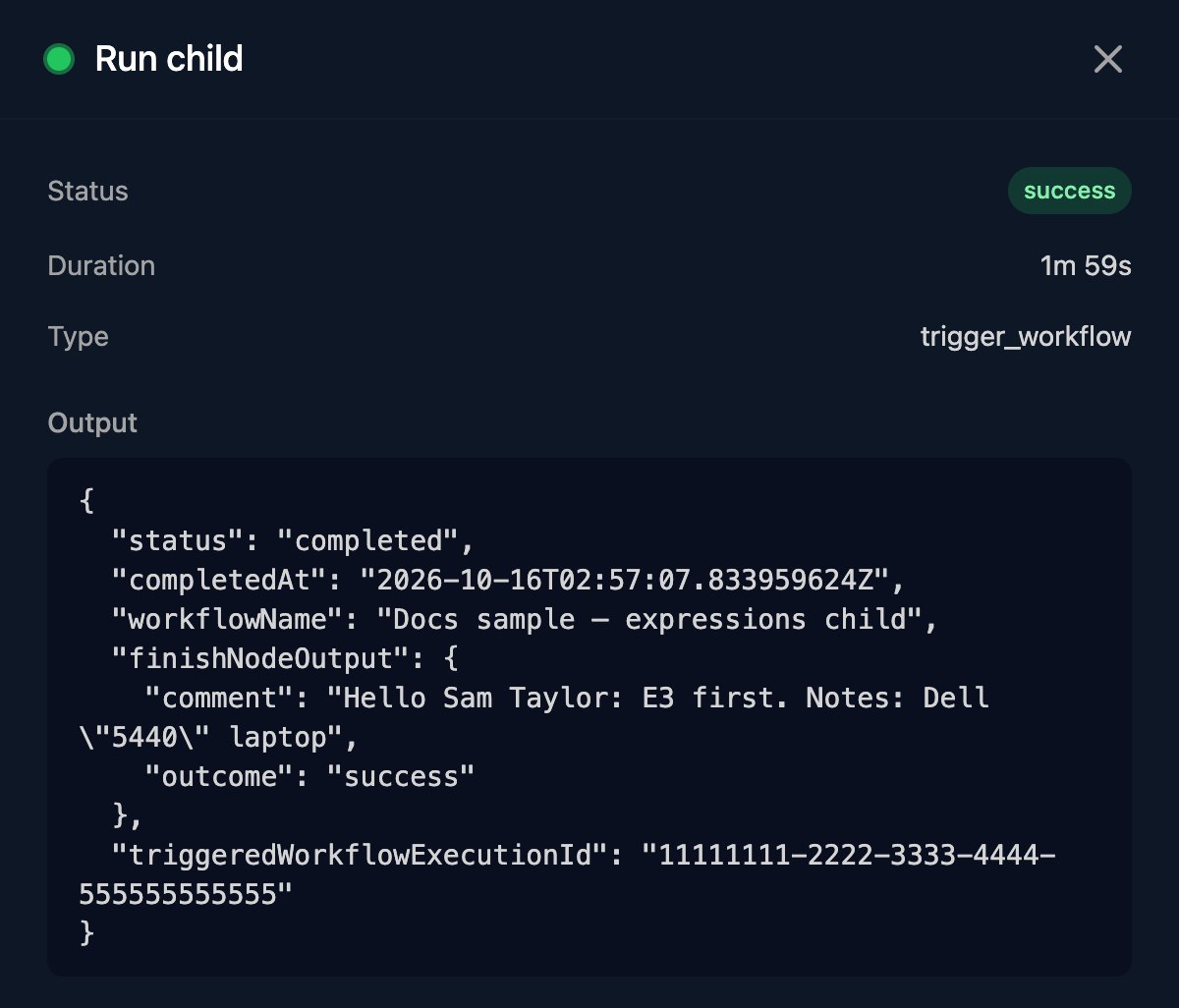 A failed child doesn't fail this run: check `ctx.steps['Run child'].status === 'completed'` with a Condition before reading `finishNodeOutput`.
### Finish Workflow
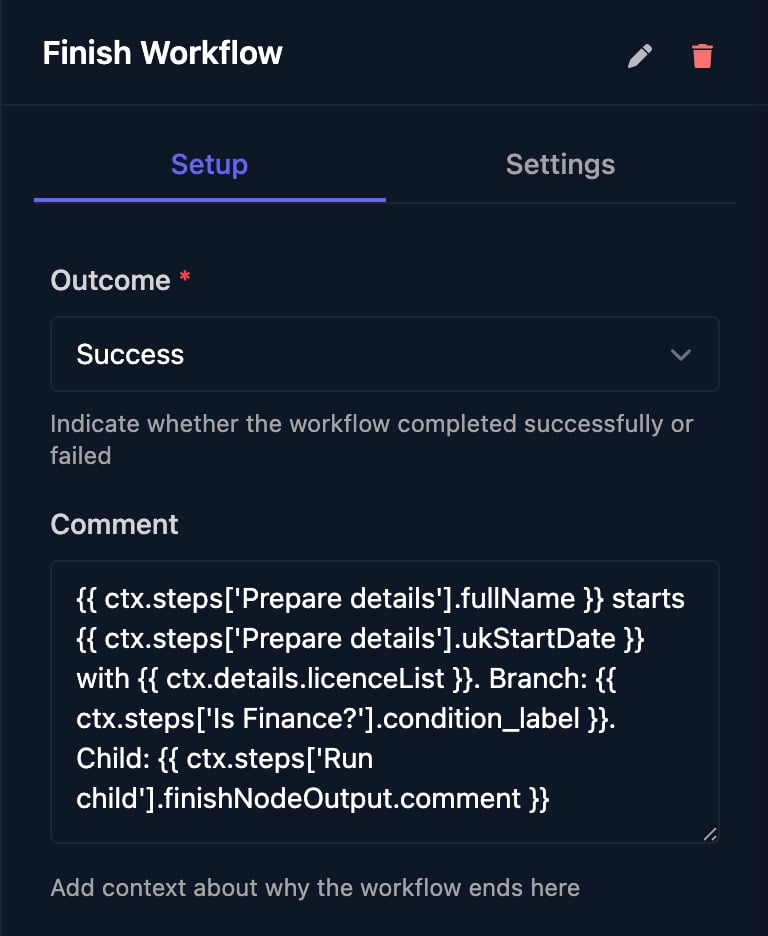
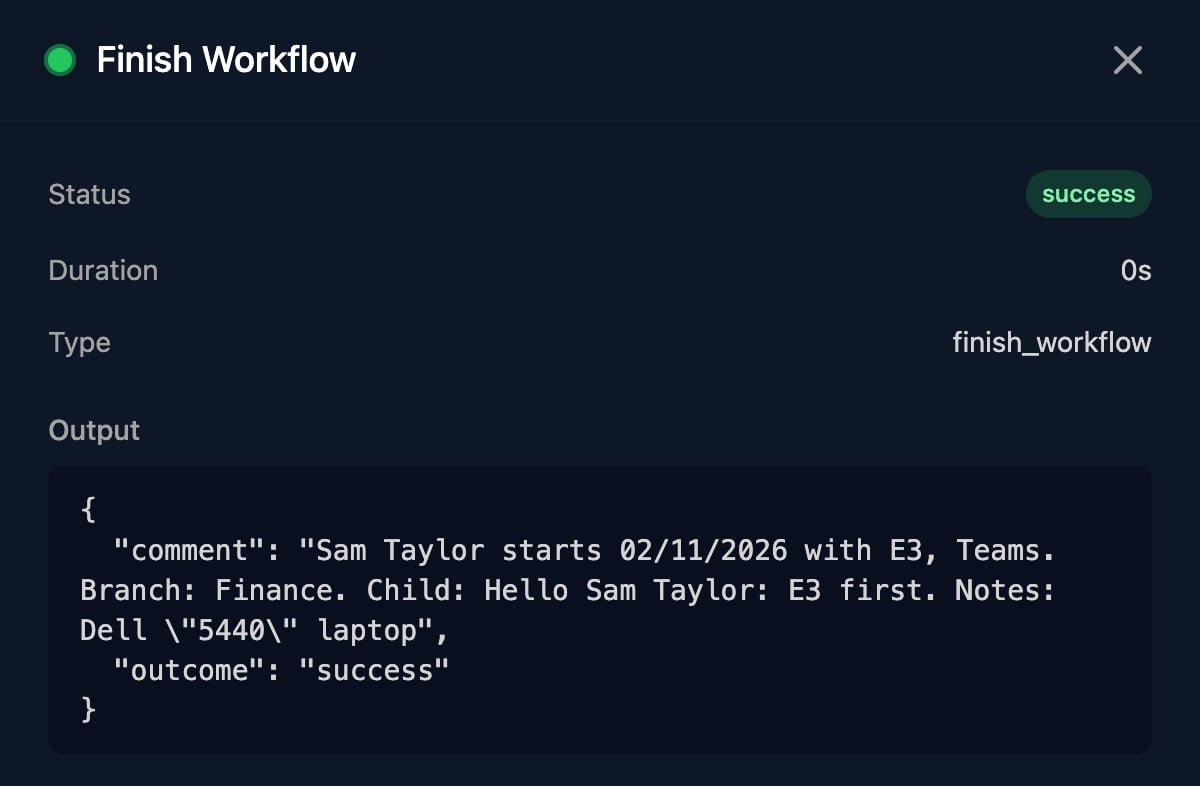
Set Outcome to `Success` to complete the run, or `Fail` to mark it Failed. Comment goes back to an awaiting workflow or a [webhook caller with `?await=true`](/studio/workflows/triggers#wait-for-the-result).
A failed child doesn't fail this run: check `ctx.steps['Run child'].status === 'completed'` with a Condition before reading `finishNodeOutput`.
### Finish Workflow
Set Outcome to `Success` to complete the run, or `Fail` to mark it Failed. Comment goes back to an awaiting workflow or a [webhook caller with `?await=true`](/studio/workflows/triggers#wait-for-the-result).
 ## Approval
| Step | What it does | Fill in | Output |
| - | - | - | - |
| Human In The Loop | Asks a person or group to approve; carries on either way. | Approval Type, To or User Group, Subject, Body | `approved`, `approvedByUserEmail`, `rejectionReason` |
| Approval With Logging | The same, logged to the run's PSA ticket. Branches Approved or Rejected. | As above, plus Log pending approval, Log on approved, Log on rejected | As above |
| Determine Approval Type | Branches Internal, External or None for the client. | Client ID, Default Approval Type, Client Overrides | `approvalType`, `source`, `clientId` |
| Manual Step | Adds a task to Manual Steps and waits for it. | Title, Instructions, Form (Optional) | `manualStepId`, `completed`, `submission` |
See [Approvals and manual steps](/studio/workflows/approvals-and-manual-steps).
## Client
Microsoft, PSA and On Prem steps act on the run's client, `ctx.client`. Set one first when the trigger doesn't.
| Step | What it does | Fill in | Output |
| - | - | - | - |
| Set Client | Sets one fixed client. | Client | `clientId`, `metadata` |
| Set Client By ID | Sets the client from an ID. | Client ID | `clientId`, `metadata` |
| Set Client From Form | Matches the submitter's Microsoft tenant, or `microsoftTenantId` in the input, to a client's `microsoftTenantId`. A `tenantId` in the input is read as a client's ID. | | `client`, `metadata`, `tenantIdSource` |
To change a client variable, use Set Client Variable in the Triggr group.
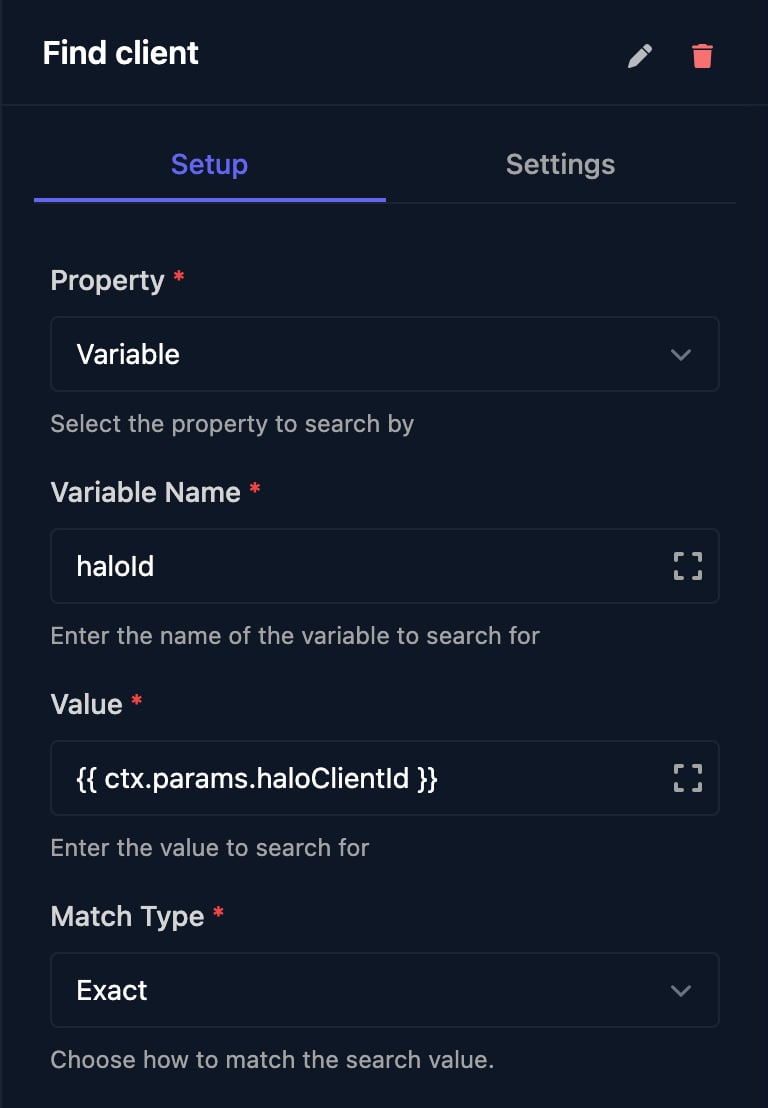
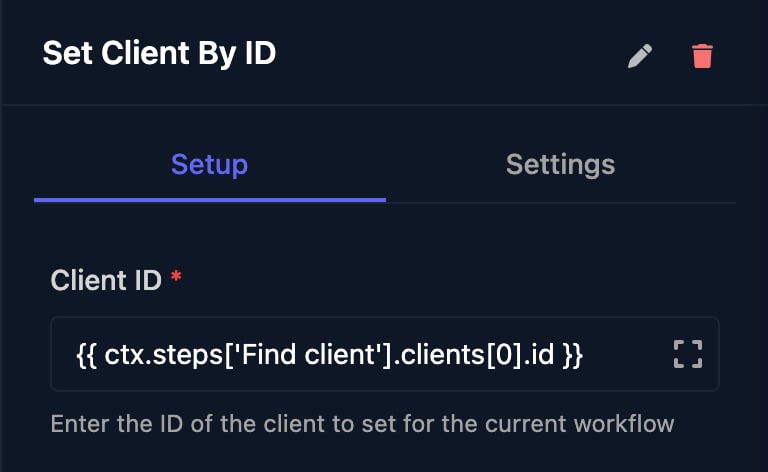
Find the ID with **Search For Client** (Triggr), then pass `{{ ctx.steps['Find client'].clients[0].id }}`:
## Approval
| Step | What it does | Fill in | Output |
| - | - | - | - |
| Human In The Loop | Asks a person or group to approve; carries on either way. | Approval Type, To or User Group, Subject, Body | `approved`, `approvedByUserEmail`, `rejectionReason` |
| Approval With Logging | The same, logged to the run's PSA ticket. Branches Approved or Rejected. | As above, plus Log pending approval, Log on approved, Log on rejected | As above |
| Determine Approval Type | Branches Internal, External or None for the client. | Client ID, Default Approval Type, Client Overrides | `approvalType`, `source`, `clientId` |
| Manual Step | Adds a task to Manual Steps and waits for it. | Title, Instructions, Form (Optional) | `manualStepId`, `completed`, `submission` |
See [Approvals and manual steps](/studio/workflows/approvals-and-manual-steps).
## Client
Microsoft, PSA and On Prem steps act on the run's client, `ctx.client`. Set one first when the trigger doesn't.
| Step | What it does | Fill in | Output |
| - | - | - | - |
| Set Client | Sets one fixed client. | Client | `clientId`, `metadata` |
| Set Client By ID | Sets the client from an ID. | Client ID | `clientId`, `metadata` |
| Set Client From Form | Matches the submitter's Microsoft tenant, or `microsoftTenantId` in the input, to a client's `microsoftTenantId`. A `tenantId` in the input is read as a client's ID. | | `client`, `metadata`, `tenantIdSource` |
To change a client variable, use Set Client Variable in the Triggr group.
Find the ID with **Search For Client** (Triggr), then pass `{{ ctx.steps['Find client'].clients[0].id }}`:
 ## Communication
Send Email sends from `app@triggr-app.com`, or from your own address with a [sending profile](/studio/settings/sending-profiles). To takes comma-separated addresses, each emailed separately. Body accepts HTML. Output: `status`, `recipients`, `from`.
## Communication
Send Email sends from `app@triggr-app.com`, or from your own address with a [sending profile](/studio/settings/sending-profiles). To takes comma-separated addresses, each emailed separately. Body accepts HTML. Output: `status`, `recipients`, `from`.
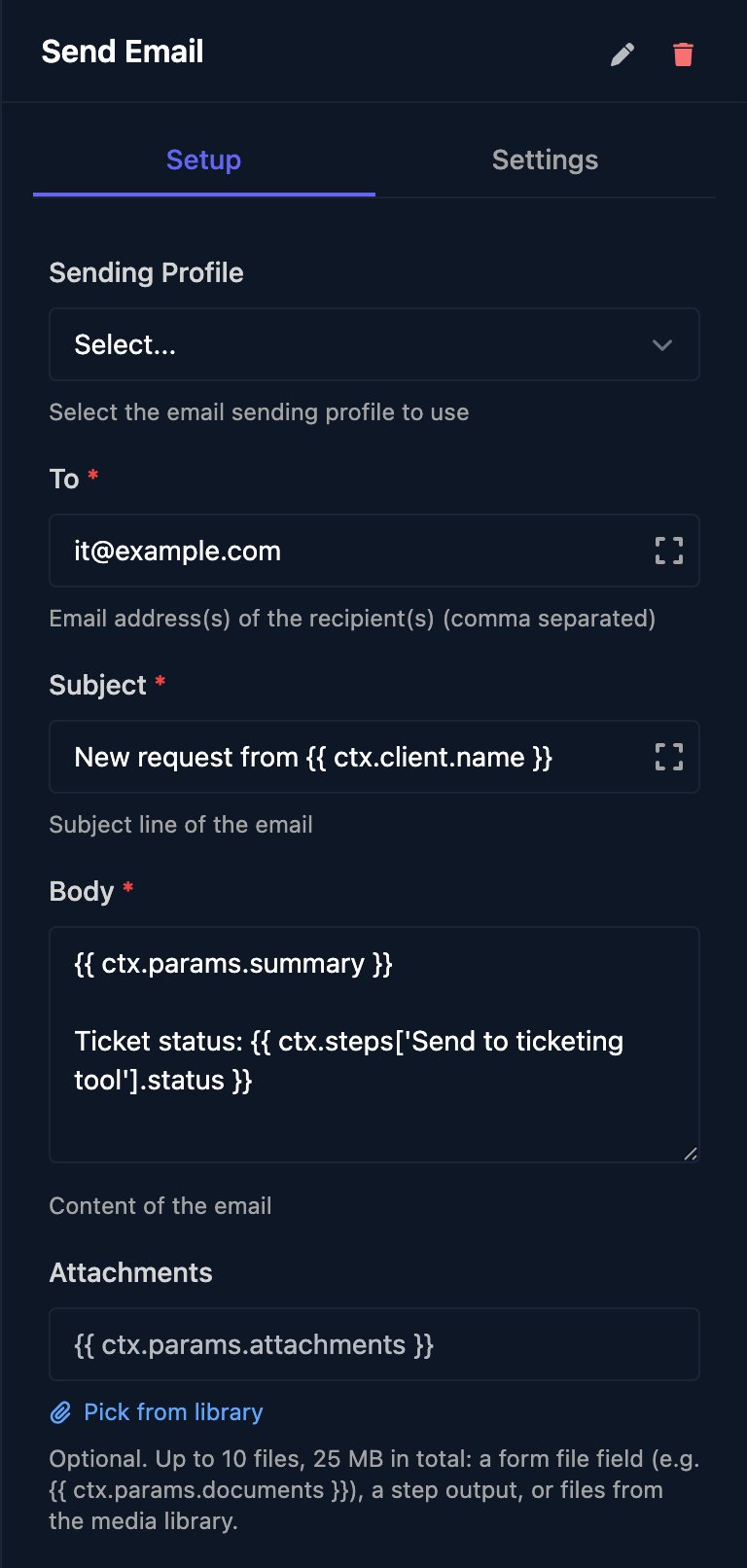 Attachments: up to 10 files, 25 MB in total (22 MB without a sending profile).
## Data and Database
| Step | What it does | Fill in | Output |
| - | - | - | - |
| Code (Data) | Runs JavaScript and outputs what it `return`s. See [recipes](/studio/workflows/expressions#recipes). | JavaScript | Your returned fields |
| Execute SQL (Database) | Runs a query on a PostgreSQL database from Data > Databases. | Database, SQL Query | `data`, `value`, `success` |
Attachments: up to 10 files, 25 MB in total (22 MB without a sending profile).
## Data and Database
| Step | What it does | Fill in | Output |
| - | - | - | - |
| Code (Data) | Runs JavaScript and outputs what it `return`s. See [recipes](/studio/workflows/expressions#recipes). | JavaScript | Your returned fields |
| Execute SQL (Database) | Runs a query on a PostgreSQL database from Data > Databases. | Database, SQL Query | `data`, `value`, `success` |
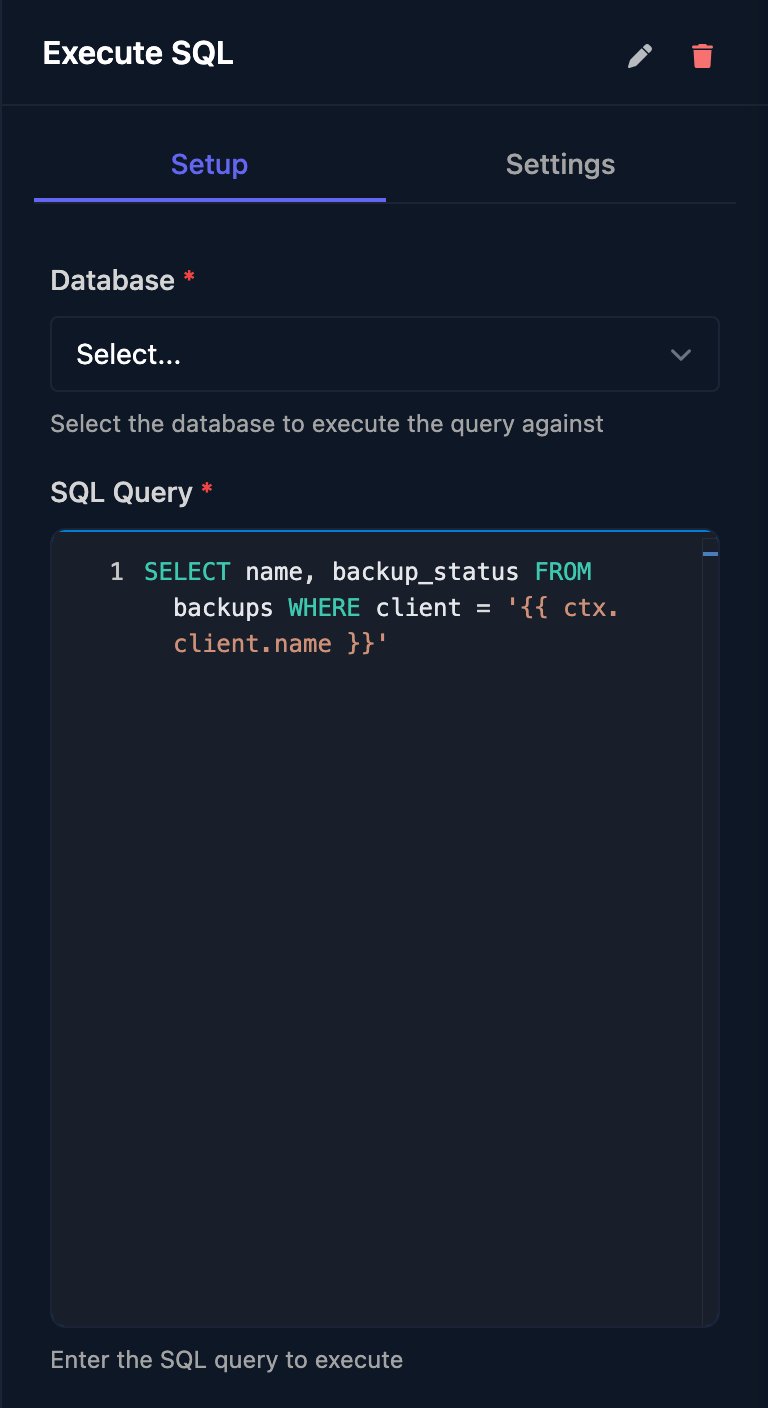 `data` lists the rows with every value as text; `value` is the number from a single-row `count`, `sum`, `avg`, `min`, `max` or `total` column. Templates go into the SQL as plain text, so quote text values.
## Network
| Step | What it does | Fill in | Output |
| - | - | - | - |
| HTTP Request | Calls any URL. | Method, URL, Headers, Body Type, Body, Allow Non-2xx Status, Allow Insecure TLS | `status`, `headers`, `body` |
| Generic Integration Action | Calls any endpoint of a connected integration, with its authentication. | Integration, URL Type, URL, Method, Headers, Body Type, Body | `statusCode`, `headers`, `body` |
`data` lists the rows with every value as text; `value` is the number from a single-row `count`, `sum`, `avg`, `min`, `max` or `total` column. Templates go into the SQL as plain text, so quote text values.
## Network
| Step | What it does | Fill in | Output |
| - | - | - | - |
| HTTP Request | Calls any URL. | Method, URL, Headers, Body Type, Body, Allow Non-2xx Status, Allow Insecure TLS | `status`, `headers`, `body` |
| Generic Integration Action | Calls any endpoint of a connected integration, with its authentication. | Integration, URL Type, URL, Method, Headers, Body Type, Body | `statusCode`, `headers`, `body` |
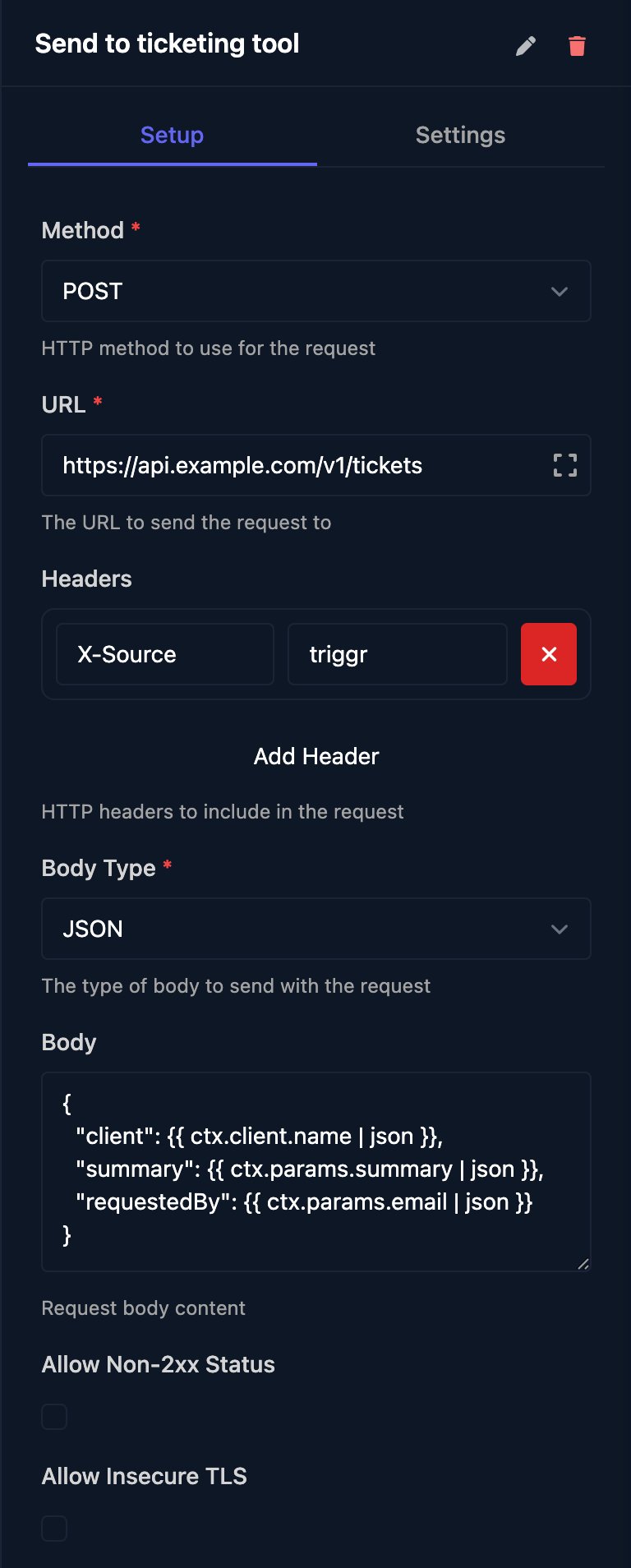 A JSON reply arrives parsed in `body`. A status outside 200–299 fails the step unless Allow Non-2xx Status is ticked; then branch on `status`. Requests time out after 30 seconds.
## On Prem
These run on a client's network through the [desktop agent](/desktop-agent/overview), using scripts from On-Prem > Scripts.
| Step | What it does | Fill in | Output |
| - | - | - | - |
| Execute PowerShell | Runs a script for the run's client and waits for the result. | Script, Parameters | `completed`, `output`, `error` |
| Execute PowerShell (Timeout) | The same, but branches Completed, Failed or Timed Out. | Script, Parameters, Timeout (seconds), Client ID | `status`, `output`, `error`, `timedOut` |
| List Agents | Lists a client's agents. | Client ID | `agents`, `anyOnline`, `onlineCount` |
| List All Agents | Lists every agent for every client. | | `agents`, `clientsWithNoOnlineAgent` |
| Get Agent Status | Reads one agent. | Agent ID or Agent Name, Client ID | `status`, `lastSeenAt` |
| Check Agents Online | Branches Online or Offline. No agents counts as Offline. | Client ID, Require, Stale After (minutes) | `online`, `offlineAgentNames` |
| Probe Agent | Checks an agent responds. Branches Responded or Unresponsive. | Client ID, Timeout (seconds), Probe Script | `responded`, `responseTimeMs` |
A JSON reply arrives parsed in `body`. A status outside 200–299 fails the step unless Allow Non-2xx Status is ticked; then branch on `status`. Requests time out after 30 seconds.
## On Prem
These run on a client's network through the [desktop agent](/desktop-agent/overview), using scripts from On-Prem > Scripts.
| Step | What it does | Fill in | Output |
| - | - | - | - |
| Execute PowerShell | Runs a script for the run's client and waits for the result. | Script, Parameters | `completed`, `output`, `error` |
| Execute PowerShell (Timeout) | The same, but branches Completed, Failed or Timed Out. | Script, Parameters, Timeout (seconds), Client ID | `status`, `output`, `error`, `timedOut` |
| List Agents | Lists a client's agents. | Client ID | `agents`, `anyOnline`, `onlineCount` |
| List All Agents | Lists every agent for every client. | | `agents`, `clientsWithNoOnlineAgent` |
| Get Agent Status | Reads one agent. | Agent ID or Agent Name, Client ID | `status`, `lastSeenAt` |
| Check Agents Online | Branches Online or Offline. No agents counts as Offline. | Client ID, Require, Stale After (minutes) | `online`, `offlineAgentNames` |
| Probe Agent | Checks an agent responds. Branches Responded or Unresponsive. | Client ID, Timeout (seconds), Probe Script | `responded`, `responseTimeMs` |
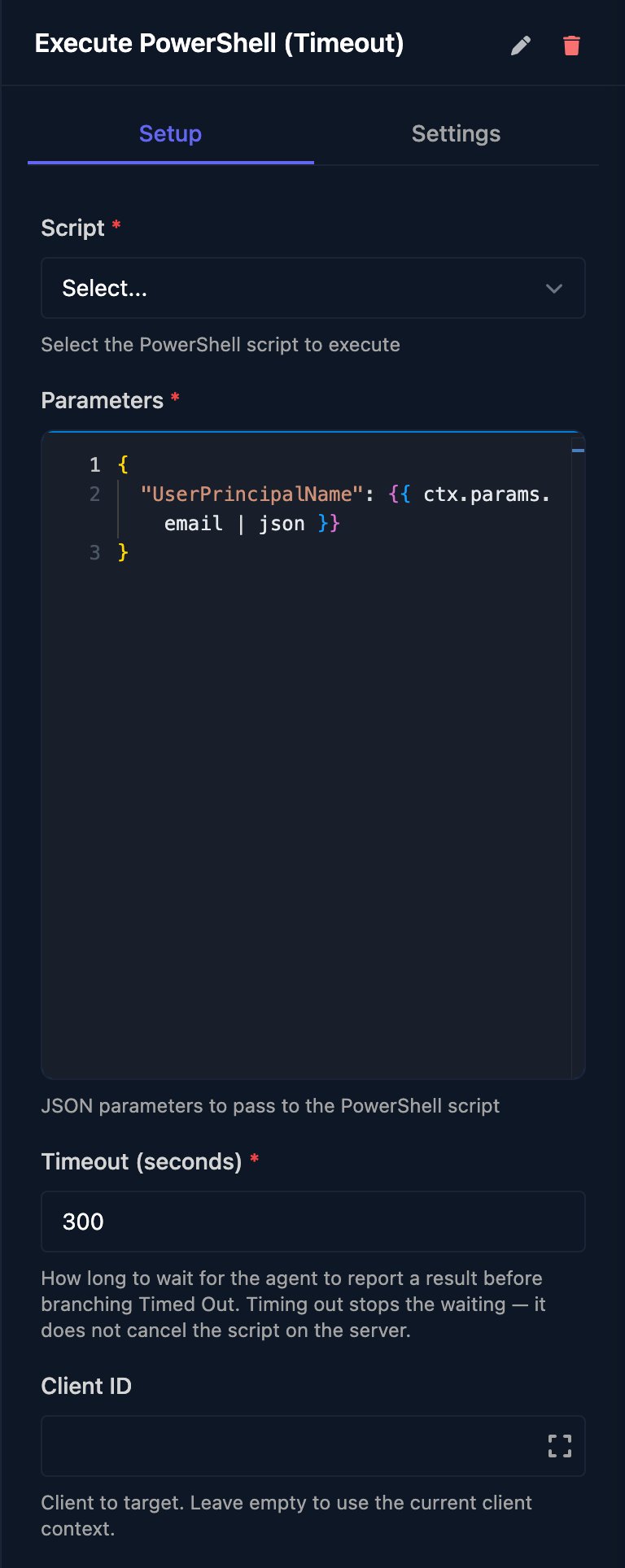 Parameters must be valid JSON. Execute PowerShell waits for the agent indefinitely, so prefer Execute PowerShell (Timeout) (30 to 86,400 seconds); timing out stops the wait, not the script.
## Microsoft
Each step acts on the run's client's Microsoft 365 tenant. Connection Type Automatic uses the org variable `defaultMicrosoftConnection`; or choose [CIPP](/integrations/cipp), [Microsoft Graph (GDAP)](/integrations/microsoft-graph/gdap-service-account) or [Microsoft Graph (SAM)](/integrations/microsoft-graph/sam). User Identifier takes a UPN or object ID.
| Step | Fill in | Output |
| - | - | - |
| Create User | Display Name, User Principal Name, Password, Usage Location and profile fields | `id`, `userPrincipalName`, `password` |
| Edit User | User ID and the fields to change | `id`, `userPrincipalName` |
| Get User | User Identifier | `id`, `displayName`, `mail`, `accountEnabled`, `assignedLicenseNames` and profile fields |
| List Users | Enabled Users Only, Licensed Users Only, Exclude Guest Users | `users` |
| Enable User, Disable User | User Identifier | `accountEnabled` |
| Delete User | User Identifier | `success` |
| Reset User Password | User Identifier, New Password | `password` |
| Revoke User Sessions | User Identifier | `success` |
| Get UPNs by User IDs | User IDs (CSV) | `upns`, in the order of the IDs |
| Wait for User Sync | User Identifier, Timeout (seconds). Branches Synced or Timed Out. | `status`, `user` |
| Assign Licenses, Remove Licenses | User Identifier, License SKU IDs | `success`, `assignedLicenseSkuIds` |
| Get All Licenses | | `licenses` |
| Get Licenses to Assign | Client ID and the user's attributes | `matchedRule`, `outcome.skuPartNumbers` |
| List Groups | Filter Type | `groups` |
| List Group Members | Group Identifier | `users` |
| Create Group, Delete Group | Display Name, Group Type / Group Identifier | `groupId`, `success` |
| Add User to Group, Remove User from Group | User Identifier, Group Identifier | `success` |
| Convert to Shared Mailbox | User Identifier | `success` |
| Grant Shared Mailbox Access, Remove Shared Mailbox Access | Shared Mailbox, User Identifier, access options | `success` |
| Set Out of Office | User Identifier, Status, External Message | `success` |
| Set User Photo | User, Photo | `success` |
| Upload File to OneDrive / SharePoint | Destination, User or Site URL, Folder Path, File | `itemId`, `webUrl` |
| List Domains | Exclude onmicrosoft.com Domains | `domains` |
| Grant GDAP Consent | Client ID | `success`, `failedTenantIds` |
| Remove GDAP Consent | Client ID. Removes all of Triggr's delegated access to the client. | `success` |
## PSA
These use your default PSA, the org variable `defaultPSA` (`halo`, `connectwise` or `autotask`), set with Setup Wizard on Settings > Org Variables.
| Step | What it does | Fill in | Output |
| - | - | - | - |
| Create Ticket | Raises a ticket and remembers it as `ctx.ticket.id`. | Title, Body, and your PSA's fields | `ticket_id`, `success` |
| Log to Ticket | Adds a note to the run's ticket, or Ticket ID. | Visibility, Title, Body, Send Email | `success`, `ticket_id`, and `action_id` (HaloPSA) or `note_id` |
| Set Ticket ID | Uses an existing ticket for later steps. | Ticket ID | `ticket_id` |
## Triggr
| Step | What it does | Fill in | Output |
| - | - | - | - |
| Trigger Workflow | Starts another workflow. See [above](#trigger-workflow). | Workflow, Await Completion, Parameters | See above |
| Search For Client | Finds clients by ID, name or variable, newest first. | Property, Variable Name, Value, Match Type | `clients`, `found` |
| List Clients | Lists up to Limit clients (50 by default); `totalCount` is the full number. | Search, Limit, Offset | `clients`, `totalCount` |
| Create Client | Adds a client. | Client Name | `client`, `success` |
| Update Client | Renames a client. | Client ID, Client Name | `success` |
| Delete Client | Deletes a client. | Client ID | `success` |
| Set Client Variable | Sets a client variable; an empty Value clears it. | Client ID, Property, Value | `success`, `clientId`, `property`, `value` |
## Utilities
| Step | What it does | Fill in | Output |
| - | - | - | - |
| Generate Password | Random password. | Password Length and character options | `password` |
| Generate Friendly Password | Password made of words. | Number of words and options | `password` |
| Generate Custom Reference | Reference of 5 to 10 words, such as `amber-river-fox-dawn-meadow`. | Number of Segments | `reference` |
| Base64 Encode, Base64 Decode | Encodes or decodes text. | Input | `encoded`, `decoded` |
| Create PrivateBin Paste | Shares text through a PrivateBin link. | Server URL, Expires, Burn After Reading, Details To Share | `accessUrl` (the link to share), `passcode`, `expires` |
| Create File | Makes a file from text, Base64 or a URL, kept 7 days. | Source, Content or URL, File Name | `fileRef` |
| Save to Media Library | Keeps a file permanently in Media. | File, Name, Folder | `fileRef` |
## Other groups
| Group | Steps |
| - | - |
| Cache | Get Cache Data (`value`), Refresh Cache Data and Invalidate Cache Data for a Cache Definition from Data > Cache. |
| Compliance | Start Compliance Log (`compliance_log_id`), Compliance Log Entry, Set Compliance Log and Lock Compliance Log. |
| Distribution | List Packages (`packages`), List Products For Package (`products`) and Schedule Subscription Change for Pax8, Sherweb or TD Synnex Stellr. |
| Forms | Await Form Submission emails a form link and waits for the answers (`formSubmissionId`, `submission`). |
| Reporting | Generate Report builds a report from a Template (`reportId`, `status`). |
## Integrations
Below the Integrations divider, every integration has a group of its actions. Set the integration up before you use one; see the [integration guides](/integrations/overview). An action outputs `statusCode`, `headers` and `body` (the other system's reply).
## FAQ
The other system refused the call. Tick **Allow Non-2xx Status** and branch on `status`, or use Generic Integration Action for a connected tool so Triggr signs the request.
No default PSA is set. Run **Setup Wizard** on **Settings > Org Variables** and choose your PSA.
A step is waiting: an approval, a manual step, a delay, an awaited workflow or an agent. See [Stop a stuck run](/studio/workflows/debugging#stop-a-stuck-run).
For other messages, see [Common errors](/studio/workflows/debugging#common-errors).
This documentation is built and hosted on [Mintlify](https://mintlify.com), a developer documentation platform.
Parameters must be valid JSON. Execute PowerShell waits for the agent indefinitely, so prefer Execute PowerShell (Timeout) (30 to 86,400 seconds); timing out stops the wait, not the script.
## Microsoft
Each step acts on the run's client's Microsoft 365 tenant. Connection Type Automatic uses the org variable `defaultMicrosoftConnection`; or choose [CIPP](/integrations/cipp), [Microsoft Graph (GDAP)](/integrations/microsoft-graph/gdap-service-account) or [Microsoft Graph (SAM)](/integrations/microsoft-graph/sam). User Identifier takes a UPN or object ID.
| Step | Fill in | Output |
| - | - | - |
| Create User | Display Name, User Principal Name, Password, Usage Location and profile fields | `id`, `userPrincipalName`, `password` |
| Edit User | User ID and the fields to change | `id`, `userPrincipalName` |
| Get User | User Identifier | `id`, `displayName`, `mail`, `accountEnabled`, `assignedLicenseNames` and profile fields |
| List Users | Enabled Users Only, Licensed Users Only, Exclude Guest Users | `users` |
| Enable User, Disable User | User Identifier | `accountEnabled` |
| Delete User | User Identifier | `success` |
| Reset User Password | User Identifier, New Password | `password` |
| Revoke User Sessions | User Identifier | `success` |
| Get UPNs by User IDs | User IDs (CSV) | `upns`, in the order of the IDs |
| Wait for User Sync | User Identifier, Timeout (seconds). Branches Synced or Timed Out. | `status`, `user` |
| Assign Licenses, Remove Licenses | User Identifier, License SKU IDs | `success`, `assignedLicenseSkuIds` |
| Get All Licenses | | `licenses` |
| Get Licenses to Assign | Client ID and the user's attributes | `matchedRule`, `outcome.skuPartNumbers` |
| List Groups | Filter Type | `groups` |
| List Group Members | Group Identifier | `users` |
| Create Group, Delete Group | Display Name, Group Type / Group Identifier | `groupId`, `success` |
| Add User to Group, Remove User from Group | User Identifier, Group Identifier | `success` |
| Convert to Shared Mailbox | User Identifier | `success` |
| Grant Shared Mailbox Access, Remove Shared Mailbox Access | Shared Mailbox, User Identifier, access options | `success` |
| Set Out of Office | User Identifier, Status, External Message | `success` |
| Set User Photo | User, Photo | `success` |
| Upload File to OneDrive / SharePoint | Destination, User or Site URL, Folder Path, File | `itemId`, `webUrl` |
| List Domains | Exclude onmicrosoft.com Domains | `domains` |
| Grant GDAP Consent | Client ID | `success`, `failedTenantIds` |
| Remove GDAP Consent | Client ID. Removes all of Triggr's delegated access to the client. | `success` |
## PSA
These use your default PSA, the org variable `defaultPSA` (`halo`, `connectwise` or `autotask`), set with Setup Wizard on Settings > Org Variables.
| Step | What it does | Fill in | Output |
| - | - | - | - |
| Create Ticket | Raises a ticket and remembers it as `ctx.ticket.id`. | Title, Body, and your PSA's fields | `ticket_id`, `success` |
| Log to Ticket | Adds a note to the run's ticket, or Ticket ID. | Visibility, Title, Body, Send Email | `success`, `ticket_id`, and `action_id` (HaloPSA) or `note_id` |
| Set Ticket ID | Uses an existing ticket for later steps. | Ticket ID | `ticket_id` |
## Triggr
| Step | What it does | Fill in | Output |
| - | - | - | - |
| Trigger Workflow | Starts another workflow. See [above](#trigger-workflow). | Workflow, Await Completion, Parameters | See above |
| Search For Client | Finds clients by ID, name or variable, newest first. | Property, Variable Name, Value, Match Type | `clients`, `found` |
| List Clients | Lists up to Limit clients (50 by default); `totalCount` is the full number. | Search, Limit, Offset | `clients`, `totalCount` |
| Create Client | Adds a client. | Client Name | `client`, `success` |
| Update Client | Renames a client. | Client ID, Client Name | `success` |
| Delete Client | Deletes a client. | Client ID | `success` |
| Set Client Variable | Sets a client variable; an empty Value clears it. | Client ID, Property, Value | `success`, `clientId`, `property`, `value` |
## Utilities
| Step | What it does | Fill in | Output |
| - | - | - | - |
| Generate Password | Random password. | Password Length and character options | `password` |
| Generate Friendly Password | Password made of words. | Number of words and options | `password` |
| Generate Custom Reference | Reference of 5 to 10 words, such as `amber-river-fox-dawn-meadow`. | Number of Segments | `reference` |
| Base64 Encode, Base64 Decode | Encodes or decodes text. | Input | `encoded`, `decoded` |
| Create PrivateBin Paste | Shares text through a PrivateBin link. | Server URL, Expires, Burn After Reading, Details To Share | `accessUrl` (the link to share), `passcode`, `expires` |
| Create File | Makes a file from text, Base64 or a URL, kept 7 days. | Source, Content or URL, File Name | `fileRef` |
| Save to Media Library | Keeps a file permanently in Media. | File, Name, Folder | `fileRef` |
## Other groups
| Group | Steps |
| - | - |
| Cache | Get Cache Data (`value`), Refresh Cache Data and Invalidate Cache Data for a Cache Definition from Data > Cache. |
| Compliance | Start Compliance Log (`compliance_log_id`), Compliance Log Entry, Set Compliance Log and Lock Compliance Log. |
| Distribution | List Packages (`packages`), List Products For Package (`products`) and Schedule Subscription Change for Pax8, Sherweb or TD Synnex Stellr. |
| Forms | Await Form Submission emails a form link and waits for the answers (`formSubmissionId`, `submission`). |
| Reporting | Generate Report builds a report from a Template (`reportId`, `status`). |
## Integrations
Below the Integrations divider, every integration has a group of its actions. Set the integration up before you use one; see the [integration guides](/integrations/overview). An action outputs `statusCode`, `headers` and `body` (the other system's reply).
## FAQ
The other system refused the call. Tick **Allow Non-2xx Status** and branch on `status`, or use Generic Integration Action for a connected tool so Triggr signs the request.
No default PSA is set. Run **Setup Wizard** on **Settings > Org Variables** and choose your PSA.
A step is waiting: an approval, a manual step, a delay, an awaited workflow or an agent. See [Stop a stuck run](/studio/workflows/debugging#stop-a-stuck-run).
For other messages, see [Common errors](/studio/workflows/debugging#common-errors).
This documentation is built and hosted on [Mintlify](https://mintlify.com), a developer documentation platform.