> ## Documentation Index
> Fetch the complete documentation index at: https://university.triggr-app.com/llms.txt
> Use this file to discover all available pages before exploring further.
# Workflow triggers
> Start a Studio workflow from a form, on a schedule, from a webhook, by hand, or from another workflow, an app or a PSA ticket.
A workflow runs when a trigger on its Trigger step fires, or when something starts it directly. Whatever starts it, the data arrives in `ctx.params`, and `ctx.metadata.source` says what it was.
| Starts from | `ctx.params` holds | `source` | Starts an Inactive workflow |
| - | - | - | - |
| [Form trigger](#form) | The answers, by Field ID | `form_submission` | No |
| [Cron trigger](#cron) | Nothing (`{}`) | `cron` | No |
| [Webhook trigger](#webhook) | The request body | `webhook` | Yes |
| [Manual Trigger or Manual](#manual) | The JSON you enter | `manual` | Yes |
| [Trigger Workflow step](#from-another-workflow) | Its Parameters | `workflow` | Yes |
| [Internal app](#from-an-internal-app-or-an-ai-assistant) | What the page sends | `internal_app` | No |
| [Hawk watcher](#from-psa-tickets-hawk) | The PSA ticket | `hawk` | Yes |
## Add a trigger
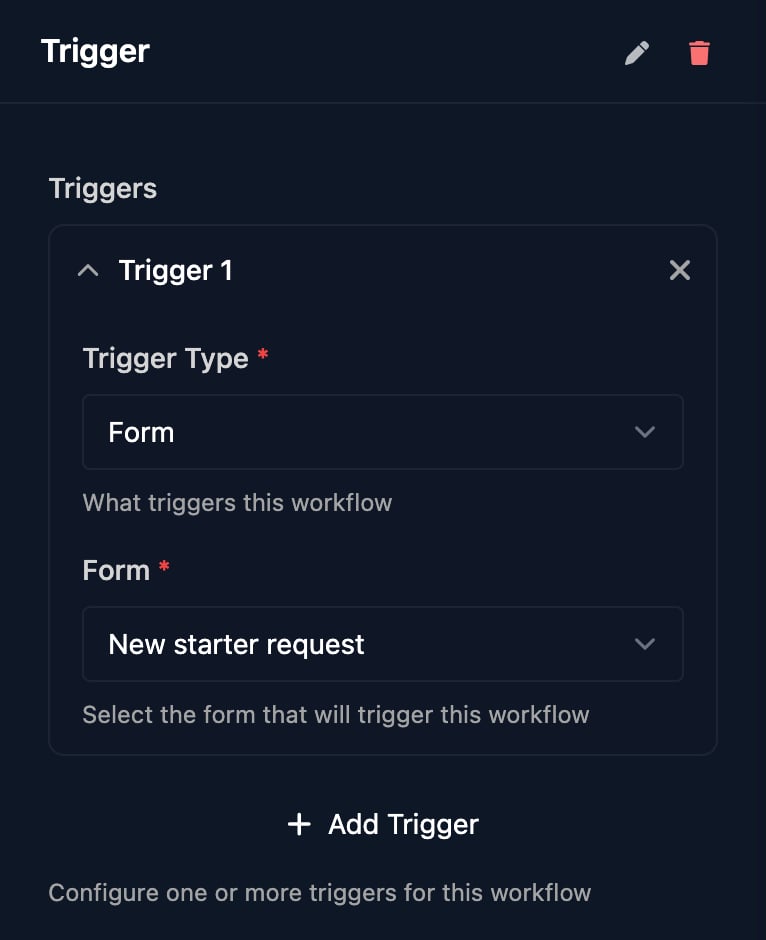
Drag **Trigger** from Flow Control onto the canvas and connect it to your first step. Click it, click **Add Trigger**, choose a Trigger Type (Form, Cron or Webhook) and click Save: triggers only take effect once saved.
 ## Form
Choose the Form. Each submission starts every Active workflow with a Form trigger for that form. The Form list shows forms with no client set.
## Form
Choose the Form. Each submission starts every Active workflow with a Form trigger for that form. The Form list shows forms with no client set.
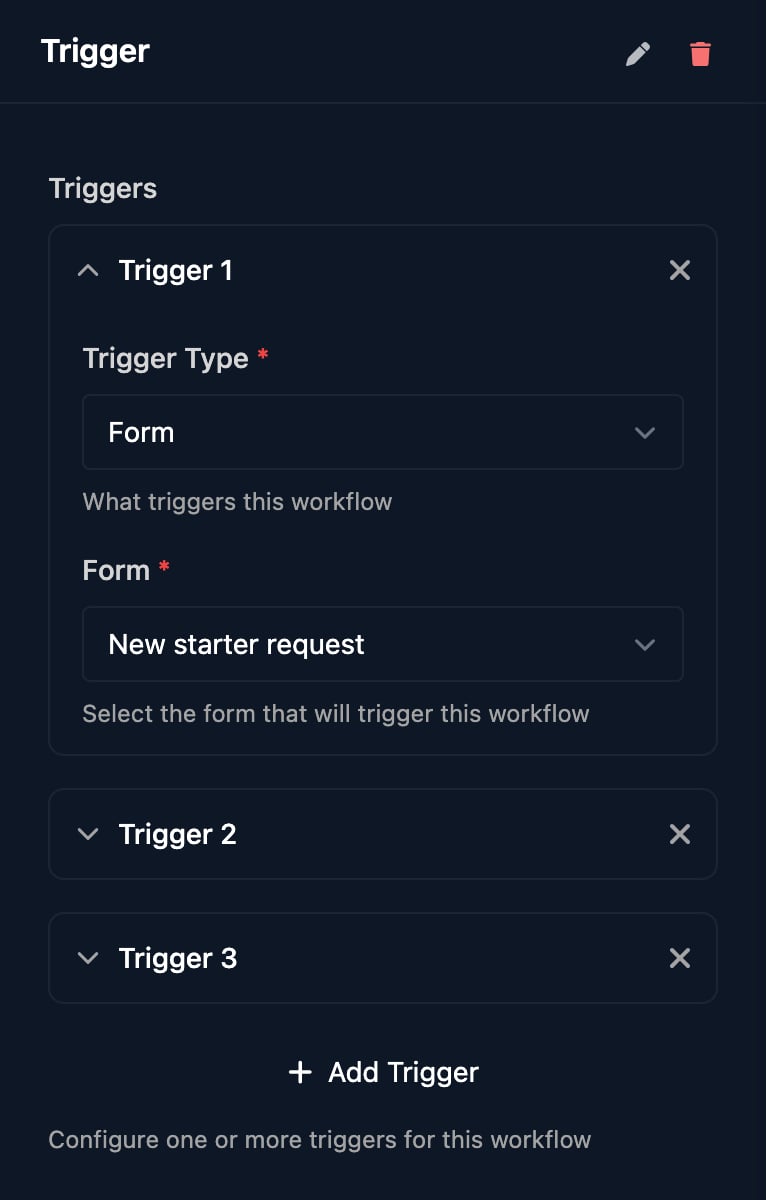 Answers arrive by Field ID, such as `{{ ctx.params.firstName }}`; multi-select answers arrive as a list. On a form with [Microsoft authentication](/studio/forms/authentication#what-the-workflow-gets), `ctx.metadata` says who submitted. Test the real path through **Share Form > Impersonate** or the Public Form URL.
### Submit a form from another system
**Share Form > Webhook Trigger** shows the form's API Endpoint. Posting to it works for forms whose Form Authentication is None or Password.
Answers arrive by Field ID, such as `{{ ctx.params.firstName }}`; multi-select answers arrive as a list. On a form with [Microsoft authentication](/studio/forms/authentication#what-the-workflow-gets), `ctx.metadata` says who submitted. Test the real path through **Share Form > Impersonate** or the Public Form URL.
### Submit a form from another system
**Share Form > Webhook Trigger** shows the form's API Endpoint. Posting to it works for forms whose Form Authentication is None or Password.
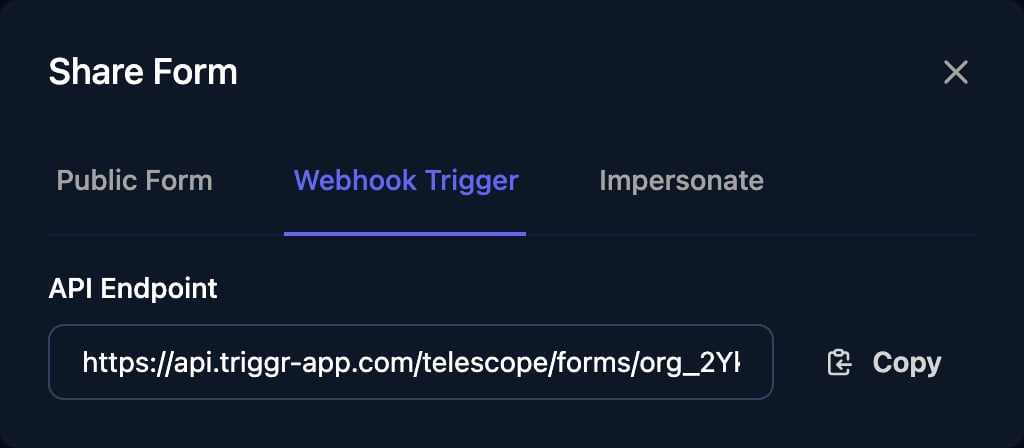 Posting answers to it is the same as submitting the form:
```bash theme={null}
curl -X POST "https://api.triggr-app.com/telescope/forms//?password=" \
-H "Content-Type: application/json" \
-d '{
"data": [
{ "key": "firstName", "type": "text", "value": "Sam" },
{ "key": "lastName", "type": "text", "value": "Taylor" },
{ "key": "startDate", "type": "date", "value": "2026-11-02" },
{ "key": "department", "type": "select", "value": "Finance" }
]
}'
```
Each item's `key` is a Field ID and `type` is the field's type; a `multiselect` field takes a `values` list instead of `value`. Leave out `?password=` when the form has no authentication. The reply is the submission's `id`, and a missing required field returns `required field 'Label' is missing`.
## Cron
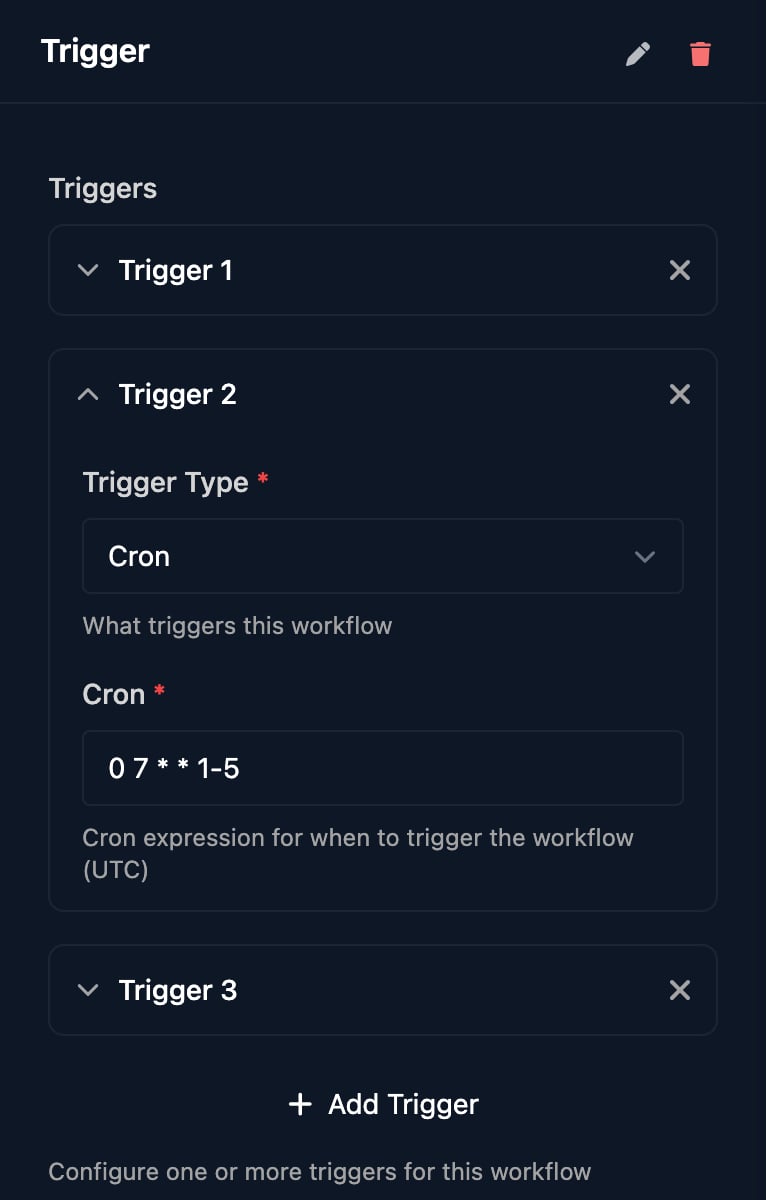
Enter a five-field cron expression (minute, hour, day of month, month, day of week) in UTC. Only Active workflows run on a schedule.
Posting answers to it is the same as submitting the form:
```bash theme={null}
curl -X POST "https://api.triggr-app.com/telescope/forms//?password=" \
-H "Content-Type: application/json" \
-d '{
"data": [
{ "key": "firstName", "type": "text", "value": "Sam" },
{ "key": "lastName", "type": "text", "value": "Taylor" },
{ "key": "startDate", "type": "date", "value": "2026-11-02" },
{ "key": "department", "type": "select", "value": "Finance" }
]
}'
```
Each item's `key` is a Field ID and `type` is the field's type; a `multiselect` field takes a `values` list instead of `value`. Leave out `?password=` when the form has no authentication. The reply is the submission's `id`, and a missing required field returns `required field 'Label' is missing`.
## Cron
Enter a five-field cron expression (minute, hour, day of month, month, day of week) in UTC. Only Active workflows run on a schedule.
 | Cron | Runs (UTC) |
| - | - |
| `0 7 * * 1-5` | 07:00, Monday to Friday |
| `0 2 * * *` | 02:00 every day |
| `*/15 * * * *` | Every 15 minutes |
| `30 17 * * 5` | 17:30 every Friday |
| `0 9 1 * *` | 09:00 on the 1st of every month |
Day of week runs `0` (Sunday) to `6`; `7`, shortcuts such as `@daily` and six-field expressions save but never run. UTC doesn't change for daylight saving, so for 08:00 UK time use `0 8` in winter and `0 7` in summer. Scheduled runs are at least five minutes apart. `ctx.params` is empty; to test the steps, click **Manual Trigger** and enter `{}`.
## Webhook
Add a **Webhook** trigger and click Save, then click **View Endpoint Details** and copy the Endpoint URL.
| Cron | Runs (UTC) |
| - | - |
| `0 7 * * 1-5` | 07:00, Monday to Friday |
| `0 2 * * *` | 02:00 every day |
| `*/15 * * * *` | Every 15 minutes |
| `30 17 * * 5` | 17:30 every Friday |
| `0 9 1 * *` | 09:00 on the 1st of every month |
Day of week runs `0` (Sunday) to `6`; `7`, shortcuts such as `@daily` and six-field expressions save but never run. UTC doesn't change for daylight saving, so for 08:00 UK time use `0 8` in winter and `0 7` in summer. Scheduled runs are at least five minutes apart. `ctx.params` is empty; to test the steps, click **Manual Trigger** and enter `{}`.
## Webhook
Add a **Webhook** trigger and click Save, then click **View Endpoint Details** and copy the Endpoint URL.
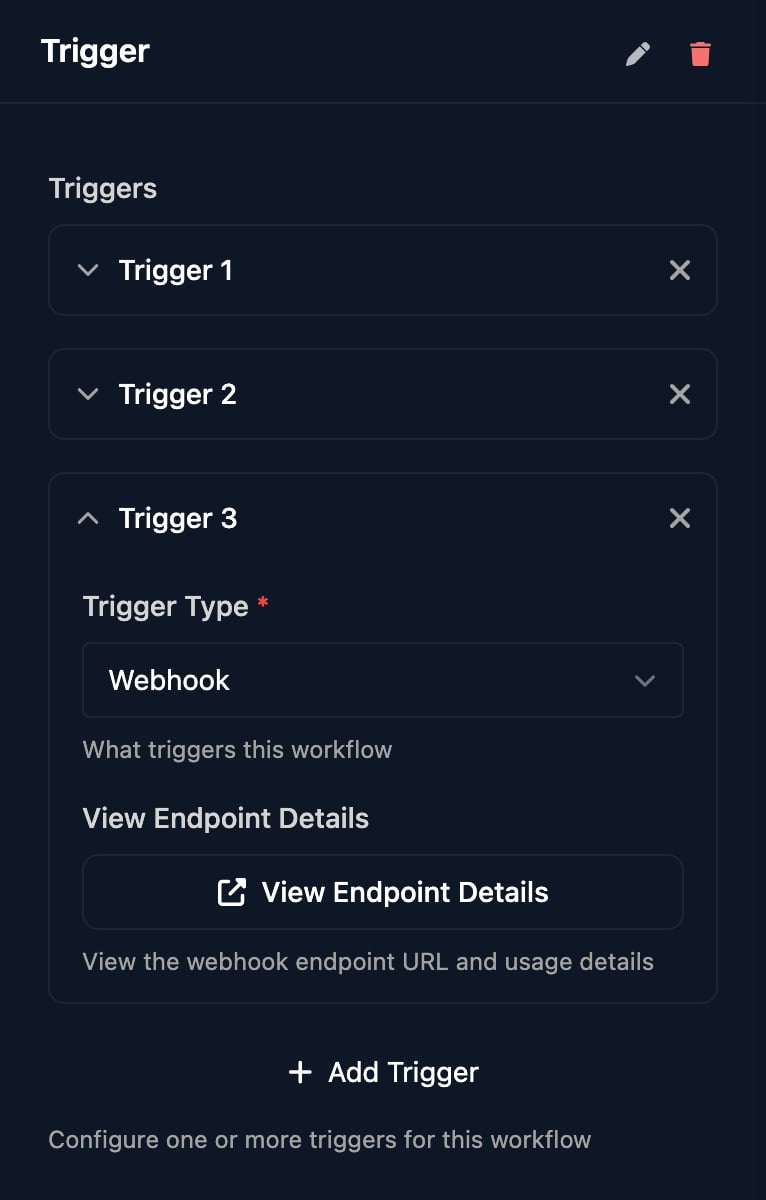
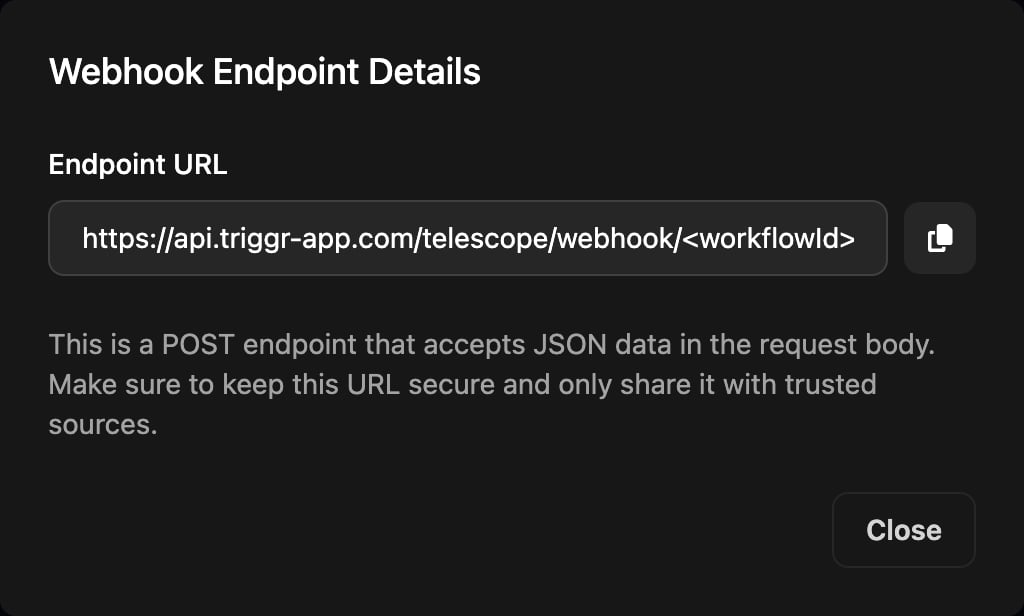 POST JSON to it:
```bash theme={null}
curl -X POST "https://api.triggr-app.com/telescope/webhook/" \
-H "Content-Type: application/json" \
-d '{ "alertType": "disk_space", "device": "ACME-DC01", "siteId": "12345" }'
```
```json theme={null}
{ "dispatched": true, "executionId": "c52ada5e-…" }
```
The body becomes `ctx.params`, so this run reads `{{ ctx.params.device }}`; a body that isn't JSON arrives as text in `ctx.params.data`. Headers and the query string don't reach the workflow. A run started this way has no client: find one with Search For Client on a client variable, such as your RMM site ID, then Set Client By ID, before steps that raise a ticket or send an email.
The URL needs no API key or signature, so anyone who has it can start the workflow, even when it's Inactive. Treat it as a secret.
### Wait for the result
Add `?await=true` to wait until the run finishes or fails, for up to `timeout` seconds (default 300, maximum 600):
```bash theme={null}
curl -X POST "https://api.triggr-app.com/telescope/webhook/?await=true&timeout=120" \
-H "Content-Type: application/json" \
-d '{"device": "ACME-DC01"}'
```
```json theme={null}
{
"dispatched": true,
"executionId": "3b8c8f92-…",
"status": "completed",
"output": { "outcome": "success", "comment": "" },
"error": "",
"completedAt": "2026-10-16T01:18:52Z",
"publishedVariables": null
}
```
`status` is `completed` or `failed`, and `output` is the Finish Workflow step's Outcome and Comment, so end every path with one. To return a step's result, enter a Context Variable Name on its Settings tab and tick **Publish Variable**; it appears in `publishedVariables`. Don't wait on workflows that pause for an approval or a person.
| Response | Meaning |
| - | - |
| `200` with `executionId` | The run started. |
| `404` `workflow not found` | The ID in the URL is wrong, or the workflow was deleted. |
| `404` `no webhook trigger found for this workflow` | The workflow has no saved Webhook trigger. |
| `404` `endpoint not found` | The request wasn't a POST. |
| `504` `workflow execution timed out` | With `?await=true`, the run didn't finish within `timeout`. It carries on running, but this reply has no `executionId`. |
## Manual
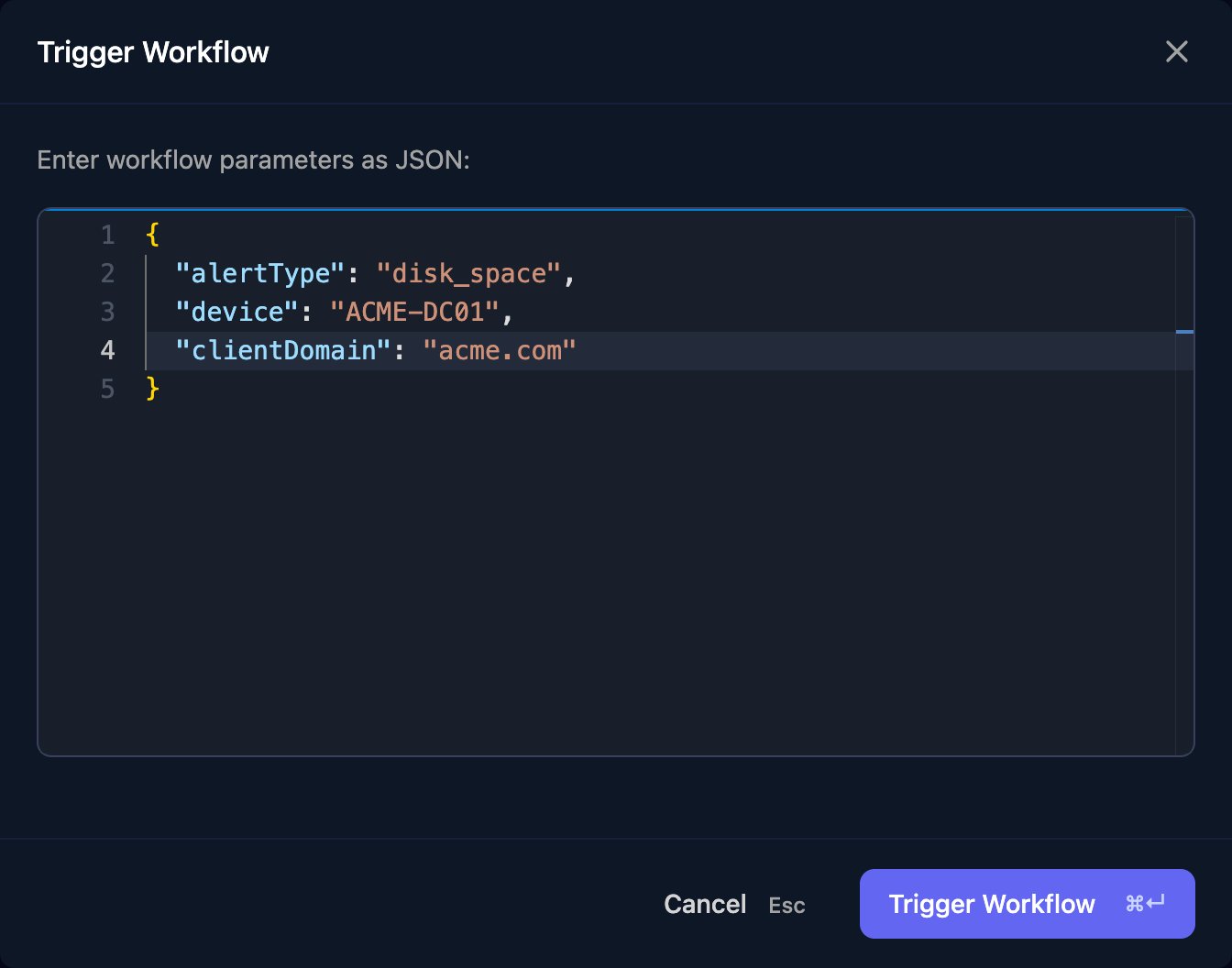
Click **Manual Trigger** in the designer, or Manual on the workflow's row in Workflows, enter the JSON your real trigger would send and click **Trigger Workflow**. The run uses the last saved version, whatever the workflow's triggers and status.
POST JSON to it:
```bash theme={null}
curl -X POST "https://api.triggr-app.com/telescope/webhook/" \
-H "Content-Type: application/json" \
-d '{ "alertType": "disk_space", "device": "ACME-DC01", "siteId": "12345" }'
```
```json theme={null}
{ "dispatched": true, "executionId": "c52ada5e-…" }
```
The body becomes `ctx.params`, so this run reads `{{ ctx.params.device }}`; a body that isn't JSON arrives as text in `ctx.params.data`. Headers and the query string don't reach the workflow. A run started this way has no client: find one with Search For Client on a client variable, such as your RMM site ID, then Set Client By ID, before steps that raise a ticket or send an email.
The URL needs no API key or signature, so anyone who has it can start the workflow, even when it's Inactive. Treat it as a secret.
### Wait for the result
Add `?await=true` to wait until the run finishes or fails, for up to `timeout` seconds (default 300, maximum 600):
```bash theme={null}
curl -X POST "https://api.triggr-app.com/telescope/webhook/?await=true&timeout=120" \
-H "Content-Type: application/json" \
-d '{"device": "ACME-DC01"}'
```
```json theme={null}
{
"dispatched": true,
"executionId": "3b8c8f92-…",
"status": "completed",
"output": { "outcome": "success", "comment": "" },
"error": "",
"completedAt": "2026-10-16T01:18:52Z",
"publishedVariables": null
}
```
`status` is `completed` or `failed`, and `output` is the Finish Workflow step's Outcome and Comment, so end every path with one. To return a step's result, enter a Context Variable Name on its Settings tab and tick **Publish Variable**; it appears in `publishedVariables`. Don't wait on workflows that pause for an approval or a person.
| Response | Meaning |
| - | - |
| `200` with `executionId` | The run started. |
| `404` `workflow not found` | The ID in the URL is wrong, or the workflow was deleted. |
| `404` `no webhook trigger found for this workflow` | The workflow has no saved Webhook trigger. |
| `404` `endpoint not found` | The request wasn't a POST. |
| `504` `workflow execution timed out` | With `?await=true`, the run didn't finish within `timeout`. It carries on running, but this reply has no `executionId`. |
## Manual
Click **Manual Trigger** in the designer, or Manual on the workflow's row in Workflows, enter the JSON your real trigger would send and click **Trigger Workflow**. The run uses the last saved version, whatever the workflow's triggers and status.
 ## Other ways to start a workflow
### From another workflow
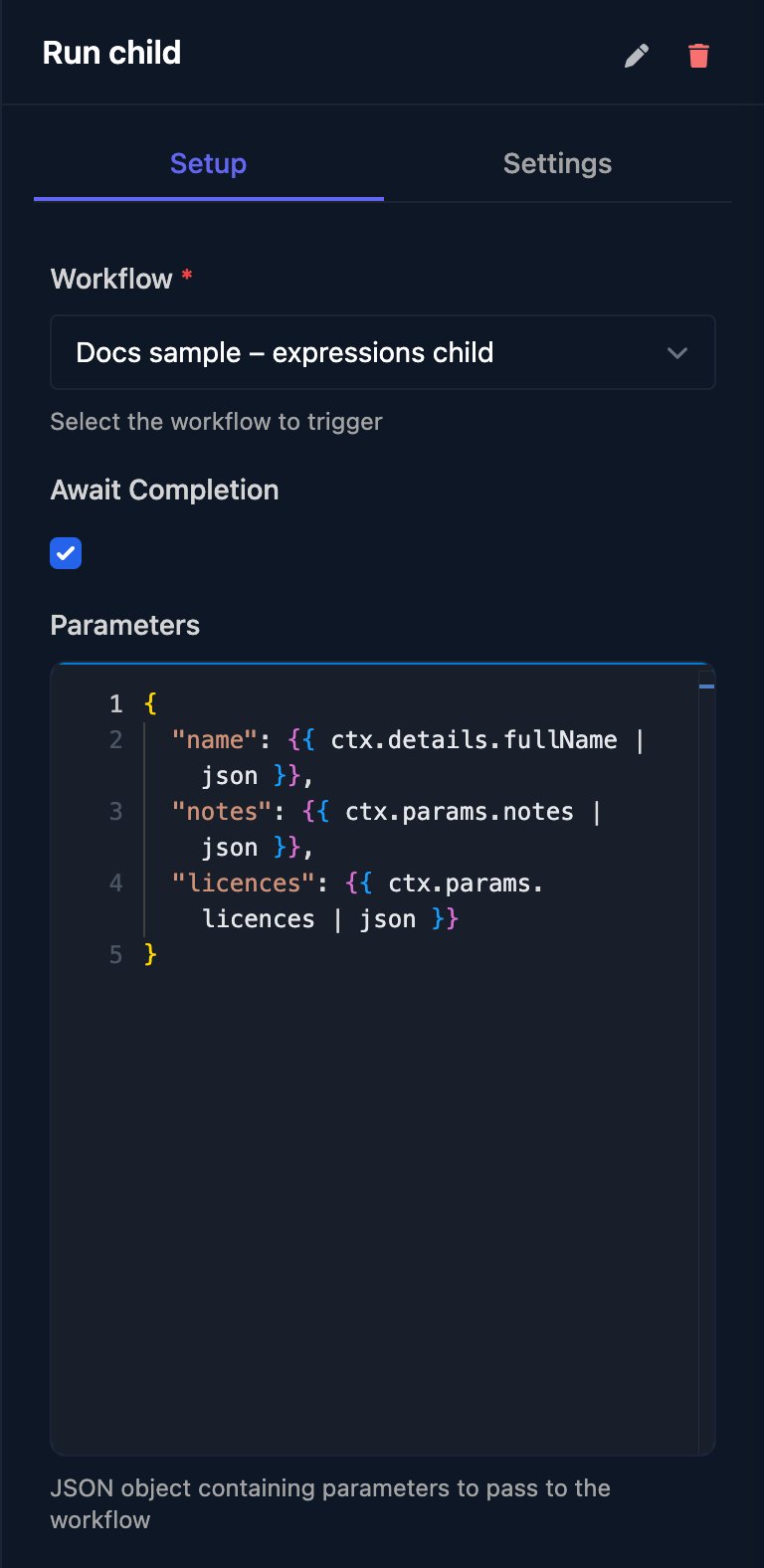
Add a **Trigger Workflow** step (Triggr), choose the Workflow and enter Parameters as JSON; the other workflow reads them as `ctx.params`. It needs a Trigger step but no triggers, and doesn't inherit the client, so pass `{{ ctx.client.id }}` and start it with Set Client By ID. Tick **Await Completion** to wait for it; see [Trigger Workflow](/studio/workflows/steps#trigger-workflow).
## Other ways to start a workflow
### From another workflow
Add a **Trigger Workflow** step (Triggr), choose the Workflow and enter Parameters as JSON; the other workflow reads them as `ctx.params`. It needs a Trigger step but no triggers, and doesn't inherit the client, so pass `{{ ctx.client.id }}` and start it with Set Client By ID. Tick **Await Completion** to wait for it; see [Trigger Workflow](/studio/workflows/steps#trigger-workflow).
 ### From an internal app or an AI assistant
* An [internal app](/studio/internal-apps/sdk) page calls `triggr.runWorkflow(workflowId, params)`. The workflow must be Active and ticked under the app's Workflows pages can run.
* An AI assistant connected through [MCP](/studio/mcp) can start Active workflows with `trigger_workflow`.
### From PSA tickets (Hawk)
[Hawk](/studio/automation/hawk) watches your PSA's tickets and starts each workflow linked to a watcher once per matching ticket, with the ticket's fields in `ctx.params` and the watcher's name in `ctx.metadata.watcherName`.
## See what started a run
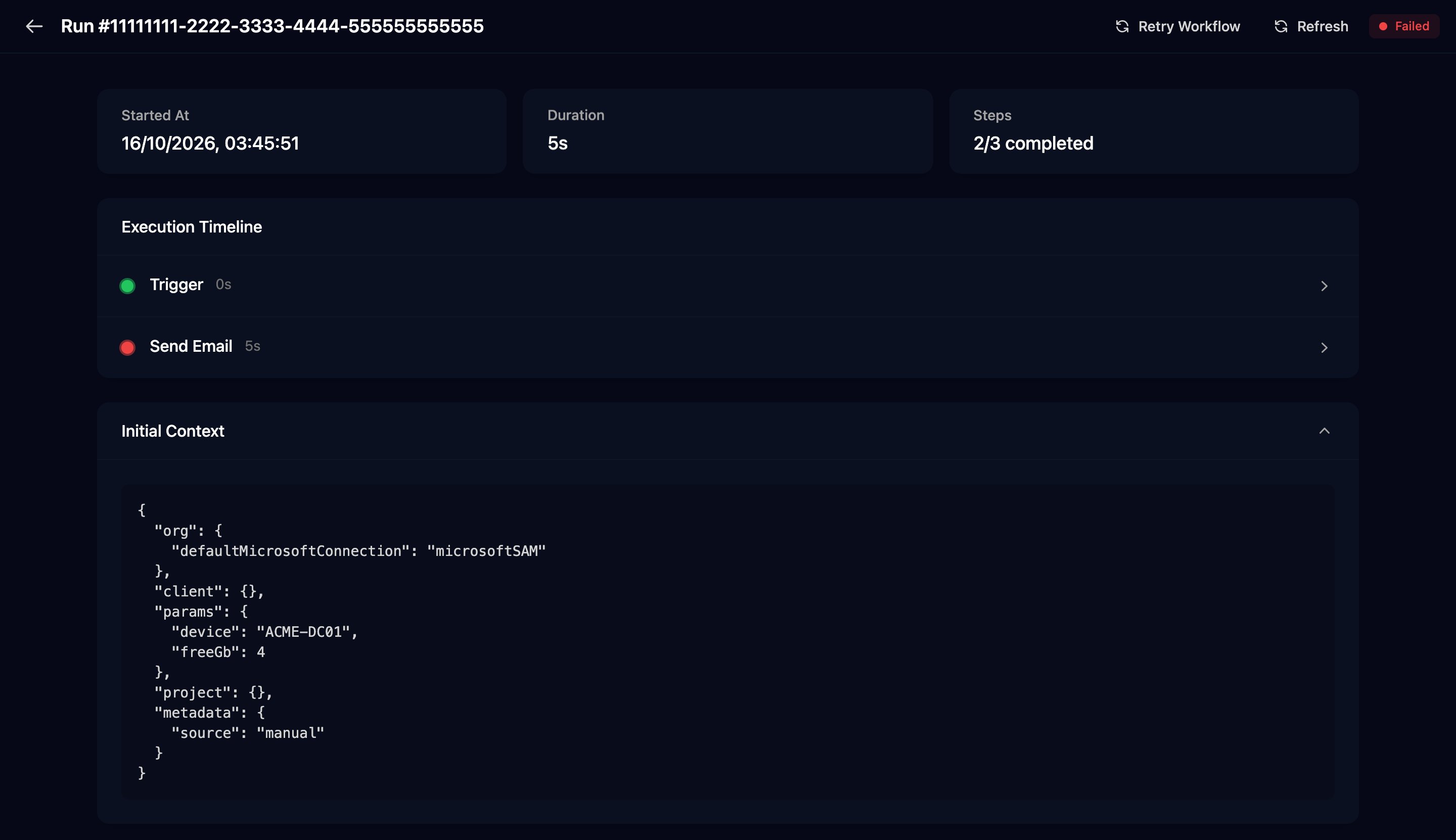
Click View on the run in Runs and open Initial Context: `params` is what the trigger sent and `metadata.source` is what started it. In a Condition, `ctx.metadata.source` lets you treat, say, scheduled and manual runs differently.
### From an internal app or an AI assistant
* An [internal app](/studio/internal-apps/sdk) page calls `triggr.runWorkflow(workflowId, params)`. The workflow must be Active and ticked under the app's Workflows pages can run.
* An AI assistant connected through [MCP](/studio/mcp) can start Active workflows with `trigger_workflow`.
### From PSA tickets (Hawk)
[Hawk](/studio/automation/hawk) watches your PSA's tickets and starts each workflow linked to a watcher once per matching ticket, with the ticket's fields in `ctx.params` and the watcher's name in `ctx.metadata.watcherName`.
## See what started a run
Click View on the run in Runs and open Initial Context: `params` is what the trigger sent and `metadata.source` is what started it. In a Condition, `ctx.metadata.source` lets you treat, say, scheduled and manual runs differently.
 ## Turn a workflow on or off
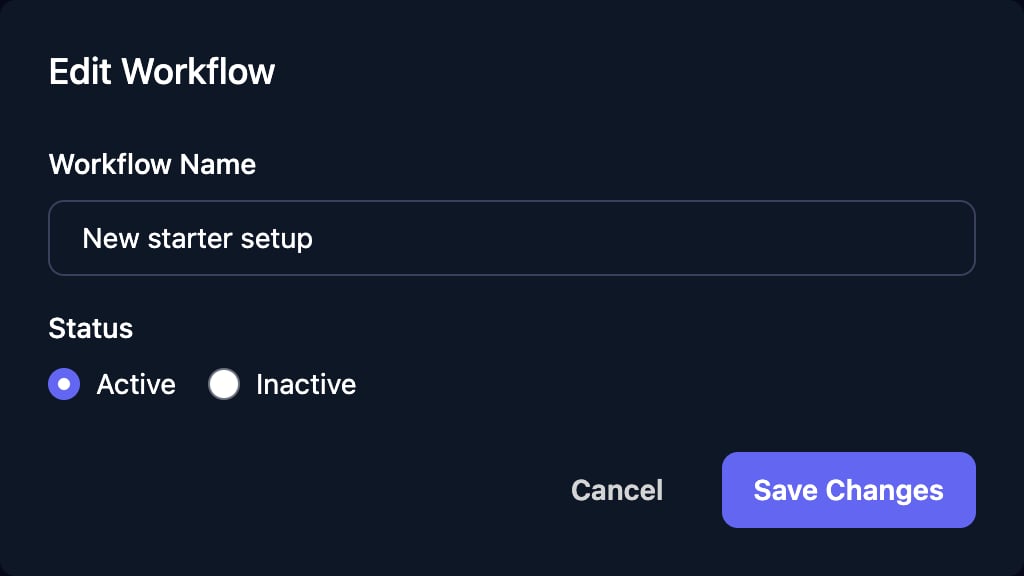
On Workflows, click **Edit** on the workflow's row, choose Active or Inactive under Status and click Save Changes.
## Turn a workflow on or off
On Workflows, click **Edit** on the workflow's row, choose Active or Inactive under Status and click Save Changes.
 New workflows and duplicates start Active, and a duplicate keeps the original's triggers, so a form submission or schedule starts both until you change one. To stop webhook calls, remove the Webhook trigger and click Save.
## FAQ
A workflow that missed a scheduled time runs once to catch up. If it missed more than five, the schedule waits until the workflow is saved in the designer: open it, move any step slightly and click Save.
The workflow must be Active and saved with a Form trigger for that form. If the form's Submissions doesn't list the submission, the form refused it.
A manual run gets only the JSON you type: there's no submitter in `ctx.metadata` and no client from the form's sign-in. Test the real path with Share Form > Impersonate.
The URL contains the workflow's ID, so it can't change. Duplicate the workflow and use the copy's URL, then remove the Webhook trigger from the original and click Save.
The awaited run took longer than `timeout` and is still running. Raise `timeout` (up to 600), or call without `?await=true` and check the run with `GET /api/v1/executions/` and an [API key](/studio/settings/api-and-webhooks), or the `execution.completed` and `execution.failed` webhook events.
A failing step is retried once automatically; a failed run isn't. Click View on the run, then **Retry Workflow** to run the latest saved version again with the same input and client.
No. Settings > Webhooks sends events from Triggr to your systems. A Webhook trigger receives requests that start a workflow.
This documentation is built and hosted on [Mintlify](https://mintlify.com), a developer documentation platform.
New workflows and duplicates start Active, and a duplicate keeps the original's triggers, so a form submission or schedule starts both until you change one. To stop webhook calls, remove the Webhook trigger and click Save.
## FAQ
A workflow that missed a scheduled time runs once to catch up. If it missed more than five, the schedule waits until the workflow is saved in the designer: open it, move any step slightly and click Save.
The workflow must be Active and saved with a Form trigger for that form. If the form's Submissions doesn't list the submission, the form refused it.
A manual run gets only the JSON you type: there's no submitter in `ctx.metadata` and no client from the form's sign-in. Test the real path with Share Form > Impersonate.
The URL contains the workflow's ID, so it can't change. Duplicate the workflow and use the copy's URL, then remove the Webhook trigger from the original and click Save.
The awaited run took longer than `timeout` and is still running. Raise `timeout` (up to 600), or call without `?await=true` and check the run with `GET /api/v1/executions/` and an [API key](/studio/settings/api-and-webhooks), or the `execution.completed` and `execution.failed` webhook events.
A failing step is retried once automatically; a failed run isn't. Click View on the run, then **Retry Workflow** to run the latest saved version again with the same input and client.
No. Settings > Webhooks sends events from Triggr to your systems. A Webhook trigger receives requests that start a workflow.
This documentation is built and hosted on [Mintlify](https://mintlify.com), a developer documentation platform.