

Get a key
Create a key in Triggr Core under Settings > API or in Studio under Settings > API Keys; both manage the same keys, and the key is shown once. See API and webhooks for rolling and revoking keys.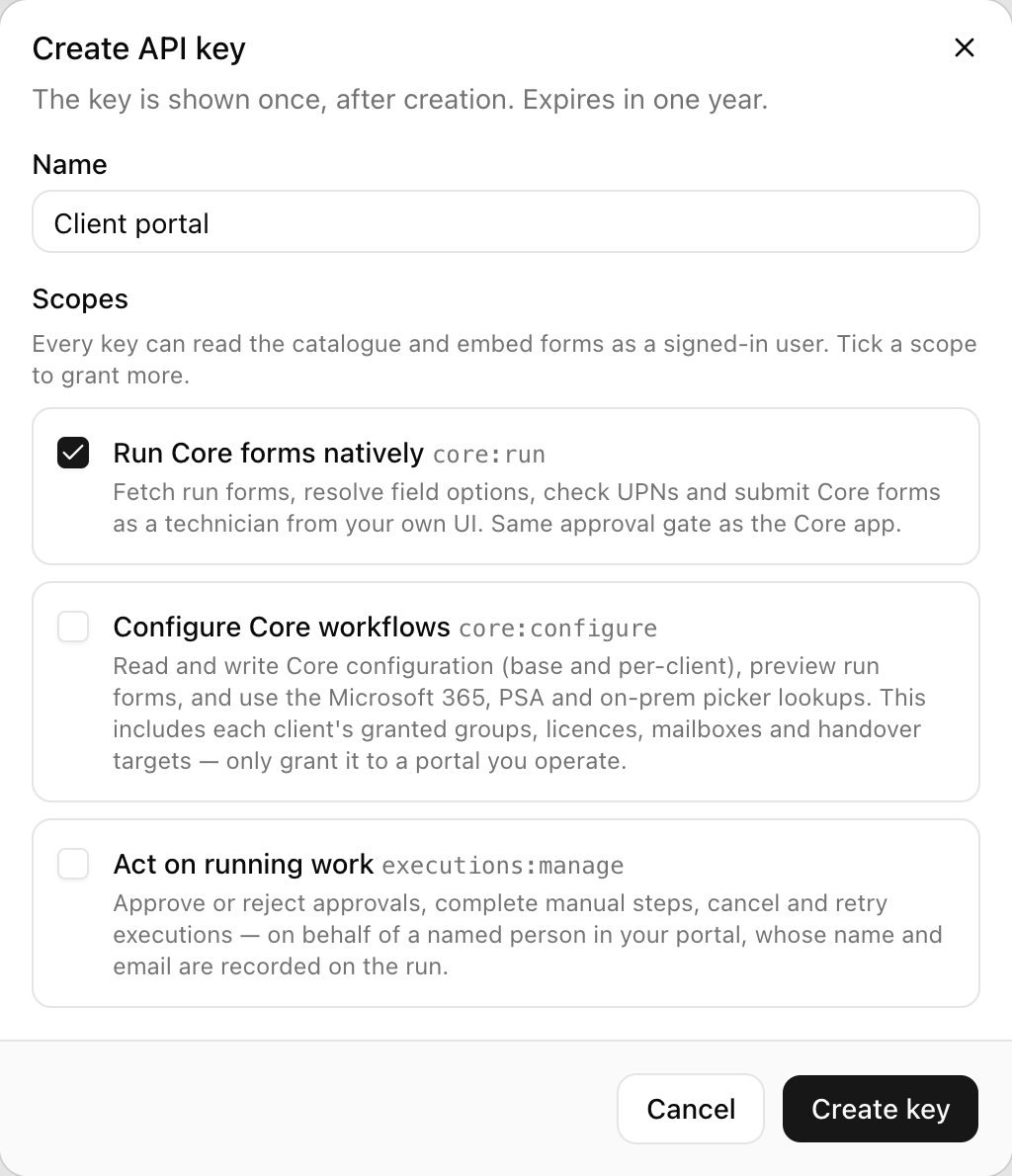
Make a request
GET /api/v1/me returns the organisation the key belongs to, so it’s a quick way to check a key works.
Limits and conventions
- Rate limits: 600 reads and 60 writes a minute per key, and 120 form-session starts a minute. Responses carry
X-RateLimit-LimitandX-RateLimit-Remaining; a429carriesRetry-After. - Paging: lists take
limit(default 50, up to 100) andoffset, and returntotalandhasMore. Executions and Core requests also takesince(an RFC 3339 time). - Retrying safely: endpoints that start or decide something accept an optional
Idempotency-Keyheader, so a retried request isn’t carried out twice.
Webhooks
Register a webhook to be told when executions finish, approvals are needed and more. See Add a webhook for events, signatures and retries.Related
- API keys and webhooks in Studio
- Connect AI tools over MCP: for Claude Code, Codex and Cursor rather than your own code.