

Welcome to Triggr Studio: how it differs from Core, the two ways to use it and where everything is (1:29).
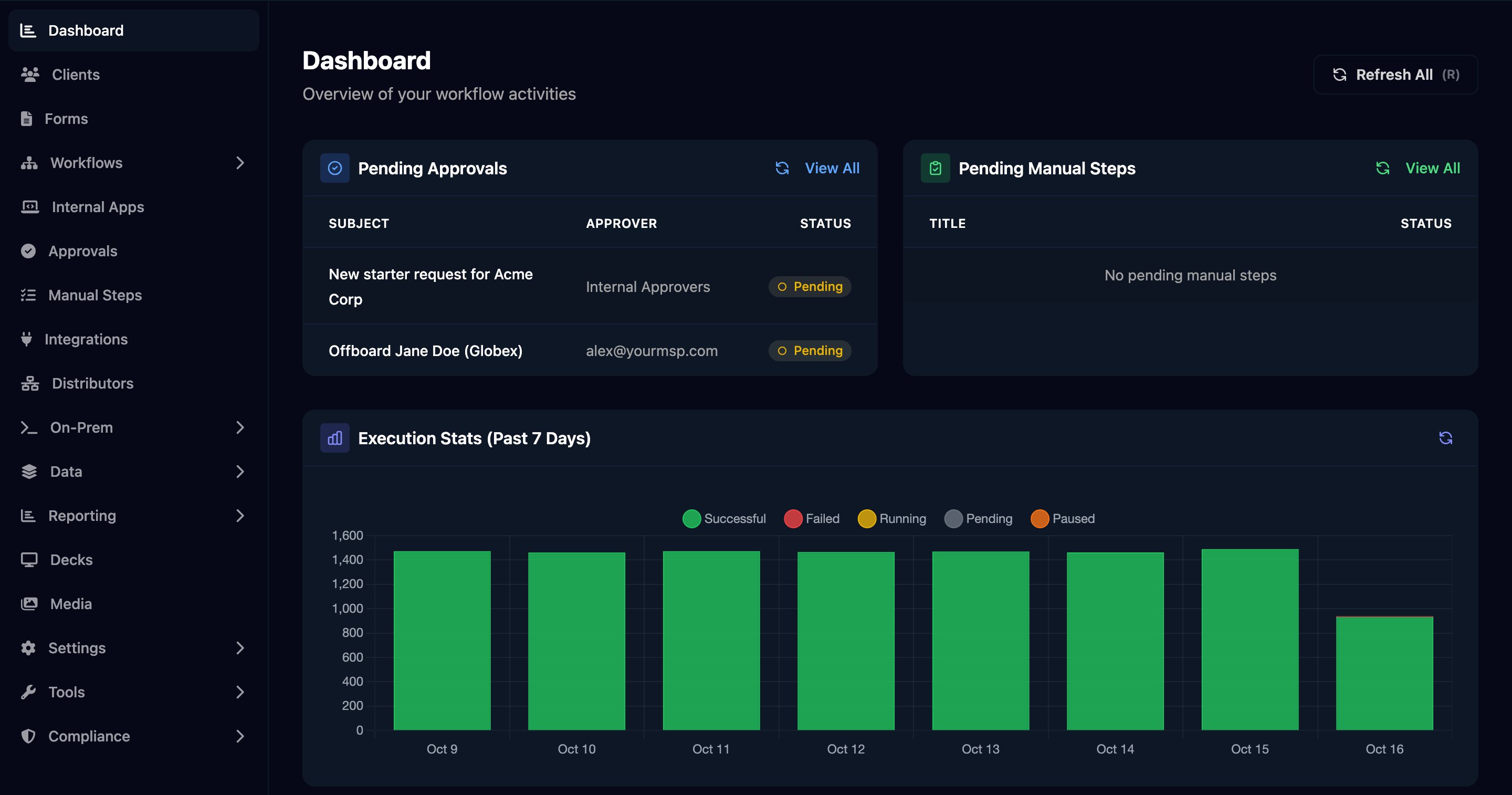
Studio's Dashboard. The sidebar lists every area; the table below says where each one is documented.
Two ways to use Studio
Self-service
Your team builds and maintains its own forms, workflows and apps, using these guides.
Done for you
Our team builds and maintains workflows for you, with ad hoc build credits or a retainer (typically one or two workflows a month).
Build
Work through these in order. Each introduction builds a working example in a few minutes.Forms
Collect requests from your team or clients, with Microsoft or Google sign-in.
Workflows
Run steps across your tools when a form is submitted, on a schedule or from a webhook.
Internal apps
Build pages Triggr hosts that start workflows and show their results.
Find your way around
Who sees what depends on their role: Admins build, Approvers follow requests, Members only use apps. See Roles.