

1
Open the email
Find the email headed Approval required for your organisation’s name and click View Details.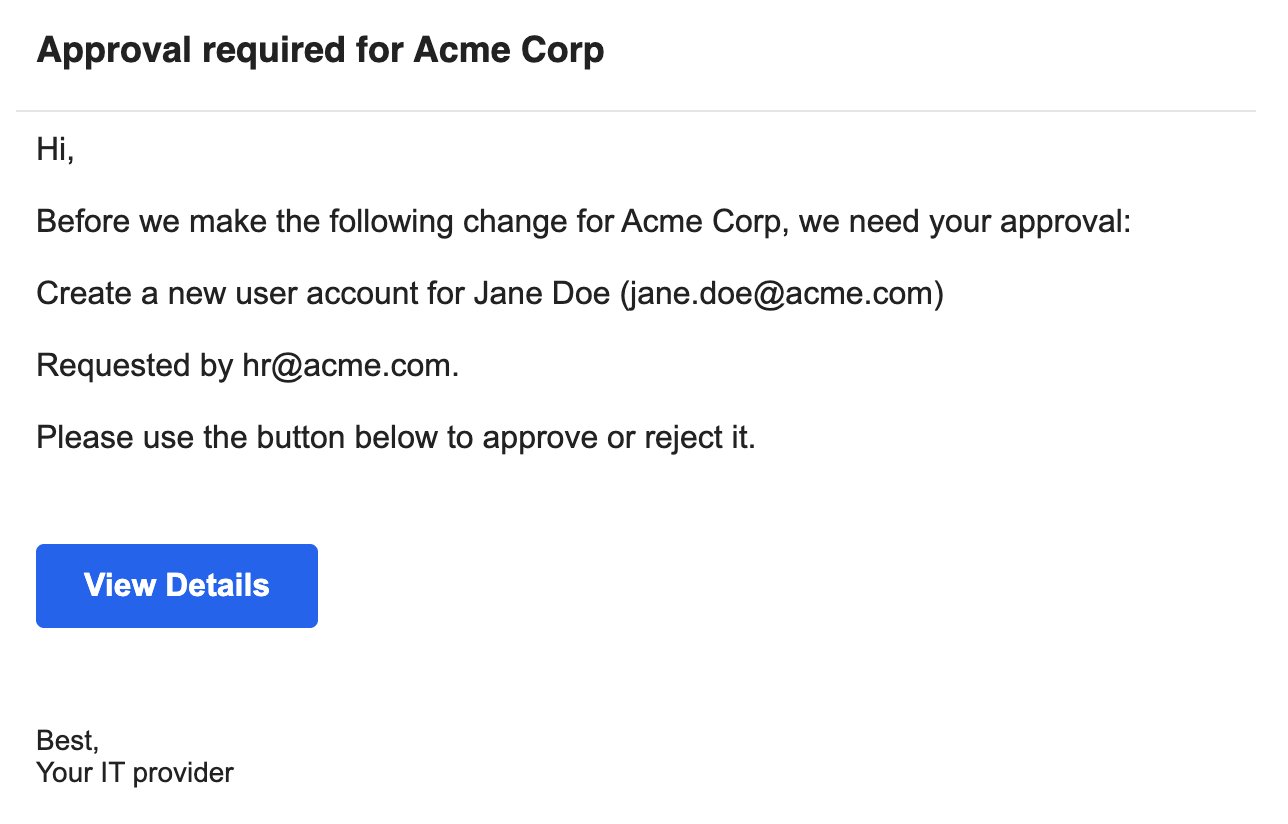
2
Check the request
Request details shows what was asked for. If you see a form instead, skip to If the link opens a form.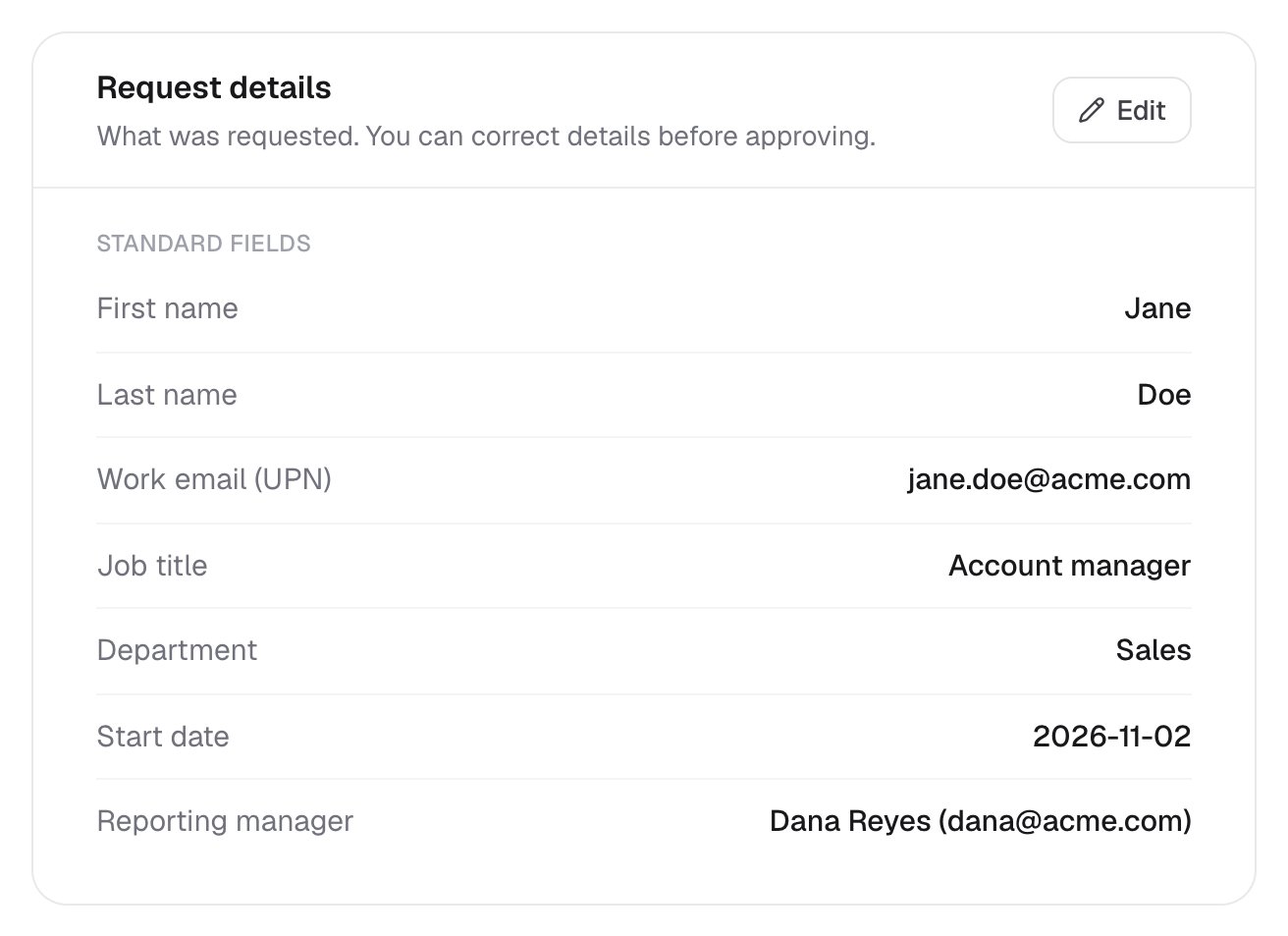
3
Correct the details (optional)
If you see an Edit button, click it and fix anything that’s wrong. If you correct a name, the work email changes to match; pick one of the suggested addresses.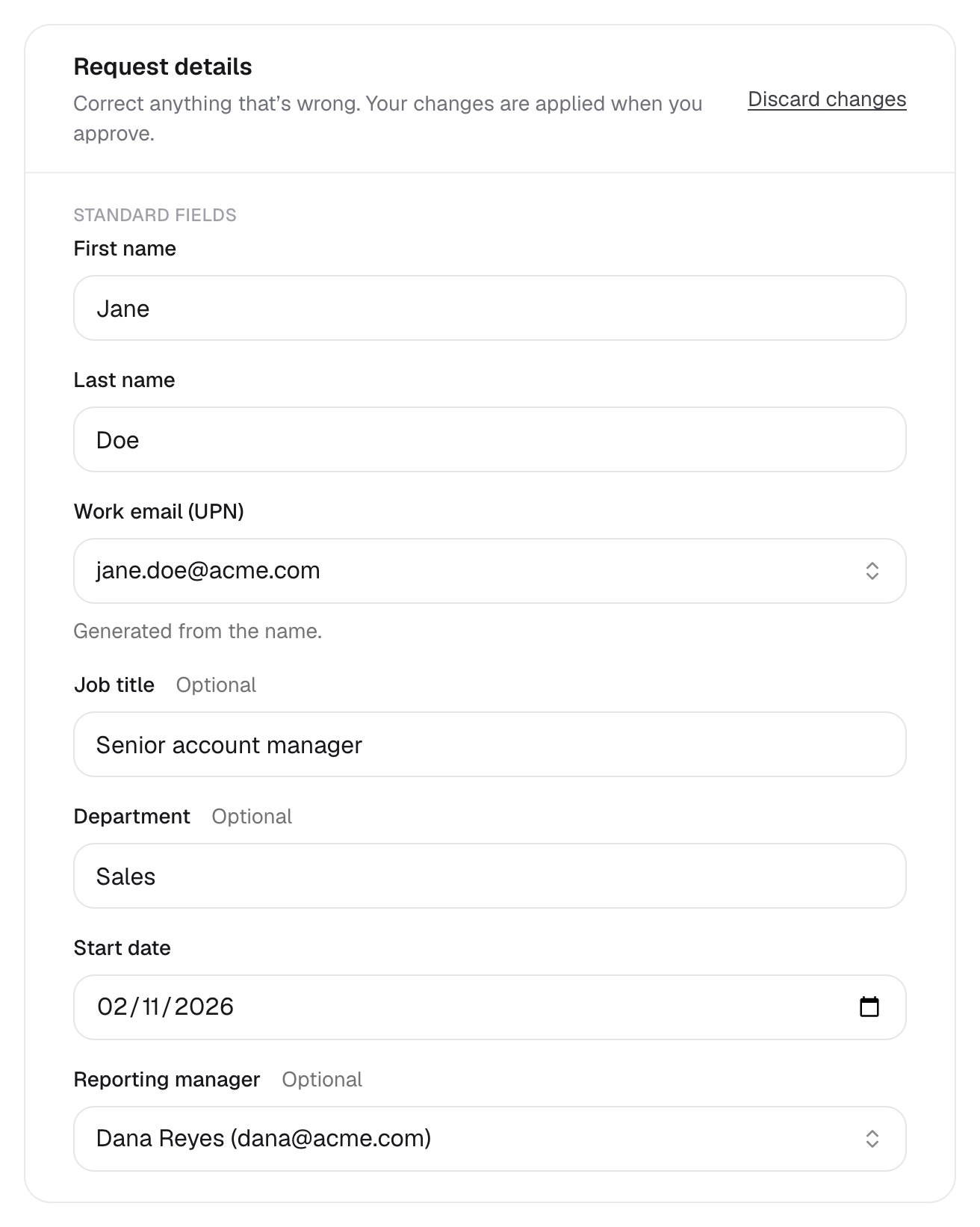
4
Approve or reject
Choose Approve or Reject, add a comment if you like, then click Submit.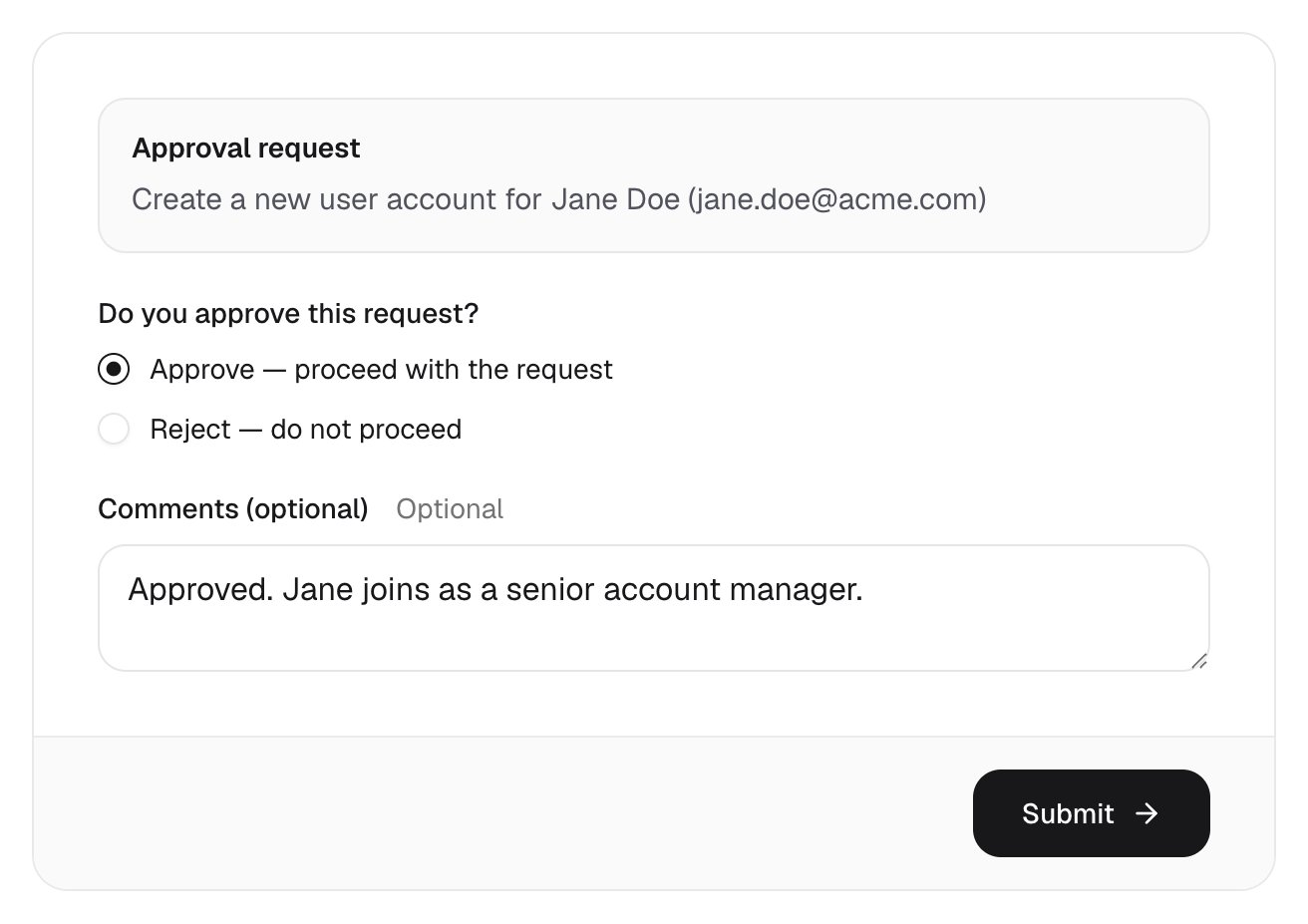
5
You're done
Thank you means your answer has reached your IT provider. If you rejected it, nothing changes, including any corrections you made.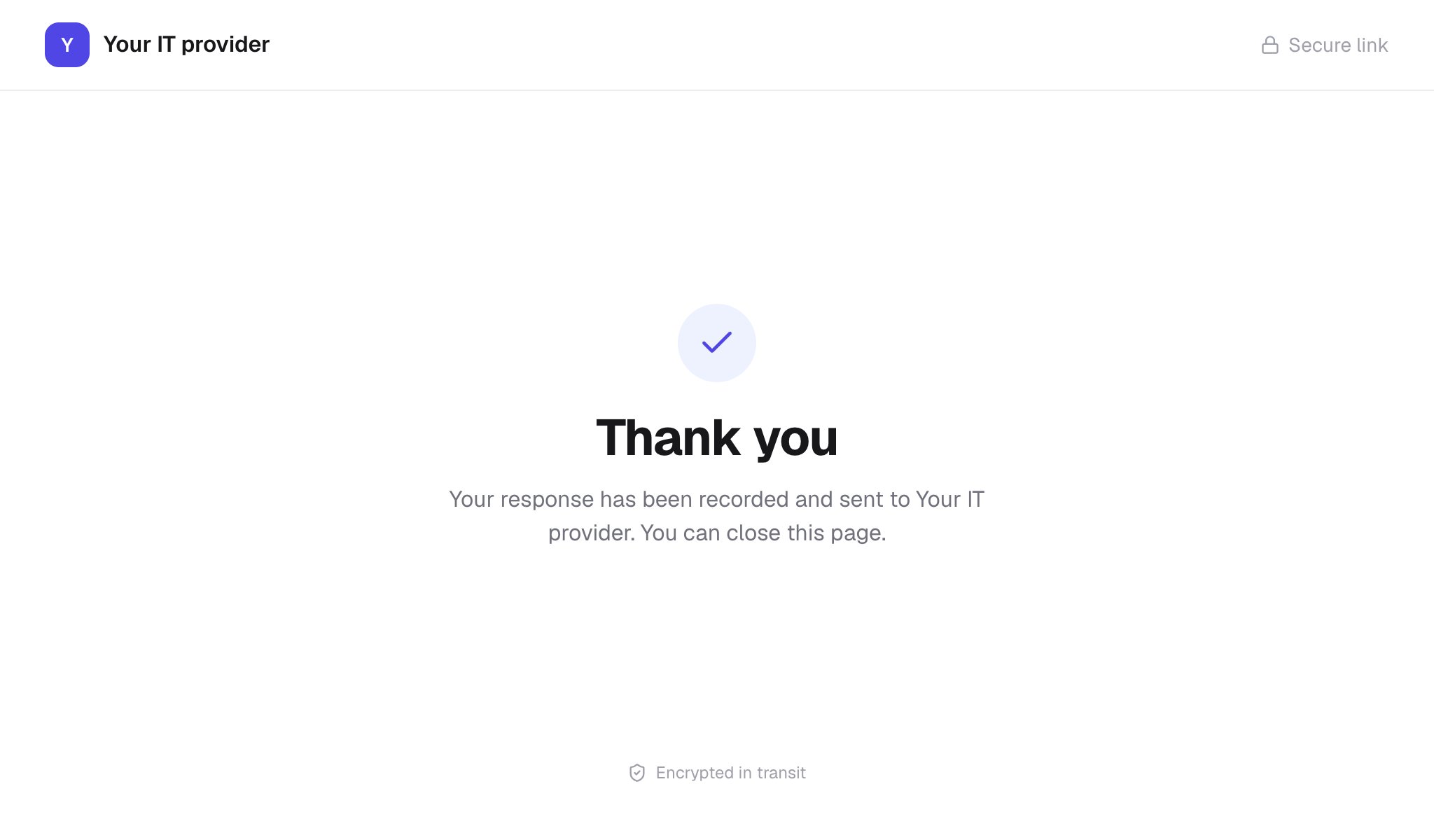
If the link opens a form
Some IT providers send a form instead. Answer it and click Submit; Form Submitted Successfully! means they have your answer. If it asks you to sign in, see Sign in.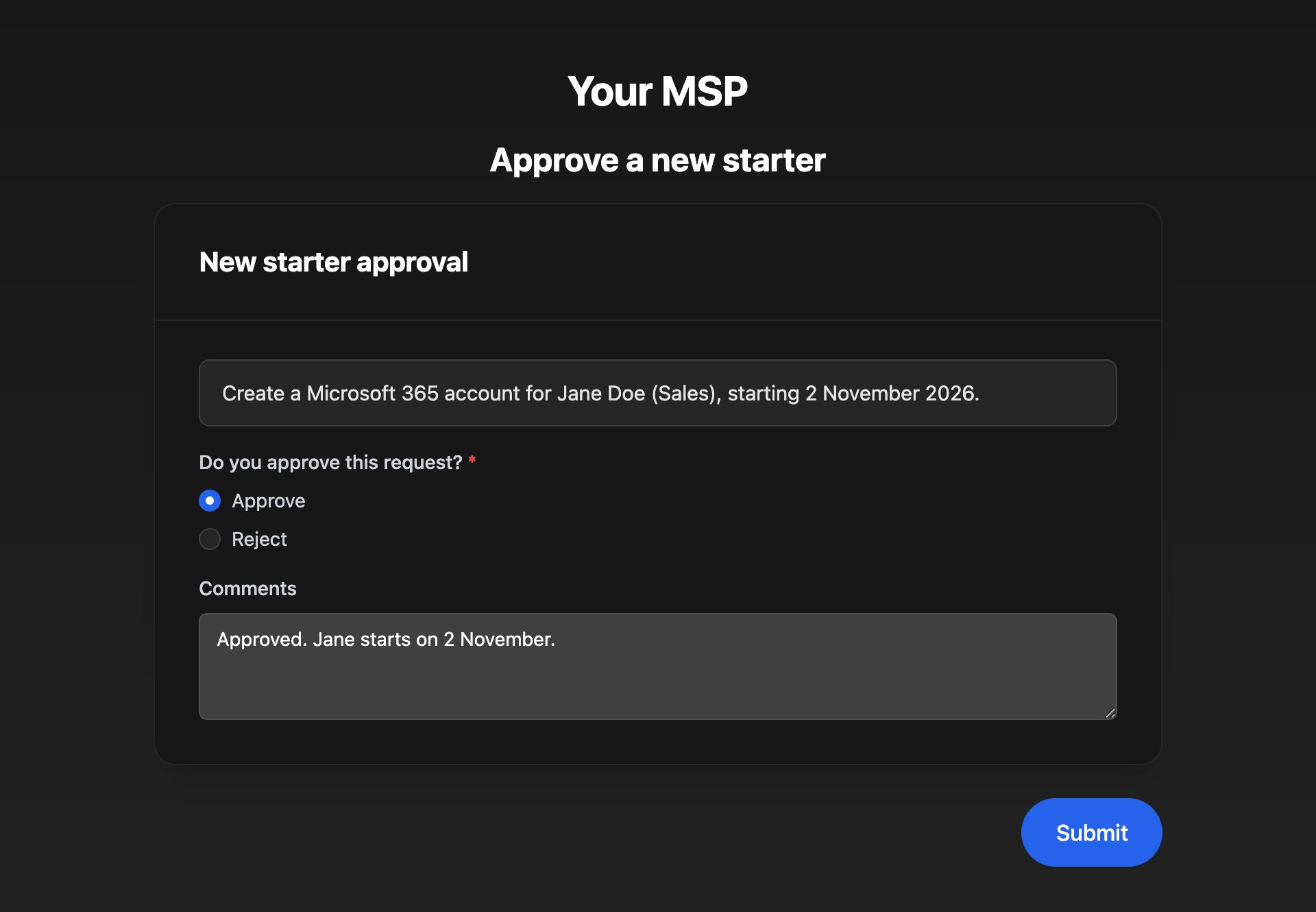
Troubleshooting
“This link isn't available”
“This link isn't available”
The request has already been answered. If you still need to answer, reply to the email and ask for a new link.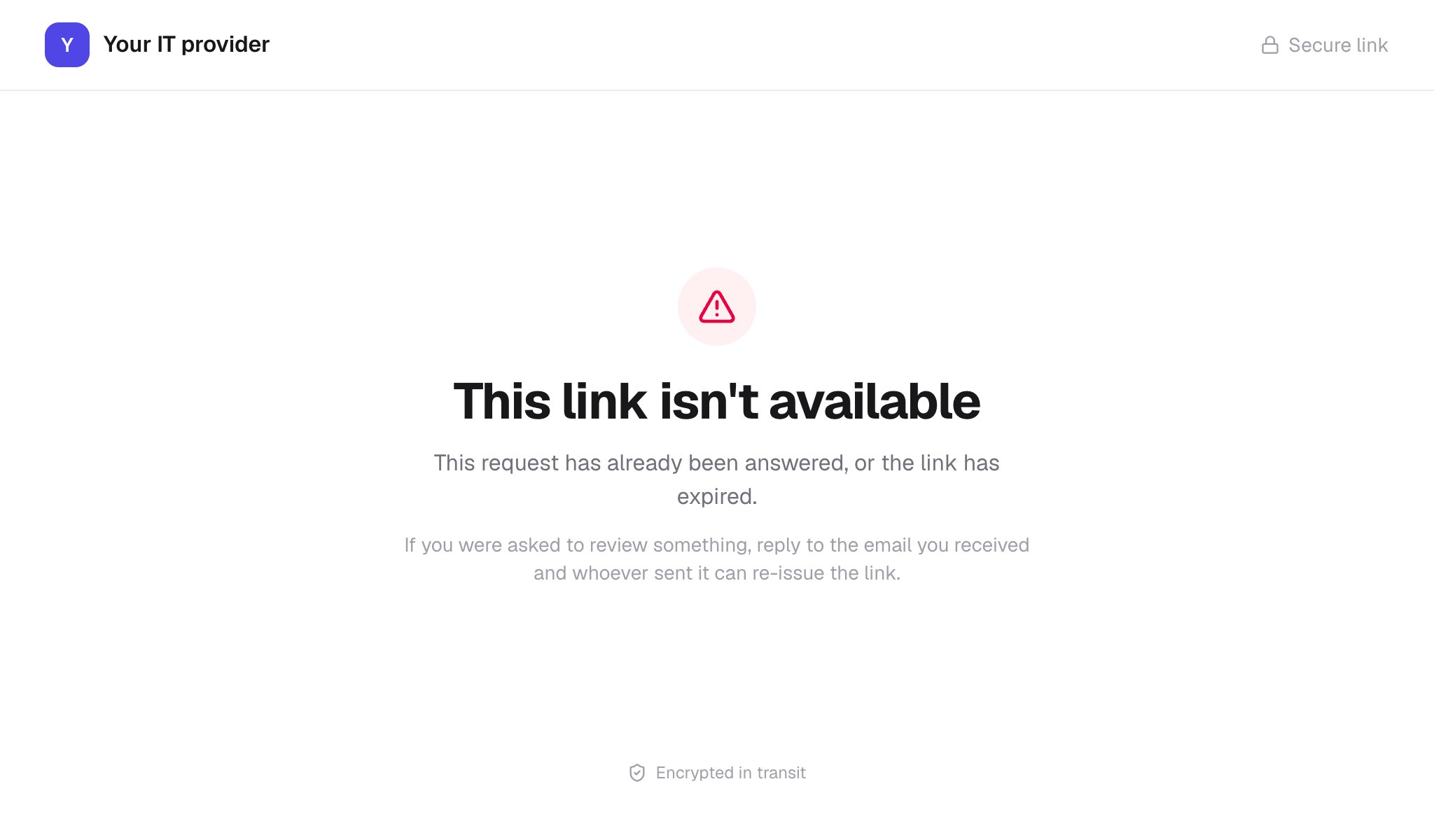
“Already completed” or “Form has already been submitted”
“Already completed” or “Form has already been submitted”
Someone has already answered this request. There’s nothing more to do.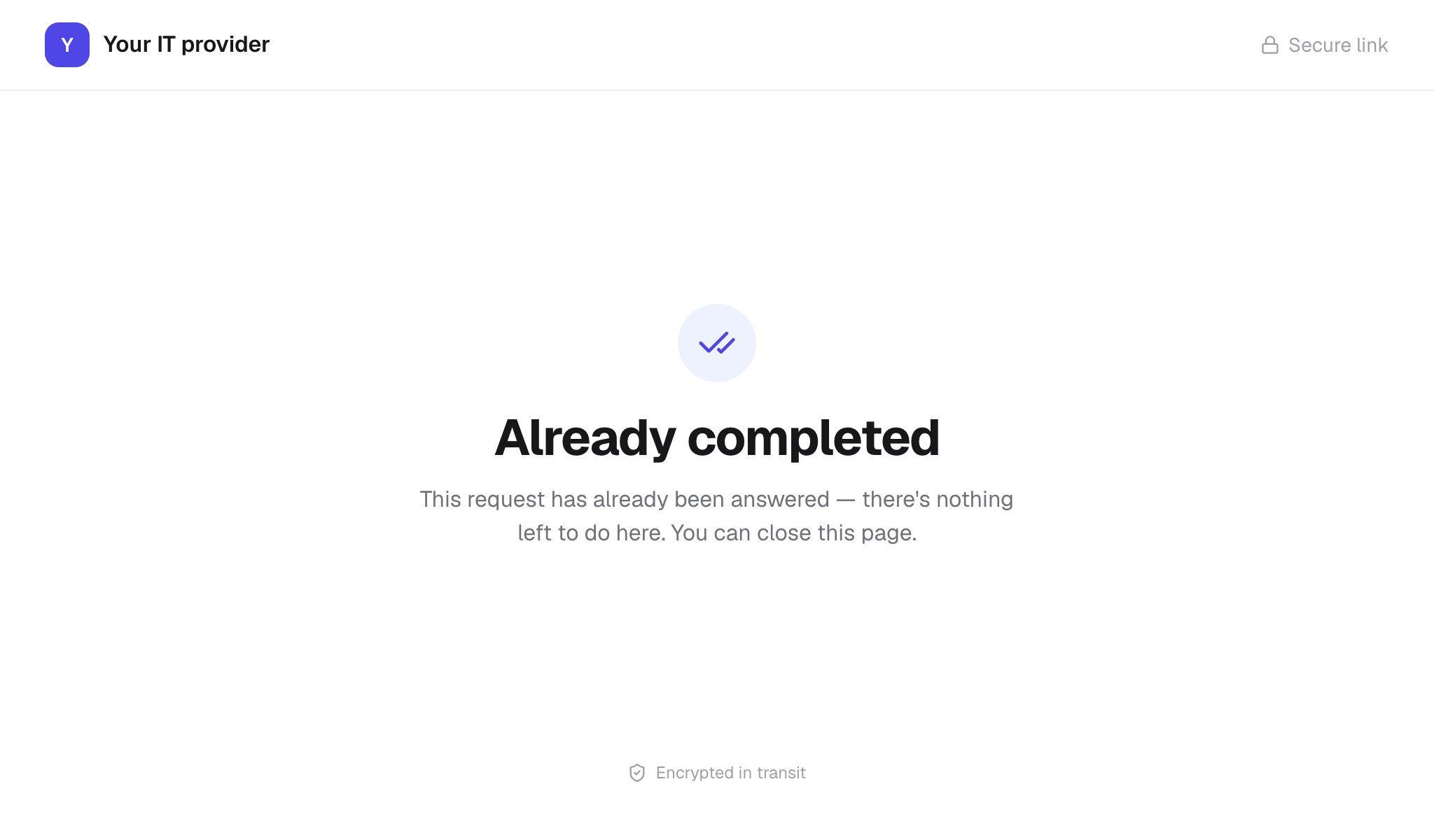
A detail has a padlock but it's wrong
A detail has a padlock but it's wrong
Locked details can’t be changed here. Choose Reject — do not proceed and say what needs fixing in the comment, so someone can submit a corrected request.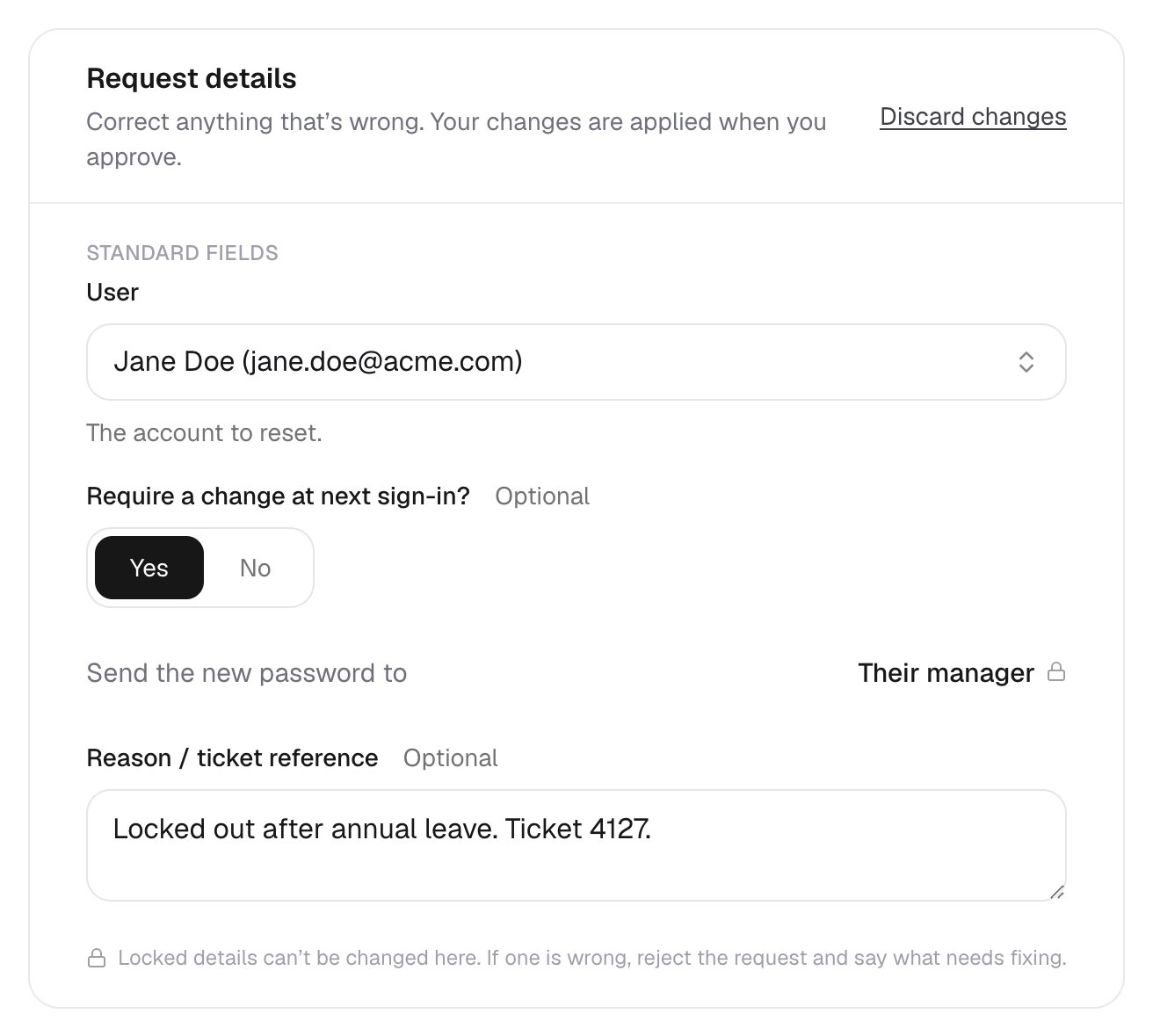
“Work email: pick one of the suggested addresses for this name”
“Work email: pick one of the suggested addresses for this name”
After correcting a name, open the work email list and choose one of its suggestions.
“These details changed after you opened this page…”
“These details changed after you opened this page…”
Someone else changed the request while you had it open. Check the latest details (reload the page if it asks you to), make your corrections again and submit.
“Please let them know”
“Please let them know”
Your answer was saved but didn’t reach the request. Reply to the email and tell your IT provider what you decided.
I didn't get the email
I didn't get the email
Check your junk folder, then ask your IT provider to confirm the email address they have for you.