

1
Open the link and sign in
Click Sign in with Microsoft or Sign in with Google and choose your work account. If the app asks for a password, enter the one your IT provider gave you and click Continue.
2
Use the app
The app opens under your IT provider’s name. If it has several pages, switch between them in the bar at the top.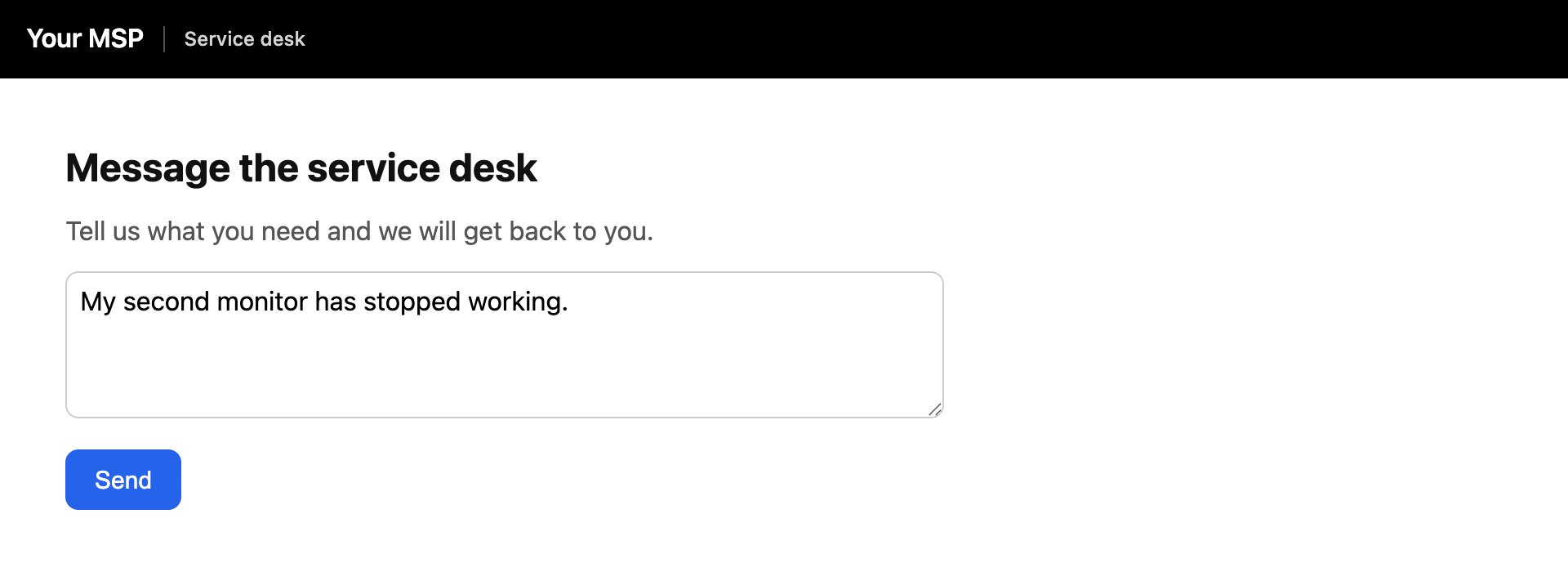
Troubleshooting
“you do not have permission to access this app”
“you do not have permission to access this app”
You signed in with an account your IT provider doesn’t recognise, or the app is only open to certain people. Try your work account, then contact your IT provider.
“invalid password”
“invalid password”
Check the password with your IT provider and try again.
“Couldn't load this app”
“Couldn't load this app”
The link may be out of date. Ask your IT provider for the current one.