

- Request page
- Form page
1
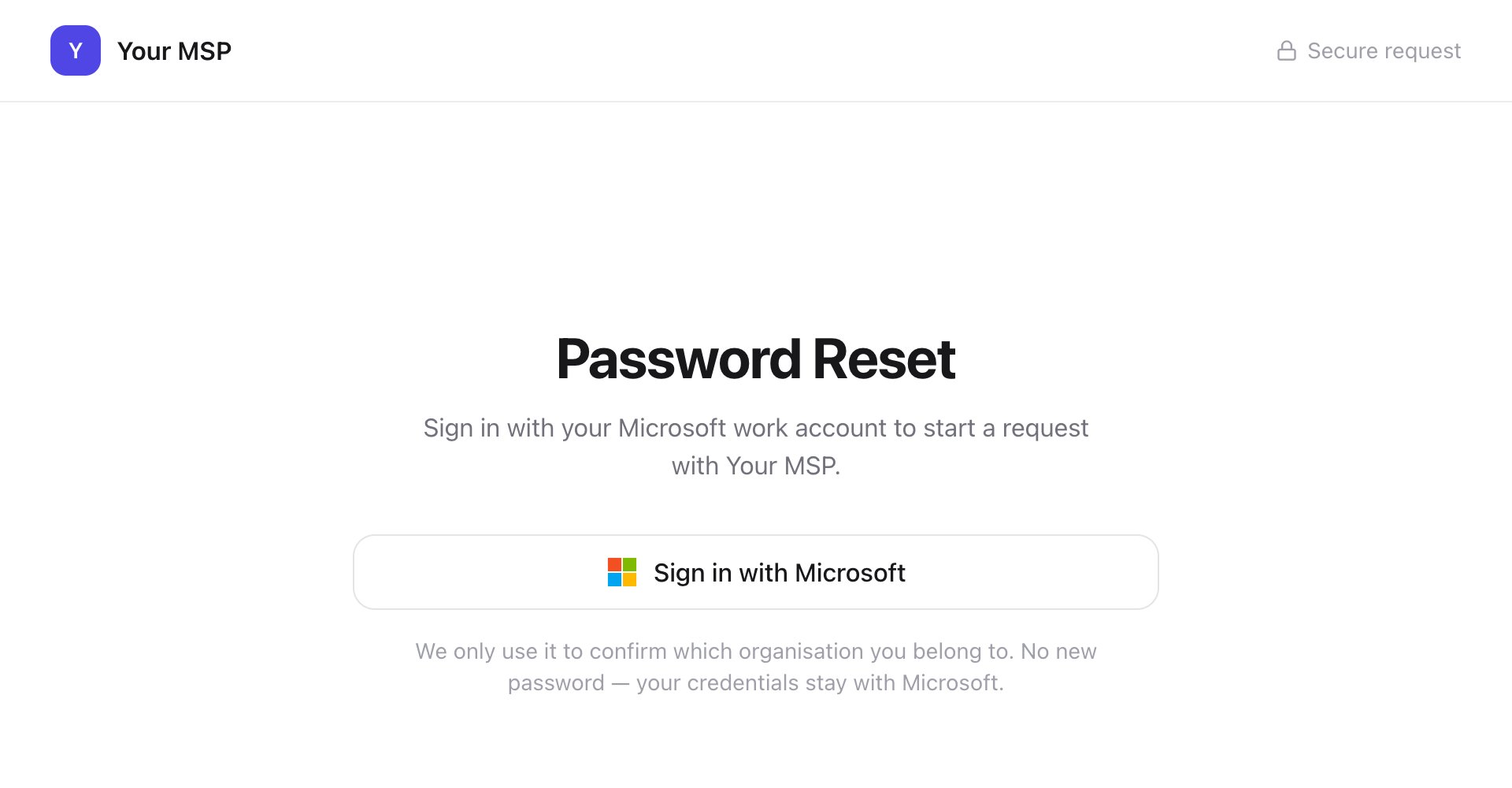
Sign in
Click Sign in with Microsoft and choose your work account. Stuck? See Sign in.
2
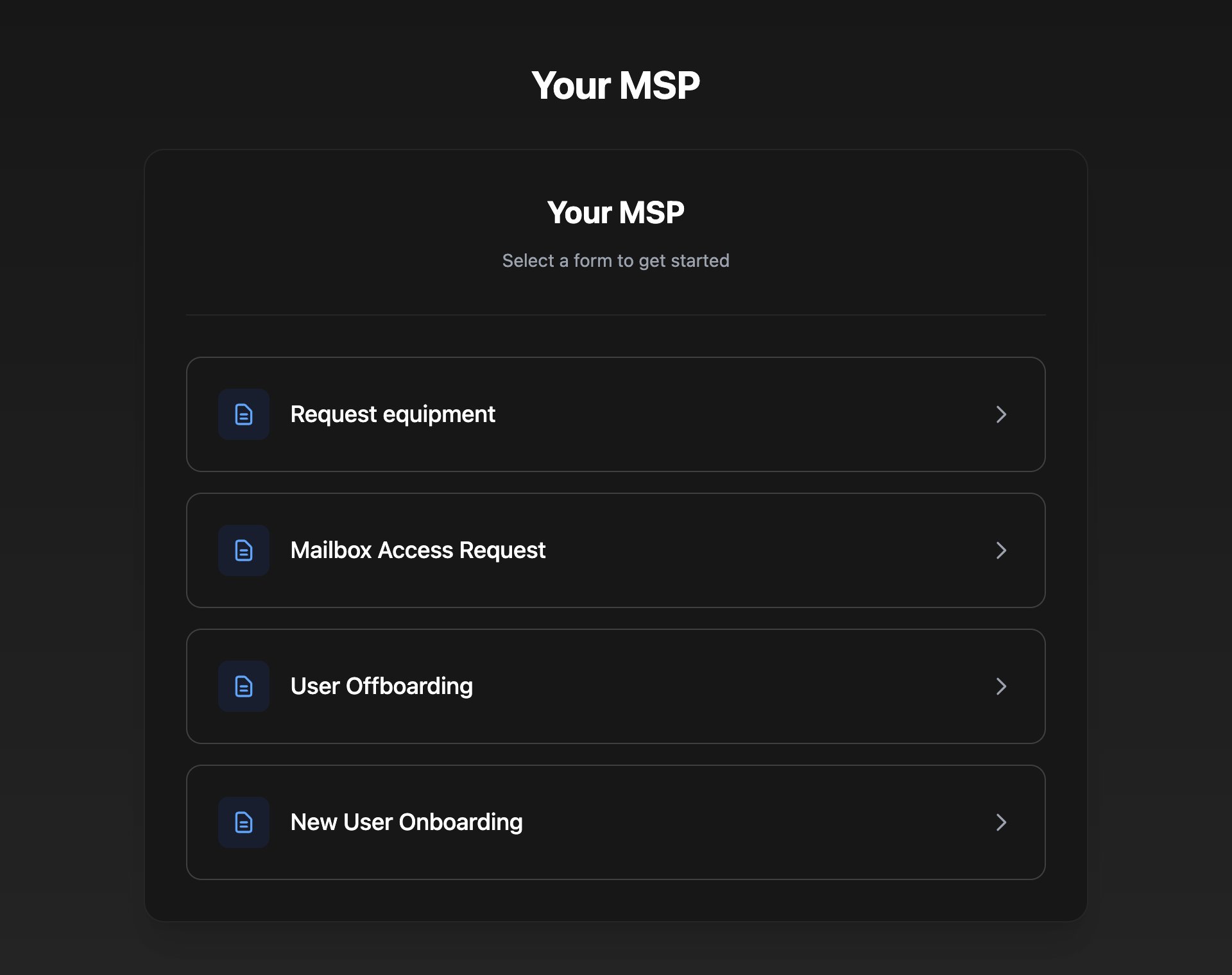
Choose a request
Click the request you need under Available requests. If your link opened a form straight away, skip this step.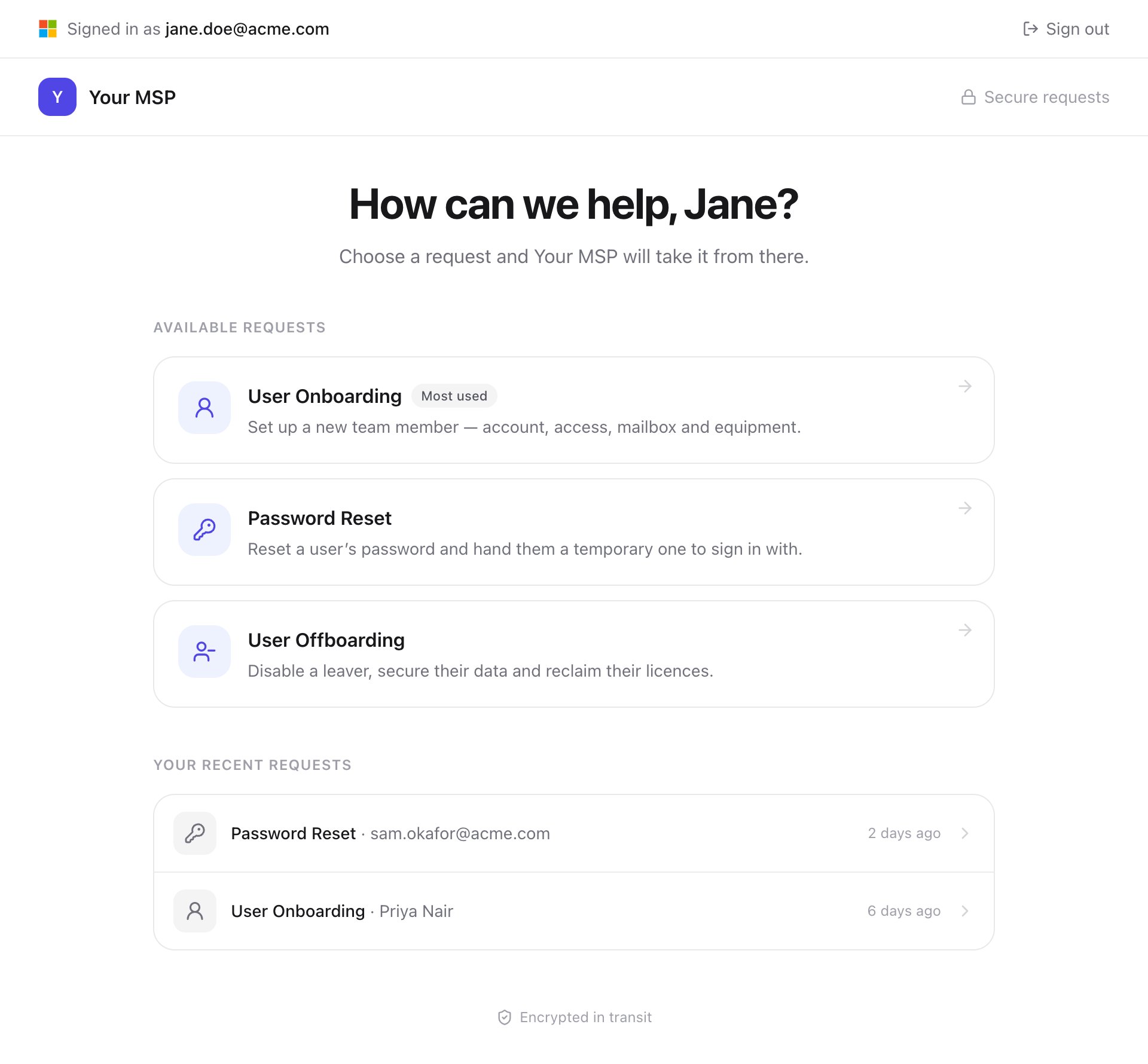
3
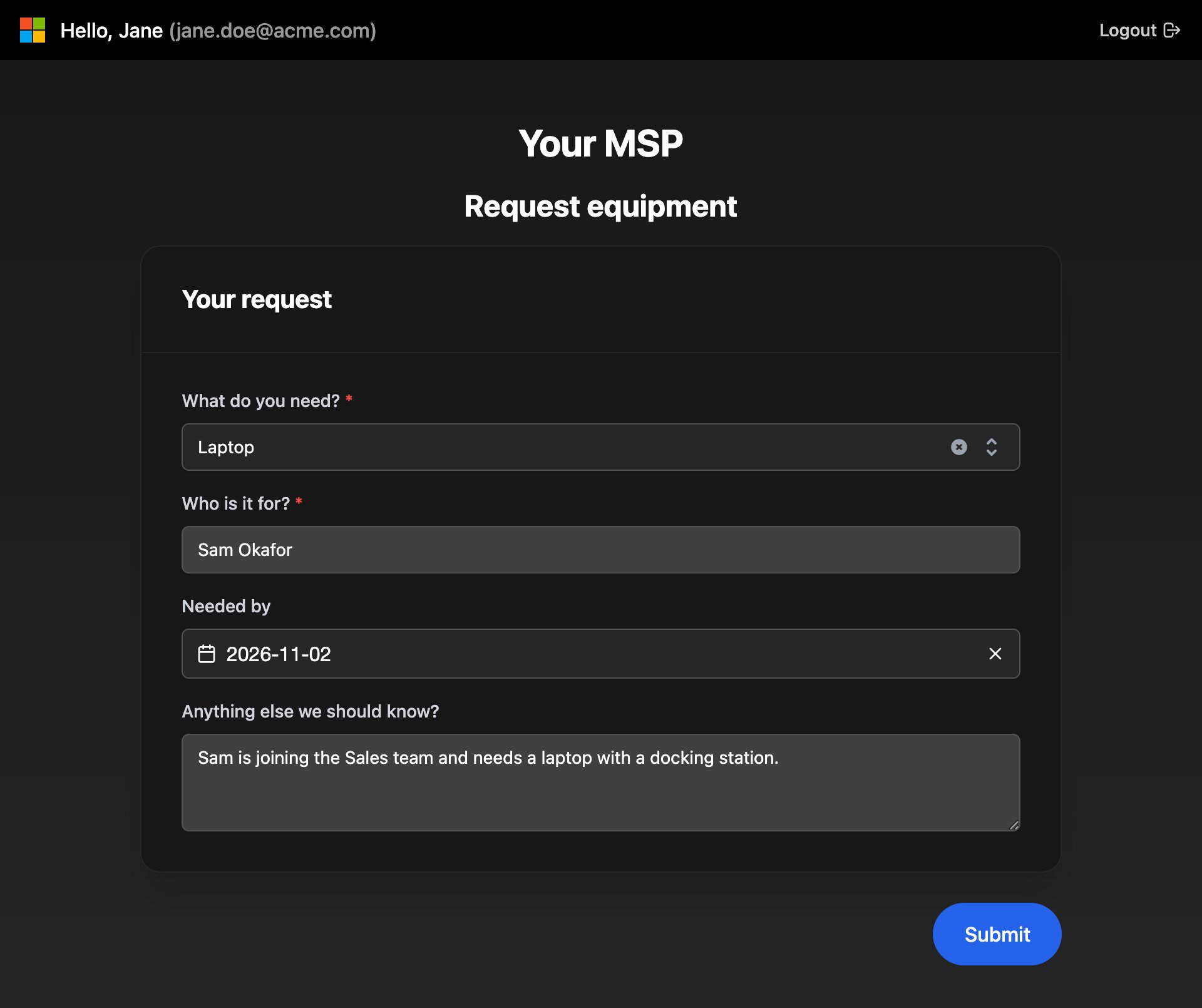
Fill in the form
Answer each question. Anything marked Optional can be left blank.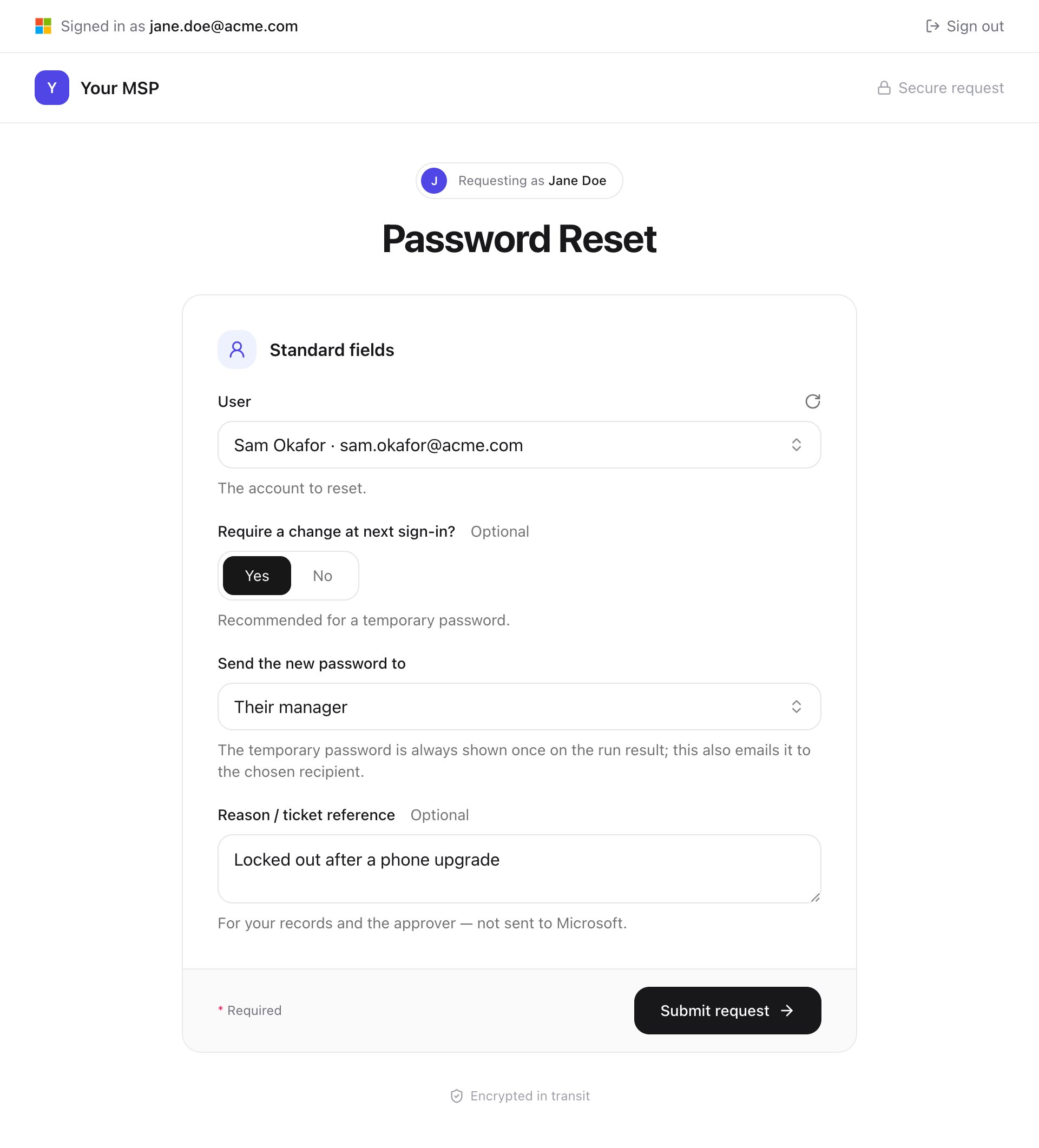
4
Send it
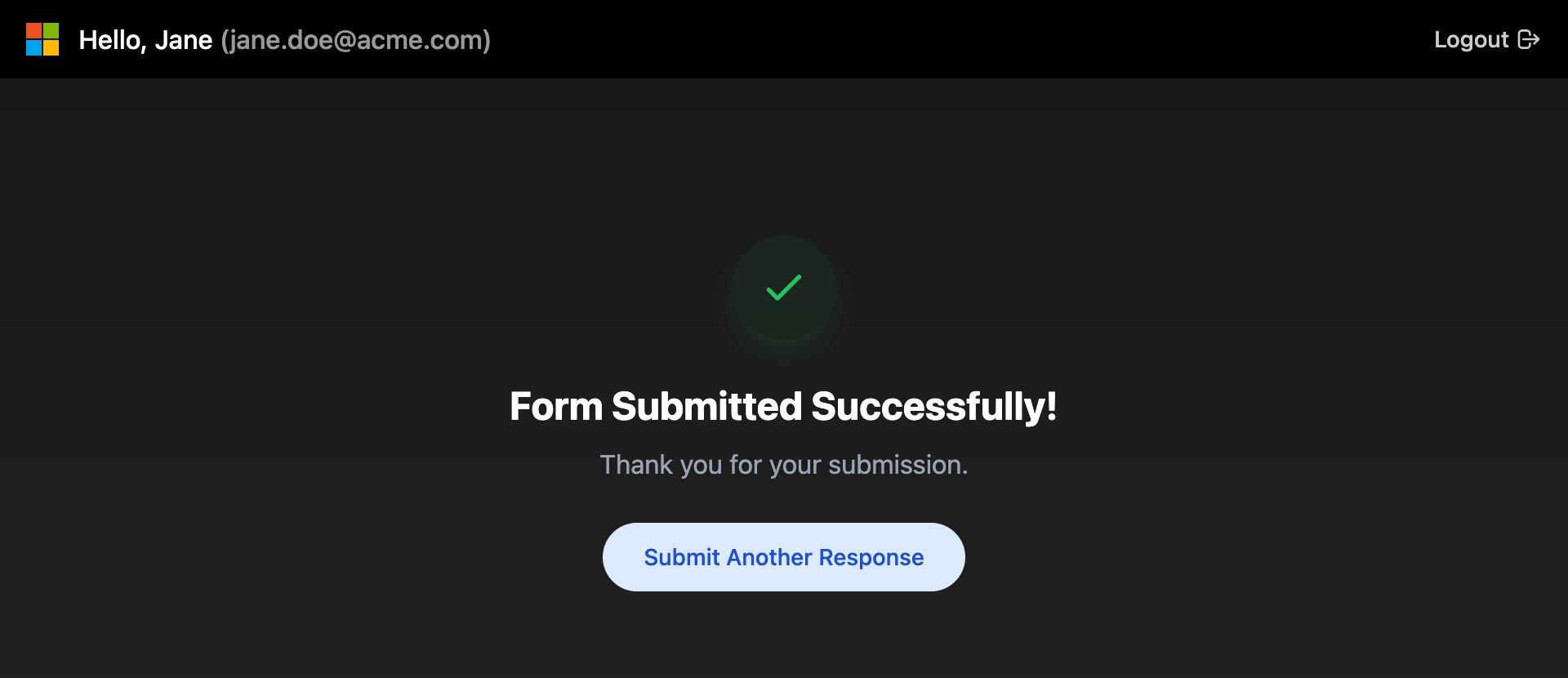
Click Submit request. Request received shows your reference, such as 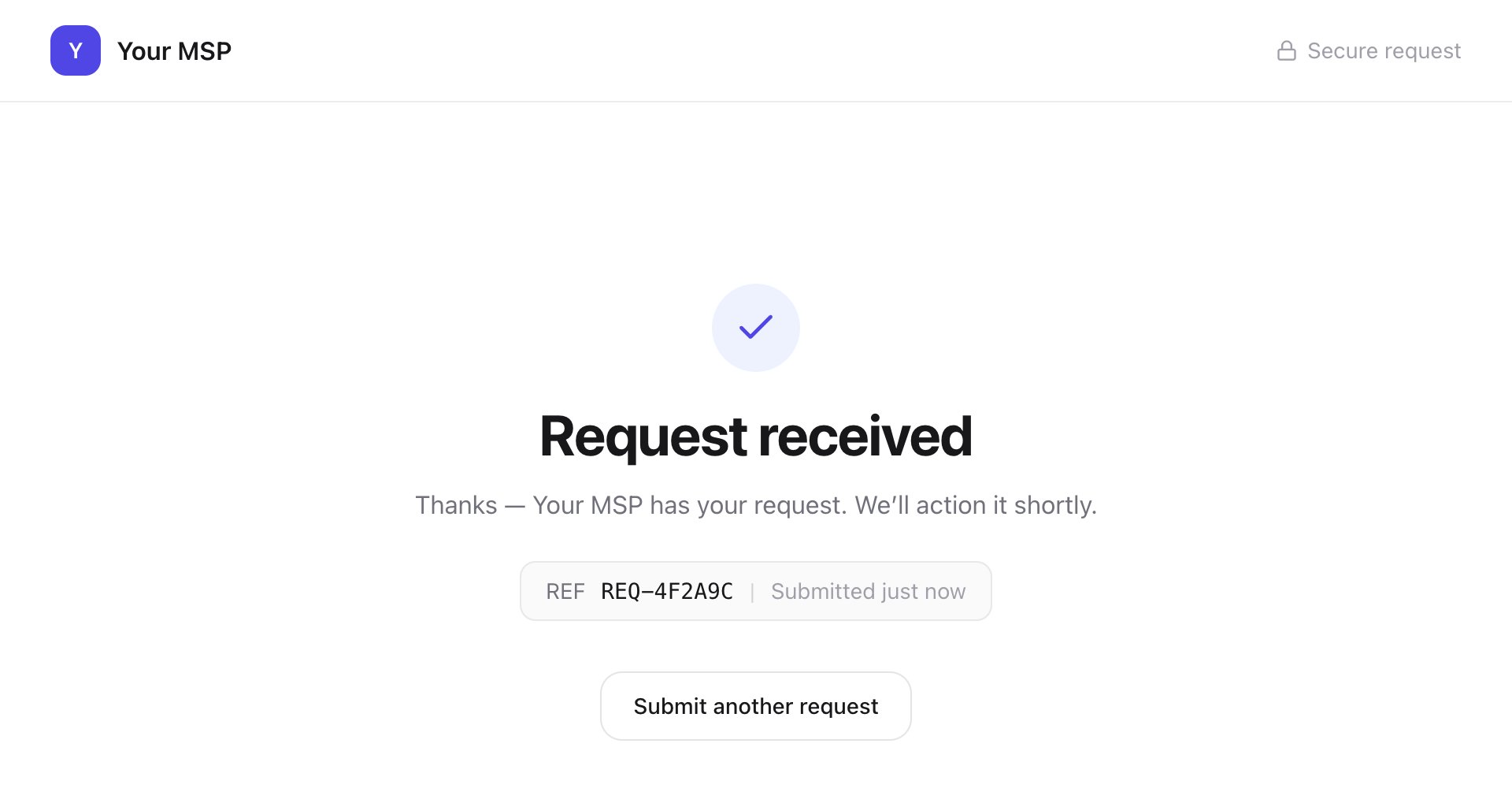
REQ-4F2A9C. Keep it in case you need to ask about the request.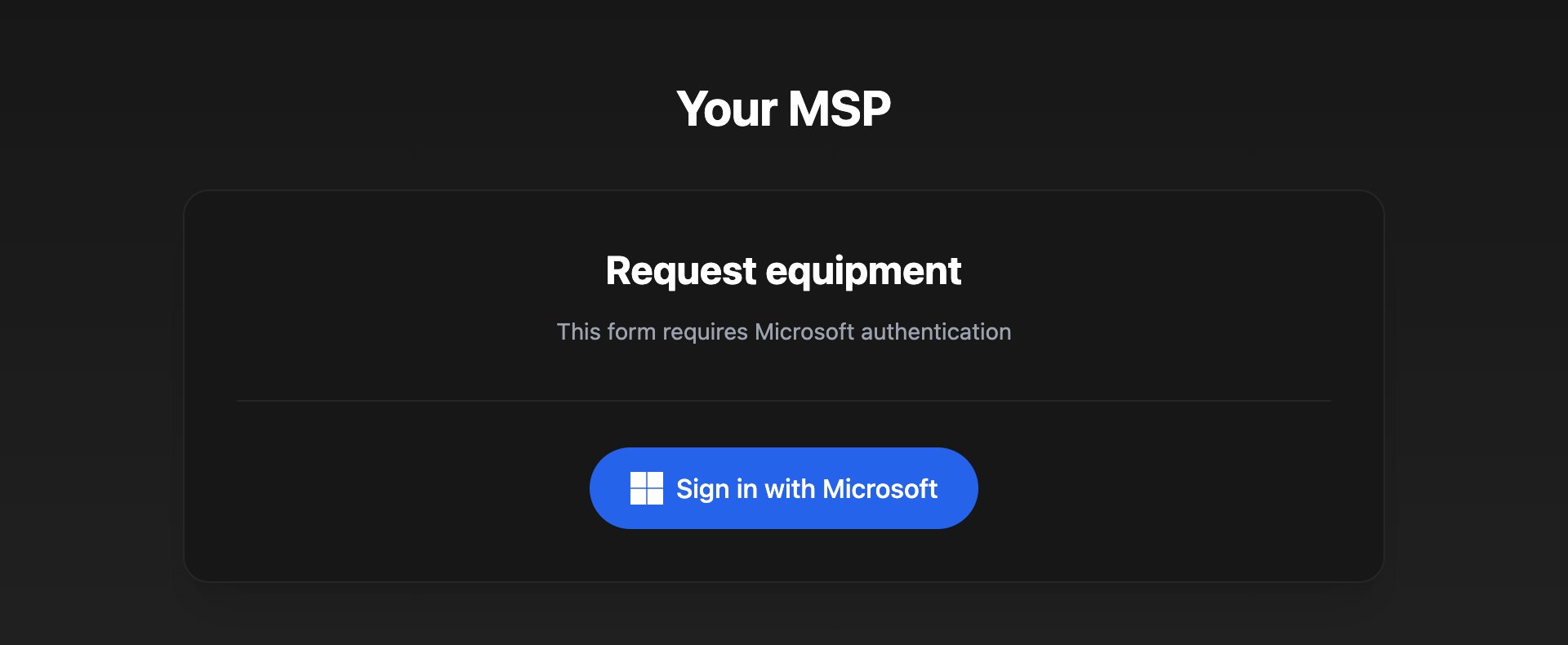
Troubleshooting
I signed in with the wrong account
I signed in with the wrong account
Click Sign out (or Logout) at the top of the page and sign in again with your work account.
“too many submissions — please try again shortly”
“too many submissions — please try again shortly”
Lots of the same request came from your organisation in a short time. Wait a few minutes and try again.
“Please fill all required fields.”
“Please fill all required fields.”
A question marked * is empty. Answer it and click Submit again.
“No requests available yet” or “No forms available”
“No requests available yet” or “No forms available”
Your IT provider hasn’t given you any requests yet. Ask them which link to use.
I made a mistake in my request
I made a mistake in my request
Contact your IT provider with the request’s name and, if you have one, its reference.