

Turn on the digest
1
Set the contacts and schedule
Go to Settings > Alerts and turn on Email a GDAP health digest. Add Contacts (press Enter after each; they don’t need a Core account) and choose when to send it.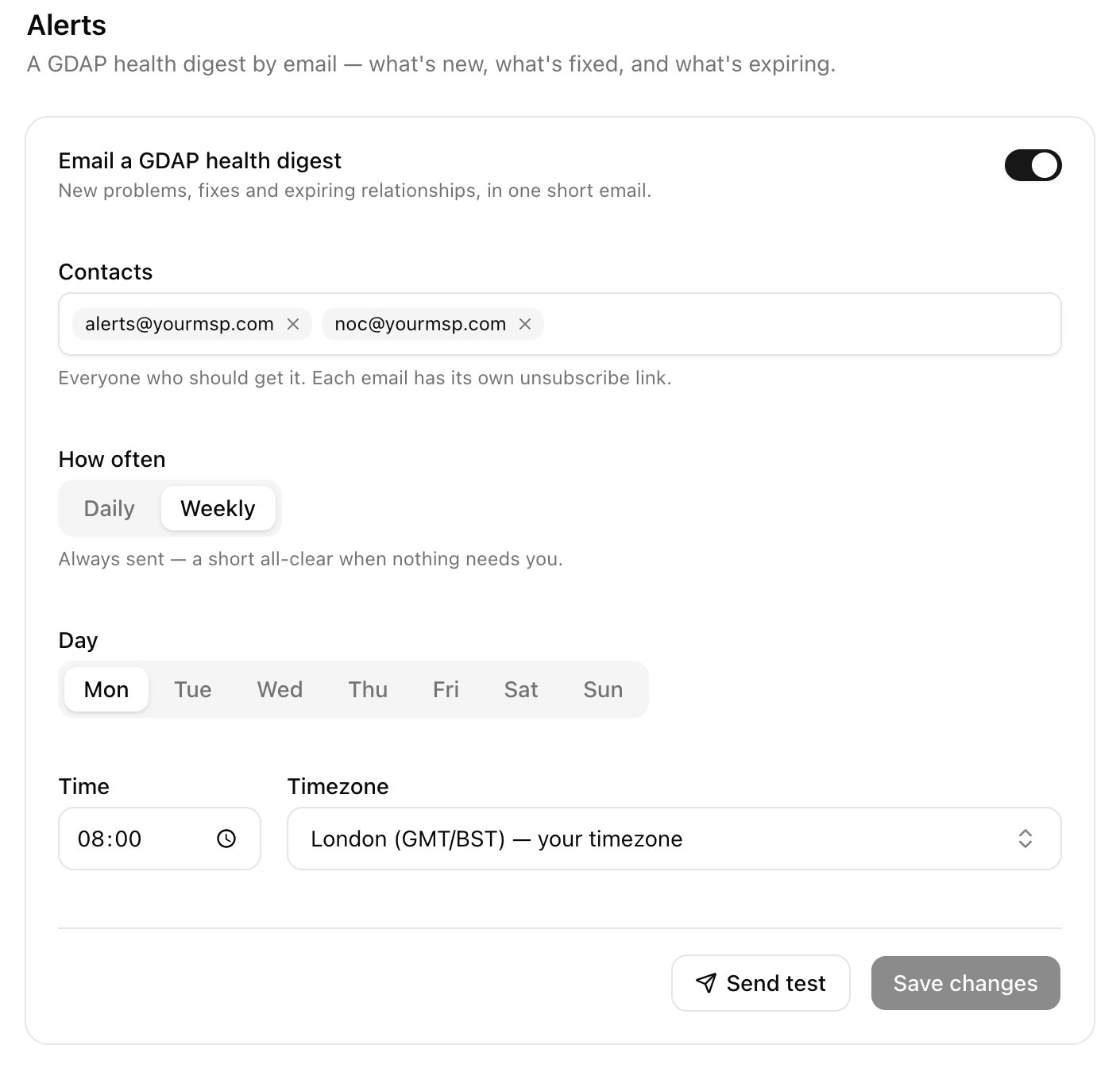
2
Save and test
Click Save changes, then Send test to email one now.
app@triggr-app.com within 15 minutes of the time you set and lists new, fixed and ongoing problems, plus relationships expiring within 30 days. Each contact has their own Unsubscribe link; when the last contact unsubscribes, the digest turns off.
Check Microsoft access for every client
On Clients, click Connection Audit, then Run all. Click a cross to see the error.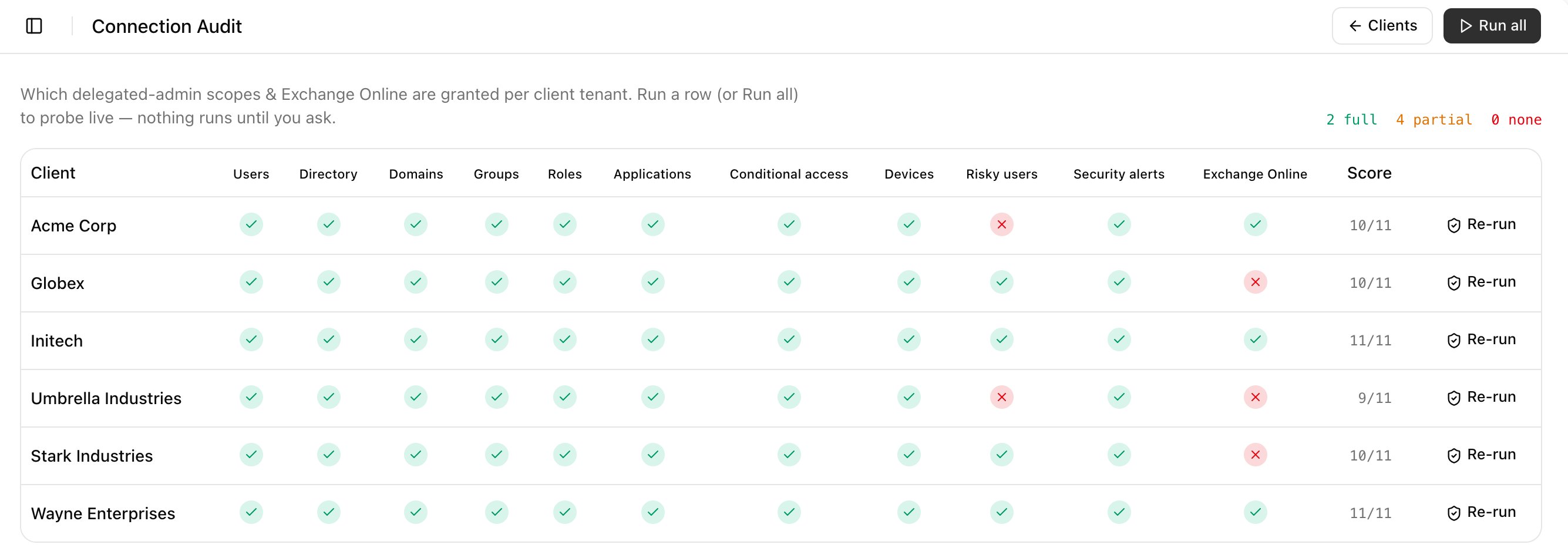
Troubleshooting
Last send failed
Last send failed
The message names the address or error. Correct the contact and click Save changes; Core retries hourly for up to 24 hours.
“Not sent: the default Microsoft connection isn't GDAP”
“Not sent: the default Microsoft connection isn't GDAP”
The digest only covers GDAP clients. Check Default Microsoft connection in Settings > General.
The digest has a Microsoft sign-in section
The digest has a Microsoft sign-in section
Triggr’s own sign-in needs renewing: sign in again as the service account.
A cross on Connection Audit, but GDAP health says Healthy
A cross on Connection Audit, but GDAP health says Healthy
Connection Audit also tests reads Core’s workflows don’t use, such as Devices and Risky users. See the Microsoft and GDAP FAQ.